Sava lalana
Welcome to the user manual for your Rapoo EV310M Wireless Vertical Mouse. This ergonomic mouse is designed for comfort and efficiency, featuring multi-mode wireless connectivity and adjustable DPI settings. Please read this manual carefully to ensure proper setup and optimal performance.
Fonosana fonosana
- Rapoo EV310M Wireless Vertical Mouse
- USB Receiver (voatahiry ao anaty totozy)
- AA Battery (pre-installed or included)
- Torolàlana fanombohana haingana (ity antontan-taratasy ity)
Vita ny vokatraview
Familiarize yourself with the components of your Rapoo EV310M mouse.
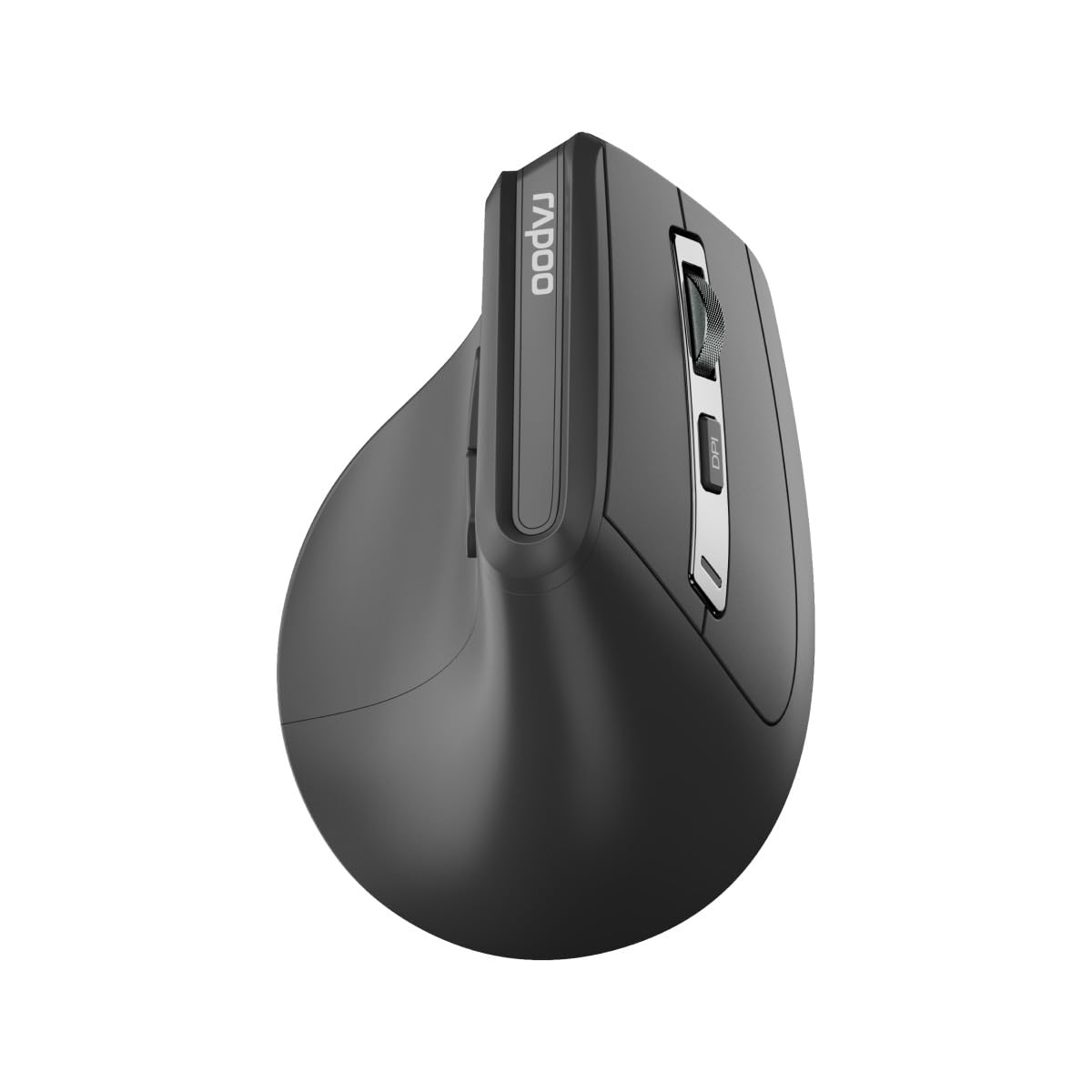
Sary: Top view of the Rapoo EV310M Wireless Vertical Mouse, highlighting the scroll wheel and DPI button.
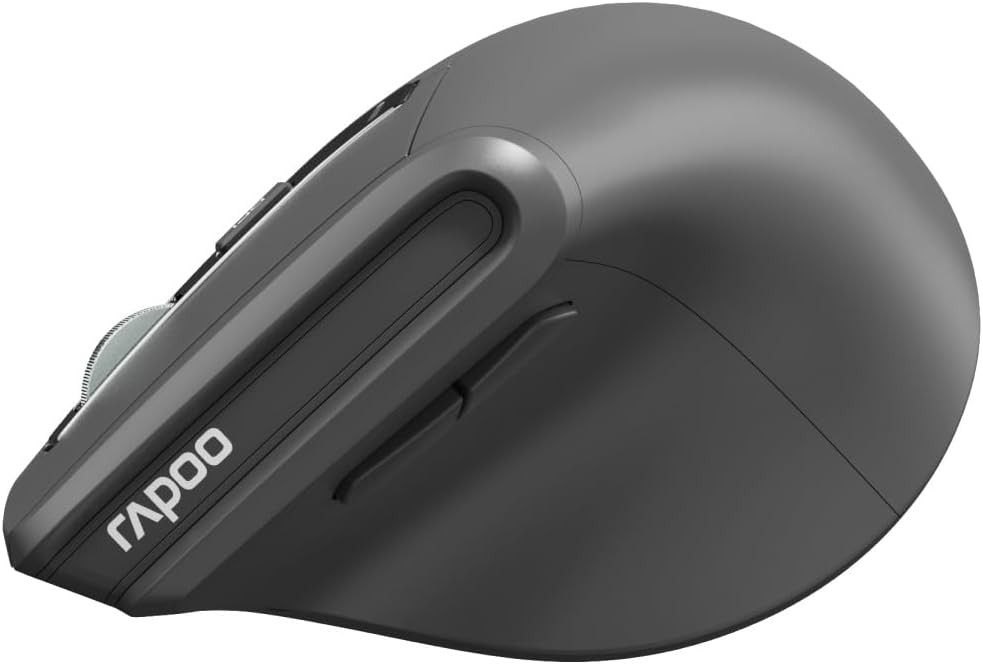
Sary: Side view of the Rapoo EV310M Wireless Vertical Mouse, showing the forward and backward navigation buttons.
Button Functions
- Bokotra Tsindrio havia: Fiasa tsindrio havia mahazatra.
- bokotra havanana: Asa tsindrio havanana mahazatra.
- Kodiaran'ny horonam-boky: Mikorisa miakatra/midina, tsindrio eo afovoany.
- bokotra DPI: Manitsy ny fahatsapan'ny cursor (DPI).
- Bokotra mandroso: Mandrosoa mankany amin'ny web navigateur na file mpikaroka.
- bokotra miverina: Mandeha mihemotra amin'ny web navigateur na file mpikaroka.
- Mode Switch Button/Indicator: Switches between 2.4GHz and Bluetooth modes.
Hametraka
1. Fametrahana bateria
- Tadiavo ny toerana misy ny bateria eo amin'ny ilany ambany amin'ny totozy.
- Sokafy ny fonon'ny batterie.
- Ampidiro bateria AA iray, ary ataovy izay hahazoana antoka fa marina ny polarity (+/-).
- Akatona ny fonon'ny efitrefitra bateria.
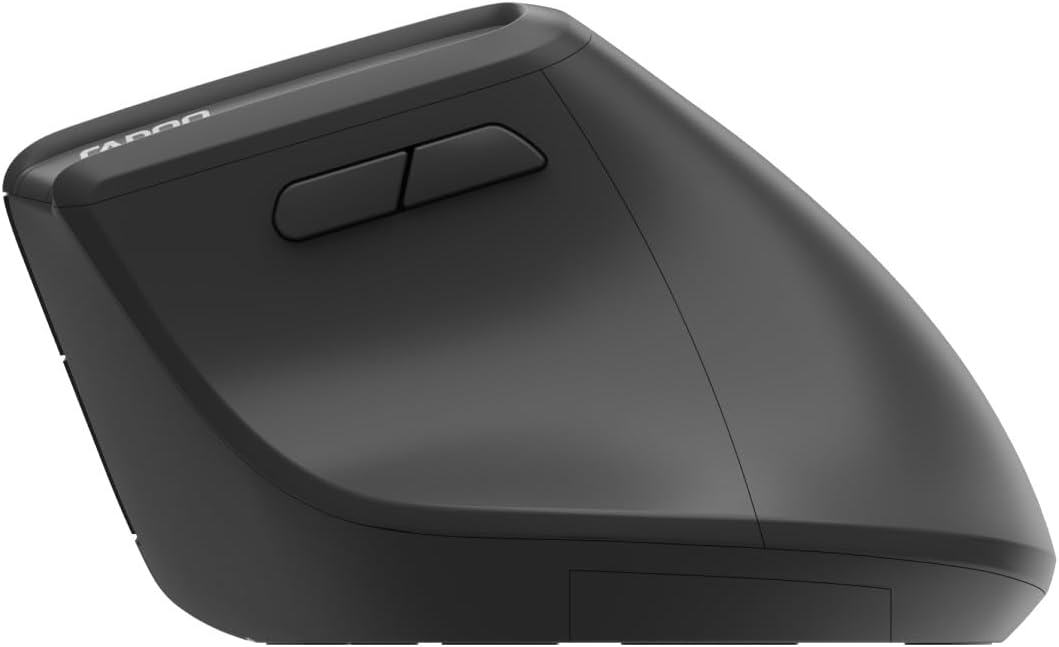
Image: Underside of the mouse, illustrating the battery compartment and the storage slot for the USB receiver.
2. Mampifandray ny totozy
The Rapoo EV310M supports multi-mode wireless connection: 2.4 GHz via USB receiver and Bluetooth 3.0/5.0.
2.1. Fifandraisana tsy misy tariby 2.4 GHz
- Esory amin'ny toerana fitahirizana eo amin'ny farany ambanin'ny totozy ny mpandray USB.
- Ampidiro amin'ny seranana USB misy eo amin'ny solosainao ny mpandray USB.
- Turn on the mouse using the power switch (usually on the bottom).
- The mouse should connect automatically. If not, press the mode switch button until the 2.4GHz indicator lights up.
2.2. Fifandraisana Bluetooth
- Alefaso ny totozy.
- Press the mode switch button to select a Bluetooth channel (e.g., Bluetooth 1 or Bluetooth 2). The indicator light for the selected Bluetooth channel will start blinking slowly.
- Press and hold the mode switch button for 3 seconds until the indicator light blinks rapidly. This indicates the mouse is in pairing mode.
- Sokafy ny fikirana Bluetooth ao amin'ny solosainao na ny fitaovanao ary tadiavo ireo fitaovana vaovao.
- Select "RAPOO EV310M" from the list of available devices to pair.
- Rehefa mifandray dia hijanona tsy hirehitra mandritra ny segondra vitsy ny jiro famantarana ary hijanona ho mamiratra alohan'ny hamonoana azy.
Torolàlana miasa
1. Fanitsiana DPI
The DPI (Dots Per Inch) button allows you to adjust the cursor speed and sensitivity.
- Tsindrio ny bokotra DPI located on the top of the mouse to cycle through available DPI settings (e.g., 800, 1200, 1600, 2400 DPI).
- Each press will change the sensitivity, allowing you to find your preferred cursor speed.
2. Fifandimbiasan'ny fitaovana mifandray
The EV310M mouse can be paired with up to three devices (one 2.4GHz and two Bluetooth devices).
- To switch between connected devices, simply press the bokotra switch mode on the mouse.
- The indicator light will briefly show which channel (2.4G, BT1, BT2) is active.
fikarakarana
FANADIOVANA
To clean your mouse, use a soft, dry cloth. For stubborn dirt, slightly dampSasao amin'ny rano na ranoka fanadiovana malefaka ny lamba. Fadio ny mampiasa akora simika mahery vaika na fitaovana marokoroko.
Fanoloana bateria
When the mouse performance degrades or the indicator light signals low battery, replace the AA battery following the installation steps in the Setup section.
Fanamboarana
Tsy mamaly ny totozy
- Jereo ny bateria: Hamarino tsara fa napetraka tsara ny bateria ary ampy tsara ny heriny. Soloy raha ilaina.
- Hery Switch: Hamarino tsara fa mandeha ny totozy.
- USB Receiver: For 2.4GHz mode, ensure the USB receiver is securely plugged into a working USB port. Try a different port.
- Fifandraisana momba ny Bluetooth: For Bluetooth mode, ensure Bluetooth is enabled on your device and the mouse is correctly paired. Re-pair if needed.
- Distance: Ensure the mouse is within the effective operating range of your computer (typically 10 meters).
Tsy mitombina ny hetsika Cursor
- Surface: Ampiasao amin'ny toerana madio sy tsy misy taratra ny totozy. Soso-kevitra ny hampiasana "mouse pad".
- Fametrahana DPI: Adjust the DPI setting to a lower value if the cursor is too fast or jumpy.
- Fahadiovana sensor: Check the optical sensor on the bottom of the mouse for any obstructions or dirt. Clean gently with a soft cloth.
fepetra arahana
| endri-javatra | antsipirihany |
|---|---|
| Marika | RAPOO |
| Laharana modely | EV310M |
| Teknolojia fifandraisana | Bluetooth (3.0, 5.0), 2.4 GHz Wireless |
| DPI Sensitivity | Azo amboarina 800-2400 DPI |
| Isan'ny bokotra | 6 |
| Orientation tanana | marina-polo |
| Loharanon-kery | Mampiasa bateria (1x AA) |
| Fiainana bateria | Hatramin'ny 9 volana |
| Fifanarahana amin'ny rafitra fandidiana | PC, Linux, Mac |
| Lanja entana | 100 grama |
| loko | Mainty |
Warranty sy fanohanana
For warranty information or technical support, please refer to the official RAPOO webtoerana na mifandraisa amin'ny mpivarotra eo an-toerana. Tazomy ny rosia fividiananao ho an'ny fangatahana fiantohana.