1. Fampidirana
This manual provides detailed instructions for the setup, operation, maintenance, and troubleshooting of your Tabwee T90 Android 16 Tablet. Please read this manual thoroughly before using your device to ensure proper functionality and to maximize your user experience.

Image: The Tabwee T90 tablet shown with its full suite of accessories, including a detachable keyboard, wireless mouse, stylus, protective case, charging adapter, and USB cable. This illustrates the complete package contents.
2. Ny votoatin'ny fonosana
Hamarino fa misy ny entana rehetra ao anaty fonosana:
- Tabwee T90 Tablet
- Kitendry Bluetooth
- Wireless Mouse
- Stylus Pen
- Raharaha fiarovana
- Sarimihetsika miaro ny écran
- Power Adapter (Type-C)
- Tariby angona USB (Karazana-C)
- User Manual

Image: A visual representation of the Tabwee T90 tablet's dimensions and all components included in the retail package, such as the tablet, keyboard, mouse, stylus, and various cables and covers.
3. Fametrahana voalohany
3.1 Fametrahana ny takelaka
Before first use, fully charge the tablet using the provided Type-C power adapter and USB cable. The charging port is located on the side of the tablet.

Image: The Tabwee T90 tablet being charged via its Type-C port, highlighting its 8000mAh battery and estimated usage times for various activities like web browsing, video playback, gaming, and music.
3.2 Mamelona/Mamono
- Hamelona: Tsindrio ary hazòny ny bokotra Hery mandra-pahazava ny efijery.
- Mamono: Press and hold the Power button, then select "Power Off" from the options.
3.3 Configuration voalohany
Follow the on-screen prompts to complete the initial setup, including:
- Fifidianana fiteny
- Fifandraisana tambajotra Wi-Fi
- Fidirana amin'ny kaonty Google
- Fikirana daty sy ora
- Security settings (PIN, pattern, password, or face recognition)

Image: A collage of screenshots demonstrating key Android 16 features such as real-time notifications, robust security measures, access to the Google Play Store for app downloads, and options for regional language optimization.
3.4 Fitaovana fampifandraisana
The Tabwee T90 comes with a Bluetooth keyboard and mouse. To connect them:
- Enable Bluetooth on your tablet via Settings > Connected devices > Bluetooth.
- Put the keyboard/mouse into pairing mode (refer to their individual manuals if needed).
- Select the accessory from the list of available devices on your tablet to pair.
The stylus pen does not require pairing.
4. Fampandehanana ny takelakao
4.1 Android 16 Interface
The Tabwee T90 runs on Android 16, offering an intuitive and enhanced user experience with improved security and performance. Features include real-time notifications, efficient multitasking, and smart operational capabilities.
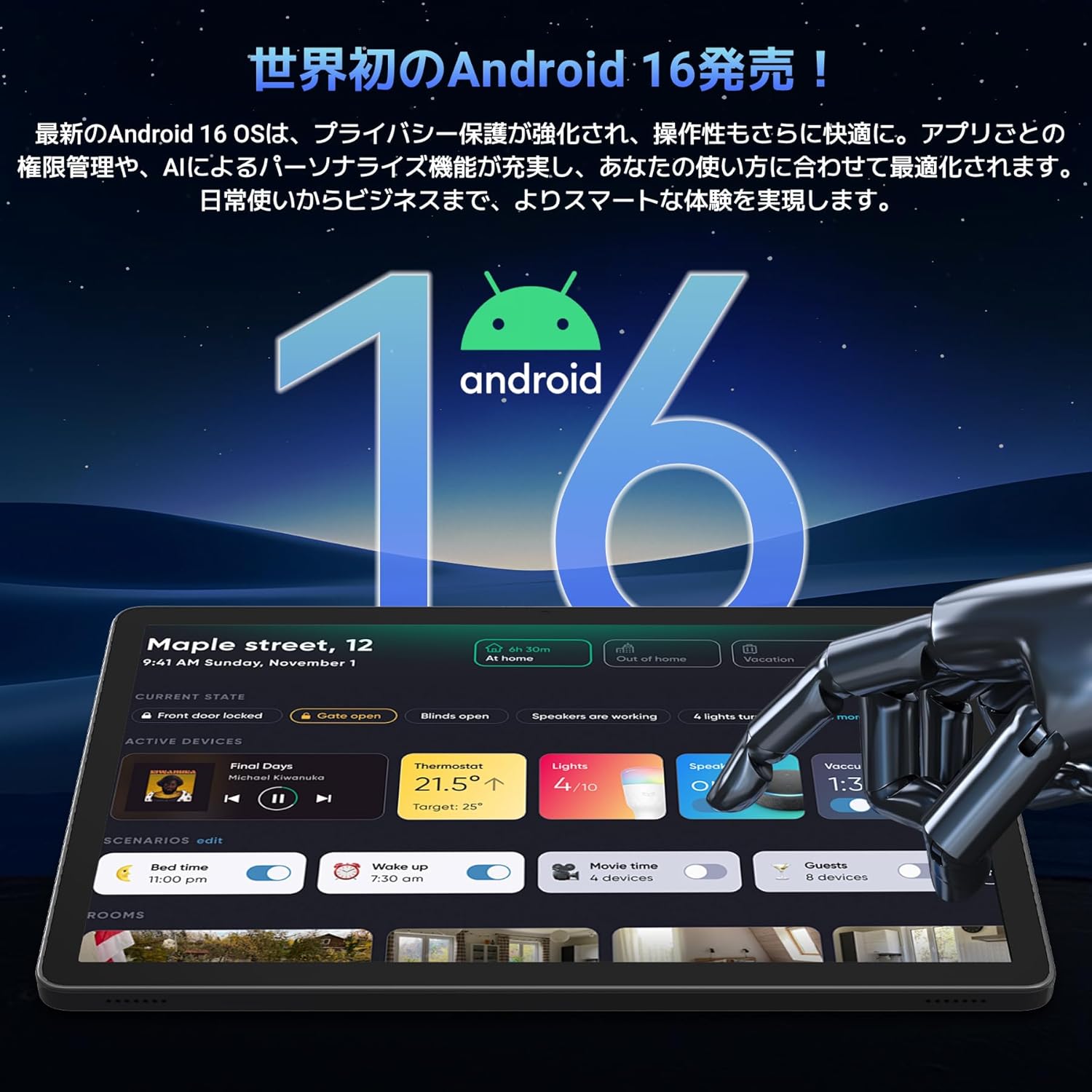
Image: A visual representation of the Android 16 operating system logo and its modern interface displayed on the Tabwee T90 tablet, emphasizing its new features and design.
4.2 Display and Media Playback
The 11-inch FHD IPS display (1920x1200 resolution) provides clear and vibrant visuals. With Widevine L1 support, you can stream high-definition content (1080p and above) from services like Netflix and Amazon Prime Video.

Image: The Tabwee T90 tablet showcasing a high-definition video of a baseball game, demonstrating its 11-inch FHD display and compatibility with streaming platforms like Netflix, YouTube, HBO, and Prime Video via Widevine L1.
4.3 Camera and Imaging
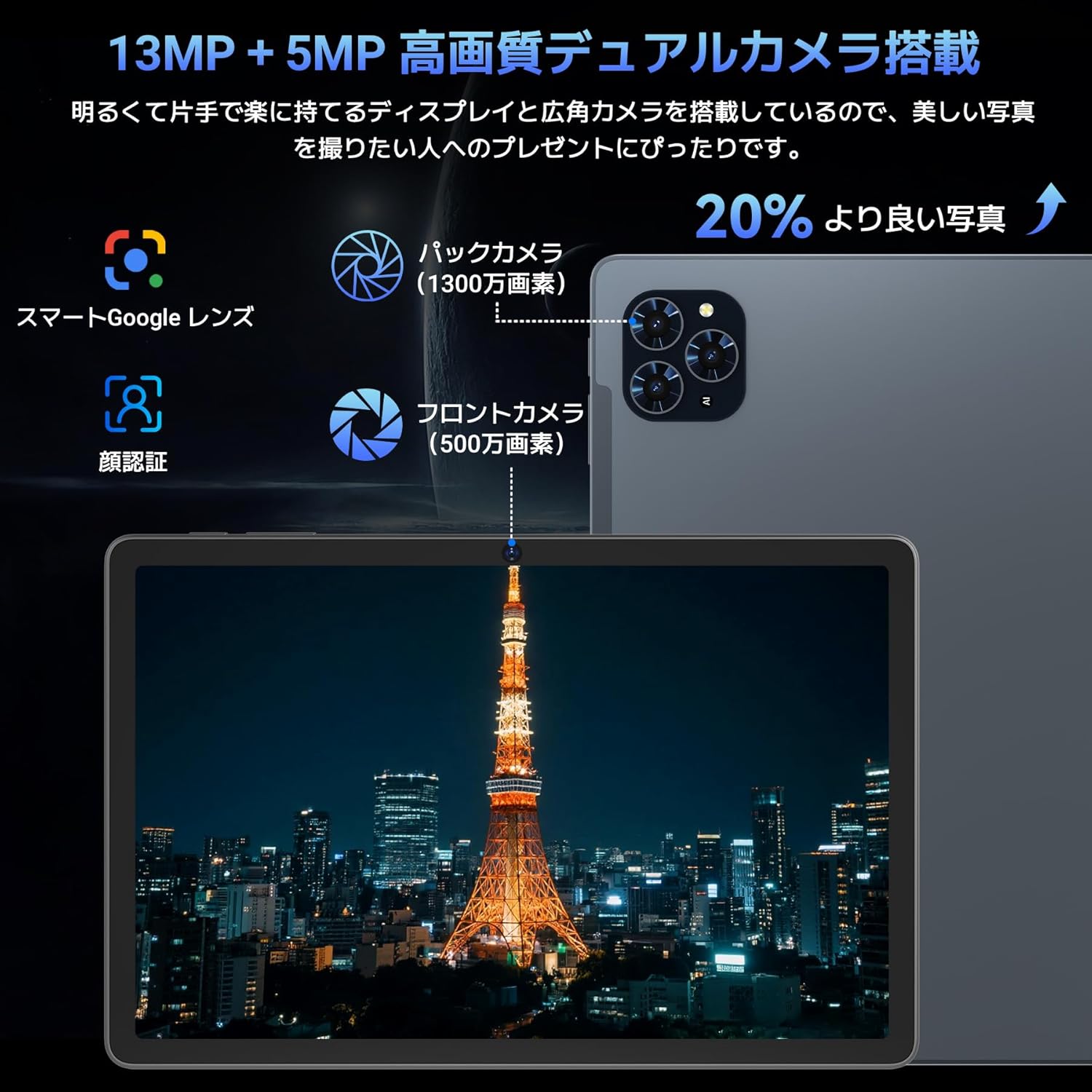
The tablet features a 5MP front camera for video calls and selfies, and a 13MP rear camera for capturing photos. Android 16's AI image processing enhances photo quality, and HEVC video encoding ensures stable editing and improved video quality. Google Lens integration allows for smart recognition, scanning, translation, and search functions.
Sary: A antsipirihany view of the Tabwee T90 tablet's camera system, indicating a 13MP rear camera and a 5MP front camera. An example photo of Tokyo Tower is displayed on the screen, illustrating image capture capabilities.
4.4 Famantarana tarehy
Utilize the face recognition feature for quick and secure unlocking of your tablet. Set it up in Settings > Security & privacy > Face unlock.
4.5 Gemini AI Integration
The tablet integrates with Gemini AI, optimizing performance across various scenarios. This AI assists with content recommendations, image processing, and semantic understanding, enhancing daily operations.

Image: A conceptual image depicting Gemini AI as a robotic figure interacting with multiple tablet screens, symbolizing its ability to support various tasks like email composition, schedule management, and information retrieval, enhancing user productivity.
4.6 Custom Keyboard Shortcuts
After connecting a Bluetooth keyboard, you can set custom shortcut keys to launch frequently used applications with a single press. Navigate to Settings > System > Keyboard > Keyboard shortcuts to configure.
5. Fikojakojana
5.1 Fanadiovana
- Mampiasà lamba malefaka sady tsy misy loko mba hanadiovana ny efijery sy ny vatan'ilay takelaka.
- Fadio ny mampiasa akora simika mahery vaika na akora abrasive.
- Ho an'ny setroka mafy loha, kely dampen ilay lamba misy rano na mpanadio ecran natao ho an'ny fitaovana elektronika.
5.2 Fikarakarana bateria
- Aza avela ho tratran'ny mari-pana tafahoatra ny takelaka.
- Aza avela hivoaka tanteraka matetika ny bateria.
- Mampiasà afa-tsy ny charger nomena na ny charger azo antoka.
5.3 Fanavaozana rindrambaiko
Hamarino sy apetraho tsy tapaka ny fanavaozam-baovaon'ny rafitra mba hahazoana antoka fa mahomby sy azo antoka. Mandehana any amin'ny Settings> System> System update.
6. Famahana olana
6.1 Tablet tsy mandeha
- Ataovy azo antoka fa ampy ny fiampangana ny tablette. Ampifandraiso amin'ny charger mandritra ny 30 minitra farafahakeliny.
- Tsindrio ary hazòny ny bokotra Hery mandritra ny 10-15 segondra mba hamerenana an-tery.
6.2 Olana amin'ny fifandraisana Wi-Fi
- Avereno indray ny router Wi-Fi sy ny takelaka.
- Adino ny tambajotra amin'ny firafitry ny takelaka ary avereno mifandray.
- Ataovy azo antoka fa ao anatin'ny elanelan'ny famantarana Wi-Fi ianao.
6.3 Accessories Not Connecting
- Ensure Bluetooth is enabled on the tablet.
- Check that the accessory is in pairing mode and has sufficient battery.
- Try restarting both the tablet and the accessory.
6.4 Fampisehoana miadana
- Akatona ny fampiharana lafika tsy ilaina.
- Fafao ny cache ho an'ny fampiharana ampiasaina matetika (Fikirana > Fampiharana > [Anaran'ny Fampiharana] > Fitehirizana & cache > Fafao ny cache).
- Ataovy azo antoka fa ampy ny toerana fitahirizana.
- Avereno ampiasaina indray ny takelaka tsy tapaka.
7. Famaritana
| endri-javatra | antsipirihany |
|---|---|
| Marika | TABWEE |
| Anarana modely | T90 |
| Rafitra fikirakirana | Android 16 |
| Unité centrale | Unisoc T615 Octa-core (2x Cortex-A75 @ 2.0GHz, 6x Cortex-A55 @ 1.8GHz) |
| GPU | Mali-G57 |
| ram | 8GB (azo itarina hatramin'ny 24GB miaraka amin'ny RAM virtoaly) |
| Fitehirizana anatiny | 128GB |
| Fitehirizana azo itarina | Hatramin'ny 2TB amin'ny alàlan'ny karatra microSD (tsy tafiditra) |
| Haben'ny efijery | 11 santimetatra |
| Karazana fampisehoana | IPS FHD |
| vahaolana | 1920 x 1200 teboka |
| Camera Front | 5MP |
| Fakan-tsary aoriana | 13MP |
| Fahaizana bateria | 8000mAh |
| Charging Port | Type-C |
| fifandraisana | Wi-Fi (2.4G/5G, 802.11ac), Bluetooth 5.0 |
| lanja | 1.37 kg (3.02 lbs eo ho eo) |
| lafiny | 29.1 x 20 x 5.7 sm (fonosana) |
| Certifications | PSE, GITEKI, GMS |

Image: A detailed diagram illustrating the Unisoc T615 Octa-core CPU, highlighting its architecture with Cortex-A75 and Cortex-A55 cores, Mali-G52 MP1 GPU, and 12nm low power consumption, indicating its high performance.

Image: The Tabwee T90 tablet's screen showing multiple applications, emphasizing its 128GB internal storage and support for up to 2TB external storage, with examples of how many photos, songs, and videos can be stored.
8. Warranty sy fanohanana
The Tabwee T90 Tablet comes with a Warranty 2 taona. This warranty covers manufacturing defects and ensures product quality.
8.1 Fifandraisana amin'ny fanohanana
If you encounter any issues or have questions, please contact customer support through your Amazon account:
- Go to your Amazon account > Order History > Select the relevant order.
- Click on the seller's name (TABWEE Official Store).
- Use the "Ask a question" option to send an email.
Support is available from 9:00 AM to 6:00 PM (excluding holidays). Inquiries will be responded to as quickly as possible.

Image: An illustration representing customer support, featuring a person wearing a headset and working on a laptop, symbolizing assistance for product inquiries and warranty claims.


