1. Fampidirana
The Innex DS200 is a professional USB book scanner designed for efficient digitization of various documents, including books, magazines, and loose papers. It features a 26MP camera, A3 scanning capability, and advanced software functions to enhance scanning quality and workflow. This manual provides detailed instructions for setting up, operating, and maintaining your DS200 scanner.

Figure 1.1: Innex DS200 Scanner in operation with an open book.
2. Ny votoatin'ny fonosana
Hamarino fa ny entana rehetra voatanisa etsy ambany dia tafiditra ao anatin'ny fonosanao. Raha misy zavatra tsy hita na simba dia mifandraisa amin'ny fanohanana ny mpanjifa.
- Innex DS200 Scanner Unit
- Scan Pad
- USB Cable
- Power Adapter (karazana A)
- Power Plugs (Type C, Type G)
- Bokotra tanana
- Pedal tongotra
- Adapter (USB-C to USB-A)
- Torolalana fanombohana haingana
- Karatra serivisy
- Fanambarana GPSR
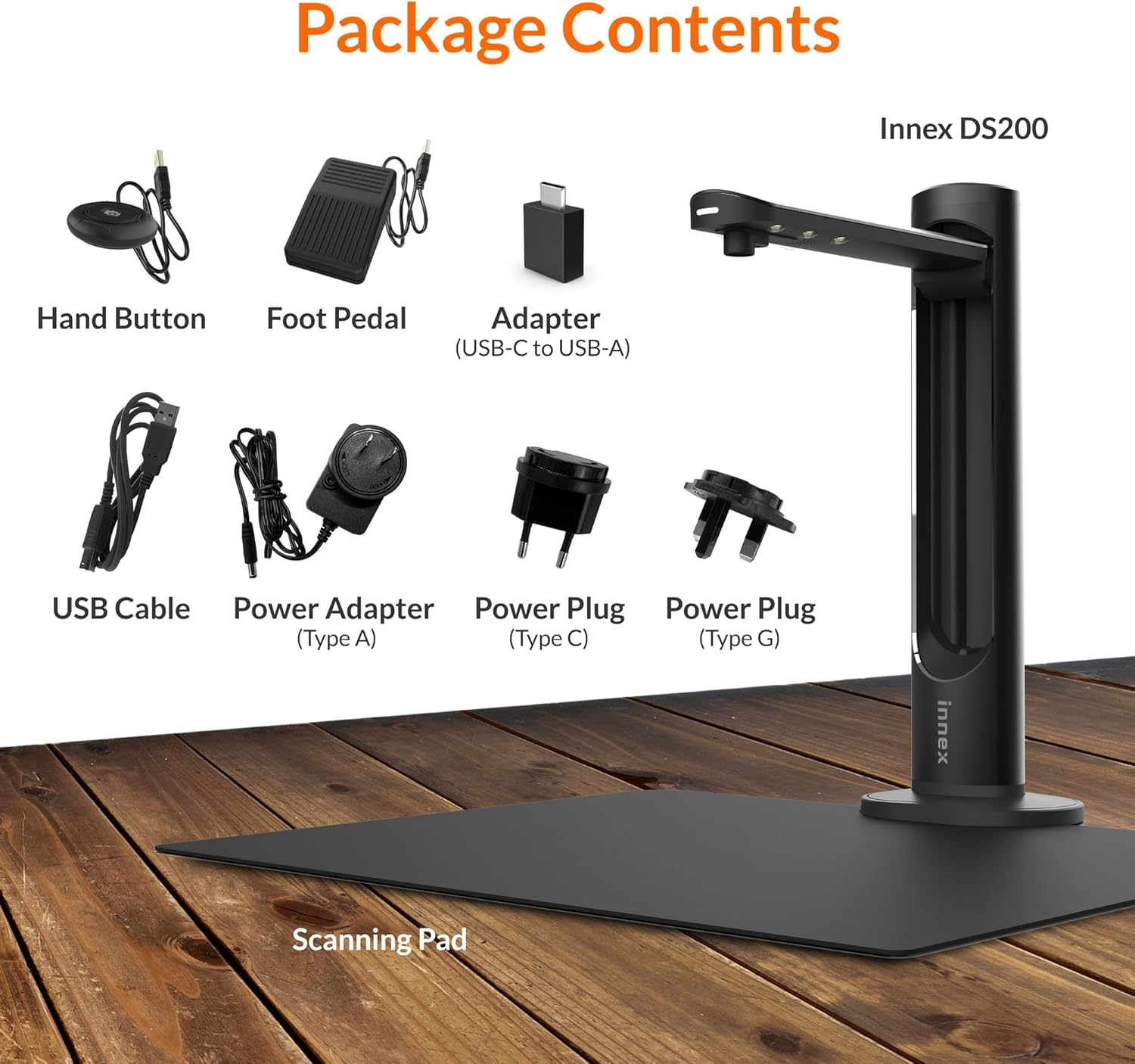
Figure 2.1: Contents of the Innex DS200 package.
3. Fametrahana
- Esory ny singa: Esory tsara ny entana rehetra ao anaty fonosana.
- Apetraho ny Scanner: Place the Innex DS200 scanner unit on a stable, flat surface.
- Place the Scanning Pad: Position the black scanning pad directly beneath the scanner head. Ensure it is centered and flat.
- Hery mampifandray: Connect the power adapter to the scanner and plug it into an electrical outlet. Use the appropriate power plug for your region.
- Mifandray amin'ny solosaina: Connect the scanner to your computer using the provided USB cable. If your computer only has USB-C ports, use the included USB-C to USB-A adapter.
- Mametraka rindrambaiko: Download and install the Innex Scan software from the official Innex website. Follow the on-screen instructions for installation. The software is compatible with Windows and macOS.
- Connect Accessories: Plug in the hand button and foot pedal to the designated ports on the scanner unit.
4. Torolàlana miasa
4.1. Basic Scanning Procedure
- Launch Innex Scan Software: Open the Innex Scan application on your computer.
- Antontan-taratasy momba ny toerana: Place the document or book you wish to scan on the scanning pad. Ensure it is within the scanning area. The laser guide can assist with alignment.
- Ahitsio In the software, select your desired scanning mode (e.g., Document, Book, Photo) and adjust settings such as color mode, resolution, and output format.
- Atombohy ny Scan: Trigger the scan using one of the available methods: the software capture button, the hand button, or the foot pedal.
- Review ary Tehirizo: Aorian'ny scan, avereno indrayview the image in the software. Apply any necessary corrections and save the file to your preferred location and format.

Figure 4.1: Using the laser guide for document alignment.

Figure 4.2: Multiple options for triggering a scan.
4.2. Software Features
The Innex Scan software includes several features to optimize your scanning experience:
- Curve Flattening: Automatically corrects the curvature of book pages for flat, readable scans.
- OCR (famantarana ny endri-tsoratra optika): Converts scanned images into editable and searchable text in over 120 languages.
- Auto-Cropping: Automatically detects and crops the document edges.
- Page-Turn Detection: For book scanning, the software can detect when a page has been turned and automatically initiate the next scan.
- Fanesorana rantsantanana: Intelligently removes images of fingers holding down pages during scanning.
- Multi Scan Mode: Allows scanning multiple small items simultaneously, such as business cards or photos, and separates them into individual files.
- Visualizer Mode: Enables the scanner to function as a document camera for presentations or live demonstrations.
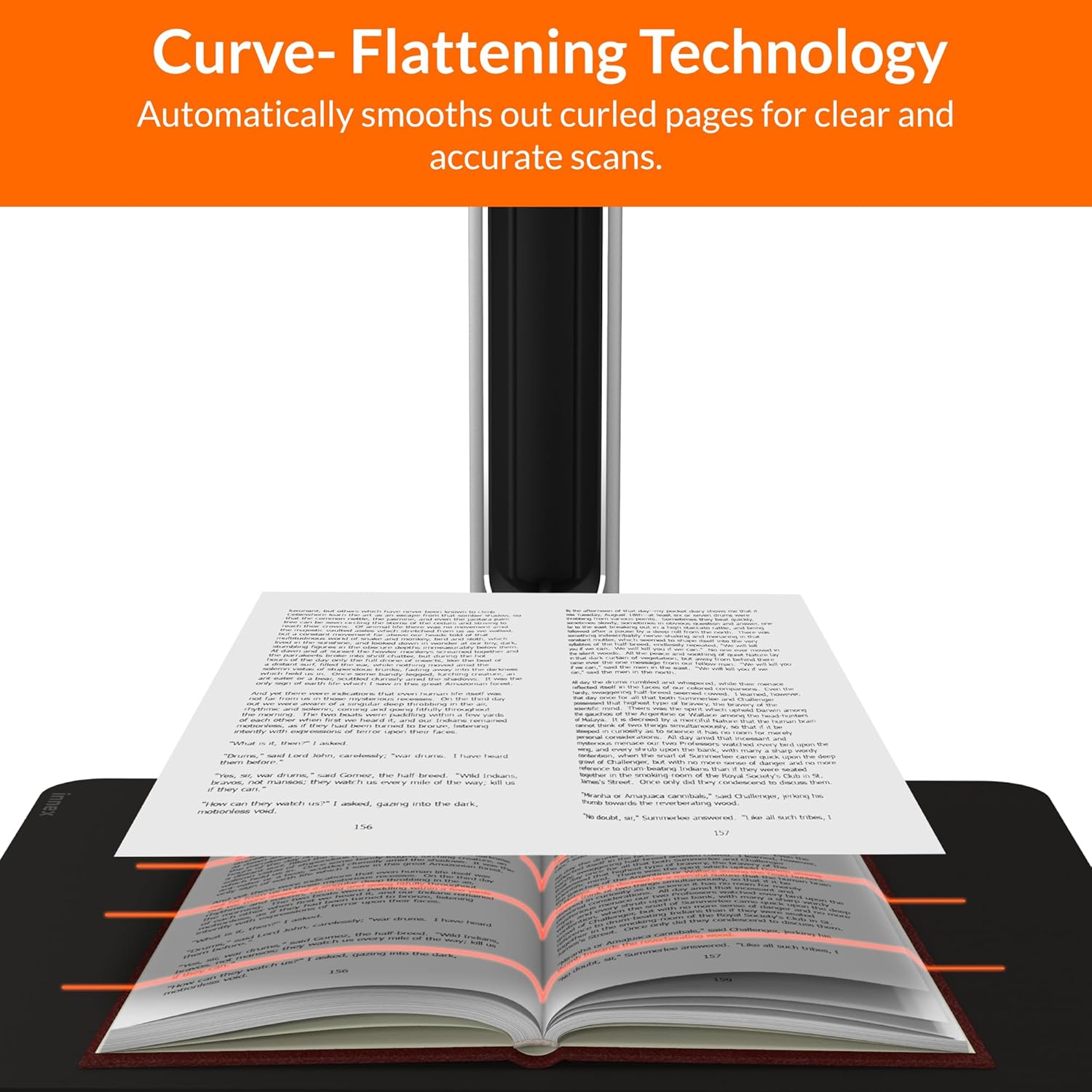
Figure 4.3: Curve Flattening Technology in use.

Figure 4.4: OCR Text Recognition and export options.

Sary 4.5: Tapitraview of Innex Scan software features.
4.3. Export Options
The Innex DS200 supports various export formats for both image and text files:
- SARY Files: JPEG, PNG, BMP, TIFF
- tahirin-kevitra Files: PDF (searchable), DOC, EXCEL, TEXT
- E-boky Files: EPUB
- teny Files (Text-to-Speech): MP3, WAV
- Video Files (Visualizer Mode): MP4, AVI, FLV, WMV

Figure 4.6: Available export formats in Innex Scan software.
5. Fikojakojana
- Fanadiovana: Regularly wipe the scanner lens and LED lamp with a soft, dry, lint-free cloth to ensure optimal scan quality. Clean the scanning pad with a damp lamba raha ilaina.
- Fanavaozana rindrambaiko: Periodically check the official Innex webtranonkala ho an'ny fanavaozana rindrambaiko mba hahazoana antoka fa manana ireo endri-javatra sy fanatsarana ny fampisehoana farany indrindra ianao.
- fitahirizana: Rehefa tsy ampiasaina dia tehirizo ao amin'ny toerana madio sy maina ny scanner, lavitry ny tara-masoandro mivantana sy ny mari-pana tafahoatra.
6. Famahana olana
6.1. Olana sy Vahaolana iraisana
| Olana | Antony mety hitranga | vahaolana |
|---|---|---|
| Tsy hita ny scanner | Loose USB connection, driver issue, power issue | Ensure USB cable is securely connected. Check power connection. Reinstall scanner drivers or software. Try a different USB port. |
| Poor scan quality | Dirty lens, insufficient lighting, incorrect settings, document not flat | Clean the scanner lens. Ensure adequate ambient lighting or use the built-in LED lamp. Adjust resolution and color settings in software. Ensure documents are flat on the scanning pad. |
| Software crashes or freezes | Outdated software, system incompatibility, insufficient system resources | Update Innex Scan software to the latest version. Ensure your computer meets minimum system requirements. Close other demanding applications. Restart the software and computer. |
| OCR not working correctly | Poor scan quality, incorrect language setting, complex font | Improve scan quality. Verify the correct OCR language is selected in the software. For highly stylized or handwritten text, OCR accuracy may vary. |
7. Famaritana
Detailed technical specifications for the Innex DS200 scanner:

Figure 7.1: Innex DS200 Technical Specifications.
- Modely: DS200
- Saripika sary: CMOS Sensor
- Max. fanapahan-kevitra: 5800 x 4522 Pixel (26MP)
- Output DPI: Approx. 300 dpi (A3)
- Max. Faritra fitifirana: A3 (16.77" x 12.59" / 426 x 320mm)
- Halalin'ny loko: 24-bit
- Lens Focus: raikitra
- Hafainganam-pitarafana: 1.5 sec per A3 page
- Fikarohana scanning: Bokotra tanana, pedal tongotra, bokotra rindrankajy, Auto-Scan
- endrika Output: Picture (JPG, TIFF, BMP, PNG), Document (PDF, Image, PDF Searchable), Text (DOC, EXCEL, TEXT), E-book (EPUB), Audio (MP3, WAV), Video (AVI, MPEG, FLV, WMV)
- Laser Projection: Naorina-in
- Loharano hazavana: Naorina-in Avo-famirapiratana LED
- Interface: USB 2.0 Type B x 1 (for PC Connection), USB 2.0 Type-A x 1 (for USB Extension)
- Hery: 5V/2A
- Fepetra rafitra farany ambany indrindra: Windows 10, 11, macOS 11 or later; Intel i5 Processor or higher; 8GB RAM (Recommended 16GB or more); 20GB Available HDD Space; USB 2.0 Port
- Ny haben'ny vokatra (foritra): 4.33"D x 5.91"W x 15.75"H (110 x 150 x 400mm)
- Product Dimensions (In Use): 12.05"D x 5.91"W x 15.75"H (307 x 150 x 400mm)
- Lanja afa-karatsaka: Approx. 2.64 lbs (1.2 kg)
8. Warranty sy fanohanana
For warranty information and technical support, please refer to the service card included in your package or visit the official Innex website. You can also contact FunTech Innovation, the manufacturer, for assistance.
Mpanamboatra: FunTech Innovation
Webtranokala: Innex Official Store on Amazon


