1. Fampidirana
This manual provides detailed instructions for the setup, operation, and maintenance of your Phomemo M834 Bluetooth Thermal Printer. The M834 is a portable, inkless thermal printer designed for high-clarity document printing, offering 300 dpi resolution and versatile paper compatibility. It supports both Bluetooth and USB connections for various devices.

Image 1.1: The Phomemo M834 thermal printer in use, connected to a smartphone, printing documents.
2. Ny votoatin'ny fonosana
Hamarino azafady fa ao anatin'ny fonosanao ny entana rehetra:
- Phomemo M834 Thermal Printer
- USB Charging Cable
- 200 Sheets of Folded Thermal Printer Paper (8.5" x 11")
- User Manual (ity antontan-taratasy ity)
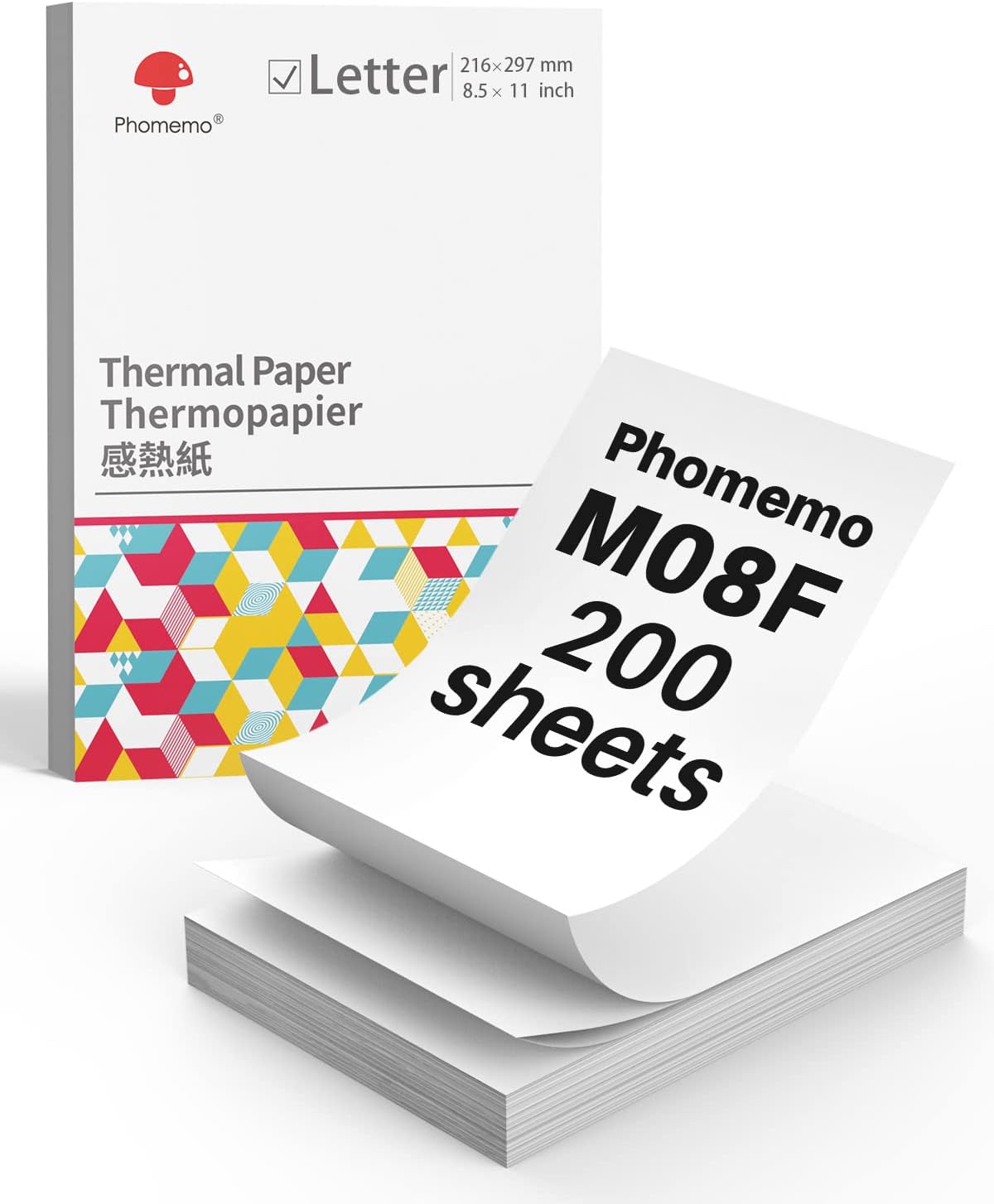
Image 2.1: A box containing 200 sheets of Phomemo M08F Letter-sized thermal paper.
3. Fametrahana voalohany
3.1 Famandrihana ny mpanonta printy
Before first use, fully charge the printer. Connect the provided USB cable to the printer's charging port and a power adapter (not included) or a computer's USB port. The indicator light will show charging status.
3.2 Installing the Phomemo App
For mobile printing, download the 'Phomemo' app from your device's app store (available for iOS and Android). Follow the in-app instructions for initial setup and pairing.
3.3 Fametrahana Taratasy Mafana
The Phomemo M834 supports various thermal paper types, including folded sheets. Ensure the paper is inserted correctly for optimal printing.
- Open the paper cover of the printer.
- Insert the thermal paper with the printable side facing up. For folded paper, ensure it feeds smoothly from the stack.
- Adjust the paper guides to fit the width of the paper.
- Akatona tsara ny fonon-taratasy.

Image 3.1: Illustration of Phomemo continuous folding paper, showing 8.5" x 11" dimensions.

Image 3.2: A hand demonstrating how to easily tear thermal paper along its perforated edge after printing.
4. Fampiasana ny mpanonta printy
4.1 Connecting via Bluetooth (Mobile Devices)
The M834 printer connects wirelessly to smartphones and tablets via Bluetooth.
- Ensure the printer is powered on and within range of your mobile device.
- Alefaso ny Bluetooth amin'ny findainao.
- Open the Phomemo app. The app will guide you to discover and pair with the M834 printer.
- Once paired, you can select documents or images within the app to print.
4.2 Connecting via USB (Computers)
For Windows, macOS, Linux, and ChromeOS computers, connect the printer using the provided USB cable.
- Connect one end of the USB cable to the printer and the other end to your computer.
- The computer should automatically detect the printer. If necessary, install the appropriate printer drivers from the Phomemo official website.
- Once installed, the M834 will appear as an available printer in your system's print dialogue.

Image 4.1: Visual representation of the two connection methods: Bluetooth for mobile devices (Android, iOS, Tablets) and USB for computers (Windows, Mac OS, Chrome OS, Linux).
4.3 Fanontana antontan-taratasy
After connecting, select the document or image you wish to print from your device. Adjust print settings such as paper size (US Letter, A4, 4.33'', 3.14'', 2.08'') and orientation as needed before initiating the print job.

Image 4.2: A side-by-side comparison highlighting the enhanced clarity of 300dpi printing (Phomemo M834) compared to 203dpi.
5. Fikojakojana
5.1 Fanadiovana ny lohan'ny pirinty
To maintain print quality, periodically clean the print head. Use a cotton swab lightly dampAfangaro amin'ny alikaola isopropyl. Fafao moramora ny lohan'ny pirinty. Avela ho maina tanteraka alohan'ny hampiasana azy.
5.2 Fikarakarana ankapobeny
- Keep the printer in a clean, dry environment.
- Avoid exposing the printer to direct sunlight or extreme temperatures.
- Use only Phomemo-approved thermal paper for optimal results and to prevent damage.
- Do not attempt to disassemble the printer.

Image 5.1: Information highlighting the use of BPA-Free thermal paper, emphasizing its inkless and harmless properties.
6. Famahana olana
6.1 No Print Output
- Jereo ny hery: Ensure the printer is powered on and has sufficient battery charge.
- Fametrahana taratasy: Verify that thermal paper is loaded correctly with the printable side facing up.
- Fifandraisana: Confirm that the printer is properly connected via Bluetooth or USB.
6.2 Ratsy kalitao fanontana
- Loha printy madio: A dirty print head can cause streaks or faded prints. Refer to Section 5.1.
- kalitaon'ny taratasy: Ensure you are using high-quality thermal paper.
- Paper Orientation: Make sure the thermal paper is inserted with the correct side facing the print head.
6.3 Olan'ny fifandraisana Bluetooth
- Avereno indray ny fitaovana: Turn off and on both the printer and your mobile device.
- Adino ny fitaovana: In your device's Bluetooth settings, 'forget' or 'unpair' the M834 and then attempt to pair again through the Phomemo app.
- Fahazoan-dàlana amin'ny fampiharana: Ensure the Phomemo app has necessary Bluetooth permissions.
7. Famaritana
| endri-javatra | famaritana |
|---|---|
| MODELY | Phomemo M834 |
| Print Resolution | 300 dpi |
| Teknolojia fanontana | Thermal (tsy misy ranomainty) |
| fifandraisana | Bluetooth, USB |
| Fahaizana bateria | 2600mAh (up to 160+ pages continuous printing) |
| Haben'ny taratasy tohanana | US Letter, A4, 4.33'', 3.14'', 2.08'' |
| Karazana taratasy tohanana | Roll, Fold, Ordinary Thermal Paper |
| Rafitra fandidiana tohanana | Android, iOS, Windows 10/11, Linux, ChromeOS, macOS |
8. Warranty sy fanohanana
8.1 Fampahalalana momba ny fiantohana
For detailed warranty information, please refer to the warranty card included with your product or visit the official Phomemo website. Ny fepetra sy ny fepetra momba ny fiantohana dia mety miovaova arakaraka ny faritra sy ny datin'ny fividianana.
8.2 Fanohanana ny mpanjifa
If you encounter any issues or have questions not covered in this manual, please contact Phomemo customer support through their official website or the contact information provided in your product packaging. When contacting support, please have your product model (M834) and purchase details ready.


