1. Fampidirana
This manual provides comprehensive instructions for the operation and maintenance of your TATTMUSE Portable Thermal Printer. Designed for convenience and portability, this inkless printer supports various paper sizes and offers seamless connectivity for on-the-go printing.
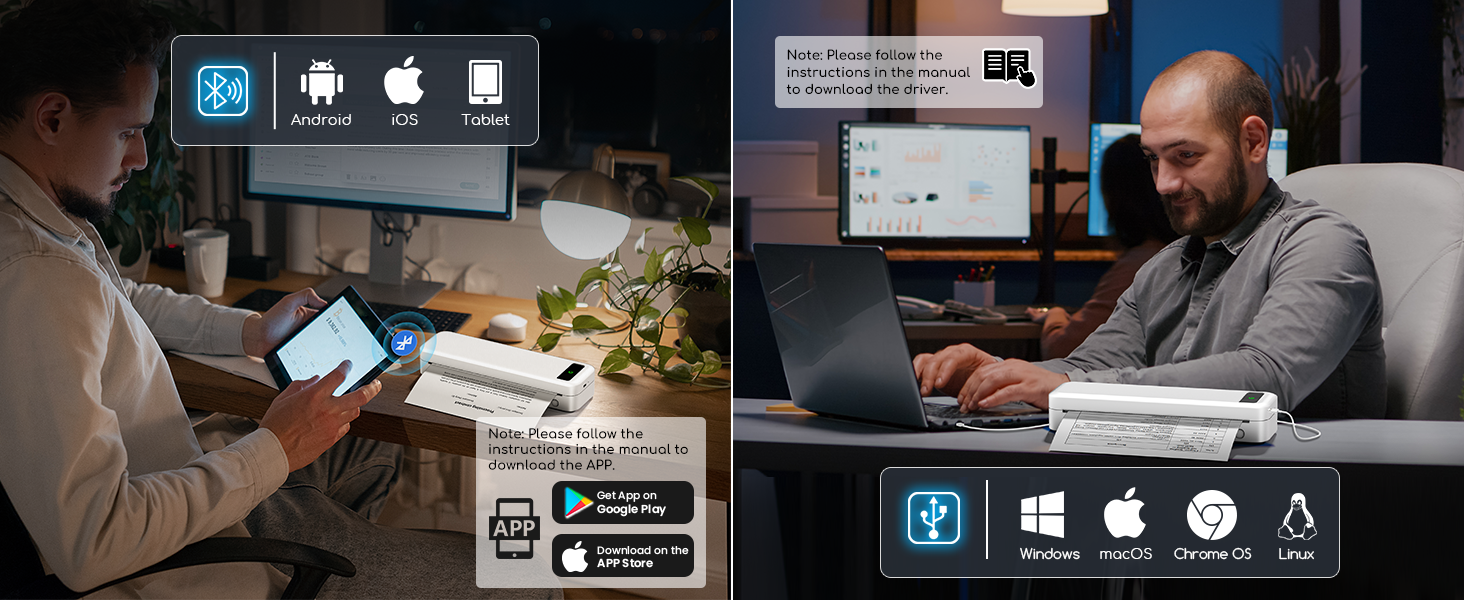
Image: The TATTMUSE Portable Thermal Printer in use, demonstrating its compact size and ability to print various document types from a mobile device.
2. Inona no ao anaty boaty
Upon unboxing your TATTMUSE Portable Thermal Printer, please verify that all the following components are included:
- 1x Portable Printer
- 1x US Letter Size Thermal Roll Paper (pre-installed in the printer paper bin)
- 1x Flannel Storage Bag
- 1x USB-C Cable & 1x USB-A Cable
- 1x User Manual

Image: All items included in the product packaging, laid out for inspection.
3. Torolàlana fananganana
3.1 Fametrahana voalohany
Before first use, fully charge the printer using the provided USB-C cable. The printer features a 2600mAh rechargeable battery, providing extended use.

Image: Visual representation of the printer's battery capacity and efficiency.
3.2 Fametrahana taratasy
The printer supports various thermal paper types and sizes. To load paper:
- Open the printer's top cover to access the paper bin.
- Adjust the paper guides to fit the width of your thermal paper.
- Insert the thermal paper roll or single sheet, ensuring the printable side faces the print head.
- Akatona tsara ny fonony ambony.

Image: Demonstrates loading continuous thermal paper, single sheet thermal paper, and a thermal paper roll into the printer.
This printer supports 8.5'' x 11'' US Letter, A4, 4.33'' (110mm), 3.14'' (80mm), and 2.08'' (53mm) width thermal paper.
Sary: Overview of the five supported print sizes and compatible file endrika.
3.3 App and Driver Installation
To use the printer with your mobile device or computer, you need to install the dedicated app or drivers.
For Mobile Devices (Bluetooth):
- Download the official app from your device's app store (Google Play for Android, App Store for iOS). Refer to the manual for specific app name or QR code.
- Enable Bluetooth on your phone/tablet and open the app.
- Within the app, select the printer icon to connect via Bluetooth.
- Once connected, you can set print properties and initiate printing.

Image: Steps for connecting the printer to a mobile device via Bluetooth using the dedicated app.
For Laptops/Computers (USB):
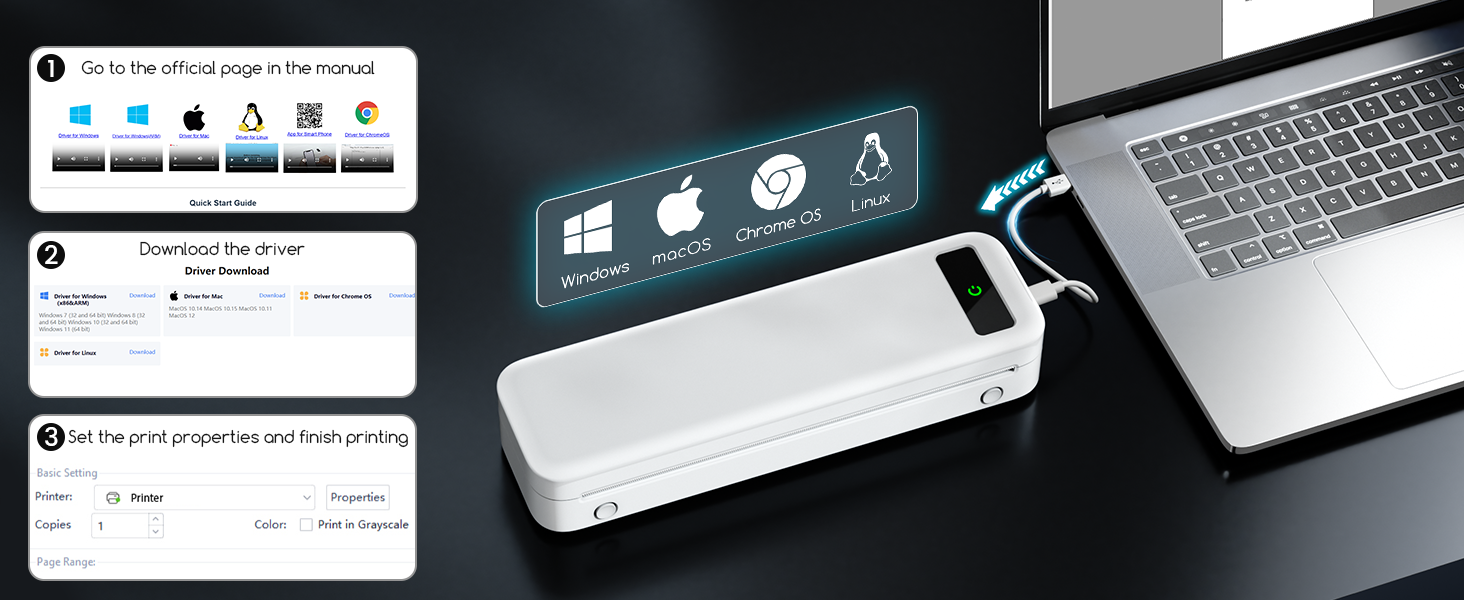
For laptop and computer connections, only USB is supported. You will need to download the appropriate driver.
- Tsidiho ny ofisialy website mentioned in your manual to download the driver for your operating system (Windows, macOS, Chrome OS, Linux).
- Mametraka ny mpamily manaraka ny toromarika eo amin'ny efijery.
- Connect the printer to your computer using the provided USB-C cable.
- You can now select the printer and adjust print settings from your computer's print dialogue.

Image: The printer connected to a laptop via USB, indicating compatibility with various operating systems.
4. Torolàlana miasa
4.1 Fanontana antontan-taratasy
Once connected via Bluetooth (mobile) or USB (computer), you can print various document types. The printer supports common file formats such as Word, TXT, PDF, Excel, and JPG.
- Open the document or image you wish to print.
- Safidio ny safidy pirinty avy amin'ny fampiharanao.
- Choose the TATTMUSE printer from the list of available printers.
- Adjust print settings (e.g., paper size, number of copies) as needed.
- Atombohy ny asa fanontana.

Image: The printer's versatility in handling different paper sizes and document formats for various printing needs.
The printer is designed for high-quality black and white printing with 300 DPI resolution, suitable for text and basic graphics.

Image: A visual comparison highlighting the superior print clarity of 300 DPI offered by this printer.
The printer's compact and portable design makes it ideal for various environments, including business travel, home office, school, and on-site projects.

Sary: Eksamples of the printer's versatile applications across various professional and personal settings.
Video: Demonstrates the compact size and inkless printing capability of the portable thermal printer.
Video: Shows the inkless portable printer in various travel, car, and home use scenarios.
5. Fikojakojana
5.1 Inkless Technology
This printer utilizes advanced thermal technology, eliminating the need for ink, toner, or ribbons. This means no messy refills, clogging issues, or cleaning problems associated with traditional printers. Only thermal paper is required for printing.

Image: Illustrates the benefit of inkless printing, eliminating the need for ink cartridges and toner.
5.2 Fanadiovana ny mpanonta
To ensure optimal print quality and longevity, periodically clean the print head and paper path. Use a soft, lint-free cloth slightly dampened with isopropyl alcohol. Ensure the printer is turned off and disconnected from power before cleaning.
5.3 Fikarakarana bateria
To maximize battery life, avoid fully discharging the battery frequently. Store the printer in a cool, dry place when not in use for extended periods. Charge the printer regularly, even if not in active use, to maintain battery health.
6. Famahana olana
| OLANA | Antony mety hitranga | vahaolana |
|---|---|---|
| Tsy mandeha ny mpanonta | bateria ambany; Tsy voatsindry tsara ny bokotra herinaratra. | Charge the printer fully. Press and hold the power button for a few seconds. |
| Tsy afaka mifandray amin'ny Bluetooth | Bluetooth is off on device; Printer not in pairing mode; App issue. | Ensure Bluetooth is enabled on your device. Restart the printer and app. Follow app's connection steps. |
| Poor print quality (faint/streaky) | Incorrect paper type; Print head dirty; Low battery. | Ensure you are using thermal paper. Clean the print head. Charge the printer. |
| Taratasy mibontsina | Paper not loaded correctly; Foreign object in paper path. | Turn off the printer, open the cover, and carefully remove any jammed paper. Ensure paper is aligned properly. |
| Tsy fantatry ny solosaina ny mpanonta | Driver not installed; Loose USB connection. | Install the correct driver from the official website. Ensure the USB cable is securely connected. |
For further assistance, please refer to the detailed troubleshooting section in the official app or contact customer support.
7. Product Specifications
| endri-javatra | antsipirihany |
|---|---|
| Marika | TATTMUSE |
| Anarana modely | A285M |
| Teknolojia fanontana | mafana |
| Teknolojia fifandraisana | Bluetooth, USB |
| Output mpanonta printy | doko |
| Hafainganam-pandeha ambony indrindra amin'ny fanontana (Monochrome) | 7 ppm |
| Max Input Sheet Capacity | 160 takelaka |
| Haben'ny taratasy tohanana | 8.5'' x 11'' US Letter, A4, 4.33'', 3.14'', 2.08'' Inches |
| Ny refin'ny vokatra | 10.39 x 3.07 x 1.77 santimetatra |
| Lanja entana | 1.5 kg |
| Batterie | 2600mAh rechargeable battery (included) |
| Fitaovana mifanentana | Smartphone, PC, Tablets, Solosaina |
| Fomba fanaraha-maso | App |
8. Warranty sy fanohanana
For warranty information and technical support, please refer to the contact details provided in the product packaging or visit the official TATTMUSE website. Tehirizo ny tapakila fividiananao ho porofon'ny fividianana ho an'ny fitakiana fiantohana.


