1. Fametrahana
1.1. Ny votoatin'ny fonosana
Ataovy azo antoka fa misy ny singa rehetra ao anaty fonosana:
- AUSDOM 108-Key Wireless Keyboard
- AUSDOM Wireless Mouse
- USB Receiver (voatahiry ao anaty totozy)
- USB-C Charging Cable
- User Manual
1.2. Connecting the Combo
- Tadiavo ny mpandray USB: The 2.4GHz USB receiver is conveniently stored in a compartment on the underside of the wireless mouse. Gently slide open the battery cover to access it.
- Ampidiro ny mpandray: Plug the USB receiver into an available USB port on your computer (PC, laptop, or tablet). The system will automatically detect and install the necessary drivers.
- Power On Devices: Ensure both the keyboard and mouse are switched to the 'ON' position. The power switch for the keyboard is located on its top edge, and for the mouse, it is on the underside.

1.3. Charging the Combo
Both the keyboard and mouse are equipped with built-in rechargeable Lithium Polymer batteries. Use the provided USB-C cable to charge them.
- Connect the USB-C end of the cable to the charging port on the keyboard (located on the top edge) or the mouse (located on the front).
- Connect the USB-A end of the cable to a powered USB port on your computer or a USB wall adapter.
- A full charge takes approximately 2 hours and provides up to 300 hours of standby time.

2. Torolàlana miasa
2.1. Toetran'ny fitendry
The AUSDOM KAM200X keyboard features a full-size 108-key layout, including a dedicated numeric keypad and various function keys for enhanced productivity.
- Mechanical-Feel Keys: Experience tactile feedback similar to mechanical keyboards, combined with quiet scissor-switch mechanisms and a short 3.8mm key travel for comfortable and precise typing.
- Multimedia and Shortcut Keys: Utilize dedicated media controls (volume, play/pause) and app-switching shortcuts for streamlined workflow. Refer to the user manual for a complete list of function key combinations.
- OS Switching: Easily switch between Windows and macOS layouts using specific function key combinations (e.g., Fn + P for Windows, Fn + O for Mac).


2.2. Toetran'ny totozy
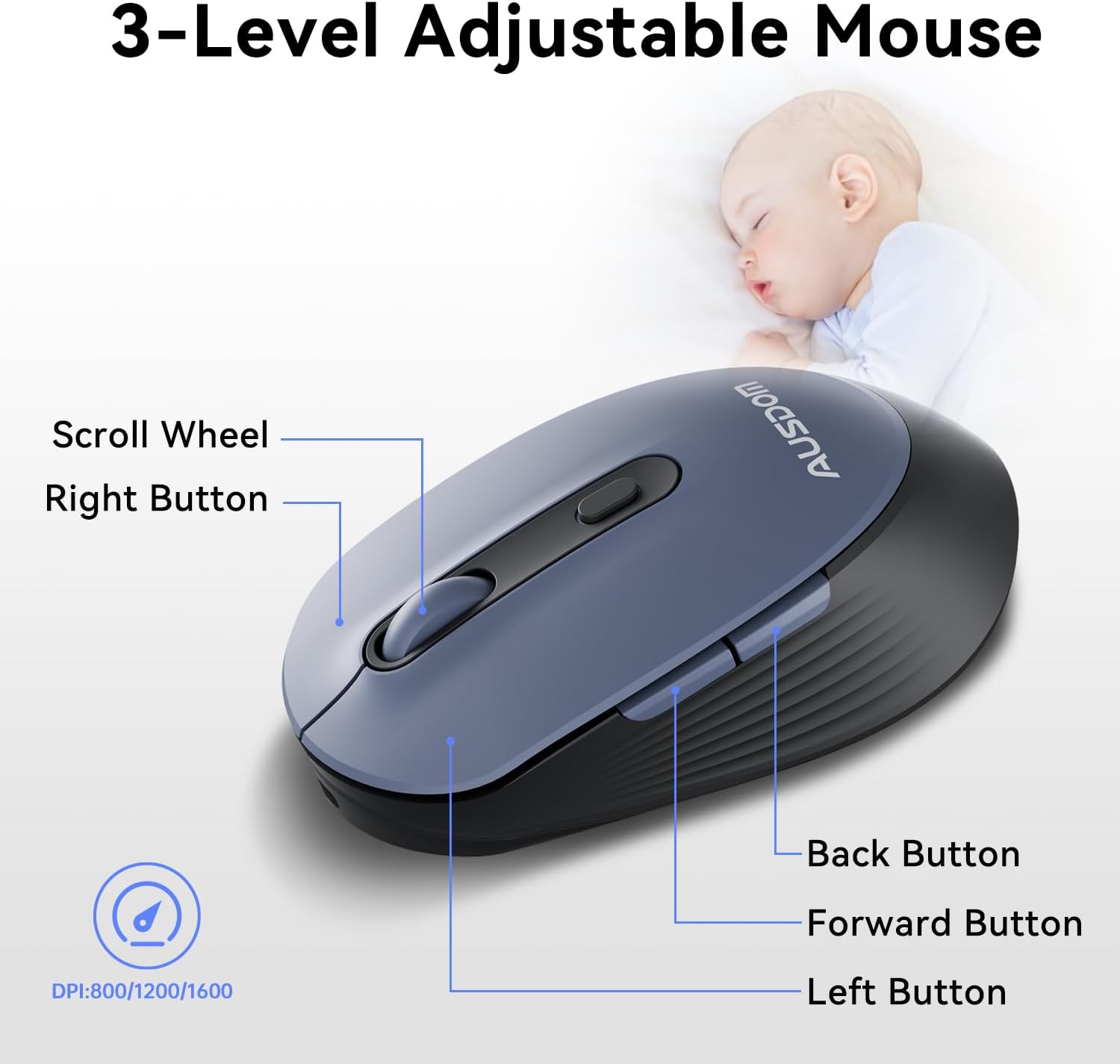
The ergonomic wireless mouse is designed for comfortable use and precise control.
- DPI azo ahitsy: Cycle through 3 DPI levels (800, 1200, 1600) using the dedicated DPI button to adjust cursor sensitivity for different tasks.
- Bokotra mandroso/mihemotra: Utilize the side buttons for quick navigation in web browsers and applications.
- Tsindrio mangina: The mouse features silent click buttons to minimize noise in quiet environments.
2.3. Wide Compatibility
The AUSDOM wireless combo is compatible with a broad range of operating systems and devices, ensuring seamless integration into your existing setup.
- Rafitra fiasana: Compatible with Windows XP/ME/Vista/7/8/10/11 and macOS.
- Fitaovana: Works instantly with desktops, laptops, and other computers without requiring additional software or drivers.

3. Fikojakojana
3.1. Fanadiovana
To ensure the longevity and optimal performance of your AUSDOM combo, regular cleaning is recommended.
- Mampiasà lamba malefaka, maina ary tsy misy volo mba hamafana ny velaran'ny fitendry sy ny totozy.
- Ho an'ny loto mafy loha dia kely dampen the cloth with water or a mild cleaning solution, ensuring no liquid enters the device openings.
- Fadio ny mampiasa akora simika mahery vaika, mpanadio mikikisana, na solvents.
3.2. fitahirizana
When not in use for extended periods, store the keyboard and mouse in a cool, dry place away from direct sunlight and extreme temperatures. The USB receiver can be stored inside the mouse to prevent loss.
4. Famahana olana
4.1. Olana amin'ny fifandraisana
- Check Receiver: Ensure the USB receiver is firmly plugged into a working USB port on your computer.
- Herim-batana: Verify that both the keyboard and mouse are switched to the 'ON' position.
- Ambaratonga bateria: Confirm that both devices have sufficient battery charge. Recharge if necessary.
- Try Different Port: Plug the USB receiver into a different USB port on your computer.
4.2. Lag or Unresponsiveness
- Ahena ny fitsabahana: Afindrao akaiky kokoa ny fitendry sy ny totozy amin'ny mpandray USB. Aza mametraka zavatra metaly lehibe eo anelanelan'ny fitaovana sy ny mpandray.
- Check for Other Devices: Other 2.4GHz wireless devices might cause interference. Try to minimize their use or move them further away.
- Recharge: Ensure both devices are fully charged.
4.3. Keyboard Specific Issues
- Fanalahidy tsy mamaly: Gently clean around the affected keys to remove any debris.
- Incorrect Key Output: Check your computer's operating system settings to ensure the correct keyboard layout is selected.
4.4. Mouse Specific Issues
- Erratic Cursor: Clean the optical sensor on the underside of the mouse. Ensure you are using the mouse on a suitable, non-reflective surface.
- Fanitsiana ny DPI: Press the DPI button on the top of the mouse to cycle through the 800/1200/1600 DPI settings.
5. Product Specifications
| endri-javatra | famaritana |
|---|---|
| Marika | AUSDOM |
| Laharana modely | KAM200X |
| Ny refin'ny vokatra | 17.44 x 5.31 x 0.79 santimetatra |
| Lanja entana | 1.8 kg |
| vatoaratra | 2 Lithium Polymer bateria ilaina (tafiditra) |
| Teknolojia fifandraisana | 2.4Ghz Wireless |
| Endri-javatra manokana | Lightweight, Rechargeable, Scissor Switch, Wireless |
| Fitaovana mifanentana | Solosaina, Solosaina manokana, Tablety |
6. Fampahalalana momba ny fiantohana
For detailed warranty information regarding your AUSDOM KAM200X Wireless Keyboard and Mouse Combo, please refer to the official documentation included in your product packaging or visit the manufacturer's official website. Ny fepetra sy fepetra momba ny fiantohana dia mety miovaova arakaraka ny faritra sy ny vokatra.
7. Fanohanana ny mpanjifa
If you encounter any issues or have questions about your AUSDOM KAM200X Wireless Keyboard and Mouse Combo, please contact AUSDOM customer support through their official channels. You can often find support contact information, FAQs, and additional resources on the AUSDOM Store Page na ny ofisialin’izy ireo website.