1. Fampidirana
Thank you for choosing the Norwii N76 Rechargeable Wireless Presentation Remote. This device is designed to enhance your presentations with seamless slide control and a powerful green laser pointer. It offers broad compatibility across various operating systems and presentation software, ensuring a smooth and engaging experience for your audience.
Please read this manual carefully to understand the features and proper operation of your new presentation remote. Keep this manual for future reference.
2. Ny votoatin'ny fonosana
Hamarino fa ao anatin'ny fonosanao ny entana rehetra:
- Norwii N76 Wireless Presenter
- USB-A Receiver
- USB Charging Cable
- Premium Portable Case
- User Manual

3. Vokatra mihoatraview
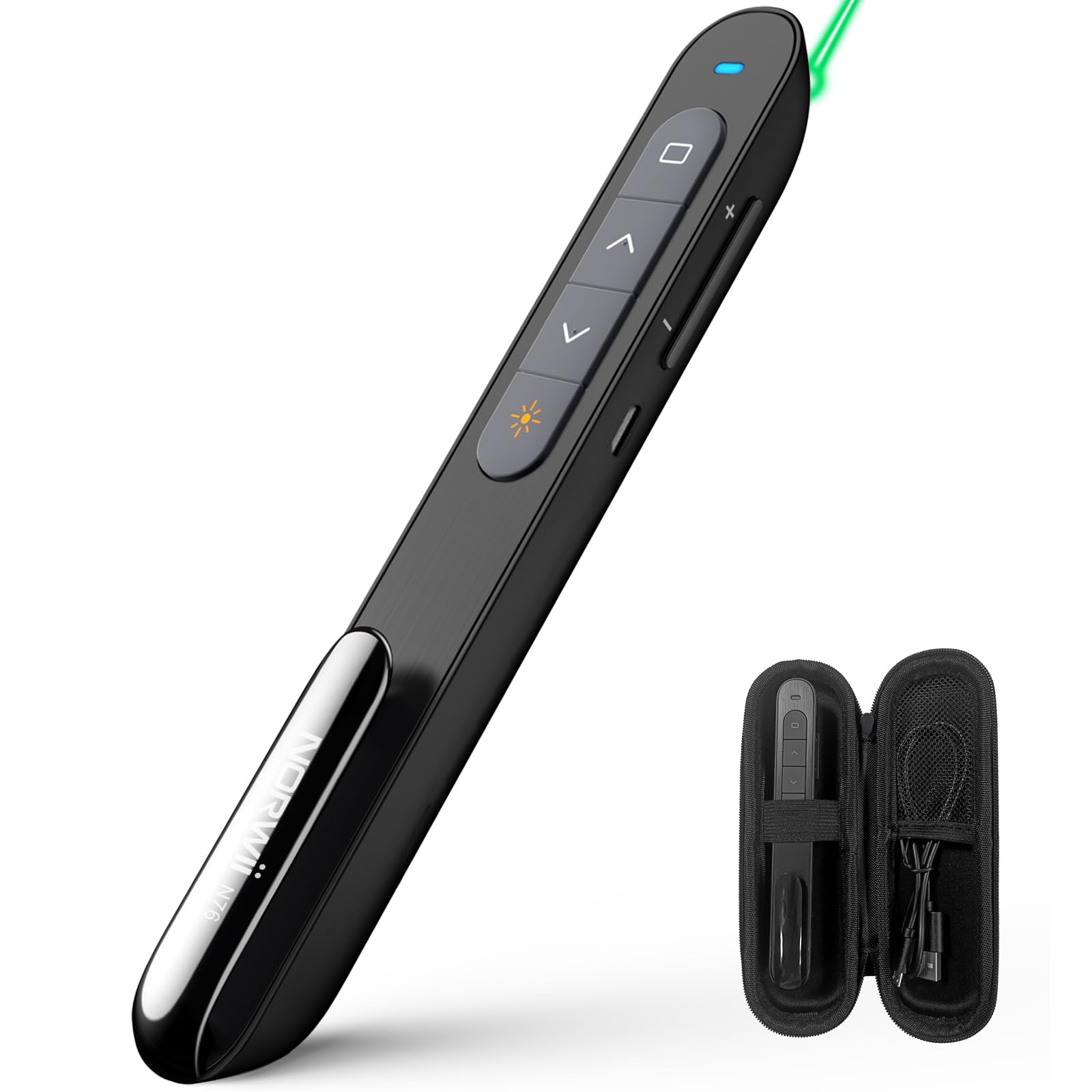
The Norwii N76 features an ergonomic design with clearly labeled, tactile buttons for intuitive control during presentations. The device includes a built-in USB-A receiver for convenient storage and connectivity.

Asa fototra:
- Laser Pointer Button: Activates the green laser.
- Page Up/Down Buttons: Navigates through presentation slides.
- Full Screen/Black Screen Button: Toggles full screen mode or blacks out the screen.
- Hyperlink/Switch Window Button: Allows opening hyperlinks or switching between active windows.
- Fanaraha-maso ny feo: Manitsy ny hamafin'ny feon'ny rafitra.
- ON / OFF switch: Located on the side for power management.

4. Fametrahana
4.1. Connecting the USB-A Receiver
- Locate the USB-A receiver stored inside the tail cap of the Norwii N76 presenter. Gently pull it out.
- Insert the USB-A receiver into an available USB-A port on your computer.
- The computer will automatically detect and install the necessary drivers. This is a plug-and-play device, so no manual driver installation is typically required.
- Turn on the Norwii N76 presenter using the ON/OFF switch on its side.

4.2. Fametrahana ny fitaovana
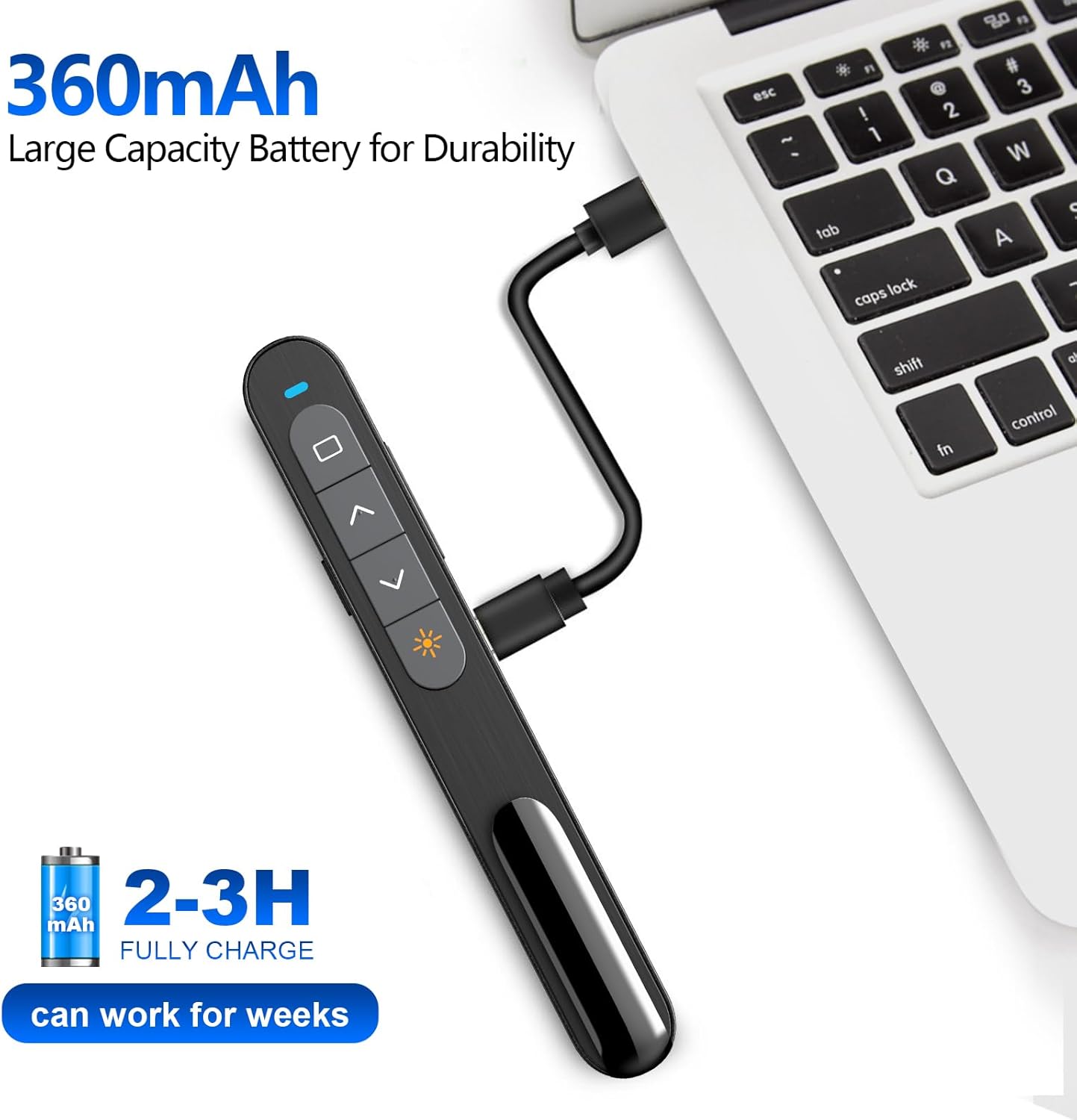
The Norwii N76 is equipped with a built-in 360mAh rechargeable Li-ion battery. To charge the device:
- Connect the provided USB charging cable to the charging port on the presenter.
- Connect the other end of the USB charging cable to a USB power source (e.g., computer USB port, USB wall adapter).
- Hirehitra ny jiro famantarana ny famandrihana mandritra ny famandrihana ary ho faty rehefa feno tanteraka ny famandrihana.
- Maharitra 1.5-2 ora ny fiampangana feno.

5. Torolàlana miasa
5.1. Power On/off
Slide the ON/OFF switch located on the side of the presenter to the 'ON' position to power on the device. Slide it to 'OFF' when not in use to conserve battery life.
5.2. Basic Slide Control
- Tsindrio ny Page Up (▲) button to move to the previous slide.
- Tsindrio ny Page Down (▼) button to move to the next slide.
5.3. Laser Pointer Function
Tsindrio ary hazòny ny Laser Pointer button (often marked with a sun or star icon) to activate the green laser. Release the button to turn off the laser. The green laser is 8 times brighter than a red laser, providing clear visibility on most screens. Note: The laser is not intended for use on TV screens.
5.4. Fampiasa mandroso
- Full Screen/Black Screen: Press the dedicated button (often a square icon) to toggle between full screen mode and a black screen.
- Hyperlink/Switch Window: Use the designated button (often a chain link or window icon) to activate hyperlinks within your presentation or switch between open applications.
- Fanaraha-maso ny feo: Use the volume up (+) and volume down (-) buttons on the side of the presenter to adjust the audio output of your computer.

5.5. Bokotra azo zahana
The Norwii N76 allows for button reprogramming via the Norwii Presenter software. This software enables you to assign custom functions to buttons for a personalized workflow. Refer to the Norwii webtranonkala hisintonana rindrambaiko sy toromarika amin'ny antsipiriany.

6. Fikojakojana
6.1. Fikarakarana bateria
- Esory tanteraka ny fitaovana alohan'ny fampiasana voalohany.
- Fadio ny mandany tanteraka ny bateria tsy tapaka mba hanalavana ny androm-piainany.
- Raha tehirizina mandritra ny fotoana maharitra ny fitaovana dia ampiasao hatramin'ny 50% eo ho eo isaky ny volana vitsivitsy.
6.2. Fanadiovana
Wipe the device with a soft, dry cloth. Do not use harsh chemicals or abrasive cleaners. Ensure no liquid enters the device openings.
7. Famahana olana
If you encounter issues with your Norwii N76, refer to the following common problems and solutions:
| OLANA | vahaolana |
|---|---|
| Tsy mamaly ny mpanolotra |
|
| Laser pointer tsy miasa |
|
| Faritra voafetra amin'ny tambajotra tsy misy tariby |
|
8. Famaritana
| endri-javatra | antsipirihany |
|---|---|
| Laharana modely | N76 |
| fifandraisana | 2.4GHz Wireless (Receiver USB-A) |
| Wireless Range | Haavo 100 metatra (328 feet) |
| Karazana laser | Green Light (656 feet laser range) |
| Batterie | 360mAh Rechargeable Lithium Polymer |
| Time Charging | 1.5-2 ora |
| Ny refin'ny vokatra | 5.5 x 0.7 x 0.8 santimetatra |
| Lanja entana | 1.05 oz |
| OS mifanentana | Windows, macOS, Android, Linux |
| Software mifanentana | PowerPoint, Google Slides, WPS Office, Prezi, Keynote |
9. Information momba ny fiarovana
- Laser fiarovana: Do not point the laser beam directly at people or animals. Avoid direct eye exposure to the laser beam. Do not point the laser beam at highly reflective surfaces.
- Ankizy: Arovy amin'ny ankizy ny fitaovana.
- Batterie: Do not attempt to replace the internal battery. Do not expose the device to extreme temperatures or direct sunlight.
- fanariana: Ario ny fitaovana sy ny bateriny araka ny lalàna eo an-toerana.
10. Warranty sy fanohanana
Norwii products are designed for reliability and performance. For warranty information, technical support, or service inquiries, please refer to the warranty card included in your package or visit the official Norwii website. Please have your product model number (N76) and purchase details ready when contacting support.


