1. Fampidirana
The Tongtion Wireless HDMI Extender Kit provides a convenient solution for wirelessly transmitting video and audio signals from various source devices to a display. This plug-and-play system operates on 2.4/5GHz dual-band frequencies, supporting 4K decoding and 1080P/60Hz UHD output with low latency. It eliminates the need for complicated cables, Wi-Fi, apps, or Bluetooth, offering a clean and tidy setup for your home or office.
2. Ny votoatin'ny fonosana
The Tongtion Wireless HDMI Extender Kit includes the following items:
- 1x Mpandefa HDMI tsy misy tariby (TX)
- 1x Mpandray HDMI tsy misy tariby (RX)
- 2x USB-C to USB-A Power Cables
- 1x Adaptatera USB-C mankany HDMI 4K
- 1x Adaptatera Micro HDMI 8K
- 1x Adaptatera Mini HDMI 8K
- 1x User Manual
- Boaty fanomezana 1x

Image showing the complete package contents of the Tongtion Wireless HDMI Extender Kit, including the transmitter, receiver, power cables, various adapters, and user manual.
3. Vokatra mihoatraview
The Tongtion Wireless HDMI Extender system comprises two main units: a Transmitter (TX) and a Receiver (RX). Both units are compact and designed for easy portability.
- Mpampitatra (TX): Connects to your source device (e.g., laptop, PC, camera) to send the video and audio signal wirelessly.
- Mpandray (RX): Connects to your display device (e.g., TV, monitor, projector) to receive the wireless signal and output it.
Lafin-javatra fototra:
- Plug & Play operation: No Wi-Fi, apps, or Bluetooth configuration required.
- High-Resolution Output: Supports 4K decoding and 1080P/60Hz UHD output for clear visuals.
- Stable Transmission: Built-in 2.4/5G dual-band chips provide strong anti-interference and signal stability.
- Low Latency: Ensures a smooth viewing experience with less than 0.1 seconds delay.
- Extended Range: Offers a wireless transmission range of up to 100ft (30M) in open spaces.
- Versatile Adapters: Includes USB-C to HDMI, Micro HDMI, and Mini HDMI adapters for broad device compatibility.

Akaiky view of the Tongtion Wireless HDMI Transmitter (TX) and Receiver (RX) units, highlighting their compact design and ports.
4. Torolàlana fananganana
Follow these steps to set up your Tongtion Wireless HDMI Extender. Zava-dehibe: The Receiver (RX) must be connected and powered on first, then the Transmitter (TX). The wrong connection order will cause connection failure.
Step 1: Connect the Receiver (RX)
- Connect the HDMI port of the Receiver (RX) to an available HDMI input port on your TV, monitor, or projector.
- Connect one of the provided USB-C power cables to the Receiver's USB-C power port. Plug the USB-A end into an available USB port on your display or a 5V/1A power adapter.
- Once powered, your display should show a blue connection status screen, indicating it's ready to receive a signal.
Step 2: Connect the Transmitter (TX)
- Connect the HDMI port of the Transmitter (TX) to your signal source device (e.g., laptop, PC, TV box, camera).
- Connect the second USB-C power cable to the Transmitter's USB-C power port. Plug the USB-A end into an available USB port on your source device or a 5V/1A power adapter.
- If your source device has a USB-C port for video output, use the included USB-C to HDMI 4K Adapter. For devices with Micro HDMI or Mini HDMI ports, use the respective 8K adapters provided in the kit.
Step 3: Establish Connection
After connecting and powering both units, the LED light on the Transmitter will flash quickly. The connection should be established within 3-10 seconds, and your source device's screen will appear on the display.

Diagram illustrating the connection of the Wireless HDMI Receiver (RX) to a TV and the Transmitter (TX) to a laptop, including HDMI and USB power connections.
Setup Video Guide
Official Tongtion video demonstrating the setup process for the wireless HDMI extender, showing how to connect the transmitter and receiver units to a laptop and TV.
5. Fomba fiasa
The Wireless HDMI Extender supports two primary operating modes, which can be configured through your source device's display settings:
- Fomba fitaratra: Duplicates the content of your source device's screen onto the connected display. This mode is ideal for presentations, sharing videos, or displaying content directly to an audience.
- Fomba fanitarana: Extends your desktop across both your source device and the connected display, allowing for an increased workspace. This mode is useful for multitasking, where you can have different applications open on each screen.

Visual representation of Mirror Mode, where the laptop screen is duplicated on a larger display, and Extend Mode, where the display acts as a secondary monitor.
6. Mifanaraka
The Tongtion Wireless HDMI Extender is designed for broad compatibility with various devices:
Transmitter (TX) Source Devices:
- PC (Personal Computers)
- solosaina
- Cameras
- DV (Digital Video Cameras)
- TV Boxes
- Specific Smartphones (e.g., Samsung S21, Apple 15, iPad 10th generation or newer). Note: A Type-C cable with HDMI transmission function is required; please confirm that your phone/tablet supports image output.
Receiver (RX) Display Devices:
- HDTVs (High-Definition Televisions)
- Projectors
- mpanaramaso
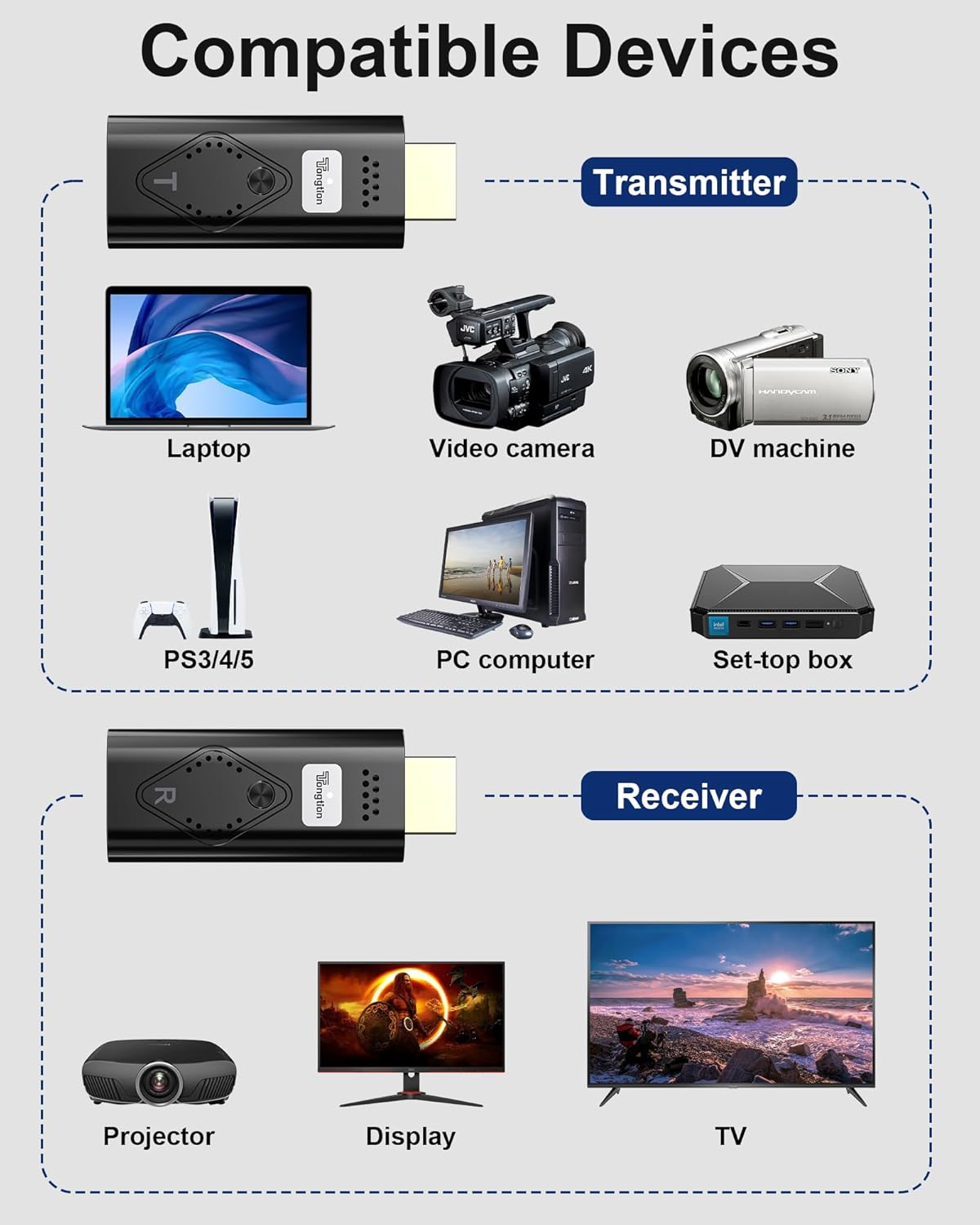
Diagram illustrating various compatible source devices for the transmitter (laptops, cameras, TV boxes) and display devices for the receiver (projectors, monitors, TVs).
7. Famahana olana
If you encounter issues while using your Tongtion Wireless HDMI Extender, please refer to the following troubleshooting tips:
No Signal / Connection Failure:
- Filaharan'ny fifandraisana: Ensure the Receiver (RX) is connected and powered on TALOHAN'NY connecting the Transmitter (TX). Incorrect connection order can prevent the devices from pairing.
- Herin'aratra: Verify both the Transmitter and Receiver are receiving adequate power. Connect the USB-C power cables to a stable power source (5V/1A minimum). If connecting to a computer's USB port, ensure it provides sufficient power. If the connection is unstable, try using an external power adapter.
- Fifandraisana azo antoka: Check that all HDMI cables and adapters are securely connected to their respective ports.
- Correct Input: Ensure your display (TV, monitor, projector) is set to the correct HDMI input channel where the Receiver (RX) is connected.
Unstable Connection / Signal Drop:
- Lavitra sy sakana: Wireless transmission distance and stability can be affected by walls or other obstacles. For optimal performance when passing through obstacles, keep the distance between the TX and RX units within 10 meters (approximately 33 feet).
- fitsabahana: Minimize interference from other wireless devices operating on 2.4/5GHz frequencies by keeping them away from the extender units.
Tsy misy Audio:
- Check the audio settings on your source device and display to ensure the correct audio output is selected and not muted.
Olana momba ny kalitaon'ny sary:
- Ensure your source device is outputting a compatible resolution (up to 1080P/60Hz for optimal display).
8. Famaritana
| Marika | Tongtion |
| Laharana modely | R-1/H-1 |
| Teknolojia fifandraisana | Wireless |
| Karazana mpampitohy | HDMI |
| vahaolana | 1080p (supports 4K decoding, 1080P/60Hz output) |
| Wireless Frequency | 2.4/5GHz Dual-Band |
| Latency | Latsaky ny 0.1 segondra |
| Fitaovana fandefasana | Up to 100ft (optimal within 10M through obstacles) |
| Lanja entana | 5 oz |
| Ny refin'ny vokatra | 5.8 x 3.7 x 1 santimetatra |
| loko | Mainty |
9. Fikojakojana
To ensure the longevity and optimal performance of your Tongtion Wireless HDMI Extender, please follow these maintenance guidelines:
- Fanadiovana: Keep the devices clean and free from dust. Use a soft, dry cloth for cleaning. Avoid using liquid cleaners or abrasive materials.
- Tontolo iainana: Avoid exposing the devices to extreme temperatures, high humidity, or direct sunlight. Store them in a cool, dry place when not in use.
- Fikarakarana: Handle the units with care. Do not drop them or subject them to strong impacts.
- fanamboarana: Do not attempt to disassemble or repair the devices yourself. This will void the product warranty and may cause damage.
10. Warranty sy fanohanana
For detailed warranty information and technical support, please refer to the contact details provided in your product packaging or visit the official Tongtion website. You can also find more information and support by visiting the Tongtion Store on Amazon:


