1. Fampidirana
The Canon PIXMA TS3750i is a compact, affordable, and user-friendly multifunction inkjet printer designed for home and small office use. It offers versatile functionalities including printing, copying, and scanning. This printer supports wireless connectivity, enabling convenient operation from various devices, and features borderless photo printing. It is also compatible with the PIXMA Print Plan for automated ink delivery.
2. Information momba ny fiarovana
Please read all safety instructions before using the printer to ensure safe and proper operation. Keep this manual for future reference.
- Aza apetraka amin'ny toerana tsy marin-toerana ny mpanonta pirinty.
- Keep the printer away from water or moisture.
- Use only the power cord supplied with the printer.
- Do not attempt to disassemble or modify the printer.
- Unplug the printer from the power outlet before cleaning or if it will not be used for an extended period.
3. Ny votoatin'ny fonosana
Hamarino tsara fa tafiditra ao anaty fonosanao ireto entana manaraka ireto:
- Canon PIXMA TS3750i Printer
- Inkjet Cartridges (initial set)
- Cable herinaratra
- Setup CD-ROM (for Windows only)
- Boky torolalana sy antontan-taratasy hafa
4. Fametrahana
4.1 Famoahana sy fametrahana
- Remove the printer from its packaging and remove all protective tapes and packing materials.
- Place the printer on a stable, flat surface with adequate space around it for ventilation and operation.
4.2 Fampifandraisana herinaratra
- Connect the supplied power cable to the printer's power input.
- Ampidiro ao amin'ny faladia elektrika ny ilany ilany amin'ny tariby herinaratra.
- Tsindrio ny bokotra Hery hamelomana ny mpanonta.
4.3 Fametrahana Cartridge Ranomainty
- Open the printer's top cover to access the cartridge holder.
- Remove the protective tape from the ink cartridges.
- Ampidiro ao amin'ny lavaka tsirairay avy ny cartridges ranomainty miloko sy mainty mandra-pikitikitika azy ireo amin'ny toerany.
- Akatona ny fonony ambony.
4.4 Fametrahana taratasy
- Sokafy ny fanohanana taratasy ary esory ny fitoeran-taratasy.
- Load paper (e.g., A4, photo paper) into the rear paper tray, ensuring it is aligned with the paper guides.
- Adjust the paper guides to fit the width of the paper.
4.5 Software and Wireless Setup
For initial setup and to enable wireless printing, follow these steps:
- Ho an'ny PC: Insert the Setup CD-ROM (Windows only) and follow the on-screen instructions to install drivers and software.
- For PC/Mac/Mobile: Tsidiho ny Canon website for your region and download the latest drivers and the Canon PRINT Inkjet/SELPHY app.
- Follow the instructions within the software or app to connect the printer to your Wi-Fi network. The printer supports one-touch wireless connectivity for easier setup.
- For mobile devices, ensure your device is connected to the same Wi-Fi network as the printer.
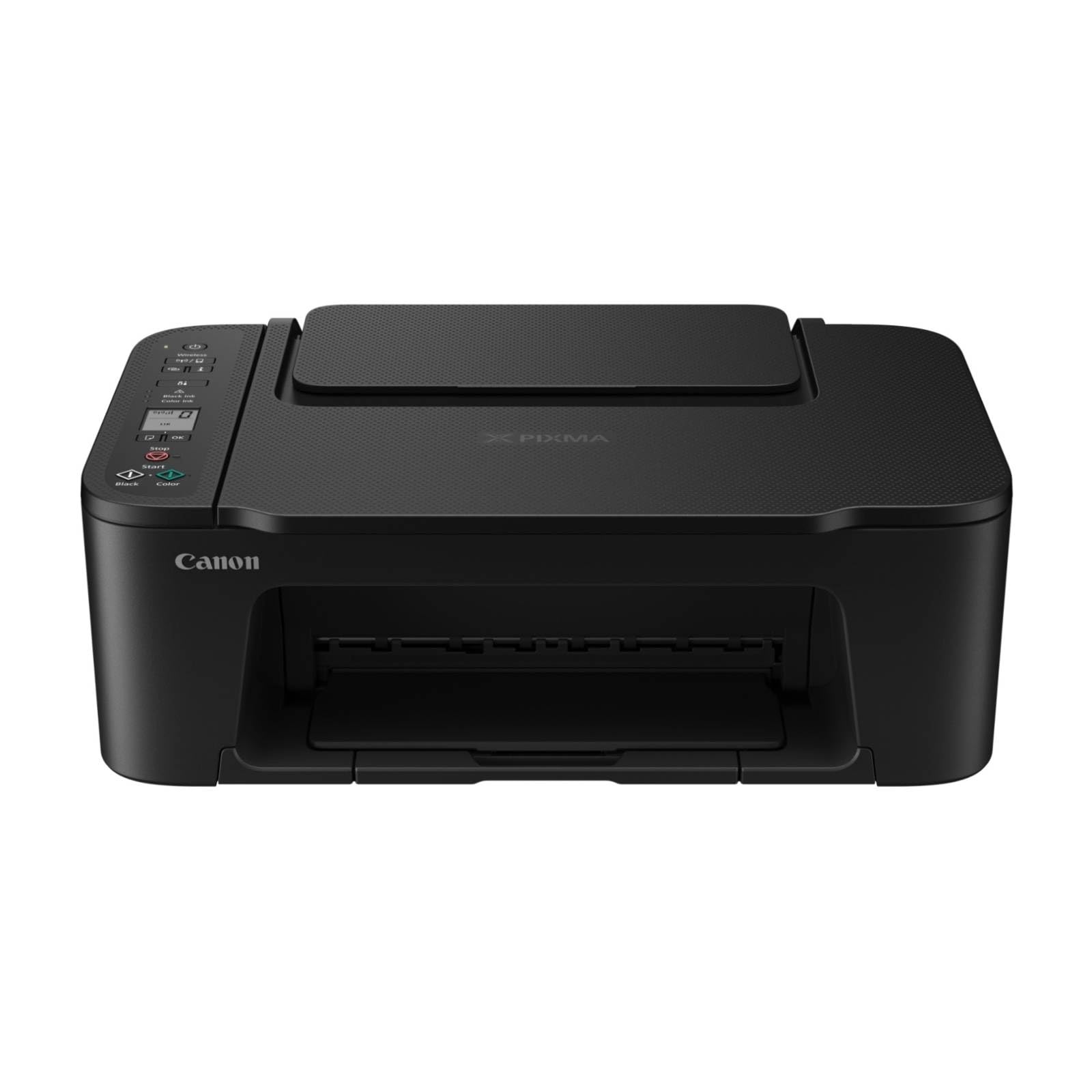
Sary 1: Eo anoloana view of the Canon PIXMA TS3750i printer, showing its compact design and control panel.
5. Torolàlana miasa
5.1 Fanontana antontan-taratasy sy sary
- Ensure the printer is powered on and connected to your device (via Wi-Fi or USB).
- Load the appropriate paper type and size into the rear paper tray.
- Open the document or photo you wish to print on your computer or mobile device.
- Safidio ny safidy pirinty avy amin'ny fampiharanao.
- In the print dialog, select the Canon PIXMA TS3750i as your printer. Adjust settings such as paper size, media type, print quality, and borderless printing (for photos up to 12.7 x 18 cm).
- Tsindrio ny "Print".
5.2 Fandikana antontan-taratasy
- Atsangano ny saron'ny scanner.
- Place the document face-down on the scanner glass, aligning it with the alignment mark.
- Akombony moramora ny sarom-pitaovana.
- On the printer's control panel, press the Black button for a monochrome copy or the Color button for a color copy.
- To make multiple copies (up to 20), press the desired copy button repeatedly for the number of copies needed.
5.3 Fijerena ireo antontan-taratasy sy sary
- Ensure the printer is connected to your computer or mobile device.
- Place the document or photo face-down on the scanner glass.
- On your computer, open the scanning software (e.g., Canon IJ Scan Utility) or on your mobile device, open the Canon PRINT Inkjet/SELPHY app.
- Select the scan option and adjust settings such as document type, resolution, and destination folder.
- Initiate the scan. The scanned image will be saved to your specified location.
5.4 Fanontana sy fandikana amin'ny finday
The Canon PIXMA TS3750i supports printing and scanning directly from smartphones and tablets using the Canon PRINT Inkjet/SELPHY app or Apple AirPrint. Ensure your mobile device and printer are connected to the same Wi-Fi network.
- Canon PRINT Inkjet/SELPHY App: Download and install the app from your device's app store. Use the app to select photos or documents for printing, or to initiate scans directly to your mobile device.
- Apple AirPrint: For iOS devices, you can print directly from AirPrint-enabled applications without installing additional drivers. Select the print option from the app and choose your PIXMA TS3750i printer.
- Wi-Fi PictBridge: Connect directly to compatible cameras for photo printing.
6. Fikojakojana
6.1 Fanadiovana ny mpanonta
- ivelany: Fafao amin'ny lamba malefaka ny ivelan'ny mpanonta printy.amp, lamba tsy misy volo mikorontana. Aza mampiasa mpanadio na ranoka manimba.
- Glass Scanner: Gently clean the scanner glass with a soft, lint-free cloth moistened with a small amount of glass cleaner. Ensure no residue is left behind.
- Loha printy: If print quality declines (e.g., streaks, faded colors), perform a print head cleaning from the printer's utility software on your computer or through the Canon PRINT Inkjet/SELPHY app.
6.2 Fanoloana ireo Cartridges Ranomainty
- When an ink cartridge is low or empty, a message will appear on the printer's display or in the software.
- Open the printer's top cover. The cartridge holder will move to the replacement position.
- Press down on the empty cartridge to release it, then pull it out.
- Unpack the new Canon genuine ink cartridge and remove the protective tape.
- Insert the new cartridge into the correct slot until it clicks firmly into place.
- Close the top cover. The printer will perform an initialization process.
6.3 Manala ny fitohanana amin'ny taratasy
- If a paper jam occurs, an error message will appear.
- Vonoy ny mpanonta ary esory ny tadin-jiro.
- Carefully open the printer covers (top cover, rear cover if applicable) to locate the jammed paper.
- Gently pull the jammed paper out in the direction of the paper path. Avoid tearing the paper.
- Ataovy azo antoka fa nesorina avokoa ny taratasy rovitra rehetra.
- Close all covers, plug in the power cord, and turn on the printer.
7. Famahana olana
Refer to the following common issues and their solutions. For more detailed troubleshooting, consult the Canon support website.
- Printer is not turning on: Ensure the power cable is securely connected to both the printer and a working electrical outlet.
- Cannot print:
- Check if the printer is powered on and connected to your device (Wi-Fi or USB).
- Verify that ink cartridges are installed correctly and have sufficient ink.
- Ensure paper is loaded correctly in the paper tray.
- Restart your computer/mobile device and the printer.
- Check printer drivers and software for updates.
- Kalitao pirinty ratsy:
- Perform a print head cleaning and nozzle check from the printer utility.
- Ataovy azo antoka fa cartridges ranomainty Canon tena izy no ampiasainao.
- Check print settings for appropriate paper type and print quality.
- Olana amin'ny fifandraisana Wireless:
- Ensure the printer and your device are on the same Wi-Fi network.
- Restart your wireless router, printer, and device.
- Re-run the wireless setup process.
- Check for any firewall settings blocking communication.
- Taratasy fitohanan'ny taratasy: Follow the instructions in Section 6.3 to clear any jammed paper.
8. Famaritana
| Anarana modely | PIXMA TS3750i |
| Teknolojia fanontana | Inkjet |
| asa | Print, Copy, Scan |
| Teknolojia fifandraisana | USB, Wi-Fi |
| Hafainganam-pandeha ambony indrindra amin'ny fanontana (Monochrome) | 7.7 ppm |
| Hafainganam-pandeha ambony indrindra amin'ny fanontana (loko) | 4 ppm |
| Output mpanonta printy | loko |
| Fanontam-pirinty duplex | ENY |
| Haben'ny Media Max | A4 |
| Fanohanana ny haben'ny takelaka | A4, A5, B5, Custom (Width 89 mm - 215.9 mm, Length 127 mm - 676 mm) |
| Fahaiza-miditra max | 60 takelaka |
| Karazana scanner | Fandriana |
| Max Copies per Run | 20 |
| Fitaovana mifanentana | Laptops, PC, Smartphones, Tablets |
| Endri-javatra manokana | Borderless printing, Lightweight, Auto Power On, Display screen |
| Haben'ny vokatra (D x W x H) | 32.7 x 43.5 x 14.5 cm |
| Lanja vokatra | 4.19 kg |
| Fanjifana herinaratra | 9 Watt |
9. Warranty sy fanohanana
This Canon PIXMA TS3750i printer comes with a standard manufacturer's warranty. Please refer to the warranty card included in your package for specific terms and conditions, including warranty period and coverage details.
For technical support, product registration, driver downloads, and additional troubleshooting resources, please visit the official Canon support website for your region. You can also find contact information for customer service there.
- Fanohanana an-tserasera: www.canon.com/support (Please replace with your regional Canon support link)
- Fisoratana anarana vokatra: Registering your product helps Canon provide you with better service and support.


