Sava lalana
This manual provides essential instructions for setting up, operating, maintaining, and troubleshooting your OPPO Reno 12 F 5G CPH2637 smartphone. Please read this guide thoroughly to ensure proper use and to maximize the device's capabilities.
1. Fametrahana
1.1 Famoahana boaty sy fisafoana voalohany
Esory tsara ny entana rehetra ao anaty fonosana. Hamarino fa misy ireto singa manaraka ireto:
- OPPO Reno 12 F 5G CPH2637 Smartphone
- Cable USB Type-C
- Power Adapter
- SIM Ejector Tool
- Torolàlana fanombohana haingana (ity antontan-taratasy ity)
Jereo ny fitaovana raha misy fahasimbana ara-batana alohan'ny handehanana.
1.2 Fampidirana karatra SIM
The OPPO Reno 12 F 5G CPH2637 supports Dual SIM functionality.
- Tadiavo ny lovia karatra SIM eo amin'ny sisin'ny fitaovana.
- Ampidiro ao anatin'ilay lavaka kely eo akaikin'ny fitoeran-taratasy ny fitaovana fanesorana SIM ary tsindrio moramora mandra-pivoakany.
- Place your Nano-SIM cards into the designated slots on the tray, ensuring the gold contacts face downwards.
- Atsofohy moramora miverina ao anatin'ilay fitaovana ny lovia mandra-pifanitsy tsara amin'ny sisiny.
1.3 Famandrihana ny fitaovana
Before first use, it is recommended to fully charge the device.
- Ampifandraiso amin'ny seranan-tsambo fiampangana eo amin'ny faran'ny telefaona ny tariby USB Type-C.
- Ampifandraiso amin'ny adaptatera herinaratra ny faran'ny tariby hafa.
- Ampidiro amin'ny fivoahan'ny rindrina ny adaptatera herinaratra.
- Hiseho eo amin'ny efijery ny famantarana fiampangana.
1.4 Fandrefesana sy ny Configuration voalohany
To power on the device, press and hold the Power button located on the side until the OPPO logo appears. Follow the on-screen instructions to complete the initial setup, including language selection, Wi-Fi connection, Google account setup, and security settings.
2. Torolàlana miasa
2.1 Fikarohana fototra
The OPPO Reno 12 F 5G CPH2637 features a touchscreen interface. Use gestures such as tapping, swiping, pinching, and spreading to interact with the device. The navigation bar at the bottom of the screen typically includes Back, Home, and Recent Apps buttons.
2.2 Fiantsoana sy fandefasana hafatra
Raha hanao antso, sokafy ny Phone fampiharana, ampidiro ny laharana, ary tsindrio ny kisary antso. Raha handefa hafatra, sokafy ny Hafatra fampiharana, tsindrio ny kisary hafatra vaovao, ampidiro ny mpandray sy ny hafatrao, dia tsindrio ny alefaso.
2.3 Fifandraisana amin'ny tambajotra
Your device supports both Wi-Fi and 5G cellular networks.
- Wifi: Mandehana any Fikirana > Wi-Fi, turn on Wi-Fi, select your desired network, and enter the password if required.
- Data finday 5G: Ensure your SIM card has an active 5G plan. Go to Settings > Mobile Network > Data usage to manage your cellular data.
2.4 Mampiasa ny fakan-tsary
Sokafy ny Camera app from your home screen or app drawer. Tap the shutter button to take a photo. Swipe left or right to switch between different camera modes such as Photo, Video, Portrait, and Night. Tap on the screen to focus on a specific area.
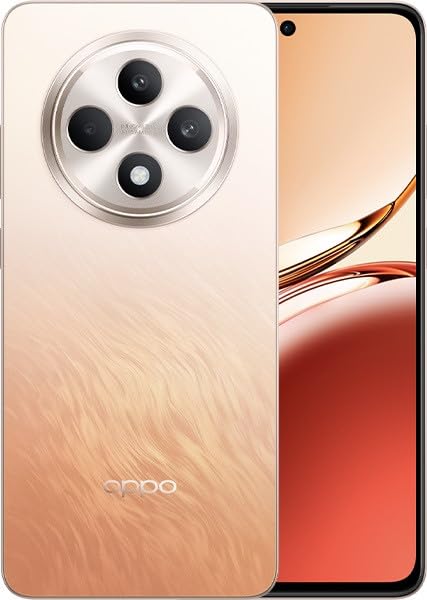
Image: OPPO Reno 12 F 5G CPH2637 smartphone in Amber Orange. This image displays the front and back of the device, highlighting its design and camera module.
2.5 Toetran'ny fiarovana
The device offers various security options to protect your data:
- Fingerprint Unlock: Register your fingerprints in Settings > Password & Biometrics > Fingerprint.
- Face Unlock: Set up face recognition in Settings > Password & Biometrics > Face.
- Lock Screen: Choose a PIN, pattern, or password for screen lock in Settings > Password & Biometrics > Lock screen password.
3. Fikojakojana
3.1 Fanadiovana ny fitaovana
Use a soft, lint-free cloth to clean the screen and body of your phone. Avoid using harsh chemicals, abrasive materials, or aerosol sprays, as these can damage the device's finish and coatings. For stubborn smudges, slightly dampen ny lamba misy rano.
3.2 Fanavaozana rindrambaiko
Hamarino sy asio fanavaozam-baovao tsy tapaka ny rindrambaiko mba hiantohana ny fampandehanana tsara indrindra, ny fiarovana ary ny fidirana amin'ireo endri-javatra vaovao. Mandehana any Fikirana > Momba ny fitaovana > Nohavaozina hijerena ny fanavaozana misy.
3.3 Fikarakarana bateria
To prolong battery life, avoid exposing the device to extreme temperatures. It is recommended to keep the battery charge between 20% and 80% for daily use. Avoid leaving the phone plugged in for extended periods after it is fully charged.
3.4 Fitantanana fitahirizana
Ara-potoana indrayview ary mamafa izay tsy ilaina files, apps, and media to free up storage space. You can check storage usage in Settings > About device > Storage.
4. Famahana olana
4.1 Tsy mandeha ny fitaovana
If your device does not turn on, ensure it is sufficiently charged. Connect it to the charger for at least 15 minutes, then try pressing and holding the Power button again for 10-15 seconds.
4.2 Olana mifandray amin'ny tambajotra
If you experience issues with cellular data or Wi-Fi:
- Ampifamadiho ny maody fiaramanidina ary mamono.
- Avereno indray ny fitaovana.
- For cellular issues, ensure your SIM card is properly inserted and your plan is active.
- For Wi-Fi issues, restart your router and ensure you are within range.
4.3 Fampiharana mianjera na mivaingana
If an app is not responding, try force-closing it from the Recent Apps screen. If the issue persists, clear the app's cache and data in Settings > Apps > [App Name] > Storage usage. Raha tsy izany dia esory ary apetraho indray ilay fampiharana.
4.4 Famerenana amin'ny orinasa
A factory reset will erase all data on your device and restore it to its original factory settings. Back up all important data before performing a factory reset. Mandehana any Settings > System settings > Back up and reset > Reset phone > Erase all data.
5. Famaritana
| endri-javatra | famaritana |
|---|---|
| Marika | OPPO |
| Anarana modely | Reno 12 F 5G |
| Laharana modely | CPH2637 |
| Fahaizana fitahirizana fahatsiarovana | 256 GB |
| RAM Memory Habe napetraka | 12 GB |
| Teknolojia finday | 5G |
| Teknolojia fifandraisana | 5G |
| Isan'ny toerana misy ny karatra SIM | Dual SIM |
| Color | Amber Orange |
| Fampidiran'ny fifandraisan'ny olombelona | Efijery kasihina |
| Form Factor | bato |
6. Warranty sy fanohanana
Your OPPO Reno 12 F 5G CPH2637 is covered by a limited warranty. Please refer to the warranty card included in your product packaging for specific terms and conditions, including warranty period and coverage details. For technical support, service inquiries, or further assistance, please visit the official OPPO support website or contact their customer service hotline in your region.


