1. Fampidirana
This manual provides comprehensive instructions for the setup, operation, and maintenance of your iDPRT 320E Thermal Label Printer. Please read this manual thoroughly before using the device to ensure proper functionality and to prevent damage. The iDPRT 320E is designed for efficient label printing in various environments, supporting multiple operating systems and connectivity options.
2. Inona no ao anaty boaty
Hamarino fa misy ny singa rehetra rehefa voavaha:
- iDPRT 320E Thermal Label Printer
- Boky torolalana
- USB Data Cable
- Power Adapter
- Sample Labels
3. Vokatra mihoatraview
The iDPRT 320E Thermal Label Printer is a compact device designed for high-speed, high-resolution label printing. It features a simple design with essential ports for connectivity and an intuitive LED indicator for operational status.
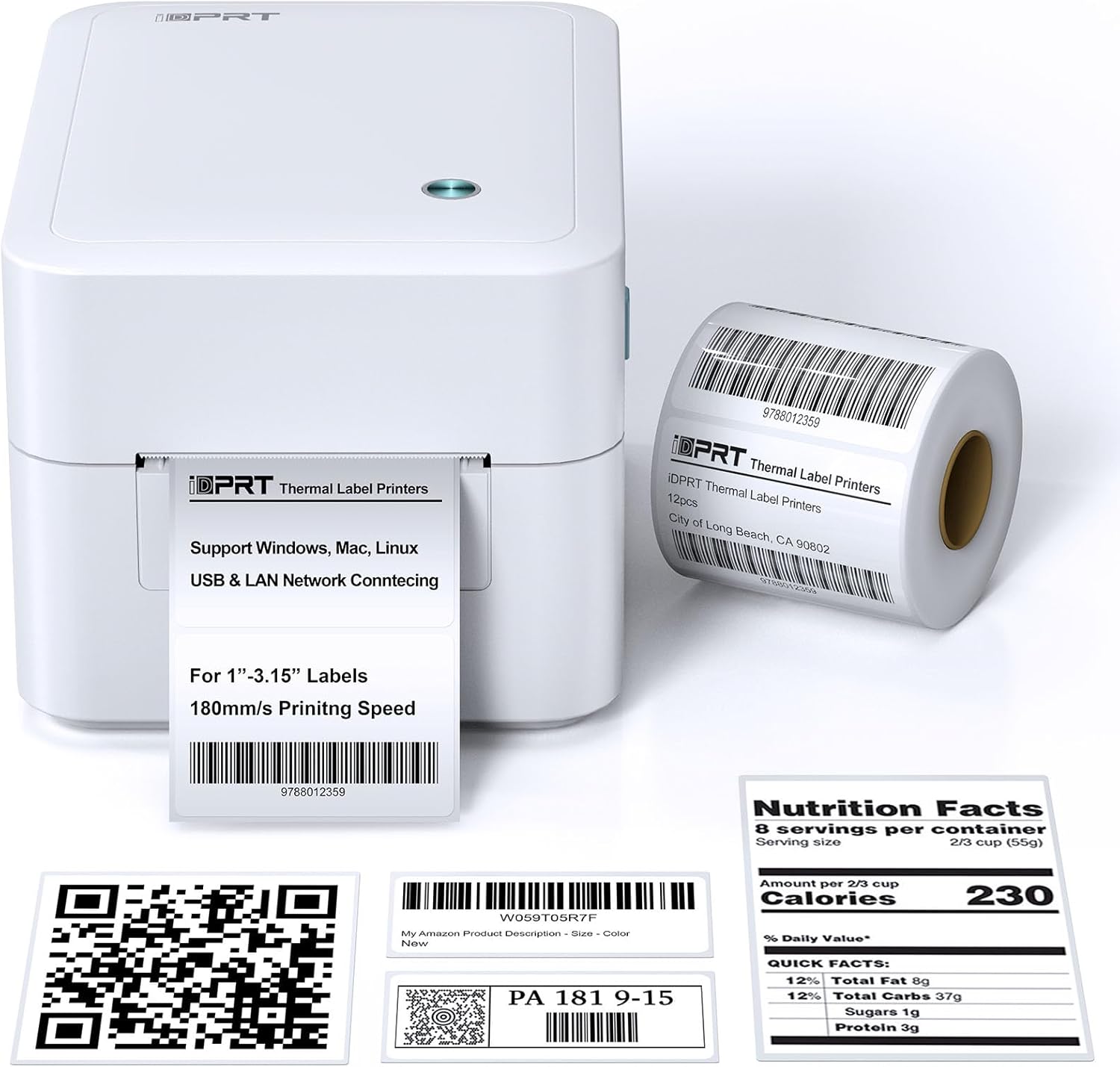
Sary 3.1: Eo anoloana view of the iDPRT 320E Thermal Label Printer with sample labels.
singa fototra:
- Label Exit Slot: Where printed labels emerge.
- Cover Release Latches: Used to open the printer cover for label loading.
- Seranan-tsambo herinaratra: Mifandray amin'ny adaptatera herinaratra.
- Port USB: Ho an'ny fifandraisana mivantana amin'ny solosaina.
- Port LAN: Ho an'ny fifandraisana amin'ny tambajotra.
- LED famantarana: Mampiseho ny satan'ny mpanonta.
4. Torolàlana fananganana
4.1 Fampifandraisana herinaratra
- Ampifandraiso amin'ny seranan-jiro an'ny mpanonta ny adaptatera herinaratra.
- Ampidiro amin'ny fivoahana elektrika sahaza ny adaptatera herinaratra.
4.2 Fametrahana Etikety
The printer supports thermal labels with widths between 1 and 3.15 inches.
- Gently press the cover release latches on both sides of the printer to open the top cover.
- Place the roll of thermal labels into the label compartment, ensuring the labels feed from the bottom of the roll and the printable side faces upwards.
- Adjust the label guides to fit the width of your labels snugly, without creasing azy ireo.
- Pull a few labels past the print head and out through the label exit slot.
- Akombony mafy ny fonony ambony mandra-pikitsoka tsara amin'ny toerany.

Figure 4.1: Correct method for loading thermal labels into the printer.
4.3 Fametrahana mpamily sy rindrambaiko
To use the printer with your computer, you must install the appropriate drivers and the Label Designer software.
- Visit the official iDPRT website to download the latest drivers for your operating system (Windows, Mac, or Linux).
- Download and install the free Label Designer software from the official website. This software is available for Windows and as an online editor for Mac users.
- Follow the on-screen instructions to complete the installation process for both the drivers and the software.

Figure 4.2: The iDPRT 320E printer supports multiple operating systems.
4.4 Safidy fifandraisana
The iDPRT 320E offers flexible connectivity:
- Fifandraisana USB: Connect the printer directly to your computer using the provided USB cable.
- LAN Network Connection: Connect the printer to your local area network using an Ethernet cable for shared access.
- Fampiharana finday: For direct printing from your smartphone, download the iDPRT mobile application.

Figure 4.3: USB and LAN network connectivity options.
5. Torolàlana miasa
5.1 Creating Labels with Label Designer Software
The Label Designer software allows you to create and customize various label types.
- Launch the Label Designer software on your computer.
- Select a template or start a new label design.
- Customize your labels with text, barcodes, QR codes, images, and various fonts. The software supports different label sizes and layouts.
- Ensure the label dimensions in the software match the physical labels loaded in the printer.

Figure 5.1: Designing labels using the Label Designer software.
5.2 Fanontam-pirinty etikety
Once your label design is complete and labels are loaded:
- In the Label Designer software, click the 'Print' button.
- Select the iDPRT 320E printer from the list of available printers.
- Adjust print settings such as quantity and print speed if necessary. The printer supports speeds up to 180mm/s and a resolution of 203 DPI.
- Confirm the settings and initiate printing.

Figure 5.2: The printer delivers high-quality 203 DPI resolution for clear labels.
Figure 5.3: The printer is capable of high-speed printing up to 180mm/s.
5.3 Ny dikan'ny famantarana LED
The LED indicator on the printer provides visual feedback on its status:
- Green (Solid On): The printer is currently printing.
- Red (Solid On): The printer cover is not properly closed, or there is a paper jam/error.
- Blue (Solid On): Efa vonona hiasa ny mpanonta.
6. Fikojakojana
6.1 Fanadiovana ny mpanonta
Ny fanadiovana tsy tapaka dia manampy amin'ny fitazonana ny kalitaon'ny pirinty ary manalava ny androm-piainan'ny mpanonta.
- Ensure the printer is powered off and unplugged before cleaning.
- Mampiasà lamba malefaka sady tsy misy loko dampFafao moramora amin'ny alikaola isopropyl ny lohan'ny pirinty. Aza mikasika ny lohan'ny pirinty amin'ny tanana mitanjaka.
- Clean the exterior of the printer with a dry, soft cloth. Do not use abrasive cleaners or solvents.
- Remove any dust or label debris from the label compartment.
7. Famahana olana
If you encounter issues with your iDPRT 320E printer, refer to the following common problems and solutions:
| OLANA | Antony mety hitranga | vahaolana |
|---|---|---|
| Tsy mandeha ny mpanonta | Power cable disconnected; Power outlet faulty | Jereo ny fifandraisan'ny herinaratra; andramo mampiasa faladia hafa. |
| Labels tsy manonta | Labels loaded incorrectly; Printer cover open; No drivers installed; Incorrect printer selected | Reload labels correctly; Close cover firmly; Install drivers; Select iDPRT 320E in print dialog. |
| Poor print quality (faded, blurry) | Print head dirty; Low-quality labels; Incorrect print density settings | Clean the print head; Use recommended thermal labels; Adjust print density in software settings. |
| Cannot connect via USB/LAN | Cable faulty; Driver issue; Network configuration problem | Try a different cable; Reinstall drivers; Verify network settings (for LAN). |
| Cannot connect via mobile app | App not installed; Printer not discoverable; Network issue | Ensure app is installed and updated; Check printer's network connection; Restart printer and app. |
| Mac Bluetooth connectivity issues | Direct Bluetooth printing to Mac is not supported; Driver limitations | Connect via USB or LAN for Mac systems. Mobile app connectivity is available for smartphones. |
8. Famaritana
Detailed technical specifications for the iDPRT 320E Thermal Label Printer:
| endri-javatra | famaritana |
|---|---|
| Anarana modely | 320E |
| Teknolojia fanontana | mafana |
| Hafainganam-printy ambony indrindra | 180 mm/s (Monochrome) |
| Fanapahan-kevitra fanontana ambony indrindra | 203 DPI |
| Haben'ny Media ambony indrindra | 1"-3.15" inches width |
| Teknolojia fifandraisana | USB, LAN |
| Fitaovana mifanentana | PC (Windows, Mac, Linux), Mobile (iOS/Android via App) |
| Fomba fanaraha-maso | App, Software |
| Ny refin'ny vokatra | 8.11" D x 6.1" W x 5.28" H |
| Lanja entana | 3.78 kg |
| Endri-javatra manokana | Automatic Label Recognition, LAN Network Connectivity |
9. Warranty sy fanohanana
9.1 Fampahalalana momba ny fiantohana
The iDPRT 320E Thermal Label Printer comes with a limited warranty. Please refer to the warranty card included in your product packaging or visit the official iDPRT webtranokala ho an'ny fepetra sy fepetra amin'ny antsipiriany.
9.2 Fanohanana ny mpanjifa
For technical assistance, troubleshooting, or any inquiries regarding your iDPRT 320E printer, please contact our customer service team. You can reach us via the Amazon messaging system or through the contact information provided on the official iDPRT website. Our team is available to assist you with any pre-sales or after-sales support needs.


