Sava lalana
The Logitech MX Keys Mini for Mac is a minimalist wireless illuminated keyboard designed for enhanced productivity across Apple macOS, iPadOS, and iOS devices. This compact keyboard features backlit keys, USB-C charging, and tactile typing for a comfortable user experience.
Note: This product is a renewed item, professionally inspected and tested to function and appear like new. Renewed products are eligible for replacement or refund under the Amazon Renewed Guarantee if not satisfied with the purchase.

Image: Logitech MX Keys Mini for Mac keyboard in Pale Grey, showcasing ny endriny mirindra.
Inona no ao anaty boaty
Upon unboxing your Logitech MX Keys Mini for Mac, you will find the following items:
- Logitech MX Keys Mini for Mac Wireless Illuminated Keyboard
- USB-C Charging Cable

Image: The Logitech MX Keys Mini for Mac keyboard and its included USB-C charging cable, as packaged.
Hametraka
1. Fametrahana ny klavier
Before initial use, ensure your keyboard is fully charged. Connect the included USB-C cable to the USB-C port located on the back of the keyboard and plug the other end into a compatible USB-C power source (e.g., your Mac, a wall adapter). The keyboard can be used while charging.
2. Pairing via Bluetooth Low Energy
The MX Keys Mini for Mac utilizes Bluetooth Low Energy for wireless connectivity. It can be paired with up to three different devices simultaneously.
- Alefaso ny kitendry amin'ny alàlan'ny fametahana herinaratra hita ao ambadika.
- Press and hold one of the Easy-Switch keys (labeled 1, 2, or 3) on the top row of the keyboard until the LED indicator above the key starts blinking rapidly. This indicates the keyboard is in pairing mode.
- On your Mac, iPad, or iPhone, navigate to Bluetooth settings.
- Select "MX Keys Mini for Mac" from the list of available devices to complete the pairing process.
- Repeat for up to two additional devices using the other Easy-Switch keys.
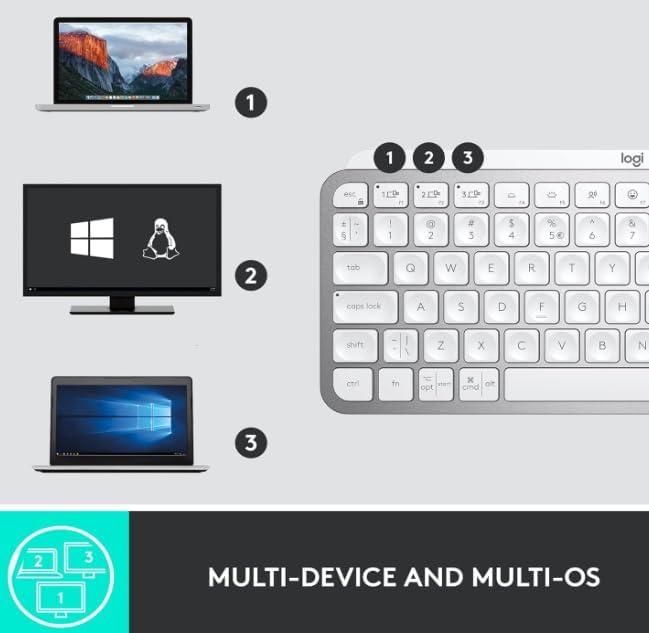
Image: The keyboard demonstrating multi-device connectivity with a MacBook, an iMac, and an iPad, highlighting the Easy-Switch functionality.
fandidiana
Asa fototra
The MX Keys Mini for Mac features a Mac-specific layout with Perfect Stroke keys designed for comfortable and precise typing. The top row includes dedicated multimedia keys and smart keys.
- Easy-Switch Keys (1, 2, 3): Quickly switch between up to three paired devices.
- Smart Keys: Includes dedicated keys for voice-to-text Dictation, Mic Mute/Unmute, and Emoji access.
- Fanaraha-maso Multimedia: Play/pause, volume up/down, and mute controls.
- Famirapiratry ny lamosina: Adjust the illumination level of the keys.

Sary: A antsipirihany view of the keyboard highlighting key features such as Easy Switch buttons, Smart Keys, USB-C charging port, compact size, Perfect Stroke keys, and Smart Backlighting.
Smart Illumination
The keyboard features smart backlighting that automatically adjusts to ambient lighting conditions. The keys illuminate when your hands approach and dim when you move away, conserving battery life.
Customization
Customize your keyboard experience using the Logitech Options+ software (available for download from the Logitech website). This software allows you to:
- Remap function keys to perform specific actions.
- Adjust global settings or create application-specific key assignments.
- Manage Easy-Switch device connections.
- Configure backlighting behavior and battery saving modes.
fikarakarana
Fiainana sy fiampangana ny bateria
The MX Keys Mini for Mac is equipped with a USB-C rechargeable battery. A full charge provides approximately 10 days of battery life with backlighting enabled, or up to 5 months with backlighting turned off. To maximize battery life, consider disabling backlighting when not needed via the Logitech Options+ software.
FANADIOVANA
To clean your keyboard, gently wipe the keys and surface with a soft, lint-free cloth. Avoid using harsh chemicals or abrasive materials.
Fanamboarana
Olana mifandray
- Tsy mifandray ny fitendry: Ensure the keyboard is powered on and fully charged. Verify that Bluetooth is enabled on your device and the keyboard is in pairing mode (blinking LED on Easy-Switch key).
- Fifandraisana miato: Move the keyboard closer to your device to reduce interference. Ensure no other devices are causing Bluetooth interference.
- Famindrana fitaovana: Press the corresponding Easy-Switch key (1, 2, or 3) to connect to a previously paired device.
Backlighting Not Working
- Check battery level; backlighting may be disabled when the battery is low.
- Ensure backlighting is not disabled in the Logitech Options+ software.
- Adjust backlighting brightness using the dedicated keys on the top row.
fepetra arahana
| endri-javatra | antsipirihany |
|---|---|
| Ny refin'ny vokatra | 5.19 x 7.72 x 0.83 santimetatra |
| Lanja entana | 1.48 kg |
| vatoaratra | 1 Lithium Polymer Batterie (tafiditra) |
| Teknolojia fifandraisana | Bluetooth, USB-C |
| Famaritana kitendry | manify |
| Fitaovana mifanentana | Laptop, Tablet (macOS, iPadOS, iOS) |
| Endri-javatra manokana | LED Lights, Portable, Rechargeable, Ten Key Less, Wireless |
| loko | Pale Grey |
| Kitendry Backlighting | Single Color, Smart Illumination |
Warranty sy fanohanana
For information regarding product warranty, technical support, and additional resources, please visit the official Logitech support website. As a renewed product, it is covered by the Amazon Renewed Guarantee, offering replacement or refund if you are not satisfied with your purchase.


