Sava lalana
This manual provides detailed instructions for the installation, operation, and maintenance of your AXAGON ADSA-ST USB 3.0 Docking Station. This device is designed to connect 2.5" and 3.5" SATA SSDs and HDDs to your computer via a USB 3.0 interface, offering fast data transfer speeds.
Azafady vakio tsara ity boky torolalana ity alohan'ny hampiasana ny vokatra mba hahazoana antoka fa miasa tsara izy ary mba hisorohana ny fahasimbana.
Fonosana fonosana
Hamarino fa misy ny singa rehetra ao anaty fonosana:
- AXAGON ADSA-ST Docking Station
- USB 3.0 Type-A to Micro-B cable
- Power Adapter
- User Manual (ity antontan-taratasy ity)

Image: The AXAGON ADSA-ST Docking Station shown alongside its retail packaging, illustrating the product and its box.
Endri-javatra fototra
- Supports 2.5" and 3.5" SATA I/II/III SSDs and HDDs.
- USB 3.0 (USB 3.2 Gen 1) interface with up to 5 Gbps transfer speed.
- SATA 6G (SATA III) support.
- UASP (USB Attached SCSI Protocol) support for enhanced performance.
- TRIM support for SSDs.
- HDD Auto Spindown function.
- LED indication for power and activity.
- Compact design with aluminum body.

Sary: A view of the AXAGON ADSA-ST Docking Station highlighting its 5 Gbps USB 3.2 Gen 1 speed and compact size.
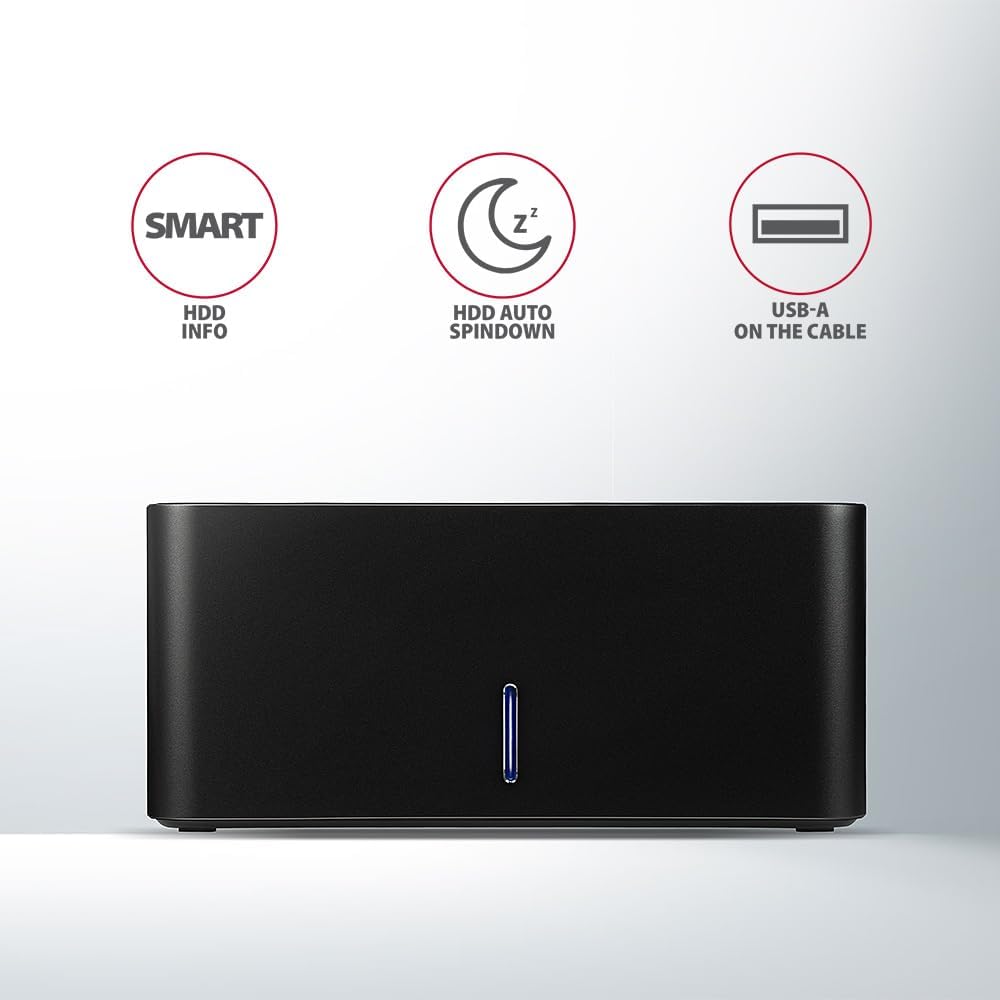
Image: The docking station from the front, indicating features like SMART HDD info, automatic HDD spindown, and USB-A connectivity.
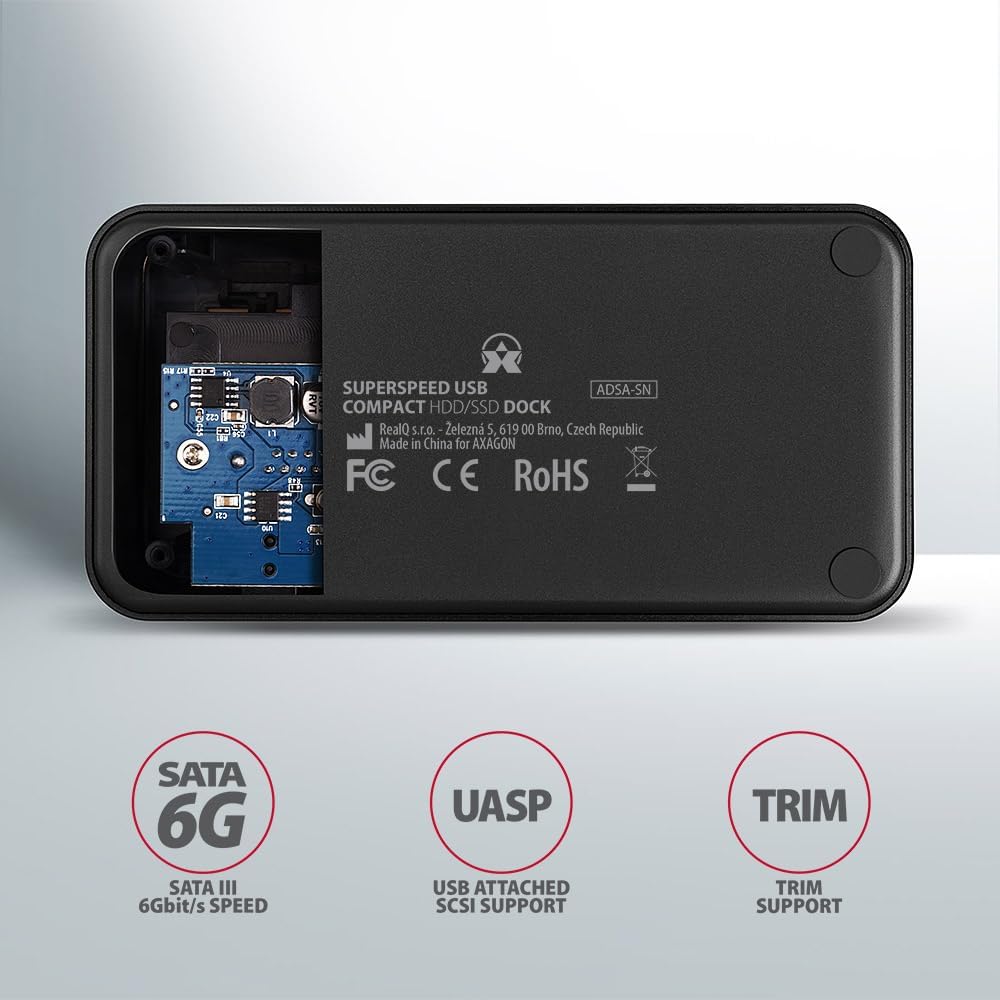
Image: The underside of the docking station, showing internal components and highlighting SATA 6G, UASP, and TRIM support.
Torolàlana fametrahana
- Ampifandraiso amin'ny Power Adapter: Plug the included power adapter into the DC IN port on the back of the docking station and then into a power outlet.
- Mifandray amin'ny solosaina: Connect the USB 3.0 cable from the docking station's Micro-B port to an available USB 3.0 (or higher) port on your computer.
- Ampidiro ny kapila mafy/SSD:
- For 2.5" SSD/HDD: Gently slide the 2.5" drive into the slot until it connects firmly with the SATA connector.
- For 3.5" HDD: Gently slide the 3.5" drive into the slot until it connects firmly with the SATA connector.
Ensure the drive is inserted correctly with the SATA connector facing the correct direction. Do not force the drive.

Image: A 2.5-inch SSD being inserted into the docking station, demonstrating compatibility with smaller drives.
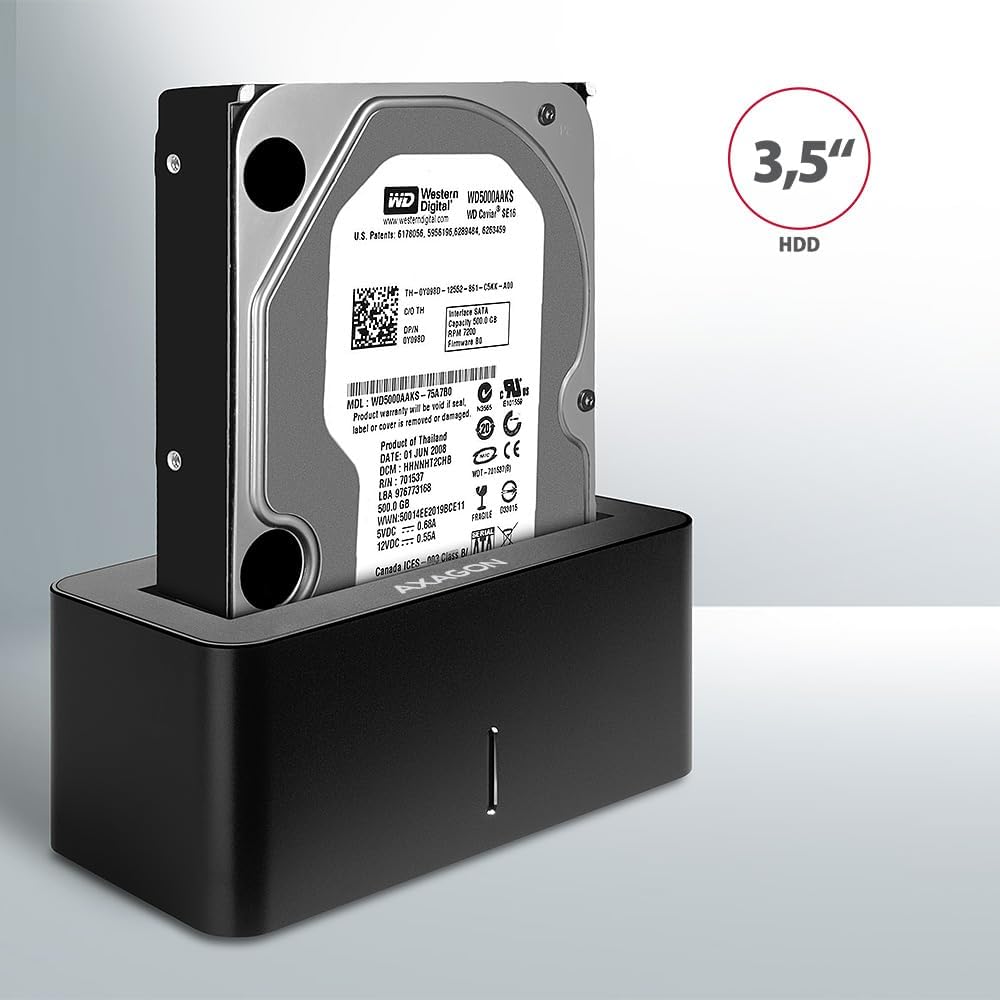
Image: A 3.5-inch HDD being inserted into the docking station, demonstrating compatibility with larger drives.
- Herim-batana: Press the power button located on the back of the docking station. The LED indicator on the front will illuminate.
Image: The rear panel of the docking station, showing the power button, USB Micro-B port, and power input for connection.
Torolàlana miasa
Drive Recognition
Once powered on and connected, your operating system should automatically detect the inserted drive. If it's a new drive, you may need to initialize and format it through Disk Management (Windows) or Disk Utility (macOS) before it appears in File Explorer/Finder.
LED famantarana
The LED indicator on the front of the docking station provides status information:
- Manga manga: Power on, drive idle.
- Manga manga: Drive activity (reading or writing data).
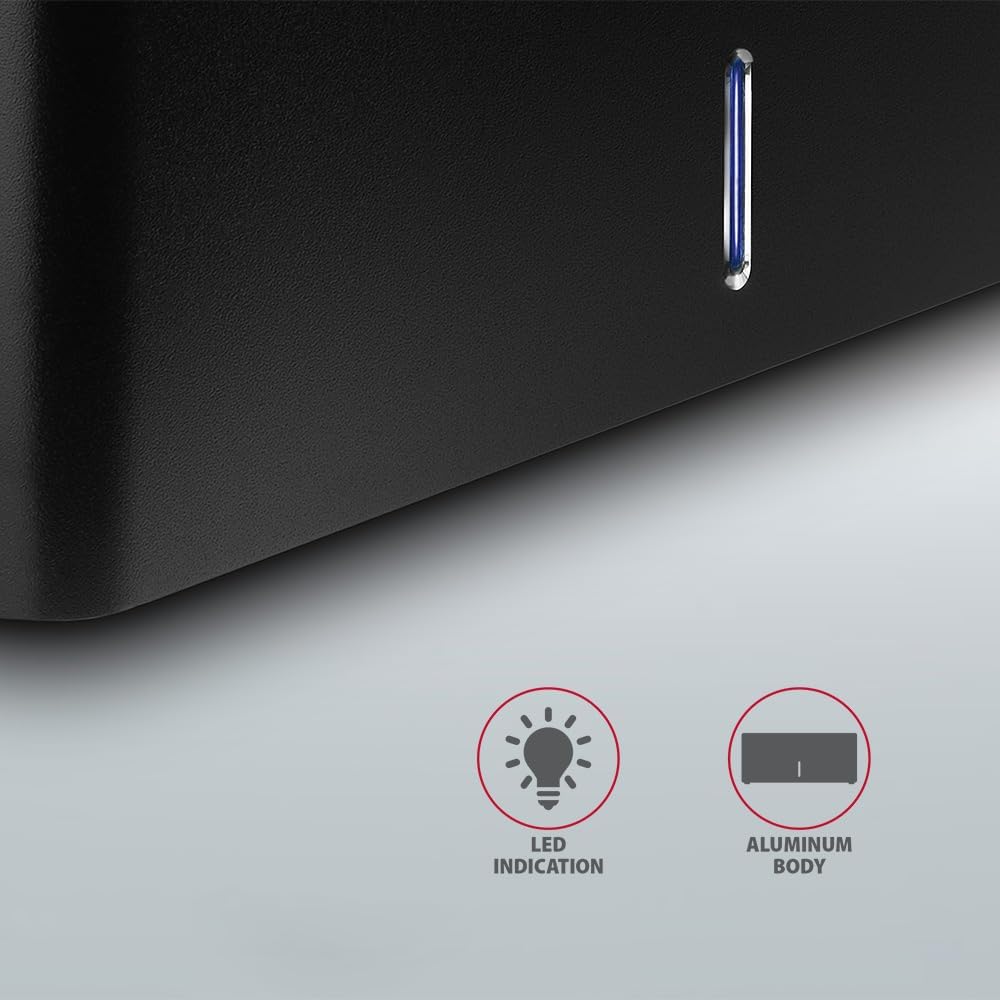
Sary: akaiky view of the docking station's front panel, highlighting the LED indicator light.
Removing a Drive
Before removing a drive, always safely eject it from your operating system to prevent data corruption. After ejection, gently pull the drive straight out of the docking station slot.
HDD Auto Spindown
The docking station supports automatic spindown of the HDD when it is idle for a certain period, conserving power and extending drive lifespan. This feature is managed by the operating system or the drive itself.
fikarakarana
- Tazomy ho madio sy tsy misy vovoka ny toerana fampidirana. Ampiasao lamba malefaka sy maina ho fanadiovana.
- Fadio ny mametraka ny fitaovana amin'ny hafanana tafahoatra, ny hamandoana, na ny tara-masoandro mivantana.
- Aza manandrana manongotra na manamboatra ilay fitaovana. Jereo ny mpiasan'ny serivisy mahafeno fepetra.
- Ensure proper ventilation around the docking station during operation.
Fanamboarana
- Tsy hita ny kapila:
- Hamarino tsara fa mifandray tsara ny adaptatera herinaratra ary mandeha ny toby fampidirana herinaratra.
- Verify the USB cable is properly connected to both the docking station and the computer.
- Manandrama seranan-tsambo USB hafa amin'ny solosainao.
- Ensure the HDD/SSD is fully seated in the docking station's slot.
- Check Disk Management (Windows) or Disk Utility (macOS) to see if the drive is recognized but uninitialized/unformatted.
- Test with a different HDD/SSD to rule out a drive issue.
- Haingam-pandeha miadana:
- Ensure the docking station is connected to a USB 3.0 (or higher) port on your computer. USB 2.0 ports will limit speeds.
- Verify your operating system and drivers are up to date.
- The actual speed depends on the drive's performance and your computer's USB controller.
- Drive disconnects randomly:
- Hamarino ny fifandraisana tariby rehetra.
- Hamarino tsara fa manome herinaratra marin-toerana ny adaptatera herinaratra.
- Disable USB power saving features in your computer's operating system settings.
Famaritana ara-teknika
| endri-javatra | antsipirihany |
|---|---|
| Marika | AXAGON |
| Laharana modely | ADSA-SN |
| Hardware Platform | PC |
| Fitaovana mifanentana | Laptop, Desktop PC |
| Drive Compatibility | 2.5" / 3.5" SATA I/II/III SSD/HDD |
| interface tsara | USB 3.0 (USB 3.2 Gen 1) |
| Ny tahan'ny famindrana angona | Up to 5 Gbps (USB 3.0), 6 Gbps (SATA III) |
| Total seranan-tsambo USB | 1 (Micro-B) |
| Isan'ny Drive Bays | 1 |
| loko | Mainty |
| Lanja entana | 2.2 kilao (eo ho eo. 1 kg) |
| Ny haben'ny fonosana | 3.94 x 0.79 x 0.39 santimetatra (tokony ho 10 x 2 x 1 cm) |
| Daty misy voalohany | 30 martsa 2021 |
Warranty sy fanohanana
For warranty information and technical support, please refer to the official AXAGON webtranokala na mifandraisa amin'ny mpaninjara eo an-toerana. Tehirizo ny porofon'ny fividiananao ho an'ny fitakiana fiantohana.