1. Fampidirana
This manual provides detailed instructions for the installation, operation, and maintenance of your MSI MAG B560M Mortar WiFi Gaming Motherboard. The MAG series is engineered for durability and user-friendliness, offering a straightforward setup process and intuitive interface.
Lafin-javatra fototra:
- Fanohanana processeur: Compatible with 11th and 10th Generation Intel Core/Pentium/Celeron processors for the LGA 1200 Socket.
- Fanohanana fahatsiarovana: Supports DDR4 Memory for high-speed performance.
- Advanced Thermal Solution: Features an Extended Heatsink Design and M.2 Shield Frozr to ensure optimal cooling for high-performance systems and extended gaming sessions.
- Fitehirizana haingam-pandeha: Equipped with Turbo M.2, running at PCI-E Gen3 x4, to maximize performance for NVMe based SSDs.
- Fametrahana mora: Includes Pre-installed I/O Shielding for enhanced EMI protection and simplified installation.

Sary 1: Ambony view of the MSI MAG B560M Mortar WiFi Motherboard.
2. Ny votoatin'ny fonosana
Verify that all items listed below are included in your motherboard package. If any items are missing or damaged, please contact your retailer.
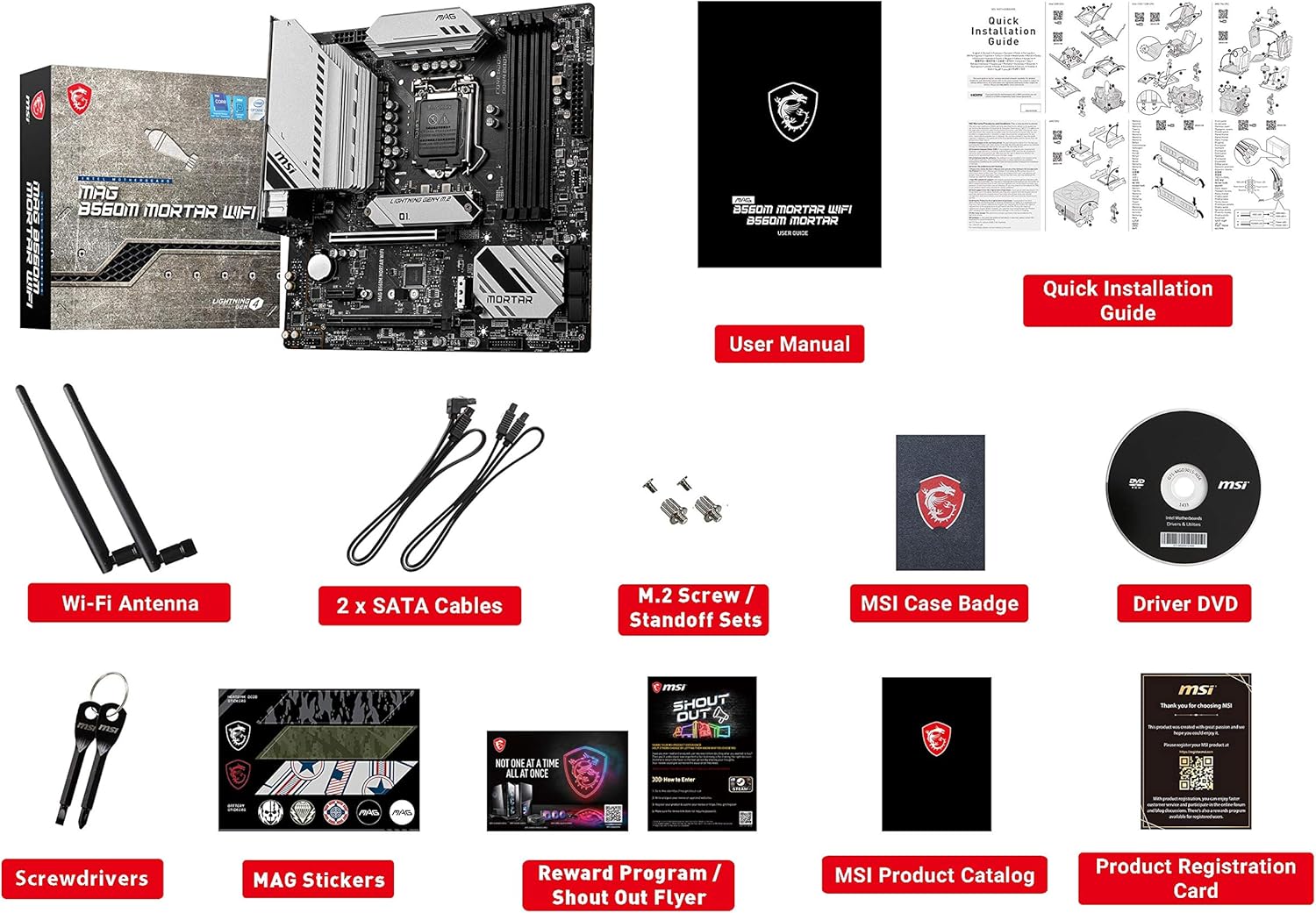
Figure 2: Included accessories with the motherboard.
- MSI MAG B560M Mortar WiFi Motherboard
- User Manual
- Torolàlana fametrahana haingana
- Antenna Wi-Fi
- Tariby SATA 2 x
- M.2 Screw/Standoff Sets
- MSI Case Badge
- DVD mpamily
- Screwdrivers
- MAG Stickers
- Reward Program / Shout Out Flyer
- MSI Product Catalog
- Karatra fisoratana anarana vokatra
3. Fametrahana sy fametrahana
Alohan'ny hanombohana ny fametrahana azy, ataovy izay hahazoana antoka fa maty ny herinaratra ao amin'ny rafitrao ary tsy esorina amin'ny faladiany. Manaova fehikibo anti-static mba hisorohana ny fahasimban'ny singa amin'ny fivoahan'ny herinaratra static (ESD).
3.1. Fametrahana CPU
Carefully open the LGA 1200 socket lever. Align the triangular mark on your Intel LGA 1200 processor with the corresponding mark on the socket. Gently place the CPU into the socket without forcing it. Close the lever to secure the CPU.

Figure 3: Close-up of the LGA 1200 CPU socket.
3.2. RAM (DDR4 Memory) Installation
Locate the four DDR4 memory slots. Open the clips on both ends of the desired memory slot. Align the notch on the DDR4 memory module with the key in the slot. Press down firmly on both ends of the memory module until the clips snap into place.

Figure 4: DDR4 memory slots on the motherboard.
3.3. Fametrahana SSD M.2
The motherboard features Turbo M.2 slots with M.2 Shield Frozr for optimal performance and cooling. Remove the M.2 Shield Frozr heatsink. Insert your NVMe M.2 SSD into the slot at an angle, then gently push it down. Secure the SSD with the provided M.2 screw/standoff set. Reattach the M.2 Shield Frozr heatsink.

Figure 5: M.2 slot with M.2 Shield Frozr heatsink.
3.4. Fametrahana Karatra Sary (PCIe)
Locate the PCIe 4.0 x16 slot for your graphics card. Open the retention clip at the end of the slot. Align your graphics card with the slot and press down firmly until it is seated correctly and the clip locks. Secure the card to your chassis with screws.

Figure 6: Diagram illustrating PCIe slot configuration.
3.5. Fampifandraisana ireo fitaovana elektrika sy herinaratra
Connect your power supply's 24-pin ATX power connector and 8-pin CPU power connector to the motherboard. Connect SATA drives using the provided SATA cables. Attach the Wi-Fi antennas to the rear I/O panel. The motherboard features a pre-installed I/O Shield for ease of installation and improved EMI protection.

Figure 7: Rear I/O panel with various ports and pre-installed shield.
3.6. Vokatra mihoatraview Video
Video 1: Vitaview of the MSI B550M PRO-VDH WiFi Motherboard, demonstrating key features and components. Note: This video is for a related product (B550M PRO-VDH WiFi) and provides a general overview of similar MSI motherboard features.
4. Torolàlana miasa
4.1. Initial Boot-up and BIOS Setup
After assembling your system, power it on. Press the 'Del' key during startup to enter the BIOS (Basic Input/Output System) setup. In the BIOS, you can configure boot order, system time, and other advanced settings. Ensure your storage drive is recognized and set as the primary boot device.
4.2. Fametrahana mpamily
Once your operating system is installed, install the necessary drivers for your motherboard components. The included Driver DVD contains most drivers. Alternatively, download the latest drivers from the official MSI webtranokala ho an'ny fampisehoana tsara indrindra sy mifanaraka.
5. Famaritana
| endri-javatra | famaritana |
|---|---|
| Marika | MSI |
| Anarana modely | MAG B560M MORTAR WIFI |
| CPU Socket | LGA 1200 |
| Processeurs mifanaraka | 11th/10th Gen Intel Core/Pentium/Celeron |
| Karazana Chipset | Intel B560 |
| RAM Memory Technology | DDR4 |
| Hafaingan'ny famantaranandro fahatsiarovana | 2133 MHz (Supports higher via XMP) |
| PCIe Slots | PCIe 4.0 x16, PCIe 3.0 x16, PCIe 3.0 x1 |
| M.2 Slots | 2 (Turbo M.2 with M.2 Shield Frozr) |
| LAN | 2.5G LAN |
| Wireless fifandraisana | Wi-Fi 6E |
| Video Output | DisplayPort, HDMI |
| Port USB | USB 3.2 Gen 2, USB 2.0 |
| Form Factor | mATX |
| refy (LxWxH) | 9.6 x 9.6 x 2.5 santimetatra |
| Lanja entana | 3.39 kg |
6. Fikojakojana
6.1. Keeping Your Motherboard Clean
Regularly clean your motherboard and PC case to prevent dust buildup, which can lead to overheating and reduced performance. Use compressed air to remove dust from fans, heatsinks, and other components. Ensure the system is powered off and unplugged before cleaning.
6.2. Fanavaozana ny BIOS
Periodically check the MSI website for BIOS updates. BIOS updates can improve system stability, add support for new hardware, and enhance performance. Follow the instructions provided by MSI carefully when updating the BIOS to avoid potential issues.
6.3. Fanavaozana ny mpamily
Keep your device drivers updated to ensure optimal performance and compatibility with new software and hardware. Visit the MSI support page for the latest drivers for your motherboard.
7. Famahana olana
7.1. Tsy misy Output Display
- Ensure your monitor is connected to the graphics card (if installed) or the motherboard's integrated graphics ports.
- Check that the graphics card is properly seated in its PCIe slot and that all necessary power cables are connected.
- Verify that RAM modules are correctly installed in their slots. Try reseating them or testing with one module at a time.
7.2. System Instability or Crashes
- Check CPU and GPU temperatures using monitoring software. Overheating can cause instability.
- Ensure all power connections to the motherboard and components are secure.
- Ampiasao ireo fitaovana fitiliana fahatsiarovana mba hijerena raha misy olana amin'ny RAM.
- Update your BIOS and all device drivers to the latest versions.
7.3. Olana amin'ny fifandraisana Wi-Fi
- Ensure the Wi-Fi antennas are securely attached to the rear I/O panel.
- Install the latest Wi-Fi drivers from the MSI website.
- Check your router settings and ensure the Wi-Fi network is broadcasting.
8. Warranty sy fanohanana
MSI products are built with a focus on quality and durability. For specific warranty terms and conditions, please refer to the warranty card included in your package or visit the official MSI support webtranokala. ny website also provides access to FAQs, driver downloads, and technical support contact information.
Raha mila fanampiana fanampiny dia tsidiho azafady ny MSI Support Page.


