1. Fampidirana
Thank you for choosing the Foloda Bluetooth Number Pad. This wireless numeric keypad is designed to enhance your productivity, offering a comfortable and precise input experience for laptops and desktop computers. Its compact design and Bluetooth connectivity provide a cable-free and clutter-free workspace. This manual provides detailed instructions for setup, operation, maintenance, and troubleshooting to ensure optimal performance of your device.

Image 1.1: The Foloda Bluetooth Number Pad, a compact and wireless numeric keypad.
2. Ny votoatin'ny fonosana
Hamarino azafady fa ao anatin'ny fonosanao ny entana rehetra:
- Bluetooth Wireless Numeric Keypad
- User Manual (ity antontan-taratasy ity)
3. Famaritana
Refer to the following specifications for your Foloda Bluetooth Number Pad:
| endri-javatra | Description |
|---|---|
| Laharana modely | BT-Numeric-Keypad-Foloda |
| Marika | Foloda |
| Ny refin'ny vokatra | 4.92"L x 3.74"W x 0.98"H (12.5 sm x 9.5 sm x 2.5 sm) |
| Lanja entana | 4 ounces (113 grama) |
| Teknolojia fifandraisana | Bluetooth 3.0 |
| Fitaovana mifanentana | PC, Laptop, Desktop computers with Windows 2000 / XP / Vista / 7 / 8 / 10 systems |
| Herin'aratra | 2 x AAA Batterie (tsy tafiditra) |
| Endri-javatra manokana | Wireless, Bluetooth, Auto Sleep Function |
| loko | Mainty |
| Style | ANKEHITRINY |

Image 3.1: Diagram illustrating the dimensions of the Foloda Bluetooth Number Pad.
4. Fametrahana
4.1. Fametrahana bateria
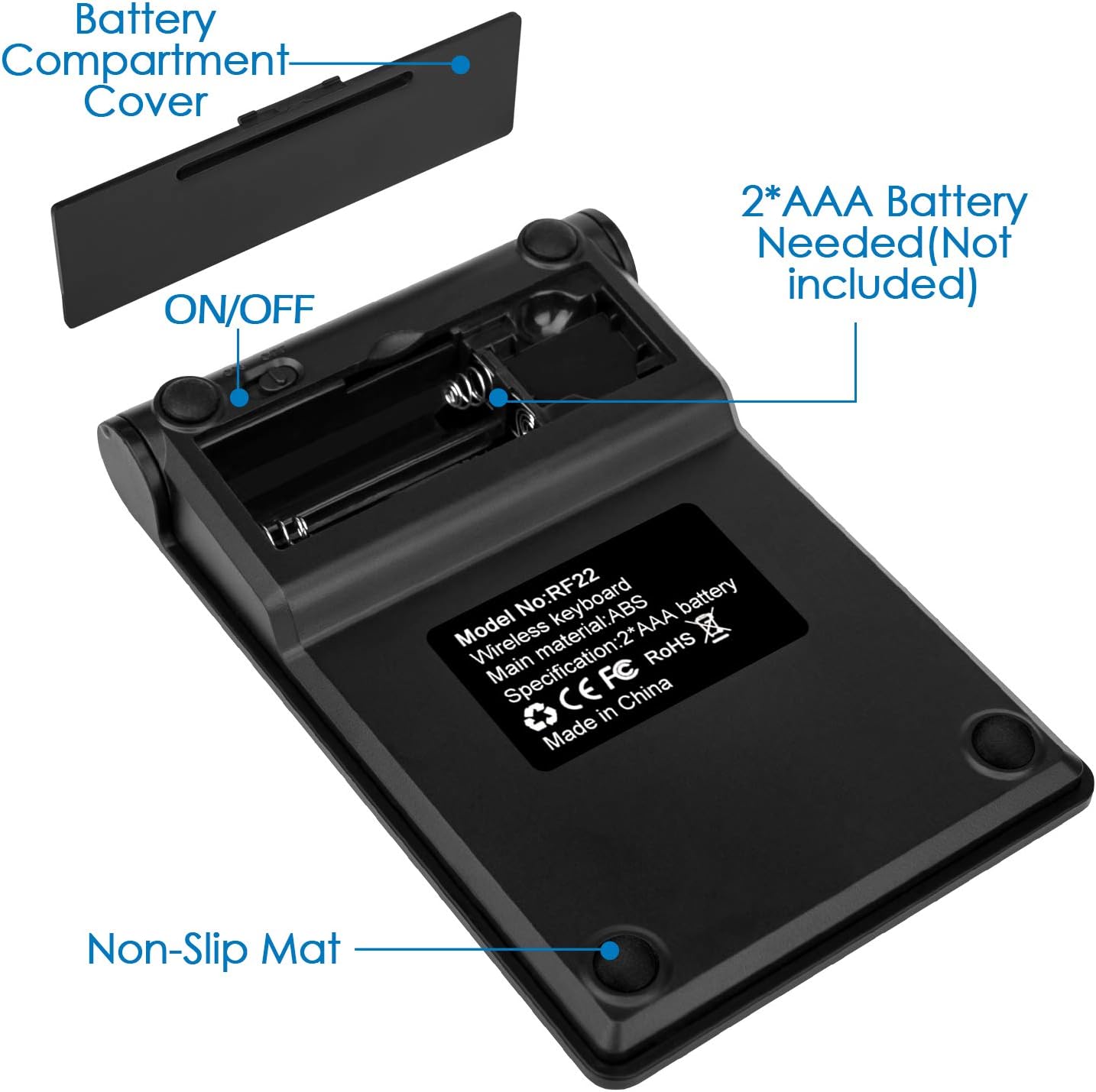
- Locate the battery compartment cover on the back of the number pad.
- Atsofohy na atsangano moramora ny fonony mba hanokafana ny fizarana.
- Insert two (2) AAA batteries (not included) into the compartment, ensuring correct polarity (+/-).
- Soloy tsara ny fonon'ny efitrefitra bateria.

Sary 4.1: View of the battery compartment, showing where to insert two AAA batteries.
4.2. Pairing Bluetooth
Follow these steps to connect your number pad via Bluetooth:
- Ensure the number pad is powered on. There is typically an ON/OFF switch near the battery compartment.
- On your computer or laptop, navigate to the Bluetooth settings.
- Alefaso ny Bluetooth ary tadiavo ireo fitaovana vaovao.
- The Foloda Number Pad should appear in the list of available devices (it might be named something like "Bluetooth Number Pad" or similar).
- Select the number pad to initiate the pairing process. Your computer may prompt you to enter a code on the number pad, or it may connect automatically.
- Once successfully paired, the number pad is ready for use.

Image 4.2: The number pad connected wirelessly to a laptop via Bluetooth, illustrating a reliable connection.
5. Torolàlana miasa
5.1. Basic Keypad Functions
The Foloda Bluetooth Number Pad functions as a standard 10-key numeric keypad, providing numerical input and basic arithmetic operations. Keys include 0-9, decimal point, Enter, +, -, *, /, Num Lock, Esc, and Backspace.
5.2. Sleep Mode and Wake-up
To conserve battery life, the number pad is equipped with an automatic sleep function. After approximately 10 minutes of inactivity, the keypad will enter sleep mode, indicated by the lights turning off.
- To wake up the keypad: Tsindrio izay fanalahidy afa-tsy the NUM LOCK key. The keypad will reactivate and be ready for use.
- Important Note on NUM LOCK: If you press the NUM LOCK key to wake the device, the number keys will temporarily function as arrow keys (Home, End, PgUp, PgDn, arrows). To restore normal numeric input, press the NUM LOCK key again.

Image 5.1: Illustration of the Num Lock indicator light and explanation of sleep mode and wake-up behavior.
5.3. Endri-javatra fototra
The keypad features an X-type scissors foot structure for quiet, comfortable, and durable key presses, ensuring a responsive typing experience.
Sary 5.2: Misy antsipiriany view of the key mechanism, highlighting the X-type scissors foot structure for quiet and comfortable operation.
6. Fikojakojana
To ensure the longevity and optimal performance of your Foloda Bluetooth Number Pad, please follow these maintenance guidelines:
- Fanadiovana: Use a soft, dry cloth to wipe the surface of the number pad. For stubborn dirt, a slightly damp cloth with mild soap can be used, followed by immediate drying. Avoid using harsh chemicals, abrasive cleaners, or excessive moisture.
- fitahirizana: When not in use for extended periods, store the number pad in a cool, dry place away from direct sunlight and extreme temperatures.
- Fanoloana bateria: Replace batteries promptly when performance degrades or the device stops responding to prevent potential battery leakage.
- Aza mitete (Avoid Drops): Arovy amin'ny fianjerana sy ny fifandonana ny fitaovana, izay mety hanimba ny singa anatiny.
7. Famahana olana
If you encounter issues with your Foloda Bluetooth Number Pad, refer to the following common problems and solutions:
| OLANA | Antony mety hitranga | vahaolana |
|---|---|---|
| Number pad does not turn on. | Maty na diso ny fametrahana ny bateria. | Check battery polarity. Replace with fresh AAA batteries. Ensure the ON/OFF switch is in the 'ON' position. |
| Cannot pair the number pad via Bluetooth. | Bluetooth on computer is off; number pad is not in pairing mode; interference; previously paired device conflict. | Ensure Bluetooth is enabled on your computer. Turn the number pad off and on again. Remove any previous pairings of the number pad from your computer's Bluetooth settings and try pairing again. Move closer to the computer. |
| Number pad frequently disconnects or stops responding. | Low battery; out of range; interference; sleep mode. | Replace batteries. Ensure the number pad is within 30 feet (9 meters) of your computer. Minimize interference from other wireless devices. If in sleep mode, press any key (except Num Lock) to wake it. If issues persist, try re-pairing. |
| Number keys input symbols or move cursor instead of numbers. | NUM LOCK is off. | Press the NUM LOCK key once to activate numeric input. The Num Lock indicator light should be on. |
| Keys are unresponsive or sticky. | Dirt or debris under keys; physical damage. | Clean the keypad surface. Avoid spilling liquids. If physical damage is suspected, contact customer support. |
8. Warranty sy fanohanana
Foloda is committed to providing quality products and excellent customer service. While specific warranty details are not provided in this manual, we encourage you to contact us if you have any questions or experience issues with your product.
For support, please refer to the contact information provided with your purchase or visit the official Foloda website.


