1. Fampidirana
Thank you for choosing the ipega PG-9083S Wireless Gamepad. This device is designed to enhance your mobile gaming experience on both iOS and Android smartphones and tablets. Please read this manual carefully before use to ensure proper operation and to maximize your enjoyment of the product.
2. Product Features and Overview
The ipega PG-9083S offers a range of features for an immersive gaming experience:
- Wireless 4.0 Fifandraisana: Provides a stable and efficient connection to your mobile devices.
- Telescopic Holder: Adjustable holder accommodates devices from 5 to 10 inches, with a maximum extension of 28cm (11 inches).
- Fifanarahana malalaka: Supports iOS (iPhone 8/XR/XS and newer) and Android mobile phones and tablets.
- Ergonomic Design: Engineered for comfortable grip during extended gaming sessions.
- Sarintanin-tsarintany azo zahana: Allows for personalized control settings to suit various game types and player preferences.
- High-Precision Joysticks: Designed for accurate control and smooth operation in games.

Figure 2.1: The ipega PG-9083S Wireless Gamepad, showcasing its design with a tablet inserted. This image highlights the sleek feel and how it holds a device.

Figure 2.2: The gamepad's telescopic function, illustrating its ability to hold various devices including smartphones and tablets, with a maximum length of 28cm (11 inches).

Figure 2.3: Illustration of the gamepad's ergonomic design for comfort and its support for both vertical and horizontal screen orientations for tablets.

Figure 2.4: Depiction of the customizable button mapping feature, allowing users to set function keys according to personal habits for various game control needs.
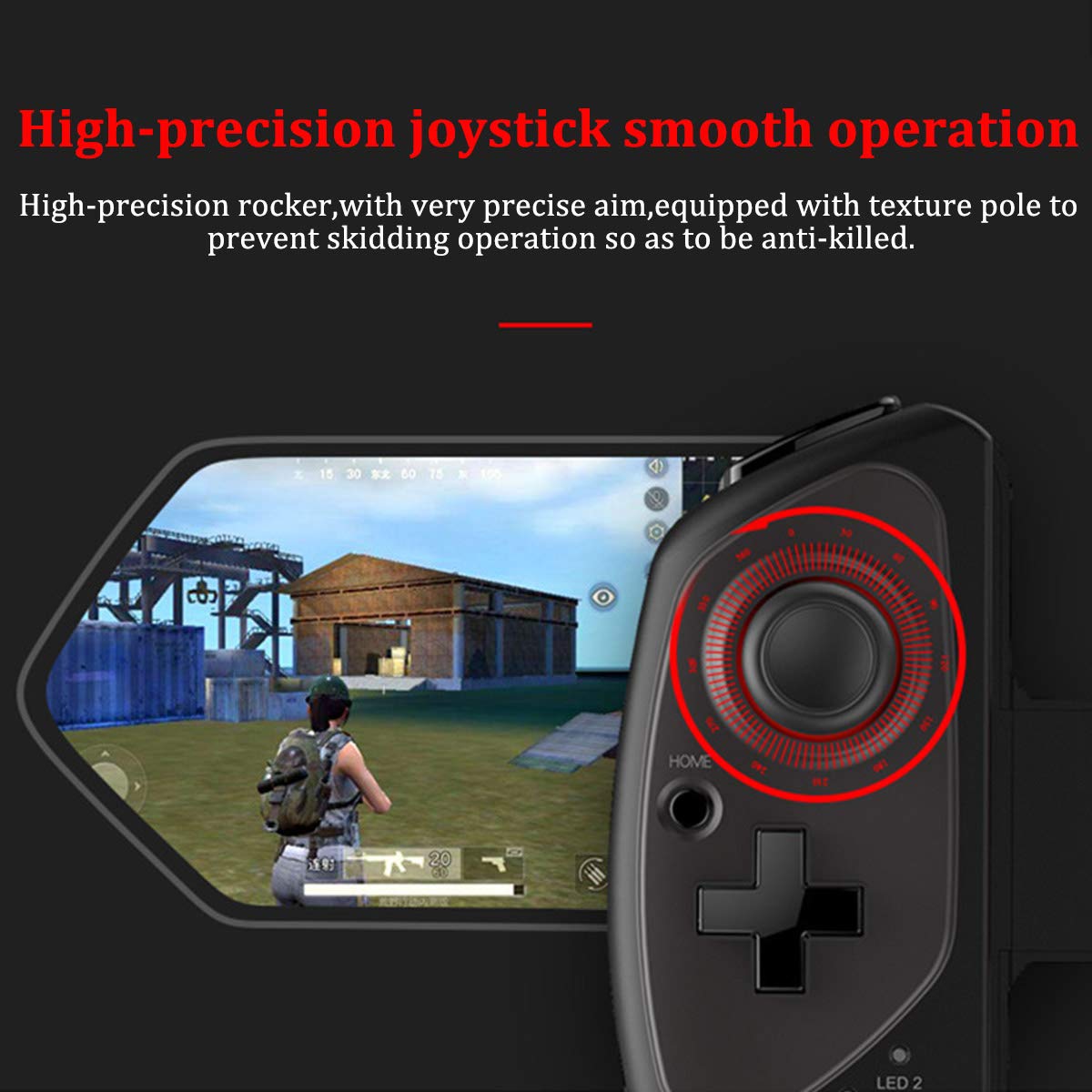
Figure 2.5: Close-up of the high-precision joystick, emphasizing its smooth operation and textured pole designed to prevent slipping during intense gameplay.
3. Torolàlana fananganana
3.1 Charging the Gamepad
Before initial use, fully charge the gamepad. Connect the provided USB charging cable to the gamepad's charging port and to a USB power source (e.g., computer, USB wall adapter). The LED indicator will show charging status and turn off or change color when fully charged.
3.2 Inserting Your Device
- Pull the telescopic arm outwards to unlock and extend it.
- Carefully place your smartphone or tablet into the holder, ensuring it is centered and securely seated.
- Release the telescopic arm to allow it to retract and firmly grip your device. Ensure the device is locked in place before gaming.

Sary 3.1: antsipirihany view of the security lock mechanism for the telescopic arm, illustrating how to extend and secure your device.
3.3 Fanambadiana Bluetooth
To connect the gamepad to your device:
- Herim-batana: Press and hold the Power button (usually the HOME button) for a few seconds until the LED indicator starts flashing, indicating it's in pairing mode.
- Ampidiro ny Bluetooth: On your smartphone or tablet, go to your Bluetooth settings and turn on Bluetooth.
- Hitady ny Fitaovana: Your device will scan for available Bluetooth devices. Look for "PG-9083S" or a similar name in the list.
- mpivady: Select the gamepad from the list to initiate pairing. Once connected, the LED indicator on the gamepad will typically become solid.
- Fifantenana fomba (raha ilaina): Some games or operating systems may require specific modes. Refer to your game's settings or the gamepad's quick start guide for specific mode switching instructions (e.g., Android Standard, iOS Direct Play).
4. Torolàlana miasa
4.1 Power On/off
- Herim-batana: Tsindrio ary hazòny ny an-trano button for approximately 3 seconds. The indicator light will flash.
- Mamono hery: Tsindrio ary hazòny ny an-trano button for approximately 5 seconds until the indicator light turns off. The gamepad will automatically power off after a period of inactivity to save battery.
4.2 Gamepad Modes
The PG-9083S supports different operating modes for optimal compatibility with various platforms. Typically, these modes are activated by holding a specific button combination while powering on the gamepad.
- Fomba mahazatra Android: Often activated by holding X + HOME. For general Android gaming.
- iOS Direct Play Mode: Often activated by holding Y + HOME. For iOS games that support direct gamepad input.
- Fomba hafa: Consult the quick start guide included with your product for any additional specific modes or button combinations for advanced functionality or specific game titles.
4.3 In-Game Control
Once connected, the gamepad will function as your primary input device for compatible games. The layout includes:
- Hazo Analoga Roa sosona: Ho an'ny fihetsehana marina sy fanaraha-maso ny fakantsary.
- D-Pad: For directional input, often used in retro games or menu navigation.
- Bokotra hetsika (A, B, X, Y): Ho an'ny hetsika ao anatin'ny lalao.
- Shoulder Buttons (L1, R1) and Triggers (L2, R2): For additional actions, often firing or accelerating.
- SELECT/BACK, START/MENU, HOME Buttons: For system functions and game menus.
Refer to individual game settings for specific button assignments and customization options.
5. Fikojakojana
- Fanadiovana: Use a soft, dry cloth to wipe the surface of the gamepad. Do not use harsh chemicals or abrasive cleaners.
- fitahirizana: Tehirizo ao amin'ny toerana mangatsiaka sy maina ny gamepad, lavitry ny tara-masoandro mivantana sy ny mari-pana tafahoatra.
- Fikarakarana bateria: To prolong battery life, avoid fully discharging the battery frequently. Charge the gamepad regularly, even if not in use for extended periods.
- Aza mitete (Avoid Drops): Arovy amin'ny fianjerana sy ny fifandonana ny fitaovana, izay mety hanimba ny singa anatiny.
6. Famahana olana
6.1 Gamepad Not Connecting/Pairing
- Ensure the gamepad is charged.
- Ataovy azo antoka fa mandeha ny Bluetooth amin'ny fitaovanao.
- Andramo adino ny fitaovana ao amin'ny fikandrana Bluetooth an'ny findainao ary ampifanaraho indray.
- Ensure the gamepad is in the correct pairing mode for your operating system (Android/iOS).
- Restart both your mobile device and the gamepad.
6.2 Buttons or Joysticks Unresponsive/Inaccurate
- Verify the gamepad is properly connected and in the correct operating mode for the game.
- Some games may require specific controller configurations or do not fully support external gamepads. Check the game's settings.
- Ensure there are no physical obstructions preventing button presses or joystick movement.
- If experiencing issues with joystick sensitivity or "dead zones," check if the game offers in-game calibration or sensitivity adjustments.
6.3 Tsy mandeha ny Gamepad
- Check the charging cable and USB power source. Try a different cable or adapter.
- Ensure the charging port on the gamepad is clean and free of debris.
6.4 Device Not Fitting Securely
- Ensure your device's dimensions are within the specified telescopic holder range (5-10 inches, up to 28cm/11 inches).
- Remove any bulky cases from your device that might prevent a secure fit.
7. Famaritana
| Laharana modely: | PG-9083S |
| Fifandraisana: | Wireless 4.0 |
| Telescopic Holder Range: | 5 - 10 inches (up to 28 cm / 11 inches) |
| mifanentana: | iOS (iPhone 8/XR/XS and newer), Android (Mobile Phones, Tablets) |
| Lanja entana: | 13.1 ounces (371 grama eo ho eo) |
| Ny haben'ny fonosana: | 9.53 x 6.81 x 2.44 santimetatra |
8. Information momba ny fiarovana
- Do not expose the gamepad to extreme temperatures, humidity, or direct sunlight.
- Do not attempt to disassemble or modify the gamepad. This will void any potential warranty and may cause damage.
- Arovy amin'ny rano sy ranon-javatra hafa ilay fitaovana.
- Dispose of the battery according to local regulations. Do not dispose of batteries in household waste.
- Arovy amin'ny ankizy kely.


