Sava lalana
This manual provides essential information for the setup, operation, and maintenance of your OREI Sony UBP-X800M2 Region Free 4K UHD Blu-ray Player. This player is designed for worldwide use, supporting all Blu-ray disc zones (A/B/C) and DVD regions (0-8), with a built-in NTSC↔PAL 4K HD converter. Enjoy stunning 4K UHD visuals, high-resolution audio including Dolby Atmos and DTS:X, and seamless access to streaming services via Wi-Fi or Ethernet.

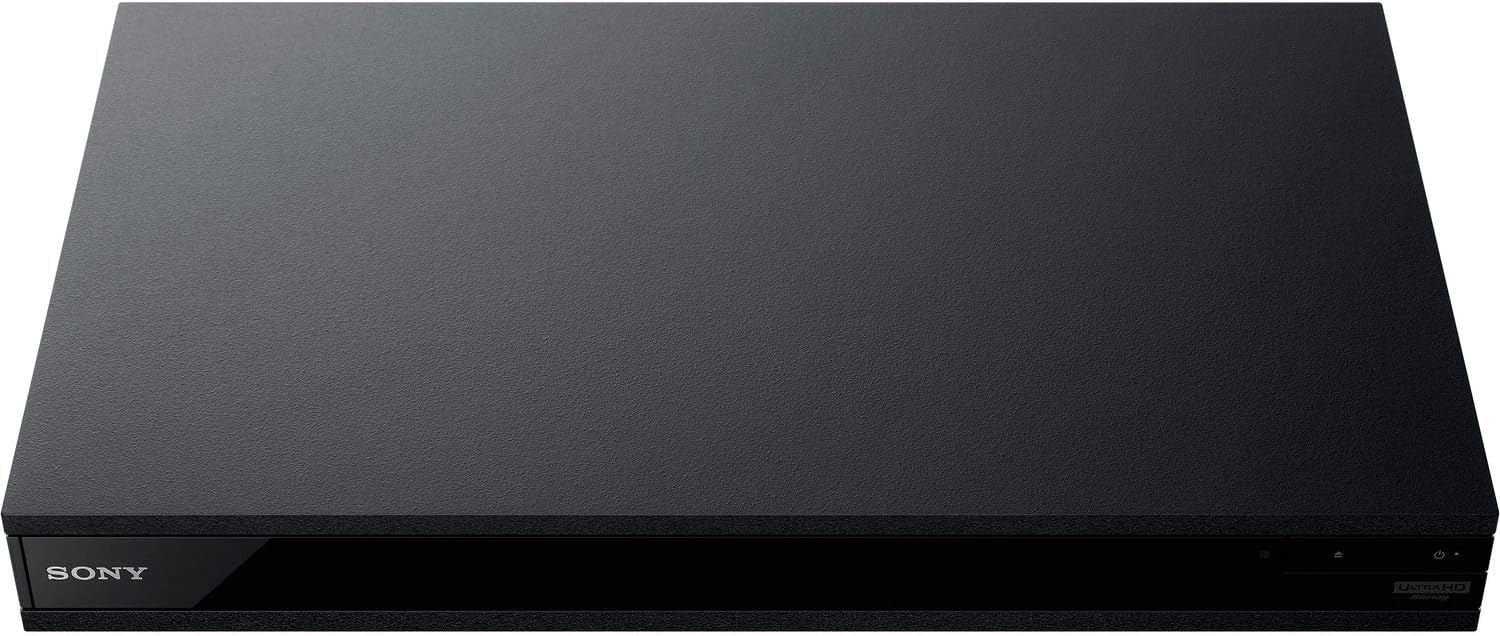
Sary 1: Eo anoloana view of the OREI Sony UBP-X800M2 4K UHD Blu-ray Player.
Hametraka
1. Famoahana sy Fametrahana
- Esory tsara ny singa rehetra amin'ny fonosana.
- Place the player on a stable, level surface with adequate ventilation.
- Ensure no objects block the ventilation openings.
2. Mampifandray amin'ny fahitalavitrao
Connect the player to your TV using an HDMI cable for optimal 4K UHD video and audio.
- Ampifandraiso amin'ny iray amin'ireo tariby HDMI ny tendrony iray HDMI OUT port on the rear of the Blu-ray player.
- Ampifandraiso amin'ny fidirana HDMI amin'ny fahitalavitra ny faran'ny tariby HDMI iray.
- If using an audio receiver, connect the player's HDMI OUT to the receiver's HDMI IN, then the receiver's HDMI OUT to the TV's HDMI IN.

Figure 2: Rear panel connections, showing HDMI, LAN, and audio outputs.
3. Fampifandraisana herinaratra
- Connect the AC power cord to the player's power input and then to a suitable electrical outlet.
4. Network Connection (Optional)
For streaming services and firmware updates, connect the player to your home network.
- Fifandraisana tariby: Connect an Ethernet cable from the player's LAN (100) port to your router or modem.
- Wireless fifandraisana: Navigate to the network settings in the player's menu to connect to your Wi-Fi network.
5. Region Changing Instructions
This player supports all DVD regions (0-8) automatically. Blu-ray regions (A, B, C) are changed manually using the remote control.
- Turn the player ON SY OPEN THE DISC TRAY.
- Once the tray is completely open, press the corresponding colored button on the remote to select the desired Blu-ray region:
- Faritra A: Tsindrio ny BOTOANA MAVO amin'ny fanaraha-maso lavitra.
- Faritra B: Tsindrio ny BOTOANA MANGA amin'ny fanaraha-maso lavitra.
- Faritra C: Tsindrio ny RED BUTTON amin'ny fanaraha-maso lavitra.
- You can now put your disc in the tray and then close the tray.

Figure 3: Remote control with colored buttons for region selection.
Torolàlana miasa
1. Playback kapila
The player supports a wide range of disc formats, including 4K UHD Blu-ray, standard Blu-ray, Blu-ray 3D, DVD, CD, and Super Audio CD (SACD).
- Tsindrio ny MISOKATRA/MIKATO tsindrio ny bokotra eo amin'ny mpilalao na ny fanaraha-maso lavitra mba hanokafana ny fitoeran'ny kapila.
- Place the disc gently onto the tray with the label side facing up.
- Tsindrio ny MISOKATRA/MIKATO bokotra indray hanakatonana ny lovia.
- The player will automatically begin playback or display a disc menu.

Sary 4: Eo anoloana view of the player with the disc tray open, ready for disc insertion.
2. Serivisy streaming
Access popular streaming services like Netflix and YouTube directly from the player's home menu.
- Ensure the player is connected to the internet (Wi-Fi or Ethernet).
- From the home screen, select the desired streaming application.
- Log in with your account credentials to begin streaming.
3. USB Media Playback
Milalao haino aman-jery files (audio, video, photos) from a USB storage device.
- Insert your USB device into the front USB port.
- Select the USB option from the player's home menu to browse and play your media.
Sary 5: Eo anoloana view of the player with a USB drive inserted into the front port.
fikarakarana
1. Manadio ny mpilalao
- Wipe the exterior of the player with a soft, dry cloth.
- Aza mampiasa mpanadio, savoka, na solvents.
- Ensure ventilation openings remain clear of dust and debris.
2. Fikarakarana ny kapila
- Tazony amin'ny sisiny ny kapila mba tsy hisy dian-tanana sy rangotra.
- Diovy ny kapila amin'ny lamba malefaka tsy misy lint, famafana avy eo afovoany mankany ivelany.
- Tehirizo ireo kapila amin'ny vatany lavitra ny tara-masoandro mivantana sy ny hafanana tafahoatra.
3. Fanavaozana firmware
Firmware updates can be done via the internet to ensure optimal performance and access to the latest features.
- Go to the home menu, then setup menu, and then to Software Update.
- Click on "Update Via Internet". If a new firmware is available, the player will automatically update.
- AZA turn off the player while it is updating.
- AZA perform firmware updates by USB unless instructed by OREI support.
Fanamboarana
Olana iraisana
- Tsy misy sary/feo:
- Check all HDMI and audio cable connections.
- Ensure the TV input is set to the correct HDMI port.
- Verify the player is powered on.
- Disc Does Not Play:
- Ataovy azo antoka fa madio sy tsy misy ratra ny kapila.
- Verify the disc is inserted correctly (label side up).
- For Blu-ray discs, confirm the player's region setting matches the disc's region (refer to "Region Changing Instructions" in the Setup section).
- Open the tray again and leave the disc in the tray. Once fully open, press the color button to select the region. Then close the tray.
- Region Code Error Message:
If you put in a disc before changing regions, you may get an error message indicating the wrong region. The player remembers this message. To remove that error, you need to reset the player.
- Tsindrio ny an-trano button on the remote with no disc inside to go to the home screen.
- Use arrow buttons on the remote to go to the upper right corner where it says Hametraka ary press Ampidiro.
- Mitondrà midina mankany amin'ny Famerenana on the bottom of the menu.
- Select Avereno any amin'ny firafitry ny Factory default.
- Mihodina midina ary mifidiana SETRA REHETRA ary press Ampidiro -> Press Manomboka Enter -> Close Ampidiro.
- Turn the player off and then on again after 30 seconds.
- Select Language English and then select quick start mode OFF. You may need to activate network settings again.
- If you prefer not to connect the player to the internet, you may press the an-trano button and go to the home screen. Now start from step 1 under "Region Changing Instructions" to change regions.
fepetra arahana
| Marika | OREI |
| Anarana modely | Sony X800M2 (UBP-X800M2) |
| Ny refin'ny vokatra | 19 x 14.1 x 3.8 santimetatra |
| Lanja entana | 8.82 kilao (4000 grama) |
| Karazana Media | Blu-Ray Disc, DVD, 4K UHD Blu-ray, Blu-ray 3D, CD, Super Audio CD |
| vahaolana | 3840x2160 (4K UHD) |
| Teknolojia fifandraisana | Ethernet, HDMI, USB, Wi-Fi |
| Karazana mpampitohy | HDMI |
| Audio Output Mode | Surround (Dolby Atmos, DTS:X, High-Resolution Audio) |
| loko | Mainty |
| vatoaratra | 2 AAA bateria ilaina (ho an'ny lavitra) |
| Endri-javatra manokana | Region Free (Blu-ray Zones A/B/C, DVD Regions 0-8), Built-in NTSC↔PAL 4K HD Converter |
Warranty sy fanohanana
Warranty Information
For specific warranty details, please refer to the warranty card included with your product or visit the official OREI website. Tehirizo ny tapakila fividiananao ho porofon'ny fividianana.
Fanohanana ny mpanjifa
If you encounter any issues or have questions regarding your OREI Sony UBP-X800M2 Blu-ray Player, please contact OREI customer support.
- Fanohanana an-tserasera: Tsidiho ny OREI Store on Amazon ho an'ny FAQ sy loharano fanohanana.
- Fanampiana ara-teknika: Contact OREI directly for technical support. (Specific contact details not provided in source data, please refer to product packaging or official webtranokala).


