1. Fampidirana
This manual provides essential information for the safe and efficient operation of your Marantz NR1510 5.2 Channel 4K Ultra HD AV Receiver. The NR1510 is designed to deliver impressive surround sound and high-fidelity audio in a compact form factor, approximately half the height of traditional AV receivers. It supports the latest HDMI connections, high-resolution audio formats like Dolby TrueHD and DTS-HD Master Audio, and offers extensive music streaming capabilities via Bluetooth, AirPlay 2, and the HEOS app. Voice control via Amazon Alexa, Google Assistant, and Apple Siri is also supported.
Azafady vakio tsara ity boky torolalana ity alohan'ny hampiasana azy ary tehirizo mba hojerena amin'ny ho avy.
2. Endri-javatra fototra
- 5.2 Fantsona manodidina ny feo: Supports Dolby TrueHD, DTS-HD Master Audio, and HDMI eARC for an immersive home theater experience.
- 4K Ultra HD Video Support: Compatible with Dolby Vision, BT-2020, HLG, and HDR10 for stunning 4K video quality.
- Fifandraisana mandroso: Features 6 HDMI inputs (including 1 front), Bluetooth, Wi-Fi (AirPlay 2), and Ethernet.
- HEOS Built-in: Enables multi-room audio streaming from popular services like Spotify, TIDAL, TuneIn, and Deezer.
- Feo fanaraha-maso mifanaraka: Seamless integration with Amazon Alexa for hands-free operation.
- High-Current Power Ampmpamonjy voina: Discrete amplifiers on all 5 channels deliver 85W per channel for exceptional sound quality and speaker control.
- Design Compact: Half the height of traditional AV receivers, allowing for flexible placement.
3. Torolàlana fananganana
3.1 Famoahana sy fametrahana
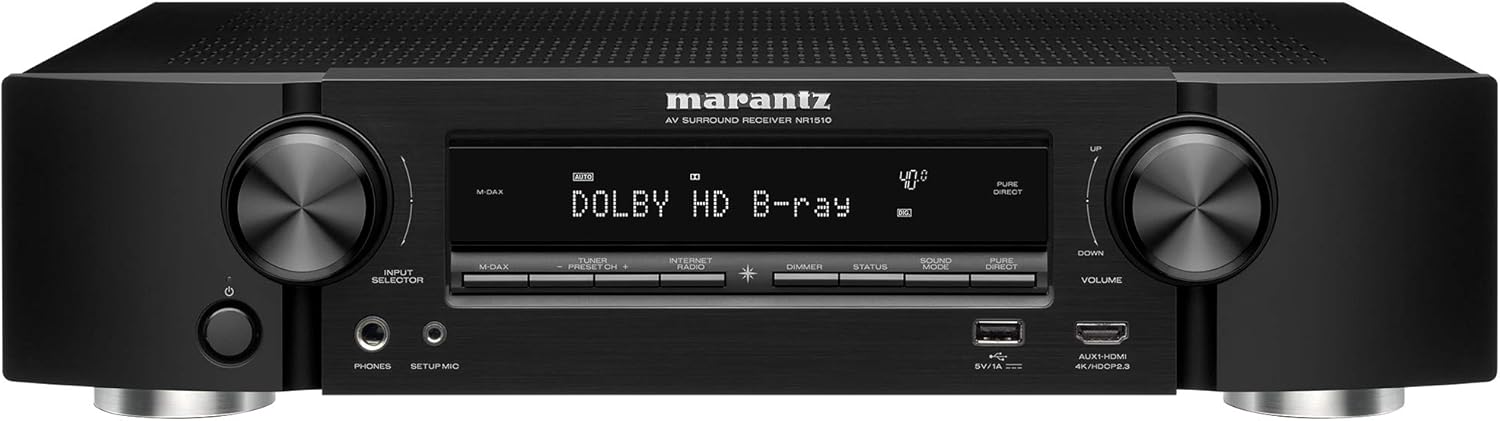
Carefully remove the NR1510 from its packaging. Place the receiver on a stable, flat surface with adequate ventilation. Ensure there is sufficient space around the unit for proper airflow to prevent overheating.

Sary 3.1: Eo anoloana view of the Marantz NR1510 AV Receiver.
3.2 Mampifandray ny fitaovanao
Before making any connections, ensure the NR1510 and all other devices are turned off and unplugged from the power outlet.
3.2.1 Fifandraisana amin'ny mpandahateny
Connect your speakers to the corresponding terminals on the rear panel. The NR1510 supports a 5.2 channel setup. Ensure correct polarity (+ to + and - to -) for optimal sound quality.

Sary 3.2: antsipirihany view of speaker connection terminals.
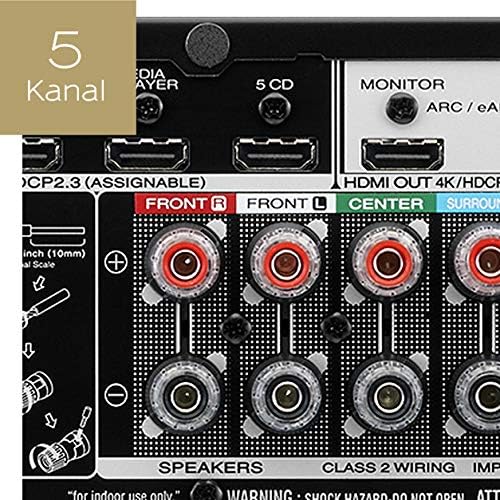
Figure 3.3: Illustration of a 5-channel speaker configuration.
3.2.2 Fifandraisana HDMI
Connect your video sources (e.g., Blu-ray player, game console, cable box) to the HDMI IN ports. Connect your TV or projector to the HDMI OUT (MONITOR) port. The NR1510 features 6 HDMI inputs, including one on the front panel for easy access.

Figure 3.4: Front panel HDMI input for convenient connections.
Fifandraisana 3.2.3
For network features and firmware updates, connect the NR1510 to your home network via an Ethernet cable to the NETWORK port or wirelessly via Wi-Fi. Ensure your Wi-Fi antenna is properly connected.
3.2.4 Fampifandraisana herinaratra
Once all audio and video connections are made, connect the power cord to the NR1510 and then to a wall outlet.
Sary 3.5: Tapitraview of the Marantz NR1510 rear panel connections.
3.3 Mpampiasa fanamafisam-peo voalohany
Upon first power-on, the NR1510 will guide you through an on-screen setup assistant. This wizard helps with speaker calibration (using the supplied microphone), network setup, and input configuration. Follow the on-screen prompts for an easy setup process.
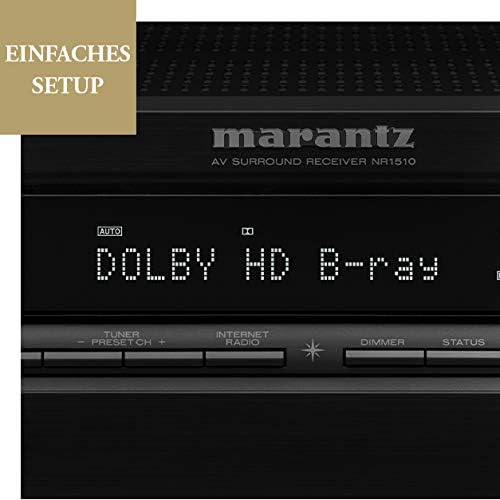
Figure 3.6: The NR1510 display indicating the easy setup process.
4. Torolàlana miasa
4.1 Fampandehanana fototra
- Herim-batana / maty: Press the POWER button on the front panel or the remote control.
- Safidy fampidirana: Use the INPUT SELECTOR knob on the front panel or the dedicated input buttons on the remote control (e.g., CBL/SAT, GAME, CD, MEDIA PLAYER, etc.) to switch between connected devices.
- Fanaraha-maso ny feo: Adjust the VOLUME knob on the front panel or the VOLUME +/- buttons on the remote control.
4.2 Fifehezana lavitra
The supplied remote control provides full command over your NR1510 receiver and connected devices. Familiarize yourself with its layout for convenient operation.

Figure 4.1: The Marantz NR1510 remote control.
- Hery (Bokotra Mena): Mamelona na mamono ny fitaovana.
- bokotra fampidirana: Directly select specific inputs (e.g., CBL/SAT, GAME, CD, PHONO, USB).
- Volume +/-: Manitsy ny haavon'ny horonam-peo master.
- Mangina: Temporarily mutes the audio output.
- Navigation Pad: Used to navigate menus on the TV screen.
- Bokotra Fomba Feo: Select various sound modes (e.g., MOVIE, MUSIC, GAME, PURE).
- Smart Select Buttons (1-4): Store and recall preferred settings for different activities.
4.3 Network and Streaming Features
The NR1510 offers extensive network capabilities for music streaming and multi-room audio.
- HEOS Built-in: Access music from online streaming services (Spotify, Deezer, Tidal, etc.) and local network storage. Create a multi-room audio system with other HEOS-enabled devices.
- Lalao Air 2: Stream audio directly from your Apple devices.
- Bluetooth: Connect your smartphone or tablet wirelessly to play music.

Figure 4.2: The HEOS Built-in feature allows integrated multi-room audio.

Figure 4.3: Wireless streaming capabilities of the NR1510.
4.4 Fifehezana feo
The NR1510 is compatible with Amazon Alexa. Once configured, you can use voice commands to control functions like input switching, volume adjustment, and music playback through a compatible Alexa-enabled device.
5. Fikojakojana
- Fanadiovana: Mampiasà lamba malefaka sy maina hanadiovana ny ivelany amin'ilay fitaovana. Aza mampiasa mpanadio na solvents mikikisana.
- Fanavaozana ny mikirao praogramanao: Periodically check for firmware updates via the network connection. Updates can improve performance and add new features. Refer to the on-screen menu for update options.
- rivotra: Ataovy izay tsy hisakanana ny varavaran'ny rivotra ao amin'ilay fitaovana mba hisorohana ny hafanana be loatra.
6. Famahana olana
If you encounter issues with your Marantz NR1510, refer to the following common troubleshooting steps. For more detailed solutions, consult the comprehensive online manual available on the Marantz support website.
| OLANA | Antony mety / Vahaolana |
|---|---|
| Tsy misy hery | Check if the power cord is securely connected. Ensure the power outlet is functional. |
| Tsy misy feo | Check speaker connections. Verify input selection. Ensure volume is not muted or too low. Check audio settings on the source device. |
| Tsy misy sary | Check HDMI cable connections. Verify input selection on the receiver and TV. Ensure the TV is set to the correct HDMI input. |
| Olana amin'ny fifandraisana amin'ny tambajotra | Check Ethernet cable connection or Wi-Fi settings. Restart your router/modem. Ensure correct network password for Wi-Fi. |
| Tsy mandeha ny fanaraha-maso lavitra | Replace batteries. Ensure no obstructions between the remote and the receiver's IR sensor. |
7. Famaritana
| endri-javatra | famaritana |
|---|---|
| Marika | Marantz |
| Laharana modely | 90766127 (NR1510) |
| loko | Mainty |
| Fantsona Sound manodidina | 5.2 |
| Fampidirana HDMI | 6 (including 1 front) |
| HDMI Output | 1 (eARC compatible) |
| Teknolojia fifandraisana | Bluetooth, Ethernet, Wireless (Wi-Fi, AirPlay 2), USB |
| Endri-javatra manokana | HEOS Multiroom, Spotify Connect, Voice Control (Alexa) |
| Fitaovana mifanentana | Televiziona |
| Audio Output Mode | Nanodidina |
| Video Encoding | H.265 (HEVC) |
8. Warranty sy fanohanana
Marantz products are built to the highest standards and undergo rigorous quality control. For information regarding your product's warranty, please refer to the warranty card included in the original packaging or visit the official Marantz webtranonkala raha mila fanazavana fanampiny momba ny faritra misy anao.
For technical support, troubleshooting assistance beyond this manual, or service inquiries, please contact Marantz customer support. You can find contact information and additional resources, including a comprehensive online manual, on the official Marantz support webtranokala (www.marantz.com).
Please have your model number (NR1510) and serial number ready when contacting support.


