Sava lalana
This manual provides essential instructions for the installation, operation, maintenance, and troubleshooting of your SonicWall TZ400 Network Security Appliance. Please read this document thoroughly before setting up your device to ensure proper functionality and security.
1. Fametrahana sy fametrahana
1.1 Ny votoatin'ny fonosana
Hamarino fa misy ny entana rehetra ao anaty fonosana:
- SonicWall TZ400 Appliance
- Power Adapter
- Tady herinaratra
- Cable Ethernet
- Quick Start Guide (jereo ity boky ity ho an'ny torolalana amin'ny antsipiriany)
1.2 Fametrahana ara-batana
- Fametrahana: Position the appliance in a cool, dry, and well-ventilated area. Ensure adequate space around the device for airflow. Avoid placing it near heat sources or in direct sunlight.
- Fampifandraisana herinaratra: Connect the power adapter to the appliance's power input and then plug the power cord into a suitable electrical outlet. The device will power on automatically.
- Fifandraisana amin'ny tambajotra:
- Connect your Internet Service Provider's (ISP) modem or router to the WAN port (typically labeled X1) on the SonicWall TZ400 using an Ethernet cable.
- Connect your internal network devices (e.g., switch, computer) to the LAN ports (typically labeled X0, X2-X6) using Ethernet cables.
- For initial configuration, connect a computer directly to the X0 (LAN) port.

Sary 1.1: anoloana view of the SonicWall TZ400 appliance, showing LED indicators, a USB port, and network port labels.
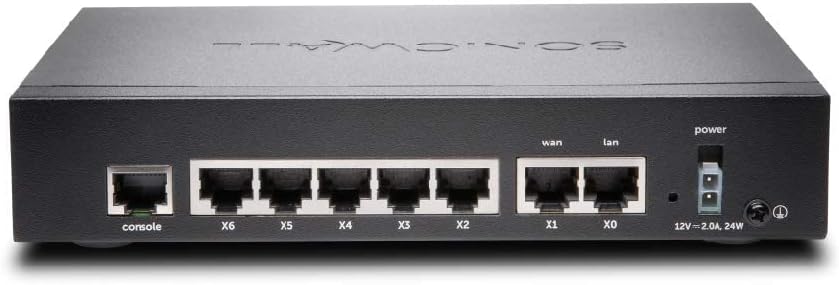
Sary 1.2: aoriana view of the SonicWall TZ400 appliance, displaying the console port, multiple LAN/WAN Ethernet ports (X0-X6), and the power input.
1.3 Fidirana amin'ny Configuration voalohany
- Ensure your computer is connected to the X0 (LAN) port of the TZ400.
- Configure your computer's network adapter to obtain an IP address automatically (DHCP). The TZ400's X0 interface typically acts as a DHCP server.
- Sokafy a web browser and navigate to the default management IP address, usually http://192.168.168.168.
- Log in using the default credentials (refer to the Quick Start Guide or device label for initial username and password). You will be prompted to change the password upon first login.
- Follow the on-screen setup wizard to configure basic network settings, including WAN connectivity and time zone.
2. Fampandehanana
2.1 Fanamboarana ny tambajotra
The SonicWall TZ400 provides extensive options for network configuration. Access these settings via the web fitantanana interface.
- Fikirana WAN: Configure your Internet connection type (e.g., Static IP, DHCP, PPPoE).
- Fikirana LAN: Manage IP addressing, DHCP server settings, and VLANs for your internal network.
- Wireless (if applicable): If your model includes wireless capabilities, configure SSIDs, security protocols, and wireless channels. The TZ400 supports 802.11ac wireless type.
2.2 Toetran'ny fiarovana
The TZ400 is designed to provide robust network security. Key features include:
- Fitsipika firewall: Create and manage access rules to control traffic flow between network zones.
- Rafitra Fisorohana ny Fidirana An-tsokosoko (IPS): Protect against network-based attacks and vulnerabilities.
- Gateway Anti-Virus/Anti-Spyware: Scan incoming and outgoing traffic for malicious content.
- VPN (Tambajotra tsy miankina virtoaly): Establish secure connections for remote access or site-to-site communication.
- Sivana votoaty: Control access to inappropriate or unproductive web votoaty.
2.3 Monitoring and Reporting
The appliance offers tools to monitor network activity and generate reports:
- Rakitry ny rafitra: View detailed logs of network events, security alerts, and system status.
- Fanaraha-maso tena fotoana: Observe current network traffic, connections, and resource utilization.
- Tatitra: Generate customizable reports on security threats, user activity, and bandwidth usage.
3. Fikojakojana
3.1 Fanavaozana firmware
Regularly update the appliance firmware to ensure optimal performance, security, and access to new features. Firmware updates can be performed via the web fitantanana interface.
- Download the latest firmware from the official SonicWall support portal.
- Navigate to the firmware update section in the web interface tsara.
- Ampidiro ny firmware alaina file and follow the on-screen prompts. The device will reboot after the update.
3.2 Fikirana amin'ny famerenana amin'ny laoniny sy ny famerenana amin'ny laoniny
It is recommended to regularly back up your configuration settings. This allows for quick recovery in case of misconfiguration or system issues.
- Backup: From the management interface, locate the backup option to save your current configuration to your computer.
- Avereno: Use the restore option to upload a previously saved configuration file amin'ny fitaovana.
3.3 Fanamarinana tsy tapaka
Perform periodic checks to ensure the appliance is functioning correctly:
- Monitor system logs for unusual activity or errors.
- Verify that all security services (e.g., IPS, Anti-Virus) are active and up-to-date.
- Check the physical connections and LED indicators for normal operation.
4. Famahana olana
4.1 Olana iraisana
- Tsy misy fidirana amin'ny Internet:
- Verify the WAN cable connection to your ISP modem.
- Check WAN status in the management interface.
- Ensure your ISP connection is active.
- Tsy afaka miditra amin'ny interface fitantanana:
- Confirm your computer is connected to a LAN port (e.g., X0) and has an IP address from the TZ400.
- Try pinging the default gateway (192.168.168.168).
- Clear your browser cache or try a different browser.
- Fahombiazan'ny tambajotra miadana:
- Check for high CPU or memory usage in the system monitoring section.
- Review firewall logs for excessive blocked traffic or attacks.
- Hamarino tsara fa havaozina ny firmware.
4.2 LED famantarana
Ireo LED eo anoloana dia manome fampahalalana momba ny sata:
- Hery LED: Indicates power status. Solid green for normal operation.
- Activity LEDs (10/100/act, 1000/act): Indicate network activity and link speed for each port.
- Refer to the device's specific documentation for a complete list of LED behaviors and their meanings.
4.3 Famerenana amin'ny orinasa
A factory reset will revert all configuration settings to their default values. This should be used as a last resort for troubleshooting.
- Locate the reset button on the device (often recessed).
- With the device powered on, use a paperclip or similar pointed object to press and hold the reset button for approximately 10-15 seconds until the device reboots.
- After the reset, the device will return to its default IP address and credentials.
5. Famaritana
| endri-javatra | antsipirihany |
|---|---|
| Marika | Sonicwall |
| Anarana modely | TZ400 |
| Laharana modely | TZ400 |
| Rafitra fikirakirana | SonicOS 6.x |
| Karazana Wireless | 802.11ac |
| Kilasy Band Frequency | Dual-Band |
| Teknolojia fifandraisana | Ethernet |
| Karazana Antenna | anaty |
| Lanja entana | 0.16 ounces (eo ho eo amin'ny 4.54 g) |
| Haben'ny vokatra (LxWxH) | 5.28 x 7.48 x 3.26 santimetatra |
| Daty misy voalohany | 4 jona 2015 |
6. Warranty sy fanohanana
6.1 Warranty amin'ny vokatra
The SonicWall TZ400 Network Security Appliance typically comes with a manufacturer's limited warranty. For specific warranty terms and conditions, including duration and coverage, please refer to the documentation provided with your purchase or visit the official SonicWall website. Warranty details may vary based on region and reseller.
6.2 Fanohanana ara-teknika
For technical assistance, firmware downloads, and additional resources, visit the official SonicWall support portal. Please note that access to certain technical support services, including direct assistance from SonicWall, may require an active support license or subscription. Ensure your device is registered on MySonicWALL to manage licenses and access available support options.
Raha mila fanazavana fanampiny dia tsidiho: Fanohanana SonicWall


