1. Fampidirana
Thank you for choosing the Gzunelic 9500 Lumens Android WiFi Projector. This projector is designed for home entertainment, offering a bright, high-definition viewing experience with versatile connectivity options. Featuring a native 1080p resolution, Android operating system, and wireless mirroring capabilities, it provides a comprehensive solution for your multimedia needs. This manual will guide you through the setup, operation, and maintenance of your new projector.
2. Information momba ny fiarovana
- Ataovy izay hahazoana rivotra tsara manodidina ny projecteur mba hisorohana ny hafanana be loatra. Aza sakanana ny fisokafan'ny rivotra.
- Ny adaptatera herinaratra omena miaraka amin'ny projecteur ihany no ampiasao.
- Fadio ny mijery mivantana amin'ny family projector rehefa lamp mirehitra, satria mety hanimba ny maso ny hazavana mazava.
- Do not place the projector on unstable surfaces.
- Arovy amin'ny rano na ranon-javatra hafa ny projecteur.
- Esory ny herinaratra amin'ny projecteur rehefa misy tafio-drivotra na rehefa tsy ampiasaina mandritra ny fotoana maharitra.
- Aza manandrana manamboatra ilay projector mihitsy. Alefaso amin'ny mpiasa mahay ny serivisy rehetra.
3. Inona no ao anaty boaty
- Gzunelic 9500 Lumens Android WiFi Projector
- Cable herinaratra
- Fanaraha-maso lavitra
- Cable HDMI
- Cable VGA
- User Manual (ity antontan-taratasy ity)
4. Vokatra mihoatraview
4.1 Singa ara-batana

Sary 4.1: anoloana view of the Gzunelic Projector, highlighting the lens and ventilation.

Sary 4.2: isan-karazany views of the projector, including top, front, left, right, and back, showing its compact design.
The Gzunelic projector features a sleek design with a prominent lens at the front. It includes a robust cooling system with ventilation grilles on the sides and back to ensure stable operation.
4.2 Panel fanaraha-maso

Sary 4.3: Top-mounted control panel with navigation and function buttons.
The control panel is located on the top of the projector, providing easy access to essential functions. It includes directional buttons for navigation, an OK button for selection, a power button, and menu/return buttons.
4.3 Seranana fidirana/famoahana

Sary 4.4: aoriana view showing the comprehensive array of input and output ports.
The projector offers a wide range of connectivity options on its rear panel, including:
- VGA Port: For connecting to older computers or laptops.
- 2 x USB Ports: For connecting USB drives, external hard drives, mouse, or keyboard.
- Seranan-tsambo HDMI 2: For connecting modern devices like PCs, laptops, set-top boxes, gaming consoles (PS3/PS4/Xbox), and DVD players.
- Seranan-tsambo Ethernet: Ho an'ny fifandraisana Internet tariby.
- Port AV: For connecting older video sources.
- 3.5mm Audio Port: Ho an'ny fampifandraisana écouteur na speaker ivelany.
The projector also supports Wi-Fi for direct signal connection and Bluetooth for wireless audio output.
4.4 Fanitsiana ny haavony

Sary 4.5: Adjustable foot for precise height and projection angle alignment.
An adjustable foot is located on the underside of the projector, allowing you to fine-tune the projection angle and height for optimal image alignment on your screen or wall.
5. Fametrahana
- Fametrahana: Position the projector on a stable, flat surface. Ensure there is adequate space around the projector for ventilation. For ceiling mounting, use the four holes on the bottom of the unit.
- Fampifandraisana herinaratra: Connect the power cable to the projector's power input and then to a power outlet.
- Herim-batana: Tsindrio ny bokotra herinaratra eo amin'ny projector na ny fanaraha-maso lavitra mba hampandeha ny fitaovana.
- Ahitsio Haavo: Use the adjustable foot at the front of the projector to raise or lower the front of the unit, aligning the projected image with your screen.
- Fanitsiana fifantohana: Rotate the focus ring around the lens until the projected image appears sharp and clear.
- Fanitsiana Keystone: Adjust the keystone correction dial (if available) to correct any trapezoidal distortion in the image, ensuring a rectangular projection.
6. Torolàlana miasa
6.1 Fampandehanana fototra
- Herim-batana / maty: Press the power button once to turn on. Press and hold the power button for a few seconds to initiate shutdown.
- Fikarohana: Use the directional buttons on the control panel or remote to navigate through menus. Press 'OK' to select.
- Fantenana loharano: From the main menu, select "Signal Source" to choose your input (HDMI, VGA, AV, etc.).
6.2 Fitaovana mampifandray
The projector supports various wired and wireless connections:
- HDMI/VGA/AV: Connect your PC, laptop, gaming console, or DVD player using the respective cables to the corresponding ports on the projector.
- USB: Insert a USB flash drive or external hard disk into a USB port to play media files directly. You can also connect a USB mouse or keyboard for easier navigation within the Android OS.
- Ethernet: Connect an Ethernet cable to the port for a stable wired internet connection.
- Wifi: Navigate to the projector's settings menu to connect to your wireless network.
- Bluetooth: To connect a Bluetooth speaker, go to the settings menu, enable Bluetooth, and pair with your speaker. If using a wired external speaker, connect it via the 3.5mm audio port and set the sound output to "line out" in the Android settings.
6.3 Android OS and Wireless Mirroring
Sary 6.1: The Android OS home screen displaying available applications.
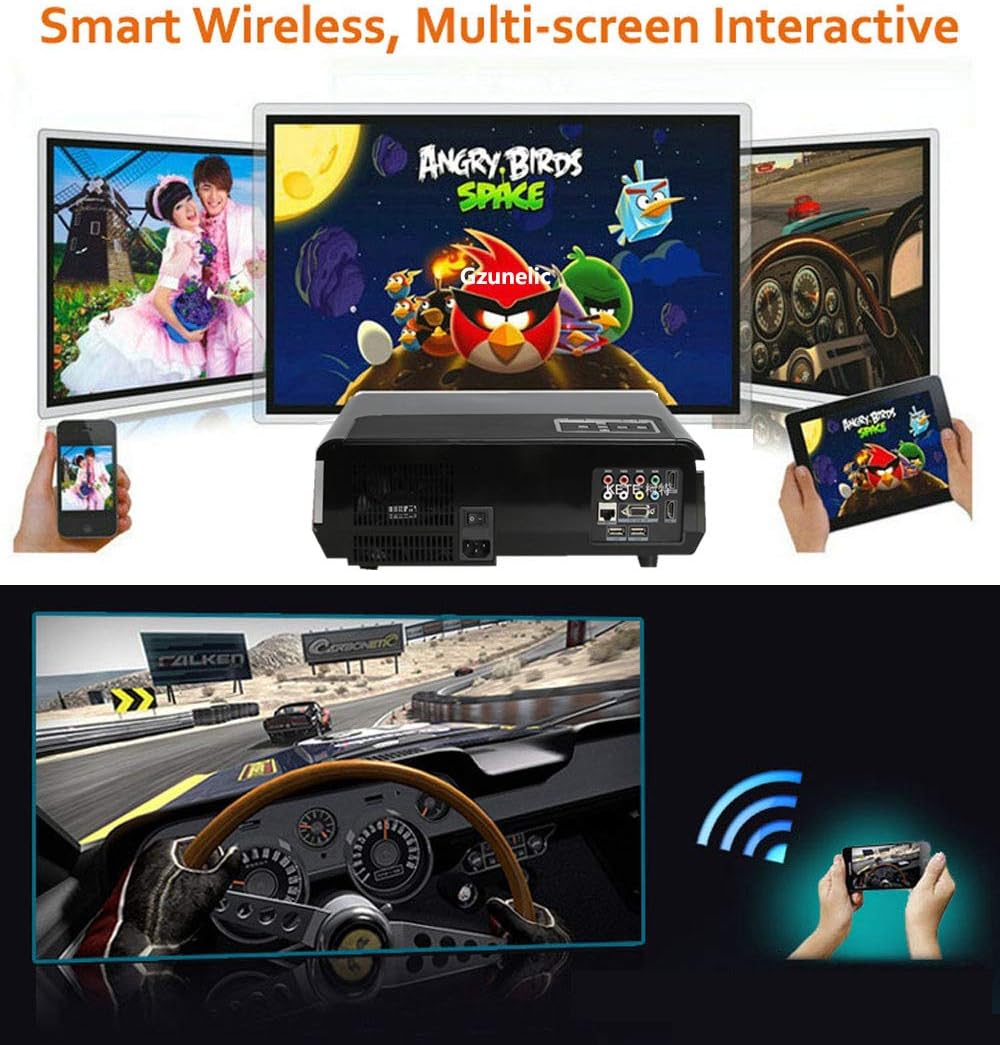
Sary 6.2: Illustration of wireless mirroring from smartphones and tablets to the projector.
The projector runs on an Android operating system, allowing direct access to online content, shopping, and games. You can navigate using the remote control or by connecting a USB mouse/keyboard.
- Screen Mirroring (Airplay/Miracast): On the projector's Android home page, locate and click the "Screening Assistant" app. Follow the on-screen instructions to connect your phone via Airplay (for iOS devices) or Miracast (for Android devices). Ensure both your phone and the projector are connected to the same Wi-Fi network.
- Apps efa napetraka: Access apps like YouTube, Aptoide TV, and WPS Office directly from the home screen for various entertainment and productivity functions.
6.4 Lahatsary Fampisehoana vokatra
Clip 6.3: A brief demonstration video showcasing the Gzunelic projector in operation. This video provides a visual overview of the projector's capabilities and image quality.
7. Fikojakojana
- Fanadiovana ny Lens: Mampiasà lamba malefaka sy tsy misy volo natao manokana ho an'ny lantihy optika mba hamafa moramora ny lantihy projecteur. Fadio ny mampiasa mpanadio mikikitra na lamba izay mety handratra ny lantihy.
- Fanadiovana ny ivelany: Fafao amin'ny lamba malefaka sy maina ny ivelany amin'ny projecteur. Ho an'ny loto mafy loha, dia asio kelyamp azo ampiasaina ny lamba, fa ataovy izay hahazoana antoka fa tsy misy hamandoana miditra amin'ny fitaovana.
- rivotra: Regularly check and clean the ventilation openings to prevent dust buildup, which can impede airflow and cause overheating. Use a soft brush or compressed air to clear dust.
- fitahirizana: When not in use for extended periods, store the projector in a cool, dry place, ideally in its original packaging or a protective case, to prevent dust accumulation and physical damage.
8. Famahana olana
| OLANA | Antony mety hitranga | vahaolana |
|---|---|---|
| Tsy misy sary navoaka | Power not connected; Incorrect input source; Device not powered on. | Check power cable and outlet; Select correct input source (HDMI, VGA, AV); Ensure connected device is on. |
| Sary manjavozavo | Out of focus; Incorrect keystone adjustment; Projector too close/far from screen. | Adjust focus ring; Adjust keystone correction; Reposition projector for optimal distance. |
| Tsy misy feo | Volume too low/muted; Incorrect audio output setting; External speaker not connected/paired. | Increase volume, unmute; Check audio settings (e.g., set to "line out" for wired external speakers); Ensure Bluetooth speaker is paired. |
| Wireless mirroring not working | Not on same Wi-Fi network; "Screening Assistant" not active. | Ensure both devices are on the same Wi-Fi network; Open "Screening Assistant" app on projector and follow instructions. |
| Projector turns on by itself | Possible software glitch or power issue. | Unplug the projector from the wall to fully power cycle it. If the issue persists, contact customer support. |
9. Famaritana
| Marika | Gzunelic |
| Laharana modely | led86+W |
| ny famirapiratry ny mazava | 9500 lumens LED light utilization efficiency |
| Native Resolution | 1920 x 1080 (Full HD), supports 2K/4K (limited to 100Mbps, 60Hz) |
| Contrast Ratio | 10000:1 |
| Rafitra fikirakirana | Android OS |
| Teknolojia fifandraisana | Ethernet, Wireless (Wi-Fi), Bluetooth, 2x HDMI, 2x USB, AV, VGA, 3.5mm Audio |
| Ny refin'ny vokatra | 13.77 x 10.82 x 5.51 santimetatra |
| Lanja entana | 8.5 kg |
| Diagonal efijery hita maso | Up to 300 inches / 762 cm |
10. Warranty sy fanohanana
Gzunelic offers comprehensive support for your projector:
- Politika famerenana: 6 Months Return for Full Payment Refund.
- Politika fanoloana: 1 Year Free Replacement.
- Serivisy fanamboarana: 3 Years Repair service available at our repair center in LA, United States.
- Tohana ara-teknika: Fanohanana ara-teknika matihanina mandritra ny androm-piainana.
For any problems or questions, please feel free to contact us. We aim to reply within 24 hours.


