1. Fampidirana
This manual provides detailed instructions for the installation, operation, maintenance, and troubleshooting of the Hikvision DS-9632NI-I8 32-Channel 4K Network Video Recorder (NVR). Please read this manual thoroughly before using the product to ensure proper and safe operation. Keep this manual for future reference.
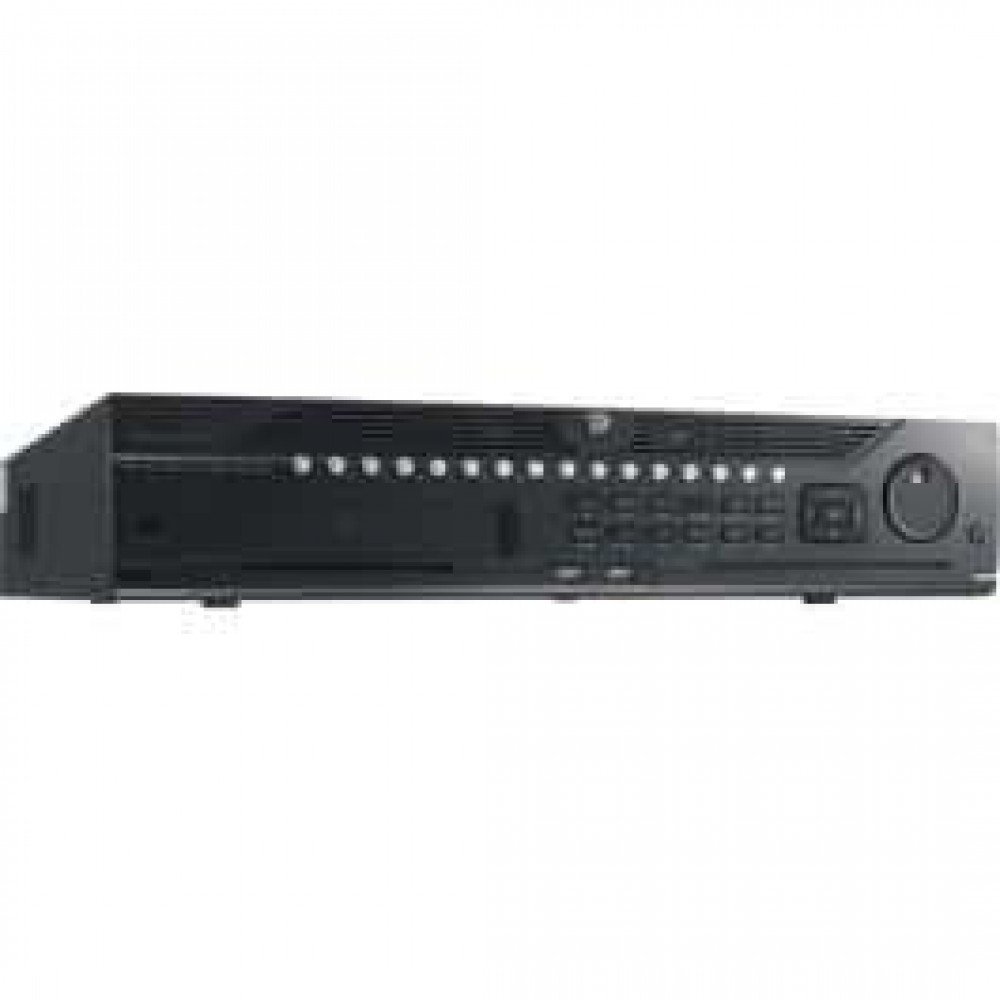
Sary 1: Eo anoloana view of the Hikvision DS-9632NI-I8 NVR, showing its robust chassis and various interface ports.
2. Information momba ny fiarovana
Always follow basic safety precautions to reduce the risk of fire, electric shock, and injury to persons. This includes, but is not limited to:
- Ampiasao ihany ny adaptatera herinaratra voafaritry ny mpanamboatra.
- Hamarino tsara ny rivotra mba hisorohana ny hafanana be loatra.
- Do not expose the NVR to water or moisture.
- Avoid placing the NVR near heat sources or in direct sunlight.
- Alefaso amin'ny mpiasan'ny serivisy mahafeno fepetra ny serivisy rehetra.
3. Ny votoatin'ny fonosana
Verify that all items are present and in good condition. If any item is missing or damaged, contact your dealer immediately.
- Hikvision DS-9632NI-I8 NVR Unit
- Power Adapter/Cable
- USB Mouse
- Visy ho an'ny fametrahana HDD
- Torolalana fanombohana haingana
- CD-ROM (misy rindrankajy sy boky torolalana feno)
4. Fametrahana
4.1 Fametrahana fitaovana
- Prepare Hard Disk Drives (HDDs): The DS-9632NI-I8 supports up to 8 SATA HDDs. Install HDDs into the NVR chassis using the provided screws. Ensure each HDD is securely mounted.
- Connect Periferika:
- Connect a monitor to the HDMI or VGA output port.
- Connect the included USB mouse to a USB port.
- Ampifandraiso amin'ny tambazotranao ny NVR amin'ny alalan'ny tariby Ethernet.
- Herim-batana: Connect the power adapter to the NVR and then to a power outlet. Press the power button on the front panel.
4.2 Configuration voalohany
Upon first boot, the NVR will guide you through an initial setup wizard.
- Mametraha Tenimiafina ho an'ny Mpitantana: Create a strong password for the 'admin' user.
- Fikirana tambajotra: Configure network parameters (DHCP or Static IP). Ensure the NVR is accessible on your local network.
- Daty sy ora: Apetraho ny daty, ora ary faritry ny ora marina.
- Fanombohana ny HDD: The NVR will prompt you to initialize the installed HDDs. This process will format the drives for recording.
- Add IP Cameras: Use the wizard to search for and add compatible Hikvision IP cameras to the NVR.
5. Torolàlana miasa
5.1 Live View
After logging in, the NVR will display the live view interface, showing feeds from connected cameras. You can switch between different camera views and layouts.
- Fakan-tsary tokana View: Double-click a camera window to view amin'ny efijery feno.
- Layout Selection: Use the layout icons at the bottom of the screen to choose different grid arrangements (e.g., 4-channel, 9-channel).
5.2 Fitantanana firaketana
The NVR supports continuous, scheduled, and event-triggered recording.
- Configure Recording Schedule: Mandehana mankany Configuration > Storage > Schedule Settings to define recording times for each camera.
- Firaketana an-tsoratra: Click the record icon on the live view interface to start/stop manual recording.
5.3 Playback
Toview voarakitra footage:
- Mandehana any amin'ny Playback menu.
- Select the desired camera(s) and date/time range.
- Use the timeline to navigate through recordings.
- Playback controls (play, pause, fast forward, rewind) are available.
5.4 Fidirana lavitra
Azo idirana lavitra amin'ny alalan'ny NVR ny web browser or Hik-Connect mobile app.
- Web Browser: Enter the NVR's IP address into a web navigateur.
- Hik-Connect: Download the Hik-Connect app, register an account, and add your NVR by scanning its QR code or entering its serial number.
6. Fikojakojana
6.1 Fanavaozana firmware
Regularly check for and install firmware updates to ensure optimal performance and security. Firmware can be downloaded from the official Hikvision website.
- Mandehana mankany Configuration > System > Maintenance > Upgrade.
- Follow the on-screen instructions to perform the upgrade. Do not power off the NVR during the update process.
6.2 Fitantanana ny kapila mafy
Monitor the health of your HDDs and manage storage space.
- HDD Status: Check HDD status in Configuration > Storage > HDD Management.
- Fomba fanoratana: Configure the NVR to overwrite old recordings when storage is full (default behavior).
6.3 Fanadiovana
Keep the NVR clean to prevent dust buildup, which can affect performance and lifespan.
- Power off and unplug the NVR before cleaning.
- Mampiasà lamba malefaka sy maina mba hamafana ny ivelany.
- Use compressed air to clear dust from ventilation openings.
7. Famahana olana
| OLANA | Antony mety hitranga | vahaolana |
|---|---|---|
| Tsy misy horonan-tsary mivoaka eo amin'ny efijery. | Mivaha ny fifandraisana amin'ny tariby, diso ny loharanon'ny fidirana amin'ny efijery, tsy mandeha ny NVR. | Check HDMI/VGA cable connections. Ensure monitor is set to correct input. Verify NVR power. |
| Tsy afaka miditra amin'ny NVR avy lavitra. | Network configuration issues, firewall blocking, incorrect port forwarding. | Verify NVR network settings. Check router firewall and port forwarding rules. Ensure Hik-Connect is properly configured. |
| Cameras not recording. | HDD not initialized, recording schedule not set, HDD full. | Initialize HDDs. Configure recording schedule. Check HDD status and capacity. |
| Nanadino tenimiafina mpitantana. | Very ny tenimiafina. | Refer to the full manual or Hikvision support for password reset procedures. This often involves a security code or a physical reset button. |
8. Famaritana
| endri-javatra | antsipirihany |
|---|---|
| MODELY | DS-9632NI-I8 |
| Video Input | 32-Channel IP Video Input |
| Video Output | HDMI (up to 4K), VGA |
| Famolavolana endrika | H.265+/H.265/H.264+/H.264 |
| Fampidirana/Famoahana feo | 1-ch, RCA (2.0 Vp-p, 1 kΩ) / 2-ch, RCA (Linear, 1 kΩ) |
| SATA | 8 SATA interfaces for 8 HDDs |
| fahafahana | Up to 10 TB for each HDD (example, actual capacity may vary) |
| Network Interface | 2 RJ-45 10M/100M/1000M self-adaptive Ethernet interfaces |
| USB Interface | Front panel: 2 × USB 2.0; Rear panel: 1 × USB 3.0 |
| refy (W × D × H) | 23 x 22 x 8 santimetatra (eo ho eo) |
| Herin'aratra | 100 hatramin'ny 240 VAC, 50 hatramin'ny 60 Hz |
9. Warranty sy fanohanana
9.1 Garantie voafetra
Hikvision products are covered by a limited warranty. The specific terms and duration of the warranty may vary by region and product type. Please refer to the official Hikvision webtranonkala na ny antontan-taratasin'ny fividiananao raha mila fanazavana amin'ny antsipiriany momba ny garantie.
- Tehirizo ny porofon'ny fividiananao ho an'ny fitakiana fiantohana.
- Unauthorized repairs or modifications may void the warranty.
9.2 Fanohanana ara-teknika
For technical assistance, product inquiries, or service requests, please contact Hikvision support through the following channels:
- Official Webtranokala: FITSIDIHANA www.hikvision.com for support resources, FAQs, and contact information.
- Serivisy ho an'ny mpanjifa: Refer to the contact details provided on the Hikvision webtoerana ho an'ny faritra misy anao.
- Mpivarotra nahazo alalana: Your authorized Hikvision dealer can also provide support and service.


