
1. Fampidirana
This manual provides essential information for setting up, operating, and maintaining your Plimpton Kids Tablet 10 Inch, Model Kids 20. This device is designed to offer a secure and engaging digital experience for children, featuring the Android 15 operating system, an octa-core processor, and integrated Google Kids Space.
2. Inona no ao anaty boaty
- 1 x PlimPad Kids Android 15 Tablet
- 1 x USB Adaptor
- 1 x USB Charge Cable
- User Manual

3. Toetran'ny vokatra
- Advanced Performance: Equipped with an enhanced Android 15 system, a 2.0GHz 8-core processor, 4GB RAM, and 64GB storage (expandable to 1TB).
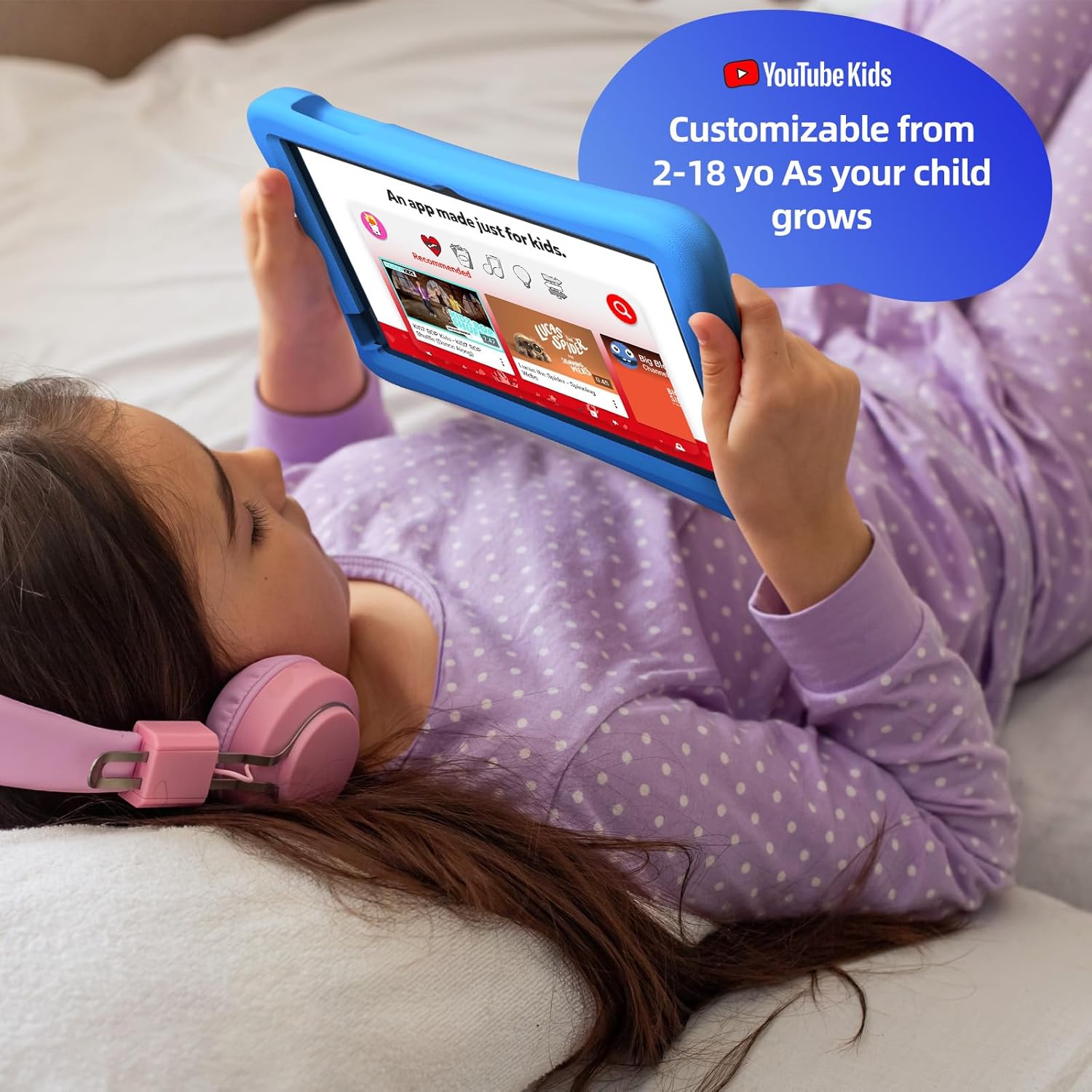
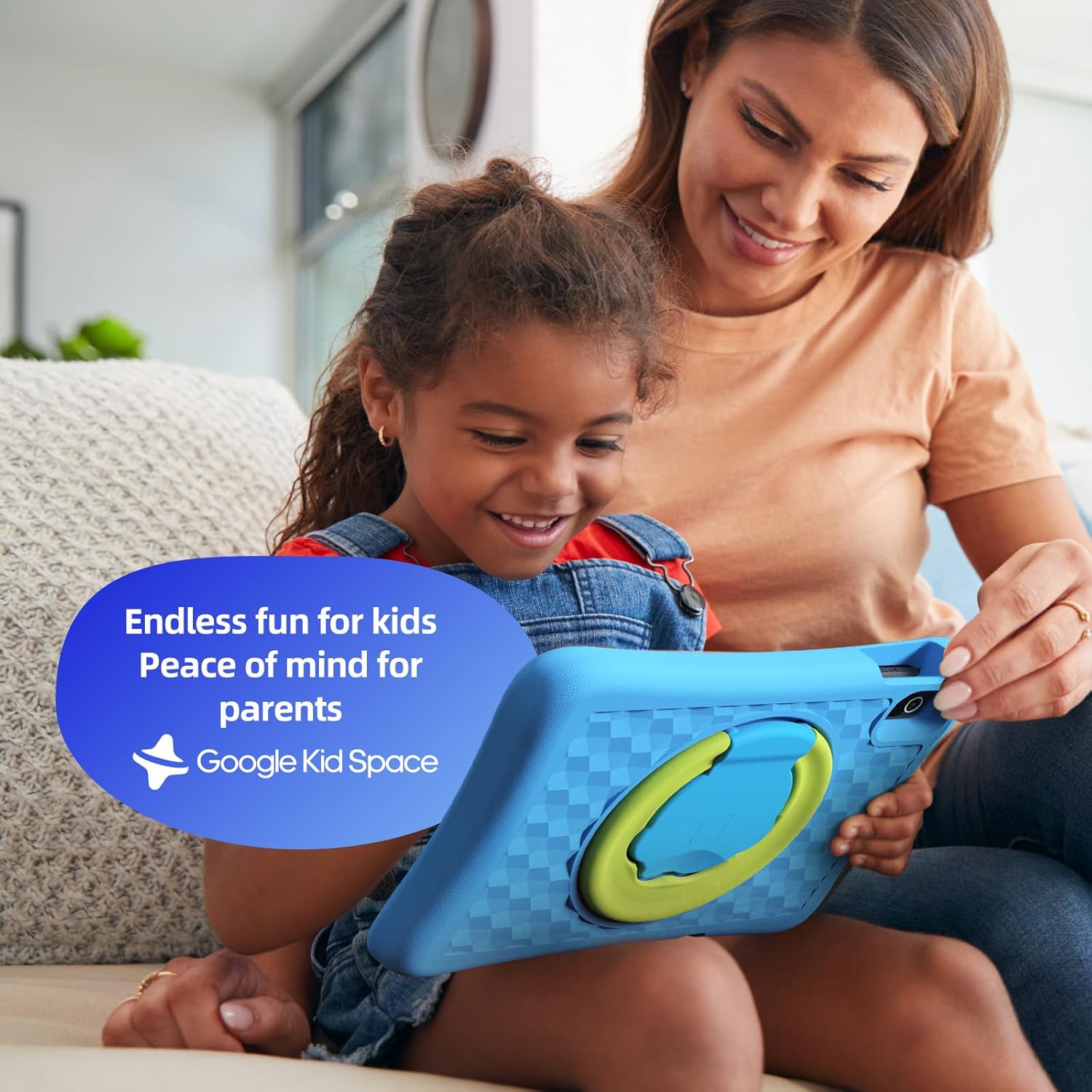
- Google Kids Space & Parental Control: Pre-installed with Google Kids Space and educator-endorsed apps. User-friendly parental controls allow content filtering, educational targets, and time restrictions.
- Eye Protection Display: 10.1" HD IPS glass screen (1280 x 800 resolution) with low blue light technology and automatic brightness adjustment to reduce eye fatigue.
- Famolavolana maharitra: Rugged, anti-drop EVA protective case, odorless and resistant to deformation, with a 360° rotatable bracket.
- Batterie nohatsaraina: Upgraded power system for extended daily use, leveraging Android 15's efficiency for smarter power management.

4. Fametrahana
4.1 Herin'ny voalohany
- Press and hold the power button located on the side of the tablet until the screen lights up.
- Araho ny toromarika eo amin'ny efijery mba hisafidianana ny fiteny sy ny faritra tianao.
4.2 Fifandraisana Wi-Fi
- From the initial setup screen or Settings menu, select 'Wi-Fi'.
- Safidio ny tambajotra Wi-Fi an-tranonao amin'ny lisitra.
- Enter your Wi-Fi password and tap 'Connect'.
4.3 Fametrahana ny kaonty Google
- Sign in with an existing Google account or create a new one. This account will be used for parental controls and app downloads.
- Follow the instructions to link your child's profile to your Google Family Link account for parental management.
4.4 Google Kids Space Configuration
- Once your Google account is set up, the tablet will guide you through configuring Google Kids Space.
- Select your child's age and interests to personalize content recommendations.
- Review and adjust parental control settings within Google Kids Space or via the Google Family Link app on your own device.
5. Fampandehanana ny Tablet
5.1 Navigating Google Kids Space
Google Kids Space provides a child-friendly interface with curated content. Children can navigate through different categories like 'Play', 'Read', and 'Watch' to discover apps, books, and videos tailored to their age and interests.
5.2 Parental Controls with Google Family Link
Manage your child's digital experience remotely using the Google Family Link app on your smartphone. This allows you to:
- Set daily screen time limits.
- Approve or block apps from the Google Play Store.
- Track app usage and activity.
- Set device bedtime.
- Manage content restrictions for websites and searches.

5.3 Media Consumption
The tablet supports various media types:
- Lahatsary: Access YouTube Kids for age-appropriate video content. Parental controls can further refine available videos.
- Boky: Explore a library of digital books within Google Kids Space, promoting reading and literacy.
- Lalao: A wide selection of educational and entertaining games are available, with new content regularly updated.

6. Fikojakojana
6.1 Fikarakarana bateria
- Charge the tablet fully before first use.
- Fadio ny mandany tanteraka ny bateria tsy tapaka mba hanalavana ny androm-piainany.
- Use only the provided USB Adaptor and Charge Cable.
6.2 Fanadiovana
- Turn off the tablet before cleaning.
- Use a soft, lint-free cloth to wipe the screen and exterior.
- Fadio ny mampiasa akora simika mahery vaika na akora abrasive.
6.3 Fanavaozana rindrambaiko
Ensure the tablet's software is up-to-date for optimal performance and security. Connect to Wi-Fi and check for updates periodically in the Settings menu.
7. Famahana olana
7.1 Tablet tsy mandeha
- Hamarino tsara fa feno ny bateria. Ampifandraiso amin'ny charger ny takelaka ary andraso minitra vitsy alohan'ny hanandramana hampandeha azy indray.
- Press and hold the power button for 10-15 seconds to perform a hard reset.
7.2 Fampisehoana miadana
- Akatona ny fampiharana tsy ampiasaina mandeha ao ambadika.
- Clear cache data for frequently used apps in Settings > Apps.
- Ataovy izay hahazoana toerana fitahirizana ampy. Fafao ireo tsy ilaina files na apps.
7.3 Olana amin'ny fifandraisana Wi-Fi
- Avereno indray ny router Wi-Fi sy ny takelaka.
- Adino ny tamba-jotra amin'ny fikandrana Wi-Fi ary avereno mifandray.
- Ataovy azo antoka fa ao anatin'ny faritry ny signal Wi-Fi ny takelaka.
8. Famaritana
| endri-javatra | famaritana |
|---|---|
| Haben'ny fampisehoana mijoro | 10.1 santimetatra |
| Fanapahan-tsary | 1280 x 800 teboka |
| processeur | 2 GHz Octa-Core |
| Rafitra fikirakirana | Android 15 |
| Flash Memory Size | 64 GB |
| ram | 4 GB |
| Fitehirizana azo itarina | Up to 1 TB (SD card not included) |
| Salanisan'ny fiainana bateria | 8 ora |
| Lanja entana | 1.76 kg |
| Ny refin'ny vokatra | 10.86 x 7.83 x 1.22 santimetatra |
| loko | Manga |
9. Warranty & Fanohanana
The Plimpton Kids Tablet comes with a Warranty 2 taonaAnkoatra izany, ny 30-day worry-free return and replacement policy is provided. For any questions or concerns, please contact Plimpton customer support. Our team is dedicated to resolving any issues you may encounter.
For detailed support, refer to the customer support card included in your product packaging or visit the official Plimpton website.