
Sava lalana
The ShanWan Wireless Controller is a versatile gaming peripheral designed for use across multiple platforms, including PC, iPhone, Android, Nintendo Switch, and Steam. It offers tri-mode connectivity (Bluetooth, 2.4G wireless, and USB-C wired) to ensure a seamless gaming experience. This manual provides detailed instructions for setup, operation, maintenance, and troubleshooting to help you maximize your controller's performance.
Note: This controller is not compatible with Xbox or PlayStation 4/5 consoles.
Fonosana fonosana
- ShanWan Wireless Controller
- USB-C Charging Cable
- Dongle tsy misy tariby 2.4G
- User Manual (ity antontan-taratasy ity)
Controller Overview
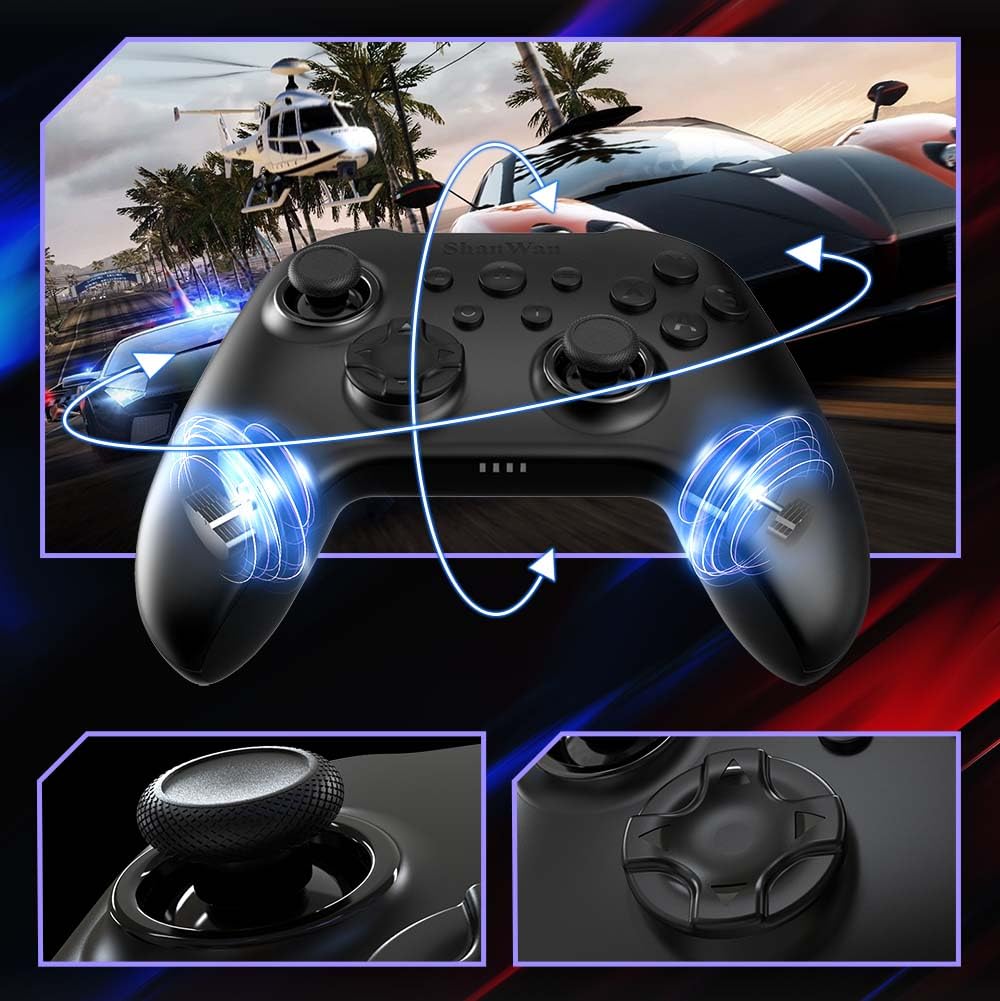
Sary: anoloana view of the ShanWan Wireless Controller, showcasing its ergonomic design, dual joysticks, D-pad, and face buttons (A, B, X, Y).
Sary: indray view of the ShanWan Wireless Controller, highlighting the mode switch for different platforms (X, D, S).
Lafin-javatra fototra:
- Joysticks Hall Effect: Designed for precision with no dead zones and anti-drift capabilities.
- Durable Gel Buttons: Conductive gel buttons tested for 1 million clicks for long-lasting performance.
- Giroskopa 6-Axe: Provides precise motion sensing for immersive gameplay.
- Motera hovitrovitra roa: Delivers strong and subtle haptic feedback for an enhanced gaming experience.
- Fitaovana Turbo: Allows for rapid, repeated button presses.
Hametraka
1. Charging ny Controller
Before initial use, fully charge the controller using the provided USB-C cable. Connect the USB-C end to the controller and the USB-A end to a power source (e.g., computer USB port, USB wall adapter). The charging indicator lights will show charging status and turn off when fully charged.
2. Fifandraisana amin'ny fitaovana
The ShanWan Wireless Controller supports three connection modes: Bluetooth, 2.4G Wireless, and USB-C Wired. Ensure the mode switch on the back of the controller is set to the appropriate platform before attempting to connect.

Sary: Visual representation of the controller's tri-mode connectivity, illustrating Bluetooth, 2.4G wireless, and USB-C wired options.
Mode Switch Settings:
- 'S' Mode: Ho an'ny Nintendo Switch.
- 'X' Mode: For PC (X-input), Android.
- 'D' Mode: For PC (D-input), iOS.
Fifandraisana momba ny Bluetooth:
- Set the mode switch on the back of the controller to the desired platform ('S', 'X', or 'D').
- Press and hold the pairing button (usually a small button on the top or back) until the indicator lights flash rapidly.
- On your device (PC, iPhone, Android, Switch), go to Bluetooth settings and search for new devices.
- Select "ShanWan Controller" or a similar name from the list to pair.
- Once paired, the indicator lights on the controller will become solid.
2.4G Wireless Connection (for PC/Switch):
- Set the mode switch on the back of the controller to 'X' (for PC) or 'S' (for Switch).
- Insert the 2.4G wireless dongle into a USB port on your PC or Switch dock.
- Press the Home button on the controller to power it on. It should automatically connect to the dongle.
- The indicator lights will become solid once connected.
Fifandraisana misy tariby USB-C:
- Connect the USB-C cable to the controller and the other end to your PC or Switch dock.
- The controller will automatically be recognized as a wired device.
- No specific mode switch setting is required for wired connection, but setting it to the correct platform mode ('X' for PC, 'S' for Switch) is recommended for optimal compatibility.
Torolàlana miasa
Herim-batana / maty:
- Herim-batana: Press the Home button once.
- Mamono hery: Press and hold the Home button for 3-5 seconds, or the controller will automatically power off after a period of inactivity.
Fanaraha-maso ny fihetsehana:
The built-in 6-axis gyroscope provides motion control capabilities, particularly useful for games on Nintendo Switch or other compatible platforms. Ensure the game supports motion controls for this feature to function.
Hevitra hovitrovitra:
The dual vibration motors provide haptic feedback during gameplay. The intensity of the vibration can often be adjusted through game settings or the Gamepad Space app.
Fitaovana Turbo:
Mba hampavitrika ny fiasa Turbo ho an'ny bokotra manokana:
- Press and hold the button you wish to set to Turbo.
- While holding the button, press the Turbo button (refer to controller layout for location).
- The button will now repeatedly register presses as long as it is held down.
To deactivate Turbo for a button, repeat the process.
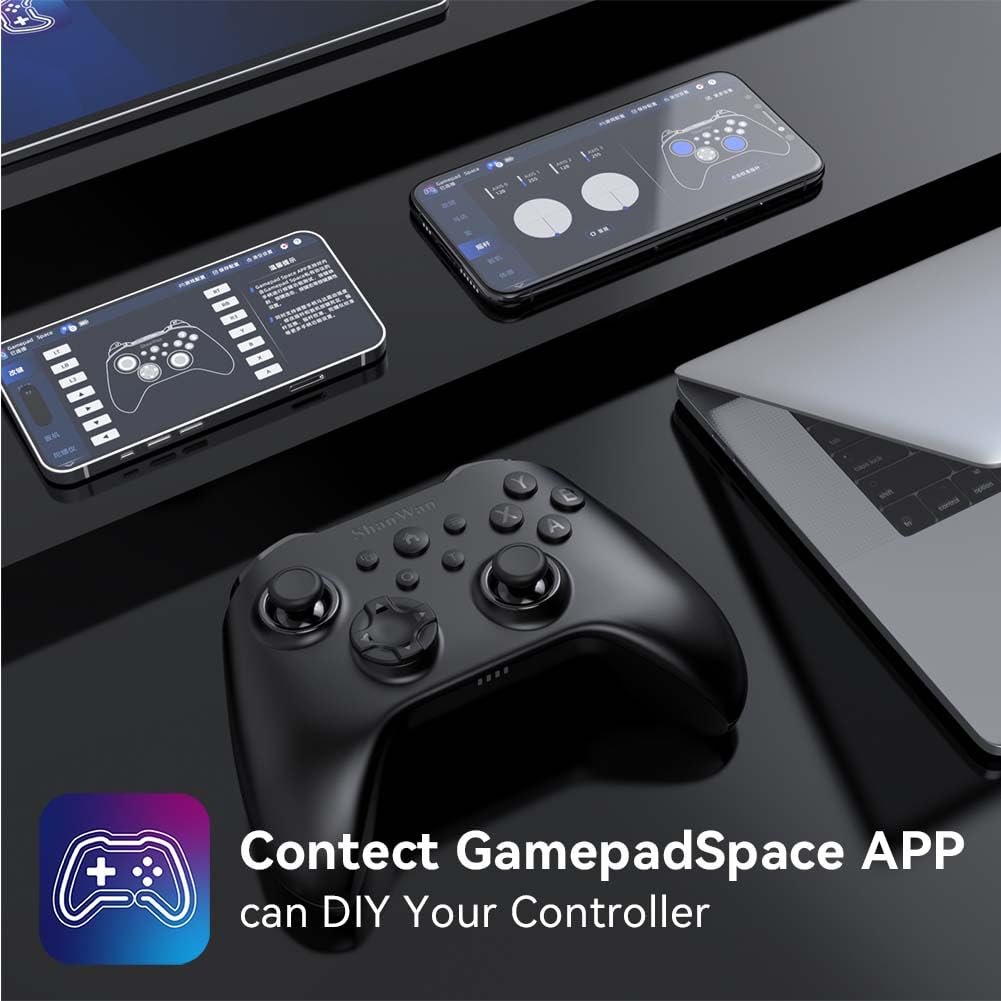
Software Customization (Gamepad Space App):
Enhance your gaming experience by customizing controller settings using the Gamepad Space mobile application.

Sary: A ShanWan controller alongside smartphones displaying the Gamepad Space app, illustrating options for calibration and on-the-fly adjustments.
- Download the "Gamepad Space" app from your mobile device's app store.
- Connect your controller to your mobile device via Bluetooth.
- Within the app, you can:
- Amboary ny firmware.
- Amboary ny faritra maty amin'ny "stick" sy ny "trigger".
- Amboary ny hamafin'ny hovitrovitra.
- Bokotra fitsapana.
fikarakarana
- Fanadiovana: Mampiasà lamba malefaka sy maina mba hanadiovana ny controller. Fadio ny mampiasa akora simika masiaka na akora abrasive.
- fitahirizana: Tehirizo ao amin'ny toerana mangatsiatsiaka sy maina lavitry ny tara-masoandro mivantana sy ny maripana tafahoatra ny controller.
- Fikarakarana bateria: Mba hanalavana ny androm-piainan'ny bateria dia aza ampiasaina matetika ny fitaovana fanaraha-maso. Ampidiro matetika ny bateria, na dia tsy ampiasaina matetika aza.
Fanamboarana
Controller tsy mifandray:
- Ataovy azo antoka fa voaloa ny controller.
- Verify the mode switch on the back of the controller is set correctly for your platform (S, X, or D).
- Ho an'ny Bluetooth, alaivo antoka fa mandeha ny Bluetooth-n'ny fitaovanao ary ao amin'ny "pair mode" ny mpanara-maso.
- For 2.4G wireless, ensure the dongle is properly inserted and the controller is in the correct mode.
- Andramo averina alefa indray na ny mpanara-maso na ny fitaovanao.
Fahatarana na fahatapahan'ny fifandraisana:
- Ataovy azo antoka fa tsy misy fitsabahana elektromagnetika mahery vaika eo akaiky eo.
- Move closer to your device for a stronger wireless signal.
- Hamarino tsara fa tsy lany ny bateria-n'ny mpanara-maso.
- Consider using a wired USB-C connection for the most stable experience.
Joystick Drift or Unresponsive Buttons:
- Calibrate the joysticks and test buttons using the Gamepad Space app.
- Ensure the controller's firmware is up to date via the Gamepad Space app.
- Diovy ny manodidina ny bokotra sy ny joystick mba hanesorana izay potipoti-javatra.
fepetra arahana
| MODELY | B0FS13DT2B |
| Teknolojia fifandraisana | Bluetooth, 2.4G tsy misy tariby, USB-C misy tariby |
| Fitaovana mifanentana | Android, iOS, Nintendo Switch, Nintendo Switch 2, PC |
| Karazana Controller | Gamepad |
| Isan'ny bokotra | 12 |
| Endri-javatra manokana | Hall Effect Joysticks, 6-Axis Gyroscope, Dual Vibration, Turbo Function, Software Customization |
| Loharanon-kery | Battery Powered |
| Lanja entana | 300g ny |
| Haben'ny singa (D x W x H) | 2.5" x 4" x 6" |
Warranty sy fanohanana
ShanWan products are designed for reliability and performance. For specific warranty information, please refer to the documentation included with your purchase or visit the official ShanWan support website. If you encounter any issues not covered in this manual, please contact ShanWan customer support for assistance.
Fanohanana an-tserasera: Visit the ShanWan Store on Amazon