
1. Fampidirana
This manual provides detailed instructions for the installation, operation, and maintenance of your SILENTWARE VIEWWHITE A-RGB Mid-Tower PC Case. Please read this manual thoroughly before beginning assembly to ensure proper setup and to maximize the performance and longevity of your system components.
The SILENTWARE VIEWWHITE is a high-performance mid-tower PC case designed for optimal airflow and aesthetic appeal. It features tempered glass panels, four pre-installed 120mm A-RGB fans, and comprehensive compatibility for various PC components.
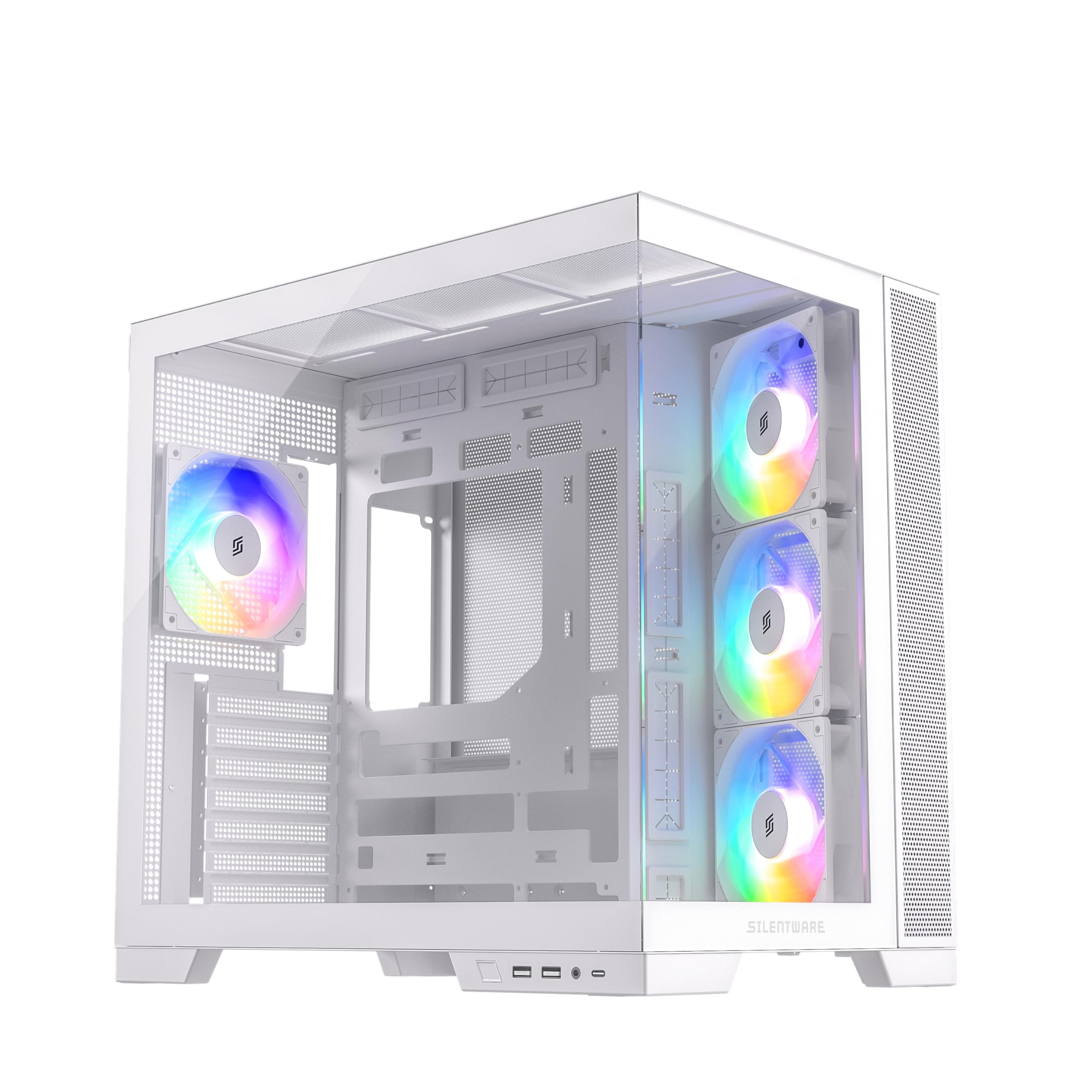
Sary 1.1: Tapitraview of the SILENTWARE VIEWWHITE A-RGB Mid-Tower PC Case.
2. Fametrahana sy fametrahana
Before starting, ensure you have all necessary components and tools. It is recommended to work on a clean, flat surface and to use anti-static precautions.
2.1 Fanokafana ny fonosan'ny boaty
Carefully remove the PC case from its packaging. Inspect for any damage that may have occurred during shipping. Retain the packaging for future transport or warranty claims.
2.2 Fanesorana ireo takelaka
The SILENTWARE VIEWWHITE features tempered glass panels on the front and side. To access the interior for component installation:
- Locate the thumbscrews or latches securing the side tempered glass panel.
- Carefully remove the screws/release the latches and gently slide or lift the panel off. Place it on a soft, flat surface to prevent scratches.
- The top panel can also be removed for easier access and radiator installation.

Figure 2.1: Top panel removed for access to the interior.
2.3 Fametrahana Motherboard
The case supports ATX, mATX, and ITX motherboards.
- Install the necessary motherboard standoffs if they are not pre-installed for your motherboard size.
- Align your motherboard with the standoffs and the I/O shield opening at the rear of the case.
- Ataovy azo antoka ny motherboard amin'ny screws.
2.4 Fametrahana ny famatsiana herinaratra
The power supply unit (PSU) is mounted at the bottom of the case.
- Slide the PSU into its designated compartment from the rear of the case.
- Secure the PSU with screws from the exterior rear of the case.
- Utilize the integrated cable management system for a clean build. The case supports PSUs up to 200mm in length.
2.5 Fametrahana ny kapila fitahirizana
The case provides space for 2x SSDs and 1x HDD.
- Locate the SSD mounting points (typically behind the motherboard tray).
- Secure SSDs with screws.
- Install HDDs in the designated drive cage, usually located near the PSU shroud.
2.6 Fametrahana Karatra Sary (GPU)
Mahazaka GPU hatramin'ny 410mm ny halavany ity boaty ity.
- Esory ny fonon'ny lavaka fanitarana ilaina ao aorian'ny boaty.
- Insert your GPU into the PCIe slot on the motherboard.
- Ampifandraiso amin'ny visy ny GPU.
2.7 Cooling System (Fans & Radiators)
The case comes with four pre-installed 120mm A-RGB fans: three inverted airflow fans at the front and one at the rear. It supports various radiator configurations:
- ambony: Up to 360mm radiator
- lafiny: Up to 280mm radiator
- aoriana: Up to 120mm radiator
Ensure all fans are connected to the motherboard or a fan controller for power and RGB control.
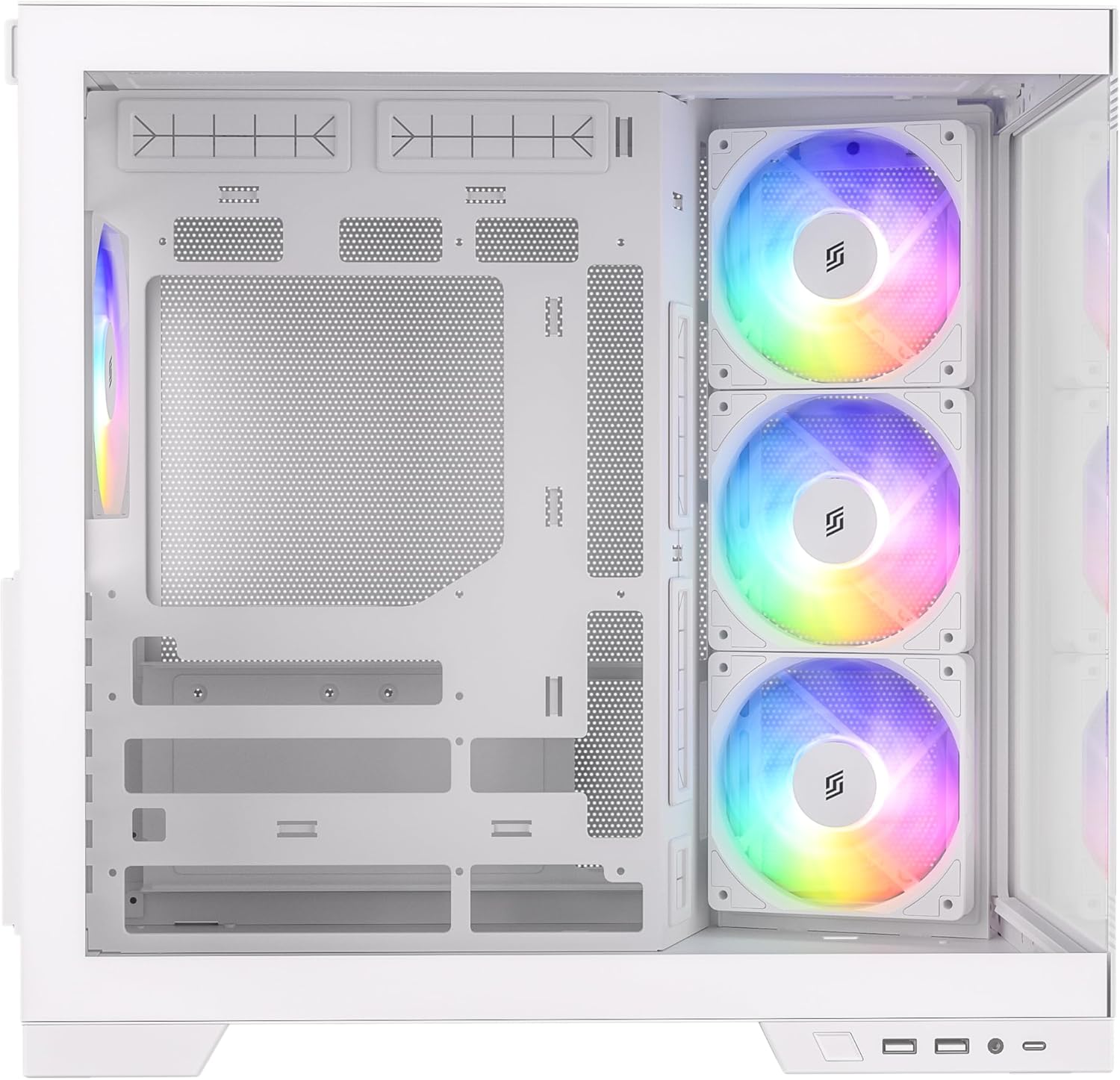
Sary 2.2: anatiny view highlighting fan placement and component space.
2.8 Fifandraisana amin'ny tontonana I/O eo anoloana
Connect the front I/O panel cables to your motherboard. These include:
- USB 3.0 (x2)
- USB-C (x1)
- HD Audio (for headphone and microphone jacks)
- Power Button, Reset Button, Power LED, HDD LED
Refer to your motherboard manual for specific header locations.
3. Operating the A-RGB Fans
The pre-installed A-RGB fans offer flexible lighting and speed control.
3.1 Fan Connections
Each fan has two connectors:
- 4-pin PWM connector: For fan speed control. Connect this to a 4-pin fan header on your motherboard.
- 3-pin A-RGB connector: For addressable RGB lighting control. Connect this to a 3-pin 5V A-RGB header on your motherboard. Do not connect to a 4-pin 12V RGB header, as this may damage the LEDs.
3.2 Fanaraha-maso ny Rindrambaiko
Once connected, you can control the fan speed and A-RGB lighting effects through your motherboard's proprietary software (e.g., ASUS Aura Sync, MSI Mystic Light, Gigabyte RGB Fusion, ASRock Polychrome Sync). Refer to your motherboard's manual for instructions on using its specific software.

Figure 3.1: A-RGB fans providing illumination and airflow.
4. Fikojakojana
Ny fikojakojana tsy tapaka dia manampy amin'ny fiantohana ny fahombiazana tsara indrindra ary manalava ny androm-piainan'ny singa ao amin'ny PC-nao.
4.1 Fanadiovana vovoka
Dust accumulation can impede airflow and cause components to overheat. It is recommended to clean your PC case every 3-6 months, or more frequently in dusty environments.
- Power off your PC and unplug it from the wall outlet.
- Remove the side and top panels.
- Use compressed air to blow dust out of the case, especially from fan blades, radiator fins, and mesh filters. Hold fan blades gently to prevent over-spinning.
- Wipe down interior surfaces with a microfiber cloth.
4.2 Fikarakarana fitaratra voatetika
The tempered glass panels require careful handling.
- Clean glass panels with a soft, lint-free cloth and a non-abrasive glass cleaner.
- Avoid harsh chemicals or abrasive materials that could scratch the glass.
- Always handle glass panels by their edges to prevent fingerprints and smudges.
5. Famahana olana
Ity fizarana ity dia miresaka olana mahazatra mety ho hitanao.
5.1 Fans Not Spinning or Lighting Up
- Jereo ny fifandraisan'ny herinaratra: Ensure the 4-pin PWM fan connectors are securely plugged into the motherboard fan headers.
- Check RGB Connections: Verify that the 3-pin A-RGB connectors are securely plugged into the 5V A-RGB headers on your motherboard. Confirm you are not using a 12V RGB header.
- Rindrambaiko ho an'ny "Motherboard": Ensure your motherboard's RGB control software is installed and configured correctly. Sometimes, a BIOS update or a fresh installation of the software can resolve issues.
- Fan Controller: If using an external fan controller, ensure it is powered and correctly connected to the fans and motherboard.
5.2 Fikorianan'ny rivotra ratsy / mari-pana avo
- Vovoka fananganana: Clean dust filters and fan blades as described in the Maintenance section.
- Fironana ho an'ny mpankafy: Ensure fans are oriented correctly for optimal airflow (front fans typically intake, rear/top fans exhaust). The pre-installed front fans are inverted for intake.
- Fitantanana tariby: Poor cable management can obstruct airflow. Re-route cables to minimize obstruction.
5.3 Front I/O Ports Not Working
- Check Motherboard Connections: Verify that all front I/O cables (USB 3.0, USB-C, HD Audio, power/reset switches) are correctly connected to their respective headers on the motherboard. Refer to your motherboard manual.
- Fametrahana mpamily: Ensure all necessary motherboard drivers, especially for USB ports, are installed.
6. Famaritana
Below are the technical specifications for the SILENTWARE VIEWWHITE A-RGB Mid-Tower PC Case:
| endri-javatra | famaritana |
|---|---|
| Marika | SILENTWARE |
| Laharana modely | VIEWFOTSY |
| Karazana tranga | Mid-Tilikambo |
| loko | White |
| KEVITRA | Tempered Glass (Front & Side), Steel |
| Mifanaraka amin'ny motherboard | ATX, mATX, ITX |
| Mpankafy efa napetraka | 4x 120mm A-RGB (3x Front, 1x Rear) |
| Famafana ny halavan'ny GPU | hatramin'ny 410 mm |
| CPU Cooler Height Clearance | hatramin'ny 160 mm |
| Fanohanana ny Radiator (Ambony) | hatramin'ny 360 mm |
| Radiator Support (Side) | hatramin'ny 280 mm |
| Fanohanana Radiator (Aoriana) | hatramin'ny 120 mm |
| Drive Bays | 2x 2.5" SSD, 1x 3.5" HDD |
| Seranan-tsambo I / O eo aloha | 2x USB 3.0, 1x USB-C, Audio In/Out |
| Karazana famatsiana herinaratra | ATX (Bottom Mount, up to 200mm) |
| Refy (D x W x H) | 28.5 x 42.5 x 41.5 cm |

Sary 6.1: Ny refin'ny vokatra.
7. Fampahalalana momba ny fiantohana
SILENTWARE products are covered by a limited warranty against defects in materials and workmanship. The specific warranty period and terms may vary by region and retailer. Please retain your proof of purchase for warranty claims.
For detailed warranty information, please refer to the warranty card included with your product or visit the official SILENTWARE website.
8. Fanohanana
If you encounter any issues not covered in this manual or require further assistance, please contact SILENTWARE customer support.
- Webtranokala: Visit the official SILENTWARE webtranonkala ho an'ny FAQ, fampidinana mpamily, ary loharano fanohanana.
- mailaka: Refer to your product packaging or the SILENTWARE webtranonkala ho an'ny adiresy mailaka ho an'ny serivisy ho an'ny mpanjifa.
- Telefaonina: Check the SILENTWARE website for regional support contact numbers.
When contacting support, please have your product model number (VIEWWHITE) and proof of purchase ready.