
1. Fampidirana
This manual provides detailed instructions for the setup, operation, and maintenance of your ELEPHAS K350 Smart Projector. Please read this manual thoroughly before using the product to ensure proper function and longevity. Keep this manual for future reference.
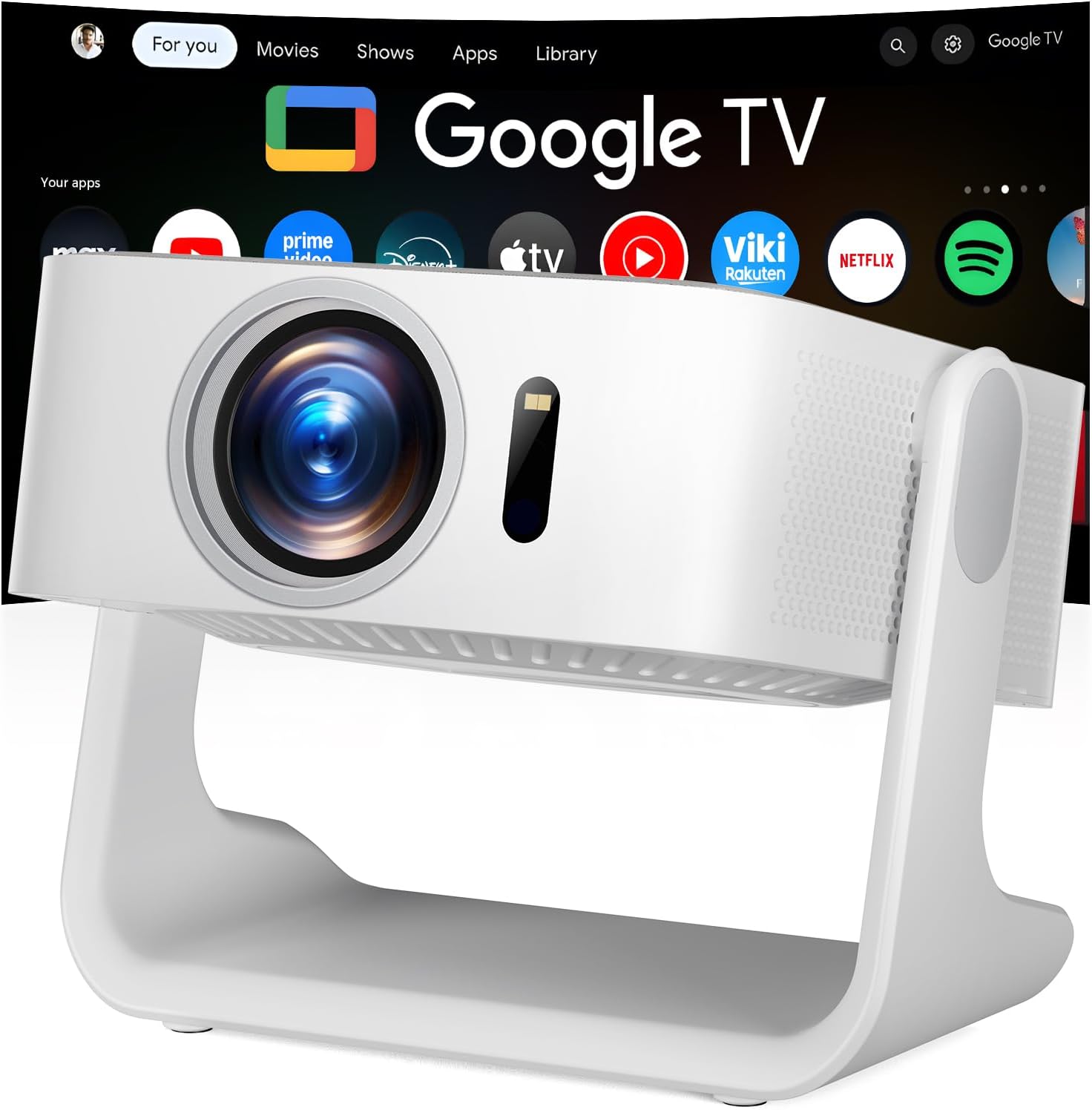
Image 1.1: The ELEPHAS K350 Smart Projector, a compact device with a lens visible on the front, projecting the Google TV interface onto a screen. The projector is white and sits on a stable base.
2. Ny votoatin'ny fonosana
Hamarino fa misy ny entana rehetra ao anaty fonosana:
- ELEPHAS K350 Smart Projector
- Fanaraha-maso lavitra
- Power Adapter
- Cable HDMI
- User Manual (ity antontan-taratasy ity)
3. Vokatra mihoatraview
Fantaro tsara ireo singa sy seranana ao amin'ny projecteur.
3.1 Eo anoloana sy eo anilany View
Sary 3.1: Eo anoloana view of the ELEPHAS K350 Smart Projector, highlighting the projection lens and sensor for auto-focus/keystone correction.
3.2 Rear Panel and Connectivity
The rear panel typically includes power input, HDMI port, USB port, and audio output. Refer to the physical device for exact port locations.

Image 3.2: The ELEPHAS K350 Smart Projector connected to power, with its remote control and various streaming app logos (Netflix, Prime Video, YouTube, HBO Max, Hulu) displayed, indicating its smart capabilities.
4. Fametrahana
4.1 Herin'ny voalohany
- Ampifandraiso amin'ny fidirana herinaratra an'ny projecteur ny adaptatera herinaratra ary avy eo amin'ny faladiany.
- Tsindrio ny bokotra herinaratra eo amin'ny projector na ny fanaraha-maso lavitra mba hampandeha ny fitaovana.
- Follow the on-screen instructions for initial language and region settings.
4.2 Network Connection (Wi-Fi 6)
The projector supports Wi-Fi 6 for fast and stable internet connectivity.
- Navigate to the "Settings" menu on the Google TV interface.
- Select "Network & Internet".
- Fidio ny tambajotra Wi-Fi anao amin'ny lisitra ary ampidiro ny tenimiafina.
- Hamafiso ny fifandraisana.

Image 4.1: Illustration of the projector's dual-band Wi-Fi 6 capability, showing a user gaming with the projector, emphasizing fast and stable connections for online content.
4.3 Bluetooth Pairing (Bluetooth 5.4)
Ampifandraiso ireo fitaovana audio ivelany na ampiasao ny projector ho toy ny mpandahateny Bluetooth.
- Go to "Settings" and select "Remotes & Accessories".
- Enable Bluetooth on the projector and your desired device (e.g., speaker, headphones).
- Fidio ny fitaovanao ao amin'ny lisitra mba hampiarahana.

Image 4.2: Depiction of the projector's two-way Bluetooth 5.4 connectivity, showing it paired with external speakers for enhanced audio and a tablet for screen mirroring, illustrating versatile audio and display options.
4.4 Physical Placement and 270° Rotatable Stand
The integrated 270° rotatable stand allows flexible projection angles.
- Apetraho eo amin'ny toerana azo antoka ny projector.
- Adjust the stand to direct the projection onto a wall, screen, or ceiling.
- Ensure no objects obstruct the projection path.
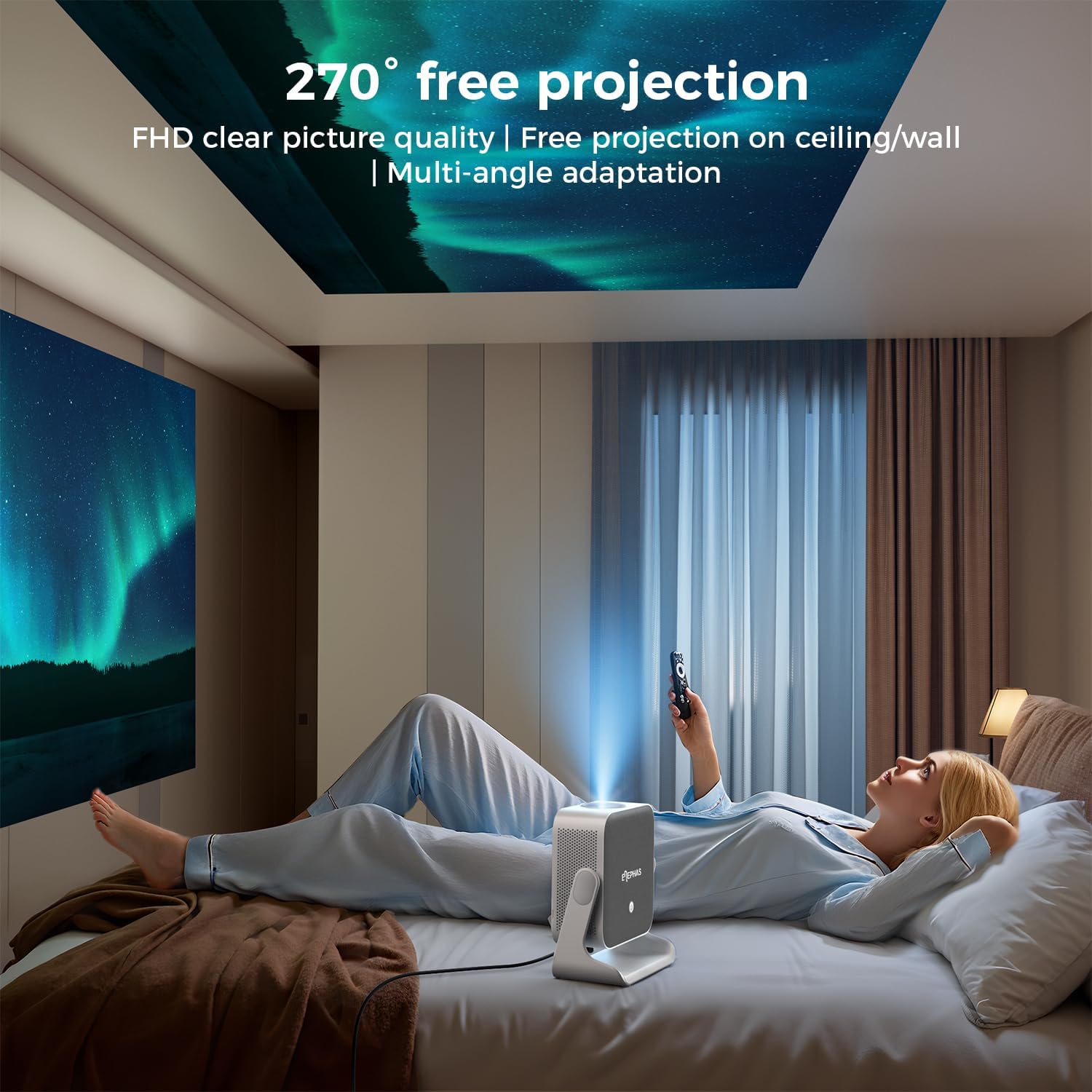
Image 4.3: A user lying in bed, watching content projected onto the ceiling by the ELEPHAS K350 Smart Projector, demonstrating its 270° rotatable stand for flexible viewamin'ny angles.
4.5 Auto Focus, Auto Keystone, and Auto Obstacle Avoidance
The projector features advanced automatic adjustments for optimal image quality.
- Fiantohana fiara: The projector automatically adjusts the image clarity using TOF technology. This occurs within milliseconds upon startup or movement.
- Auto Keystone fanitsiana: The image will automatically adjust to a rectangular shape, even if the projector is placed at an angle (up to ±30° vertical/horizontal).
- Fisorohana ny sakana ho azy: The projector detects and adjusts the projection area to avoid obstacles on the surface.
- Zoom: The projection size can be adjusted up to 70% via settings if needed.

Image 4.4: A diagram illustrating the projector's AI intelligent algorithm for image correction, showing how TOF auto focus, auto obstacle avoidance, and auto keystone correction work to provide a clear, properly framed image.
5. Torolàlana miasa
5.1 Google TV Interface
The ELEPHAS K350 features an integrated Google TV system, providing access to a wide range of streaming services and applications.
- Use the remote control's navigation buttons to browse the Google TV home screen.
- Access pre-installed apps like Netflix, Prime Video, YouTube, Hulu, and Disney+.
- Misintona rindranasa fanampiny avy amin'ny Google Play Store.

Image 5.1: The Google TV interface displayed on a projection screen, with examples of voice commands for the Google Assistant, such as "Open YouTube" or "Play Netflix," demonstrating effortless smart control.
5.2 Google Voice Assistant
Utilize the built-in Google Voice Assistant for hands-free control.
- Tsindrio ilay bokotra feo natokana ho azy eo amin'ny fanaraha-maso lavitra.
- Speak your command clearly, such as "Open Netflix," "Adjust volume," or "Hitady ny action movies."
- The projector will respond to your voice commands.
5.3 External Device Connection (HDMI)
Connect gaming consoles, Blu-ray players, or other devices via the HDMI port.
- Ensure both the projector and the external device are powered off.
- Connect one end of the HDMI cable (included) to the external device and the other end to the HDMI port on the projector.
- Power amin'ny fitaovana roa.
- Select the HDMI input source from the projector's input menu.
5.4 Screen Mirroring (Google Cast)
Cast content from your Android or iOS devices using Google Cast.
- Ensure your mobile device and the projector are connected to the same Wi-Fi network.
- On your mobile device, open a compatible app (e.g., YouTube, Netflix) or use the screen mirroring function.
- Select the Cast icon and choose your ELEPHAS K350 projector from the list of available devices.
6. Fikojakojana
Ny fikojakojana tsy tapaka dia miantoka ny fahombiazana tsara indrindra ary manalava ny androm-piainan'ny projecteur-nao.
- Fanadiovana Lens: Mampiasà lamba malefaka sady tsy misy loko natao manokana ho an'ny lantihy optique mba hamafa moramora ny fakan-tsary. Halaviro ny akora abrasive na ny zavatra simika mahery vaika.
- Fanalana vovoka: Periodically clean the projector's exterior with a soft, dry cloth. Ensure ventilation openings are free from dust accumulation to prevent overheating. Do not spray cleaning liquids directly onto the projector.
- fitahirizana: Rehefa tsy ampiasaina mandritra ny fotoana maharitra, dia tehirizo ao amin'ny toerana mangatsiatsiaka sy maina ny projector, lavitry ny tara-masoandro mivantana sy ny hafanana tafahoatra.
- Fanavaozana rindrambaiko: Ensure the projector's software is up-to-date through the Google TV settings to benefit from the latest features and performance improvements.
7. Famahana olana
Ity fizarana ity dia miresaka olana mahazatra mety ho hitanao.
| OLANA | Antony mety hitranga | vahaolana |
|---|---|---|
| Tsy misy hery | tariby herinaratra tsy mifandray; Olana fivoahana herinaratra | Ataovy azo antoka fa mifandray tsara ny tariby herinaratra. Andramo amin'ny fitaovana hafa ny fivoahana. |
| Tsy misy sary navoaka | Lens cap on; Incorrect input source; Device not powered on | Remove lens cap. Select the correct input source (e.g., HDMI). Ensure connected device is powered on. |
| Manjavozavo ny sary | Out of focus; Projector moved | The projector has auto-focus. If manual adjustment is needed, check settings. Ensure the projector is stable. |
| Image distorted (not rectangular) | Incorrect keystone settings; Projector angle too extreme | The projector has auto-keystone correction. If issues persist, check manual keystone settings in the menu. Reposition the projector if the angle is too severe. |
| Tsy misy feo | Volume too low; Muted; Incorrect audio output selected; Bluetooth not paired | Increase volume. Check if muted. Ensure internal speakers are selected or Bluetooth device is correctly paired. |
| Olana amin'ny fifandraisana Wi-Fi | Tenimiafina diso; Olana amin'ny router; Tsy tafiditra ny faritra azo aleha | Verify Wi-Fi password. Restart router. Move projector closer to router. |
8. Famaritana
| endri-javatra | antsipirihany |
|---|---|
| Marika | ELEFA |
| Laharana modely | K350 |
| Asehoy ny fanapahan-kevitra | 1920 x 1080 (HD feno) |
| Teknolojia fifandraisana | Wi-Fi 6, Bluetooth 5.4, HDMI |
| Endri-javatra manokana | Auto Focus, Auto Keystone, Auto Obstacle Avoidance, Built-In Speaker, Built-In Wi-Fi, Google TV, Google Voice Assistant, 270° Rotatable Stand |
| teny | Built-in 10W Hi-Fi speakers (Dolby Audio support) |
| Lanja entana | 4.51 kg |
| Ny haben'ny fonosana | 11.02 x 10.12 x 7.09 santimetatra |
| Fampiasana soso-kevitra | Home Cinema, Gaming, Outdoor Movie Nights, Presentations |

Sary 8.1: Nisy nipoaka view of the ELEPHAS K350 Smart Projector, highlighting its internal 2x5W speakers and Dolby Audio support, indicating immersive sound capabilities.
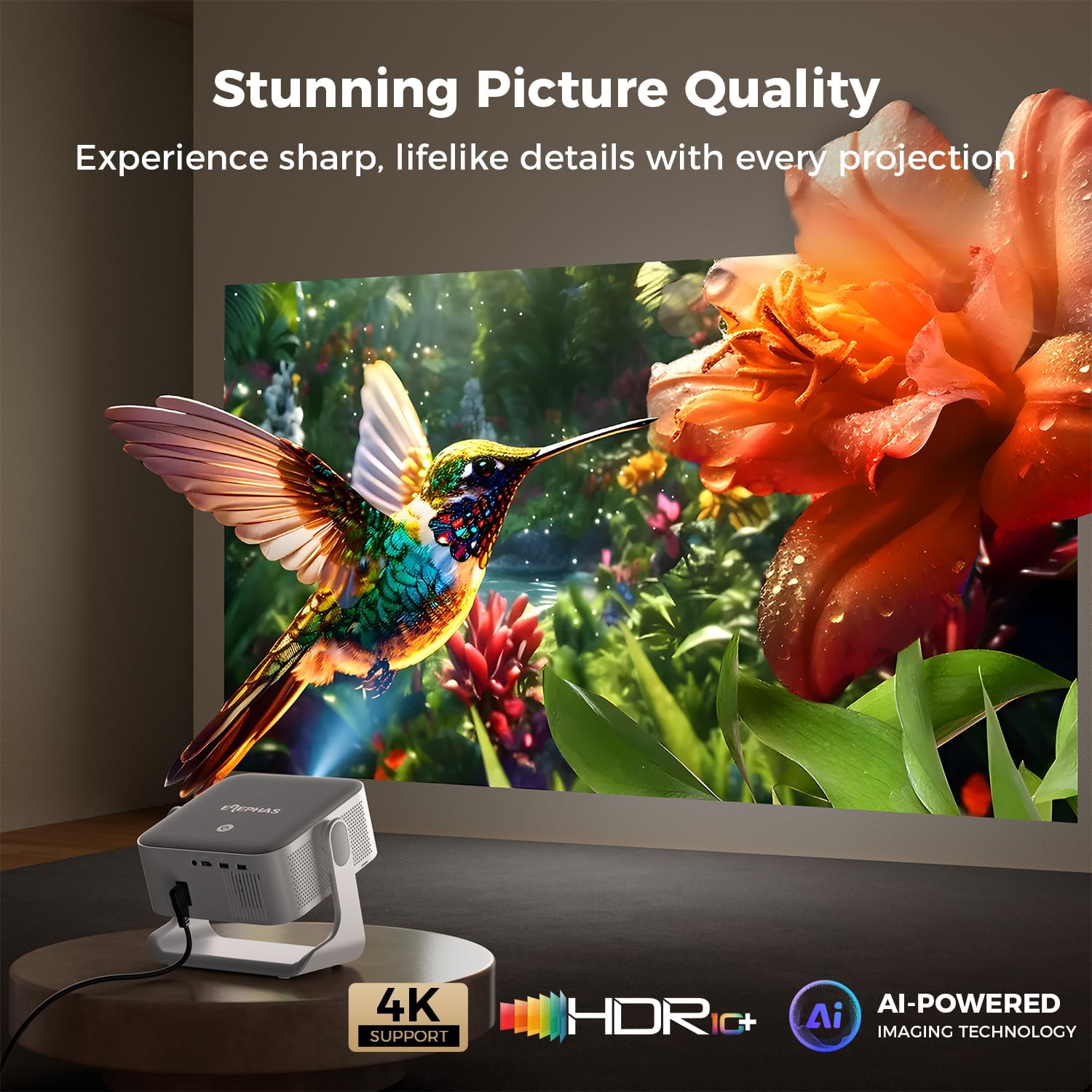
Image 8.2: The ELEPHAS K350 Smart Projector projecting a vibrant, detailed image of a hummingbird and flower, emphasizing its stunning picture quality with 4K support, HDR, and AI-powered imaging technology.
9. Warranty sy fanohanana
The ELEPHAS K350 Smart Projector is backed by a 2-year service guarantee.
For any product-related issues, technical assistance, or warranty claims, please contact ELEPHAS customer support through the official channels provided at the point of purchase or on the ELEPHAS brand website.
Azafady, tehirizo ny porofon'ny fividiananao mba hanamarina ny fiantohana.