
Sava lalana
Thank you for choosing the CRUA 27-inch 4K UHD 144Hz IPS Gaming Monitor. This monitor is designed to deliver an immersive visual experience with its high resolution, fast refresh rate, and vibrant color reproduction. This manual provides essential information for the proper installation, operation, and maintenance of your new monitor. Please read it thoroughly before use and retain it for future reference.
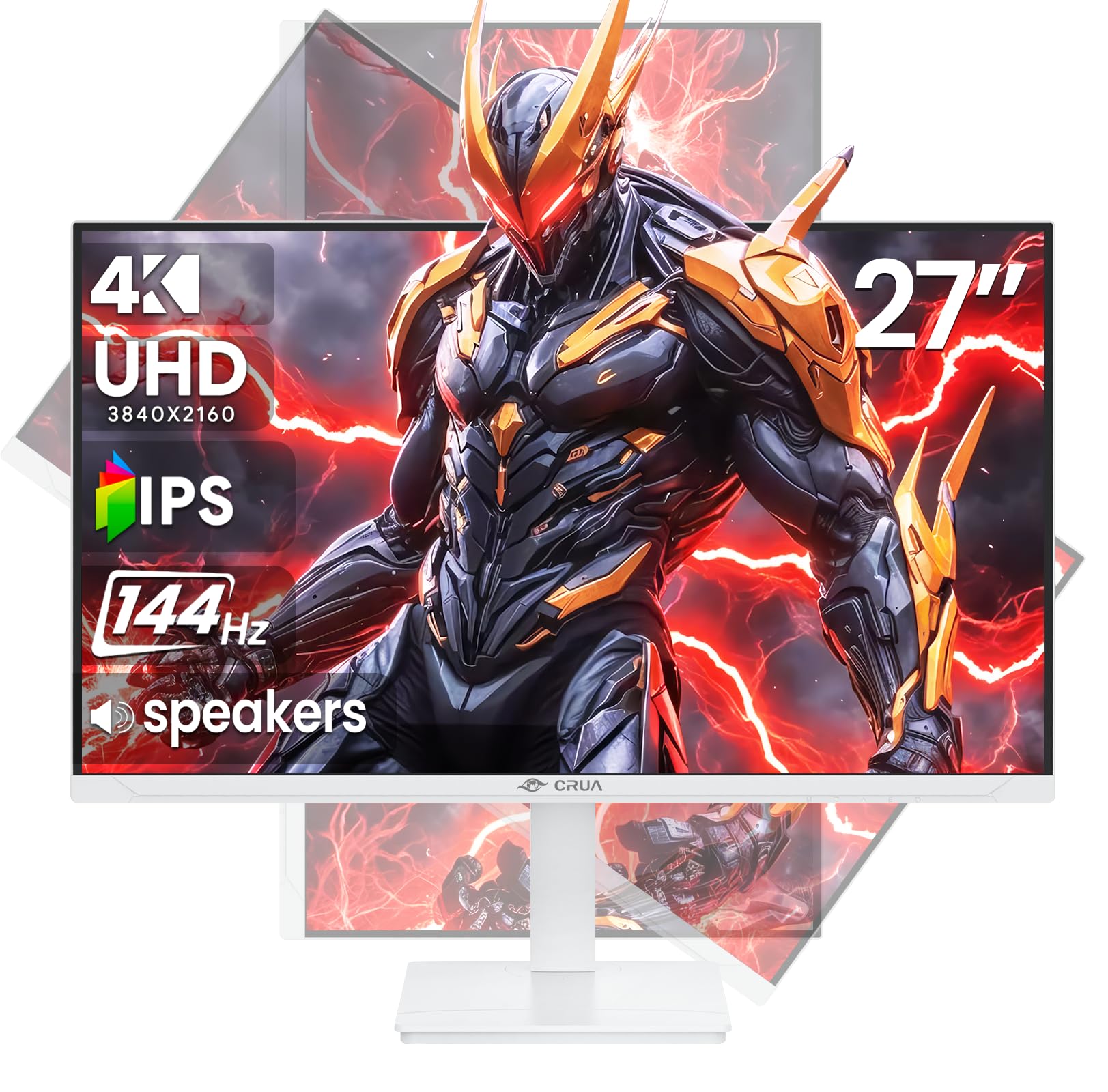
Sary: Front view of the CRUA 27-inch 4K UHD 144Hz IPS Gaming Monitor.
Inona no ao anaty boaty
Jereo azafady ny ao anatin'ny fonosanao. Raha misy entana tsy hita na simba dia mifandraisa amin'ny mpivarotra anao.
- Monitor 27 santimetatra
- DP Cable
- Base and Support
- User Manual
- Herin'aratra
Endriky ny vokatra
- 27" 4K Display with IPS Panel: Experience ultra-clear visuals with a 3840x2160P resolution.
- 144Hz Refresh tahan'ny: Enjoy fluid and sharp motion, ideal for competitive gaming and fast-paced content.
- 120% sRGB Color Accuracy: Delivers rich and accurate tones with 350cd/m² brightness and 1000:1 high-contrast.
- Mpandahateny anatiny: Provides clear audio for daily use.
- Full Ergonomic Adjustment: Features height, pivot, tilt, and rotation adjustments for optimal viewamin'ny angles.
- Safidy fifandraisana maro: Equipped with 2x HDMI 2.1 and 2x DP 1.4 ports.
- AMD FreeSync Support: Mampifanaraka ny tahan'ny fanavaozana ny efijery amin'ny GPU-nao mba tsy hisian'ny rovitra amin'ny filalaovana lalao.
- Miorina amin'ny rindrina: Supports VESA 75mm x 75mm wall mounts for flexible installation.
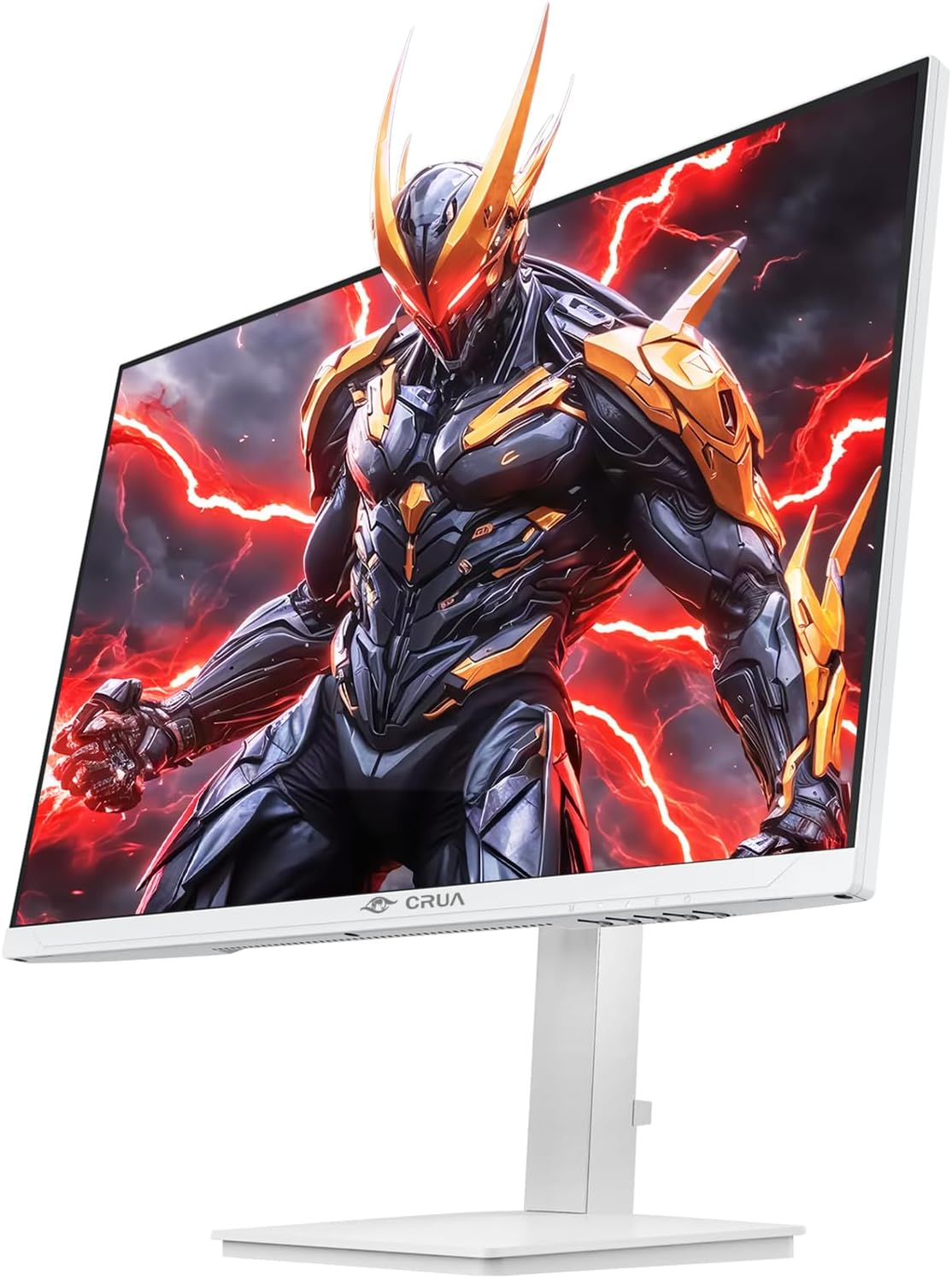
Sary: Front view of the CRUA 27-inch 4K UHD 144Hz IPS Gaming Monitor displaying a game scene.

Sary: aoriana view of the CRUA 27-inch 4K UHD 144Hz IPS Gaming Monitor showing the stand and RGB lighting.

Sary: aoriana view of the CRUA 27-inch 4K UHD 144Hz IPS Gaming Monitor highlighting the input ports (2x DP 1.4, 2x HDMI 2.1, and 3.5mm Audio Port).

Image: Diagram illustrating the adjustable height (110mm), tilt (-5° to +15°), swivel (±30°), and pivot (90°) features of the CRUA 27-inch 4K UHD 144Hz IPS Gaming Monitor.
Torolàlana fametrahana
1. Manangona ny Stand
- Esory amim-pitandremana ny fitaovana fanaraha-maso sy ajoro eo amin'ny fonosana.
- Apetaho amin'ny tontonana fanaraha-maso ny vozon'ny fijoroana. Ataovy azo antoka fa mikitika tsara eo amin'ny toerany izy io na mifatotra amin'ny visy raha misy.
- Attach the base to the stand neck, securing it with the thumb screw or other fasteners.
- Apetraho eo amin'ny toerana marin-toerana sy fisaka ilay monitora mitambatra.
2. Fametrahana rindrina (tsy voatery)
The monitor supports VESA 75mm x 75mm wall mounts. Remove the stand before attaching a compatible wall mount bracket (not included). Follow the instructions provided with your wall mount.
3. Fampifandraisana tariby
- Hery: Connect the power supply to the monitor's power input and then to a power outlet.
- Video Input: Connect one end of the provided DP cable (or an HDMI cable) to the corresponding port on your computer's graphics card and the other end to a DP 1.4 or HDMI 2.1 port on the monitor.
- Famoahana feo (tsy voatery): If using external speakers or headphones, connect them to the 3.5mm audio jack on the monitor.
4. Famelomana voalohany
Press the power button on the monitor. The monitor should automatically detect the input signal. If not, you may need to manually select the input source using the OSD menu.
Torolàlana miasa
1. Power On/off
Tsindrio ny bokotra herinaratra eo amin'ny efijery mba hampandeha na hamonoana azy.
2. OSD Menu Navigation
The On-Screen Display (OSD) menu allows you to adjust various monitor settings. Navigate the menu using the joystick or buttons typically located on the back or bottom of the monitor.
- Press the joystick/button to open the OSD menu.
- Move the joystick up/down or use corresponding buttons to navigate through menu options.
- Move the joystick left/right or use corresponding buttons to adjust values or enter sub-menus.
- Press the joystick/button again to confirm selections or exit sub-menus.
3. Fantenana Loharano fampidirana
If the monitor does not automatically detect the correct input, open the OSD menu, navigate to "Input Source," and select the active input (e.g., HDMI1, HDMI2, DP1, DP2).
4. Fanitsiana ny fampiratiana
Ao anatin'ny menio OSD dia azonao atao ny mampifanaraka ny toe-javatra toy ny:
- Famirapiratana/mifanohitra: Ahitsio ny haavon'ny famirapiratana sy ny fifanoherana ankapobeny.
- Fikirana loko: Ampifanaraho tsara ny mari-pana amin'ny loko, ny gamma ary ny sanda RGB tsirairay.
- Kalitaon'ny sary: Select preset modes (e.g., Standard, Game, Movie) or customize sharpness and dynamic contrast.
- Fanapahan-kevitra & tahan'ny fanavaozana: Ensure your computer's display settings match the monitor's native 4K UHD (3840x2160P) resolution and 144Hz refresh rate for optimal performance.
- AMD FreeSync: Enable FreeSync in the OSD menu and your graphics card control panel for adaptive synchronization.
5. Fanovana Audio
Adjust the volume of the built-in speakers or connected external audio devices through the OSD menu's audio section. You can also mute the audio if desired.
6. Fanitsiana ergonomika
Ampifanaraho amin'ny safidinao ny monitor viewtoerana:
- Haavo: Gently push or pull the monitor up or down along the stand.
- Jery mitongilana: Tilt the screen forward or backward.
- Mihodina: Ahodiho miankavia na miankavanana eo amin'ny fotony ny monitor.
- Pivot: Rotate the screen 90 degrees for vertical orientation.
fikarakarana
Manadio ny efijery
- Vonoy foana ny efijery ary esory amin'ny herinaratra ny tariby alohan'ny hanadiovana azy.
- Mampiasà lamba malefaka sady tsy misy sosotra moramora dampasiana rano na mpanadio écran manokana.
- Aza manipy mpanadio mivantana eo amin'ny efijery.
- Avoid using abrasive cleaners, alcohol, or ammonia-based solutions, as they can damage the screen surface.
Fikarakarana ankapobeny
- Arovy ny fanaraha-maso amin'ny tara-masoandro mivantana, ny loharano mafana ary ny vovoka be loatra.
- Ataovy izay hahazoana rivotra ampy tsara manodidina ny efijery mba hisorohana ny hafanana be loatra.
- Aza mametraka zavatra mavesatra eo amin'ny monitor na ny telegrama.
- Fadio ny mikasika ny efijery amin'ny zavatra maranitra.
Fanamboarana
| OLANA | Vahaolana mety |
|---|---|
| Tsy misy sary eo amin'ny efijery |
|
| Tsy misy feo avy amin'ny mpandahateny |
|
| Fihetseham-po na fikorontanan'ny sary |
|
| Bokotra tsy mamaly |
|
For further assistance, please refer to the CRUA support webtranokala na mifandray amin'ny serivisy mpanjifa.
fepetra arahana
| endri-javatra | antsipirihany |
|---|---|
| Laharana modely | CR270E |
| Haben'ny efijery | 27 santimetatra |
| vahaolana | 4K UHD (3840 x 2160 Piksela) |
| Ny tahan'ny fanavaozana | 144Hz |
| Karazana tontonana | IPS |
| Aspect ratio | 16:9 |
| Color Gamut | 120% sRGB |
| ny famirapiratry ny mazava | 350 Candela (cd/m²) |
| Contrast Ratio | 1000:1 |
| fifandraisana | 2x DP 1.4, 2x HDMI 2.1, 1x 3.5mm Audio Jack |
| Adaptive Sync | AMD FreeSync |
| Ergonomika | Height, Pivot, Tilt, Rotate Adjustable |
| Wall Mount | VESA 75mm x 75mm |
| Mpandahateny anatiny | ENY |
| Ny refin'ny vokatra | 2.5 x 24 x 14 santimetatra |
| Lanja entana | 11.38 kg |
Warranty sy fanohanana
CRUA provides high-quality computer monitors and premium services. For warranty information, technical support, or any questions regarding your monitor, please visit the official CRUA website or contact their customer service team. Details can typically be found on the product packaging or the CRUA brand store on Amazon.
Antsipiriany ifandraisana: Refer to your purchase documentation or the CRUA official webtranonkala raha mila ny antsipirian'ny fifandraisana farany indrindra momba ny fanohanana.