
SUVCON M02
SUVCON M02 4K Dash Cam User Manual
Modely: M02
Sava lalana
Thank you for choosing the SUVCON M02 4K Dash Cam. This manual provides detailed instructions for the installation, operation, and maintenance of your dash cam. Please read this manual thoroughly before using the product to ensure proper functionality and safety.
Fampahalalana manan-danja momba ny fiarovana
- Aza miasa ny dash cam rehefa mitondra fiara. Ampifanaraho ihany ny fanovana rehefa mijanona tsara ny fiara.
- Ataovy azo antoka fa tafapetraka tsara ny dash cam ary tsy manakana ny mpamily view na fametrahana airbag.
- Use only the original power cable provided to prevent damage to the device or vehicle.
- Avoid exposing the dash cam to extreme temperatures, direct sunlight for prolonged periods, or excessive moisture.
- Do not attempt to disassemble or repair the dash cam yourself. Contact customer support for assistance.
- Format the memory card regularly to ensure optimal performance and prevent data corruption.
Fonosana fonosana
Azafady, jereo ny fonosana ho an'ireto zavatra manaraka ireto:
- SUVCON M02 4K Dash Cam (Front Camera)
- Rear Camera (if included in your package)
- Car Charger with Power Cable
- Tendrombohitra kaopy suction
- Cable Clips
- User Manual
- 32GB MicroSD Card (if included in your package)
Vita ny vokatraview
Familiarize yourself with the components of your SUVCON M02 Dash Cam.
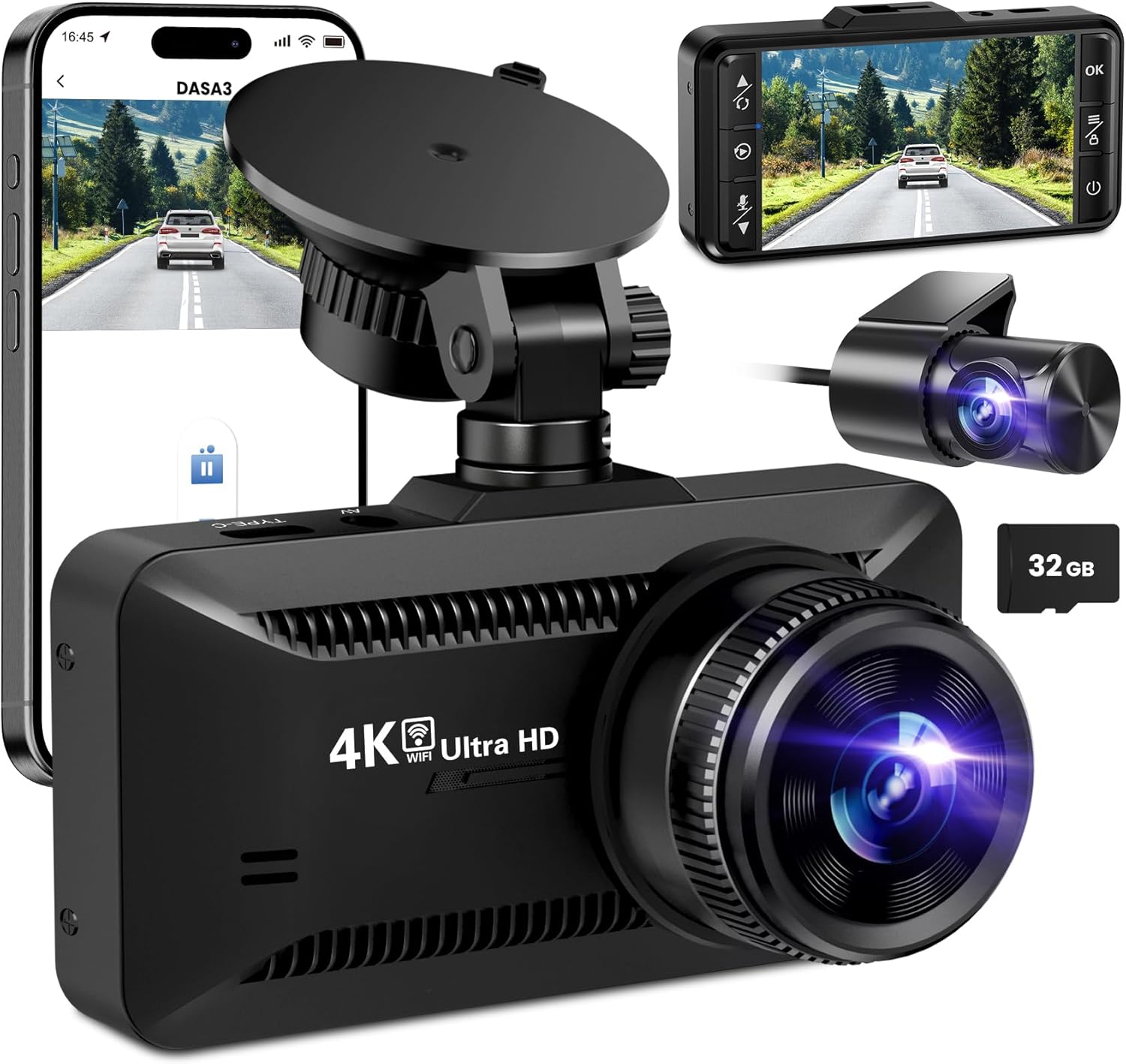
Sary: The SUVCON M02 4K Dash Cam is shown with its main front camera unit, a separate rear camera, a smartphone displaying the dash cam's app interface, and a 32GB microSD card. The main unit features a prominent lens, a display screen on the back (not fully visible in this angle), and a suction cup mount. The rear camera is compact with its own lens. The smartphone screen shows a live view from the dash cam, indicating Wi-Fi connectivity.
Front Camera Unit
- Lens: Captures 4K video.
- Asehoy ny efijery: HO AN'NY viewmiaina footage, playback, and menu navigation.
- Bokotra fanaraha-maso: Power, Menu, Up, Down, OK.
- Kardan'ny MicroSD Card: Ho an'ny fametrahana karatra fahatsiarovana.
- USB Power Port (Type-C): Ho an'ny fampifandraisana ny charger fiara.
- Seranan-tsambo ho an'ny fakantsary aoriana: For connecting the rear camera cable.
- Mpandahateny/Mikrôfona: Ho an'ny fandraketana sy famerenana feo.
Fakan-tsary aoriana
- Lens: Captures rear view video.
- Cable: Connects to the main dash cam unit.
Fametrahana sy fametrahana
1. Ampidiro ny karatra MicroSD
- Ataovy azo antoka fa maty ny dash cam.
- Tadiavo ny toerana fametrahana karatra MicroSD eo amin'ny ilan'ny fakan-tsary amin'ny dash.
- Insert the MicroSD card with the gold contacts facing the back of the dash cam until it clicks into place.
- Mba hanesorana dia atosika moramora ilay karatra mandra-pikitika, dia avoaka.
Fanamarihana: A Class 10 or higher MicroSD card (up to 128GB recommended) is required. Format the card in the dash cam's settings before first use.
2. Mametraka ny Dash Cam
- Diovy ny faritra eo anoloan'ny fitaratra izay tianao hametrahana ny cam dash.
- Ampifandraiso amin'ny dashcam ny fametahana kaopy fisotro.
- Press the suction cup firmly against the windshield, ideally behind the rearview mirror, and flip the lever to secure it.
- Adjust the angle of the dash cam lens to ensure it captures the road ahead clearly, avoiding obstruction from the hood or dashboard.
3. Hery mampifandray
- Connect the small end of the car charger cable to the USB Type-C port on the dash cam.
- Plug the larger end of the car charger into your vehicle's 12V power outlet (cigarette lighter socket).
- Route the power cable neatly along the edge of the windshield and dashboard using the provided cable clips to avoid obstructing your view.
4. Installing the Rear Camera (Optional)
- Connect the rear camera cable to the dedicated rear camera port on the main dash cam unit.
- Route the cable from the front unit to the rear of the vehicle, typically along the headliner and side panels.
- Mount the rear camera on the rear windshield using its adhesive or screws, ensuring a clear view ny lalana aoriana.
- Connect the red wire of the rear camera cable to the vehicle's reverse light positive wire if you wish to enable parking assist lines when reversing.
Torolàlana miasa
Power On/off
- mandeha ho azy: The dash cam will automatically power on and begin recording when connected to power and the vehicle engine starts. It will power off automatically when the engine is turned off.
- Manual: Tsindrio ary hazòny ny bokotra Hery mba hampandehanana na hamonoana amin'ny tanana ny fakan-tsary amin'ny dash.
Fomba fandraisam-peo
- Loop Recording: The dash cam records video in continuous loops (e.g., 1, 3, or 5 minutes). When the memory card is full, the oldest unlocked files dia hosoloina.
- G-Sensor (Fandraketana vonjy taitra): The built-in G-sensor detects sudden impacts or collisions. When triggered, the current video segment is automatically locked and saved to prevent it from being overwritten by loop recording.
- Parking Monitor: With a hardwire kit (sold separately) or continuous power, the dash cam can monitor your vehicle while parked. If a vibration or impact is detected, it will automatically record a short video.
Menu Navigation
Use the control buttons on the dash cam to navigate the menu:
- bokotra Menu: Press to enter the settings menu. Press again to switch between video settings, system settings, and playback mode.
- Bokotra ambony/midina: Mandehana amin'ny safidy sakafo.
- Bokotra OK: Confirm selection or start/stop recording in recording mode.
Fifandraisana Wi-Fi sy fampiasana fampiharana
The SUVCON M02 features Wi-Fi connectivity for easy access to recordings and settings via a smartphone app.
- Download the recommended app (e.g., "DASA3" or similar, check packaging for exact app name) from your smartphone's app store.
- On the dash cam, enable Wi-Fi from the system settings. The dash cam's Wi-Fi SSID and password will be displayed on the screen.
- Ao amin'ny findainao avo lenta, mandehana any amin'ny fikirana Wi-Fi ary mifandraisa amin'ny tambajotra Wi-Fi an'ny fakan-tsary amin'ny alàlan'ny tenimiafina nomena.
- Open the app. You can now view miaina footage, download recorded videos, change settings, and format the SD card directly from your phone.
Playback
- On Dash Cam: In recording mode, press the Menu button twice to enter playback mode. Use Up/Down buttons to select files and OK to play.
- Amin'ny alalan'ny App: Connect your smartphone via Wi-Fi and use the app's playback feature to view ary misintona horonan-tsary.
- Ao amin'ny Solosaina: Remove the MicroSD card from the dash cam and insert it into a computer's card reader. Videos can be played using standard media players.
fikarakarana
Cleaning the Dash Cam
- Use a soft, dry cloth to clean the dash cam body.
- For the lens, use a lens cleaning cloth and specialized lens cleaning solution to avoid scratches.
- Aza mampiasa mpanadio abrasive na solvents.
MicroSD Card Formatting
It is recommended to format the MicroSD card every 2-4 weeks to maintain optimal recording performance and prevent data corruption. This can be done through the dash cam's menu settings or via the smartphone app.
Fanavaozana ny mikirao praogramanao
Periodically check the SUVCON official website for available firmware updates. Firmware updates can improve performance, add new features, or fix bugs. Follow the instructions provided with the firmware file amim-pitandremana.
Fanamboarana
| OLANA | Vahaolana mety |
|---|---|
| Dash cam tsy mandeha. |
|
| Dash cam stops recording or freezes. |
|
| Video fotagmanjavozavo na tsy mazava ny e. |
|
| Olana amin'ny fifandraisana Wi-Fi. |
|
fepetra arahana
| endri-javatra | antsipirihany |
|---|---|
| MODELY | M02 |
| Marika | SUVCON |
| Fanapahan-dahatsary fakana sary | 4K (Front), 1080P (Rear, if applicable) |
| Endri-javatra manokana | G-Sensor, Loop Recording, Parking Monitor, Wi-Fi Connectivity |
| Teknolojia fifandraisana | Wifi |
| Karazana fametrahana | Dashboard Mount (Suction Cup) |
| fitahirizana | MicroSD Card (Class 10 or higher, up to 128GB recommended) |
| Loharanon-kery | Famandrihana fiara (12V) |
| Ny refin'ny vokatra | 2.54 x 2.54 x 2.54 cm (eo ho eo, araka ny angon-drakitra vokatra) |
Warranty sy fanohanana ny mpanjifa
For warranty information, technical support, or any inquiries regarding your SUVCON M02 Dash Cam, please refer to the warranty card included in your package or visit the official SUVCON website. Please have your model number (M02) and purchase details ready when contacting support.
Webtranokala: www.suvcon.com (Eksample URL, please refer to actual product documentation)
mailaka: support@suvcon.com (Eksample Email, please refer to actual product documentation)