Sava lalana
This manual provides essential information for the installation, operation, maintenance, and troubleshooting of your new Generic Laptop CPU Fan, model US CPU Fan 1710. This fan is designed as a replacement cooling component for PowerSpec 1710 PA71HS-G series laptops. Proper installation and care will ensure optimal performance and longevity of your laptop's cooling system.
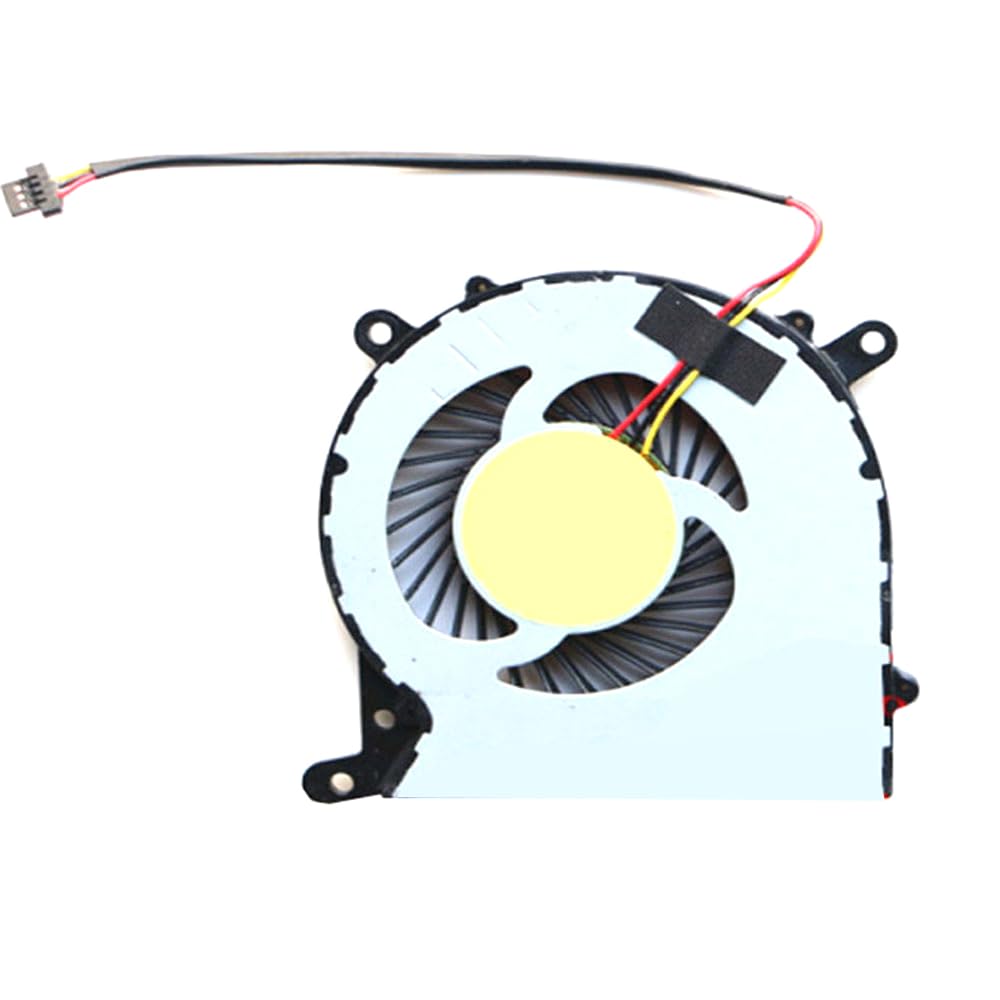
Image: The Generic Laptop CPU Fan, showing its compact design and 3-pin connector. This fan is a critical component for maintaining optimal laptop operating temperatures.
Important Compatibility Note
Fampahalalana manan-danja: Laptop CPU fans, especially their interface wiring sequences, can vary significantly even for the same laptop model. It is imperative to verify the compatibility of this fan with your specific laptop's existing fan. Before installation, carefully compare the front, back, and the 3-pin connector's wiring sequence of this new fan with your original fan. Incompatible wiring can lead to damage to the fan or your laptop's motherboard.
Fametrahana sy fametrahana
- Fiomanana: Ensure your laptop is completely powered off and disconnected from the power adapter. Remove the battery to prevent accidental power-on during installation.
- Accessing the Fan: Consult your PowerSpec 1710 PA71HS-G laptop's service manual or a reliable disassembly guide to locate and access the CPU fan. This typically involves removing the bottom cover and potentially other components.
- Disconnecting the Old Fan: Carefully disconnect the 3-pin power connector of the old fan from the motherboard. Remove any screws securing the old fan and gently lift it out.
- Fanadiovana: Before installing the new fan, clean any dust or debris from the heatsink and surrounding areas. If applicable, clean off old thermal paste from the CPU and apply new thermal paste according to CPU manufacturer guidelines.
- Installing the New Fan: Place the new Generic CPU Fan into position, ensuring it aligns correctly with the screw holes and the heatsink. Secure it with the appropriate screws.
- Mampifandray ny Fan: Carefully connect the new fan's 3-pin power connector to the corresponding header on the motherboard. Ensure the connection is firm and correctly oriented, referencing the compatibility note above.
- Reassemble: Reassemble your laptop by reversing the disassembly steps. Ensure all cables are properly connected and screws are tightened.
- Fitsapana voalohany: Reinstall the battery and connect the power adapter. Power on the laptop and observe if the fan spins and if the system boots normally. Monitor CPU temperatures using system monitoring software.
Torolàlana miasa
The Generic Laptop CPU Fan operates automatically, controlled by your laptop's system BIOS/UEFI and operating system. It will adjust its speed based on the CPU temperature to maintain optimal cooling performance. No manual intervention is typically required for its operation.
- Ensure proper airflow around your laptop by not blocking the intake and exhaust vents.
- Avoid operating the laptop on soft surfaces (e.g., blankets, pillows) that can obstruct ventilation.
fikarakarana
Regular maintenance helps prolong the life of your CPU fan and ensures efficient cooling.
- Fanadiovana vovoka: Periodically (e.g., every 6-12 months, depending on usage environment), open your laptop and gently clean dust from the fan blades and heatsink fins using compressed air or a soft brush. Hold the fan blades to prevent them from spinning excessively during cleaning.
- Fanamarinana fifandraisana: During cleaning, verify that the fan's 3-pin connector remains securely attached to the motherboard.
- Mametaka mafana: If you notice consistently high temperatures, consider reapplying fresh thermal paste to the CPU and GPU (if applicable) during a thorough cleaning. This is an advanced maintenance step.
Fanamboarana
- Tsy mihodina ny mpankafy:
- Check the 3-pin power connector to ensure it is fully seated and correctly oriented on the motherboard.
- Verify that the laptop is receiving power.
- Ensure the fan is not obstructed by cables or debris.
- If the fan still does not spin, it may be faulty and require replacement.
- Loud or Unusual Noise:
- Excessive dust accumulation can cause noise. Clean the fan as described in the Maintenance section.
- Ensure no cables or other components are touching the fan blades.
- If the noise persists after cleaning and checking for obstructions, the fan bearings may be worn, indicating a need for replacement.
- Laptop Overheating:
- Confirm the fan is spinning correctly.
- Clean the heatsink and fan thoroughly to remove dust buildup.
- Ensure thermal paste on the CPU is properly applied and not dried out.
- Check for proper airflow around the laptop.
- If overheating continues, there might be other issues with the laptop's cooling system or CPU load.
fepetra arahana
- Modely: US CPU Fan 1710
- mifanentana: PowerSpec 1710 PA71HS-G series laptops
- BOKYtage: DC 5V
- ankehitriny: 0.5A
- Karazana mpampitohy: 3-PIN
- Fitaovana: plastika
- Approximate Product Dimensions (Packaging): 11.81 x 7.87 x 3.94 santimetatra
- Approximate Item Weight (Packaging): 1.1 kg
Garantie
This Generic Laptop CPU Fan comes with a Garantie 90 andro from the date of purchase. This warranty covers manufacturing defects. It does not cover damage resulting from improper installation, misuse, accidental damage, or unauthorized modifications. Please retain your proof of purchase for warranty claims.
MANAMPY
For further assistance, technical support, or warranty claims, please contact the seller or manufacturer through the platform where the product was purchased. When contacting support, please provide your product model (US CPU Fan 1710), laptop model (PowerSpec 1710 PA71HS-G), and a detailed description of the issue.


