
Sava lalana
This manual provides essential instructions for setting up, operating, and maintaining your Plimpton PlimPad Kids20 tablet. This device is designed for children, featuring Android 14, an Octa-core processor, 8GB RAM (expandable), 64GB ROM (expandable to 1TB), and a durable EVA shockproof case. It includes pre-installed Google Kids Space and parental control features to ensure a safe and educational experience.
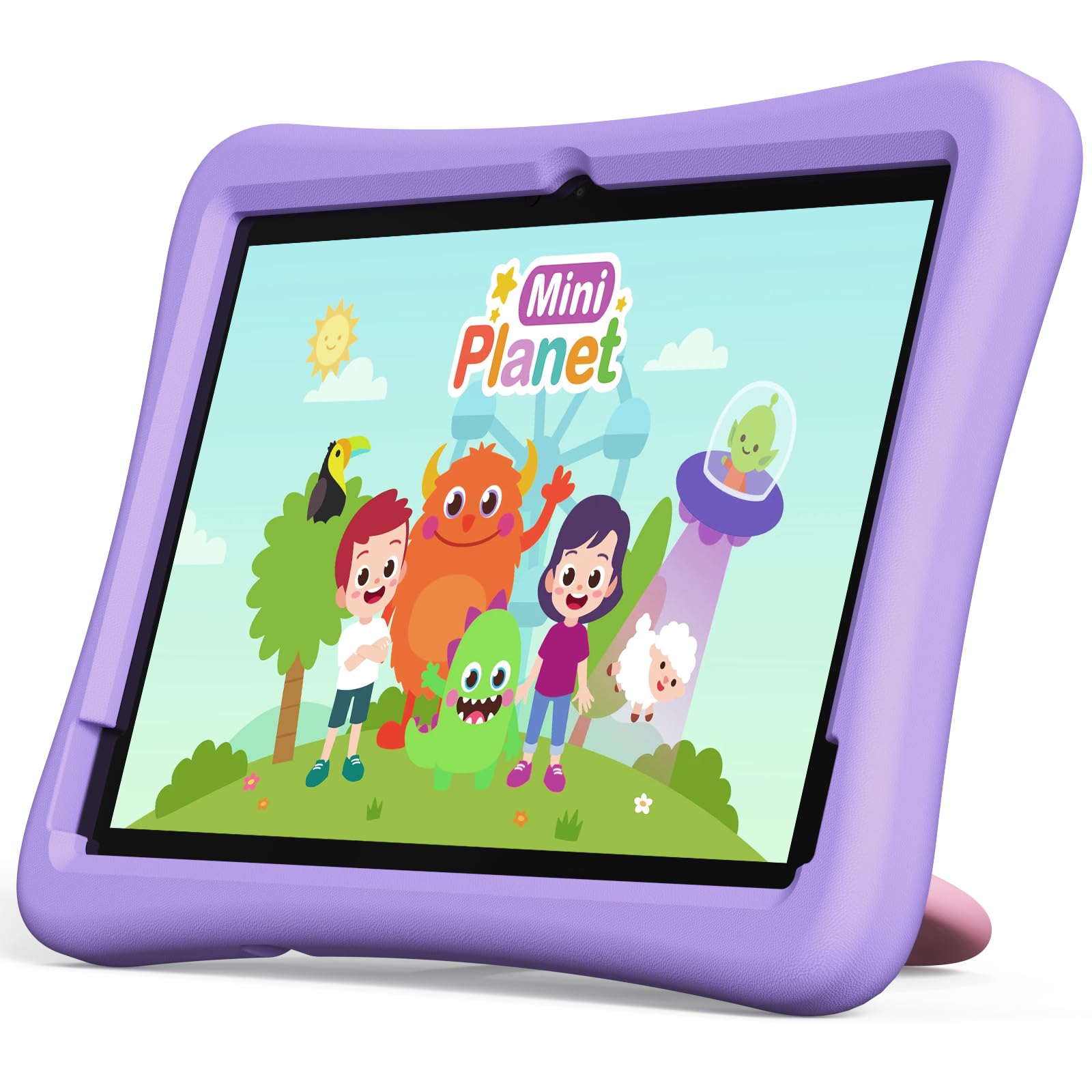
Image: The Plimpton PlimPad Kids20 tablet in its violet shockproof EVA case.
Inona no ao anaty boaty
Hamarino tsara fa ao anaty fonosana avokoa ny entana rehetra alohan'ny hanohizana ny fametrahana.
- 1x Plimpton PlimPad Kids20 Tablet
- 1x USB adaptatera
- 1x 1.8m Charging Cable
- 1x User Manual
Hametraka
1. Fametrahana ny Tablet
Before first use, fully charge the tablet.
- Connect the USB charging cable to the tablet's USB Type-C port.
- Ampidiro ao amin'ny fantsona herinaratra ny adaptatera USB.
- The charging indicator will illuminate. Allow several hours for a full charge.
2. Mamelona/Mamono
- Hamelona: Tsindrio ary hazòny ny bokotra Hery mandra-pahazava ny efijery.
- Mamono: Tsindrio ary tazony ny bokotra Hery, ary fidio ny "Power off" amin'ny safidy eo amin'ny efijery.
- Hanomboka indray: Tsindrio ary hazòny ny bokotra Power, dia fidio ny "Restart" amin'ny safidy.
3. Fametrahana voalohany
Upon first power-on, follow the on-screen prompts to configure your tablet. This typically includes:
- Mifidy ny fiteninao.
- Connecting to a Wi-Fi network (supports Wi-Fi 6, 2.4GHz + 5.0GHz).
- Setting up a Google account. This is crucial for accessing Google Kids Space and downloading apps.
- Fametrahana daty sy ora.
4. Fampidirana karatra Micro SD
Ny takelaka dia manohana karatra Micro SD hatramin'ny 1TB ho an'ny fitahirizana miitatra.
- Tadiavo ny slot karatra Micro SD eo amin'ny sisin'ny takelaka.
- Ampidiro tsara ao anaty lavaka ny karatra Micro SD mandra-pikitiny tsara eo amin'ny toerany.
- The tablet will detect the new storage. You may be prompted to format it for use as portable or internal storage.
Fampandehanana ny Tablet
1. Fikarohana fototra
The PlimPad Kids20 uses a capacitive touchscreen for interaction.
- Peho: Misafidiana singa iray na manokatra fampiharana.
- Tsindrio ary hazòny: Midira amin'ny menu contextual na manetsika kisary.
- Swipe: Navigate through screens or scroll within applications.
- Pinch-to-Zoom: Enlarge or reduce content (e.g., photos, web pejy).
2. Google Kids Space
The tablet comes with Google Kids Space pre-installed, offering a curated selection of educational and entertaining content.

Image: A child and adult interacting with the tablet, showing the Google Kids Space interface.
- Access Kids Space from the home screen or app drawer.
- Content includes interactive educational apps, books, games, and videos.
- Content is teacher-approved and designed to promote learning and creativity.
3. Parental Controls (Google Family Link)
Manage your child's tablet usage and ensure a safe online environment using Google Family Link.

Image: A child using the tablet, with an overlay indicating Google Family Link for parental control.
- Download the Google Family Link app on your own device.
- Link your child's Google account on the tablet to your Family Link account.
- Through Family Link, you can:
- Set screen time limits.
- Approve or block app downloads.
- HITANTAM- webfidirana amin'ny tranokala.
- Track device location.
4. fifandraisana
- Wifi: Connect to wireless networks via Settings > Network & internet > Wi-Fi. The tablet supports dual-band Wi-Fi (2.4/5 GHz) for fast and stable connections.
- Bluetooth 5.3: Ampifandraiso amin'ny fitaovana Bluetooth toy ny écouteur na ny fanamafisam-peo amin'ny alalan'ny Settings > fitaovana mifandray > Bluetooth.
5. Fampiasana fakan-tsary
Ny takelaka dia manana fakan-tsary 5MP aoriana ary fakantsary 2MP eo anoloana.
- Sokafy ny fampiharana Camera avy amin'ny efijerin'ny trano na ny sarina fampiharana.
- Mifindra eo anelanelan'ny fakantsary aloha sy aoriana raha ilaina.
- Tsindrio ny bokotra "shutter" mba haka sary na handrakitra horonan-tsary.
fikarakarana
1. Fanadiovana ny Tablet
- Mampiasà lamba malefaka sy tsy misy loko mba hanadiovana ny efijery sy ny vatana.
- Ho an'ny setroka mafy loha, kely dampen ilay lamba misy rano na mpanadio écran.
- Fadio ny zavatra simika masiaka na akora abrasive.
2. Fanavaozana rindrambaiko
Hamarino sy asio fanavaozam-baovao tsy tapaka mba hahazoana antoka fa mahomby sy azo antoka.
- Mandehana any amin'ny Settings> System> System update.
- Araho ny toromarika eo amin'ny efijery raha hisintona sy hametraka izay fanavaozana misy.
3. Fitantanana fitahirizana
To maintain performance, periodically manage the tablet's storage.
- Go to Settings > Storage to view fampiasana fitahirizana.
- Esory ny fampiharana tsy ampiasaina.
- Fafao tsy ilaina files, photos, or videos.
- Mandrosoa lehibe files to an inserted Micro SD card.
Fanamboarana
Raha sendra olana ianao dia andramo ireto vahaolana manaraka ireto alohan'ny hifandraisanao amin'ny fanohanana.
| OLANA | vahaolana |
|---|---|
| Tsy mandeha ny tablette. | Ensure the tablet is fully charged. Connect it to the charger for at least 30 minutes, then try powering on again. |
| Olana amin'ny fifandraisana Wi-Fi. | Restart the tablet and your Wi-Fi router. Check Wi-Fi settings to ensure the correct network is selected and the password is entered correctly. |
| Mikorontana na mivaingana ny fampiharana. | Close and reopen the app. Clear the app's cache (Settings > Apps > [App Name] > Storage & cache > Clear cache). If the problem persists, uninstall and reinstall the app. |
| Fahombiazana miadana. | Akatona ny fampiharana tsy ampiasaina. Fafao ny cache sy ny rindrankajy vonjimaika files. Consider uninstalling large, unused applications or moving data to an SD card. Restart the tablet. |
| Tsy mamaly ny efijery. | Perform a forced restart by holding the Power button for approximately 10-15 seconds until the tablet restarts. |
fepetra arahana
Key technical specifications for the Plimpton PlimPad Kids20 tablet.
| endri-javatra | antsipirihany |
|---|---|
| Anarana modely | Plimpad Kids20 |
| Rafitra fikirakirana | Android 14 |
| processeur | Allwinner A523 Octa-core (up to 2.0 GHz) |
| ram | 8 GB (4 GB + 4 GB extended virtual memory) |
| Fitehirizana anatiny (ROM) | 64 GB |
| Fitehirizana azo itarina | Up to 1 TB via Micro SD card |
| Haben'ny efijery | 10.1 santimetatra |
| Asehoy ny fanapahan-kevitra | 1280 x 800 Piksela (HD IPS) |
| Karazana fampisehoana | LCD, G+G wear-resistant glass |
| Fahaizana bateria | 6000 mAh Lithium-ion (22.8 Wh) |
| Fakan-tsary aoriana | 5 megapixels |
| Camera Front | 2 megapixels |
| Wifi | Wi-Fi 6 (802.11ax), Dual-band (2.4 GHz + 5.0 GHz) |
| Bluetooth | Bluetooth 5.3 |
| seranana | USB Type-C, 3.5mm Headphone Jack, Micro SD slot |
| Endri-javatra manokana | Stereo Speakers, USB OTG support, Eye-care screen, EVA shockproof case with 360-degree rotating handle |
| lafiny | 24L x 16.1W x 0.9H cm |
Warranty sy fanohanana
The Plimpton PlimPad Kids20 tablet comes with a Garantie fanoloana maimaim-poana 2 taona.
For any issues, including screen damage or operational problems, please contact our professional after-sales customer service. Refer to the contact information provided with your purchase or on the official Plimpton website.
Zava-dehibe: Do not attempt to repair the device yourself, as this may void your warranty.

