
Hikity 9-inch Android 15 Car Radio User Manual
Model: B0CQLNWC4S for Toyota Prius C (2012-2014)
1. Vokatra mihoatraview
This Hikity car radio is an advanced infotainment system designed for Toyota Prius C models from 2012 to 2014. It features a 9-inch Incell touchscreen, Android 15 operating system, 4GB RAM, and 128GB ROM, providing a smooth and responsive user experience. Key functionalities include wireless CarPlay and Android Auto, Bluetooth 5.0, FM/RDS radio, GPS navigation, Wi-Fi connectivity, steering wheel control support, and compatibility with an AHD backup camera.

Image 1.1: The Hikity 9-inch car radio seamlessly integrated into a Toyota Prius C dashboard, displaying navigation and media playback.
2. Inona no ao anaty boaty
Azafady, hamarino fa misy ny singa rehetra alohan'ny hanombohana ny fametrahana:
- Android Stereo for Toyota Prius C
- Backup Camera/CAM-IN Cable
- Power Cable/RCA Cable
- GPS Antenna
- mikrô
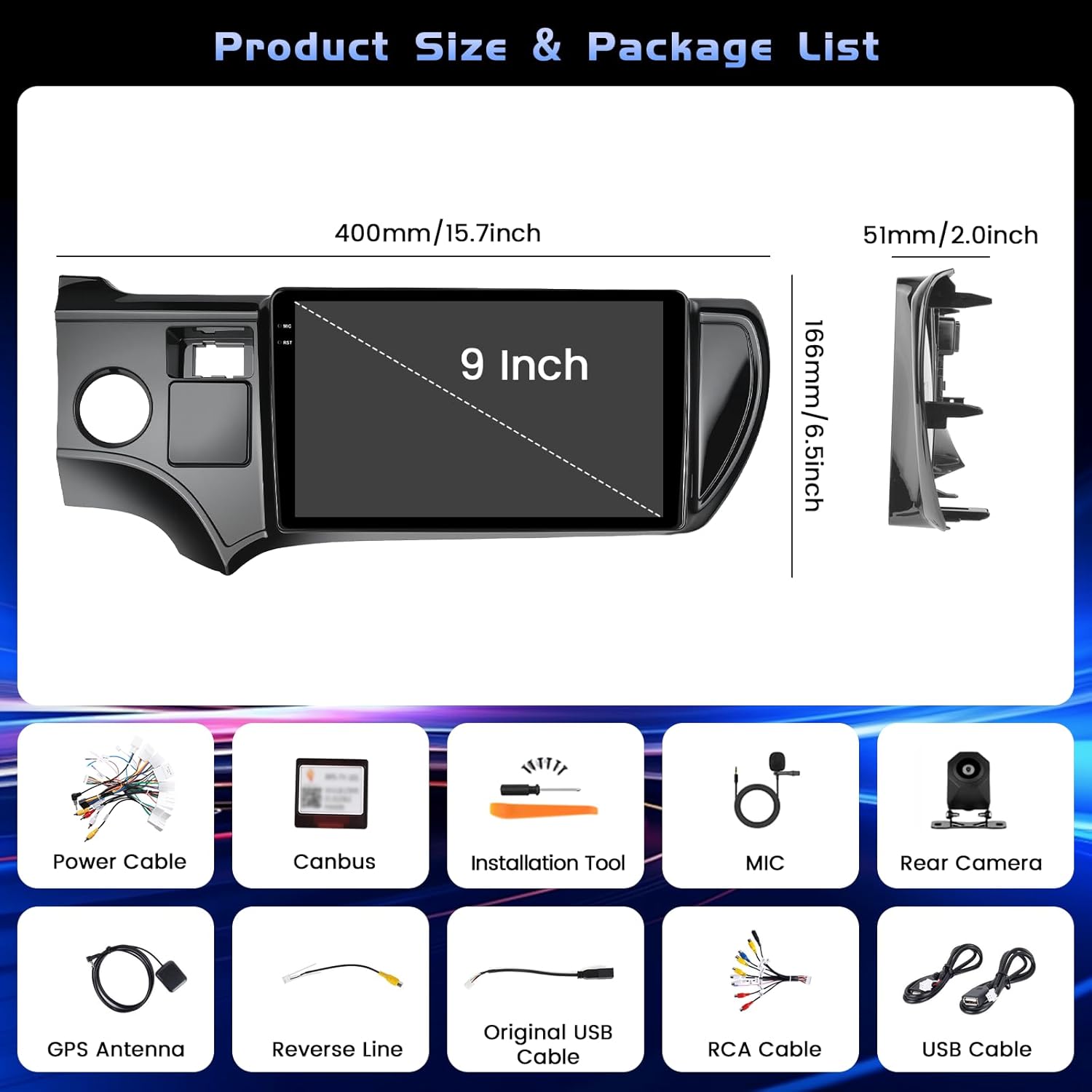
Image 2.1: All included components of the Hikity car radio system.
3. Fametrahana sy fametrahana
Professional installation is recommended for optimal performance and to avoid damage to your vehicle or the unit. Ensure the vehicle's power is disconnected before starting installation.
3.1 Fifandraisana tariby
Carefully connect all cables according to the provided wiring diagram. Pay close attention to the power and ground connections to prevent electrical issues. The backup camera requires specific wiring to function correctly.
Video 3.1: Detailed instructions on how to connect the backup camera to the car radio system.
For the backup camera, connect the 'BACK' line from the main harness to the positive pole of your car's reversing light. Connect the camera's power cable to the reversing light's positive and negative poles. The video signal cable from the camera connects to the 'CAM-IN' port on the head unit.

Image 3.2: Wiring diagram for the backup camera connection.
3.2 Herin'ny voalohany
After all connections are secure, reconnect the vehicle's power. The unit should power on automatically. Follow any on-screen prompts for initial setup, such as language selection and time zone.
4. Torolàlana miasa
4.1 Basic UI Navigation
The system features an intuitive touchscreen interface. Swipe left or right to navigate between home screens and access various applications. The top bar displays status icons for Wi-Fi, Bluetooth, GPS, and time.

Sary 4.1: Vitaview of the user interface with various app icons and customizable themes.
4.2 Fifandraisana Bluetooth
To connect your smartphone via Bluetooth for hands-free calls and audio streaming:
- Go to the 'Settings' menu on the car radio.
- Select 'Bluetooth' and ensure it is enabled.
- Ao amin'ny findainao, avelao ny Bluetooth ary tadiavo ireo fitaovana misy.
- Select the car radio's Bluetooth name (e.g., 'BLINK_UNW2652') from your phone's list.
- Hamafiso ny fangatahana fampiarahana amin'ny fitaovana roa.

Image 4.2: Bluetooth dialing screen and connection status.
4.3 Wireless CarPlay & Android Auto
This unit supports both wireless CarPlay and Android Auto for seamless smartphone integration. Connect your mobile phone to the car infotainment system via Bluetooth first, then launch the 'S-Play' application on the car radio to initiate the connection.
Video 4.3: Guide on how to use CarPlay with the car radio.

Image 4.4: Wireless CarPlay and Android Auto interface.
4.4 GPS Navigation
The unit features a dual navigation system supporting both online and offline maps. Connect to Wi-Fi to download offline maps or use online navigation for real-time traffic updates.

Image 4.5: GPS navigation interface with online and offline map options.
4.5 Fifehezana kodiarana (SWC)
The car radio supports your vehicle's original steering wheel controls. To configure them:
- Connect the SWC wires (KEY1/KEY2) from the car radio harness to the corresponding wires in your vehicle's wiring.
- Access the 'Steering Wheel Key Learning' function in the car radio's settings (usually under 'Factory Setup' with password 1234).
- Follow the on-screen instructions to assign functions to each button on your steering wheel.

Image 4.6: Steering Wheel Control learning interface.
4.6 Fampiasana efijery fisarahana
The unit supports split-screen mode, allowing you to run two applications simultaneously. This feature can be enabled or disabled in the 'Factory Setup' settings (password 1234) under 'Split screen function'. Once enabled, you can drag compatible apps to either side of the screen.
Radio FM/RDS 4.7
Access the FM/RDS application to listen to radio stations. The RDS (Radio Data System) feature displays station information where available.
5. Fikojakojana
Mba hahazoana antoka fa maharitra ela ny radio fiaranao ary miasa tsara indrindra, araho ireto torolàlana momba ny fikojakojana ireto:
- Fanadiovana efijery: Use a soft, lint-free cloth to gently wipe the touchscreen. Avoid abrasive cleaners or harsh chemicals that could damage the screen coating.
- Fanavaozana rindrambaiko: Periodically check for software updates through the system's settings to ensure you have the latest features and bug fixes.
- Fepetra ara-tontolo iainana: Fadio ny mampiharihary ny fitaovana amin'ny hafanana tafahoatra, ny tara-masoandro mivantana mandritra ny fotoana maharitra, na ny hamandoana be loatra.
- Cable Integrity: Regularly inspect all visible cables for any signs of wear or damage.
6. Famahana olana
If you encounter issues with your car radio, refer to the following common solutions:
- Tsy misy hery: Check all power connections. Ensure the vehicle's fuse for the radio is intact.
- Ecran banga: Perform a soft reset by pressing the RST button (if available) or disconnecting and reconnecting the vehicle's battery for a few minutes.
- Backup Camera Not Working: Verify all camera wiring, especially the 'BACK' trigger wire and power connections. Ensure the correct camera input type (AHD, CVBS-N, etc.) is selected in 'Factory Setup' > 'Backcar Source Settings'.
- Tsy mamaly ny fanaraha-maso ny familiana: Re-perform the 'Steering Wheel Key Learning' procedure as described in Section 4.5. Ensure the SWC wires are correctly connected.
- Olana amin'ny fifandraisana Bluetooth/CarPlay/Android Auto: Ensure Bluetooth is enabled on both devices. Forget the device on both the phone and car radio, then attempt to pair again. For CarPlay/Android Auto, ensure the 'S-Play' app is running and your phone is compatible.
- Tsy misy feo: Check speaker connections and ensure the volume is not muted or set too low. Verify equalizer settings.
7. Famaritana
| endri-javatra | antsipirihany |
|---|---|
| Marika | Hikity |
| Anarana modely | Radio fiara Android |
| Rafitra fikirakirana | Android 15 |
| fahatsiarovana | 4GB RAM + 128GB ROM |
| Haben'ny efijery | 9 santimetatra |
| Karazana fampisehoana | Incell Full Touchscreen LCD |
| vahaolana | 1280*720 |
| fifandraisana | Bluetooth 5.0, USB, Wi-Fi (5G), Wireless CarPlay, Android Auto |
| Fikarohana | Dual GPS (Online and Offline Maps) |
| Audio Output Mode | Stereo (32-EQ) |
| Fiara mifanentana | Toyota Prius C 2012-2014 |
| Ny refin'ny entana (L x W x H) | 15.94" x 10.24" x 2.36" |
| Lanja entana | 1 kg |

Image 7.1: Details of the Incell Full Lamination Screen technology.
8. Warranty sy fanohanana
8.1 Fampahalalana momba ny fiantohana
This Hikity car radio comes with a Warranty 1 taona manomboka amin'ny datin'ny fividianana. Ny fiantohana dia mandrakotra ny lesoka amin'ny famokarana sy ny tsy fahombiazan'ny fampiasana mahazatra. Azafady, tehirizo ny porofon'ny fividiananao ho an'ny fitakiana fiantohana.
8.2 Fanohanana ny mpanjifa
For technical assistance, troubleshooting, or warranty inquiries, please contact Hikity customer support through the retailer where the product was purchased. You may also find additional support resources on the official Hikity website.