
1. Fampidirana
Misaotra anao nividyasing the FunFlix RD-882 Portable Projector. This manual provides essential information for setting up, operating, and maintaining your projector to ensure optimal performance and longevity. Please read this manual thoroughly before use and retain it for future reference.
2. Torolàlana momba ny fiarovana
- Aza mijery mivantana amin'ny family projector rehefa mandeha ny lamp mandeha. Ny hazavana mahery vaika dia mety hiteraka fahasimban'ny maso.
- Ataovy izay hahazoana rivotra tsara manodidina ny projecteur. Aza sakanana ny fisokafan'ny rivotra.
- Arovy amin'ny rano, hamandoana ary mari-pana tafahoatra ny projecteur.
- Ny adaptatera herinaratra omena miaraka amin'ny projecteur ihany no ampiasao.
- Aza manandrana manamboatra ilay projector mihitsy. Alefaso amin'ny mpiasa mahay ny serivisy rehetra.
- Esory ny herinaratra amin'ny projecteur rehefa misy tafio-drivotra na rehefa tsy ampiasaina mandritra ny fotoana maharitra.
3. Ny votoatin'ny fonosana
Hamarino fa ao anatin'ny fonosanao ny entana rehetra:
- FunFlix RD-882 Portable Projector
- Fanaraha-maso lavitra (tsy misy bateria)
- Cable herinaratra
- Cable HDMI
- AV tariby
- User Manual

Sary 3.1: Misy Accessories
4. Vokatra mihoatraview
4.1 Eo aloha View
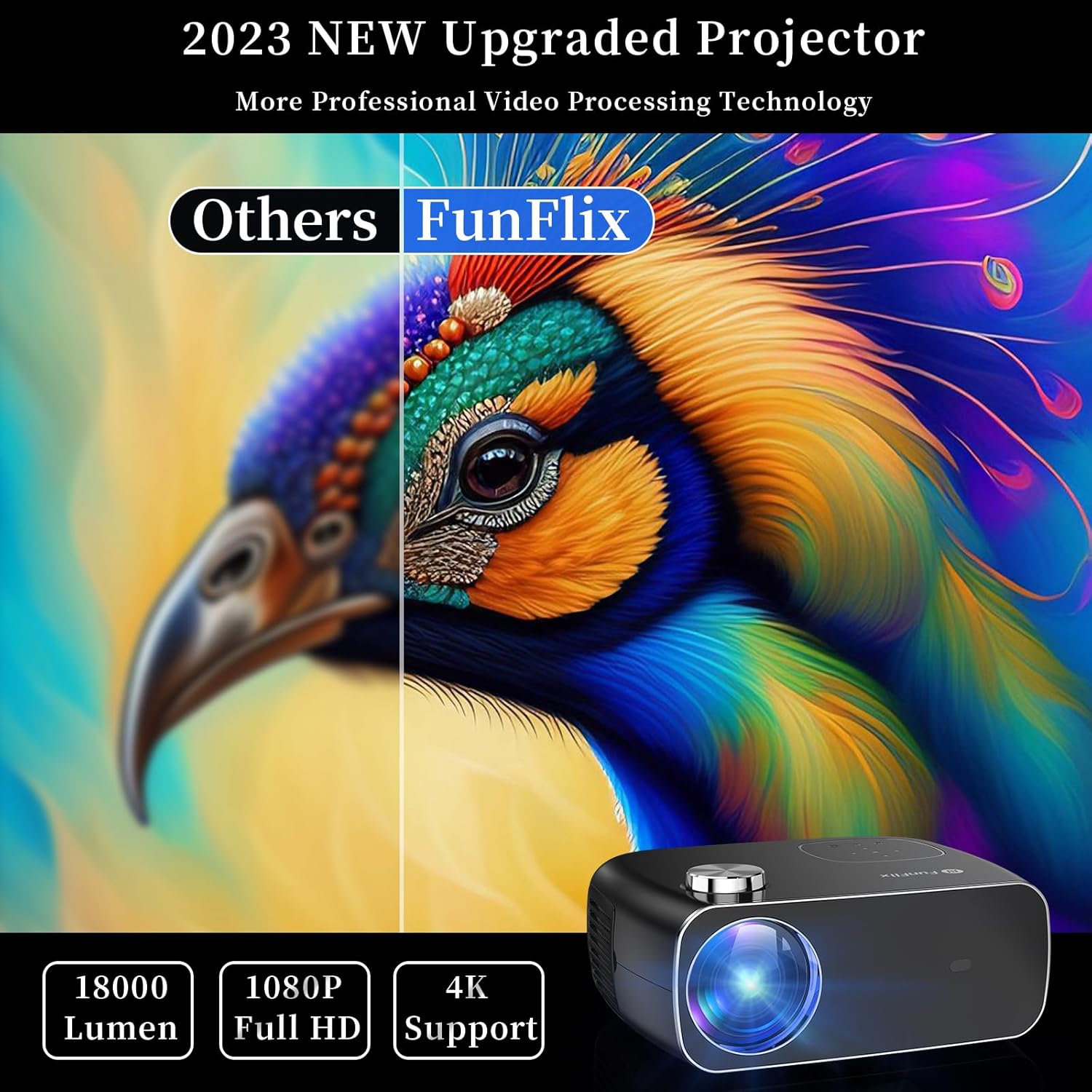
Sary 4.1: Eo anoloana View ny Projector
The front of the projector features the projection lens and an infrared receiver for the remote control.
4.2 aoriana View sy Seranana

Sary 4.2: aoriana View with Input Ports
Ny tontonana aoriana dia manome safidy fifandraisana:
- Seranana HDMI (x2): Connect to devices like laptops, gaming consoles, or streaming sticks.
- Port USB (x2): Ampifandraiso amin'ny kapila USB ny fitaovana mba hahafahana mijery ny haino aman-jery na mampiasa herinaratra amin'ny fitaovana ivelany.
- Port AV: Mifandraisa amin'ny fitaovana efa tranainy amin'ny alàlan'ny tariby AV miaraka aminy.
- Audio mivoaka: Ampifandraiso amin'ny fanamafisam-peo na écouteur ivelany.
- Fampidirana herinaratra: Ampifandraiso ny adaptatera herinaratra.
5. Fametrahana
5.1 Fametrahana
Place the projector on a stable, flat surface. Ensure there is enough space around the projector for proper ventilation. The projection distance and screen size can vary. The projector supports projection sizes from 50 to 300 inches.

Figure 5.1: Projector Placement and Projection
5.2 Fampifandraisana herinaratra
Connect the power cable to the projector's power input port and then plug it into a power outlet.
5.3 Fanitsiana ny fifantohana sy ny vato fototra
After powering on the projector, adjust the focus ring on the top of the projector until the image is clear. Use the keystone correction feature to adjust the image shape if it appears trapezoidal. The projector supports both manual focus and digital keystone correction.

Figure 5.2: Keystone Correction and Zoom Function
Video 5.1: Demonstrates projector features including power-on, bulb life, display sizes, precise intelligent focusing, native 1080P resolution, zoom function, 5G WiFi support, wireless projection for iOS/Android, wired HDMI connection, built-in speaker, 15-degree gradient correction, Bluetooth connection, and high color reproduction.
6. Fiasana
6.1 Power On/off
Press the power button on the projector or the remote control to turn the projector on or off.
6.2 Loharano fidirana
Select the desired input source from the main menu using the remote control or the buttons on the projector.
- HDMI: Connect your device via an HDMI cable.
- USB: Ampidiro kapila USB mba handefasana media files.
- NY: Ampifandraiso amin'ny alalan'ny tariby AV ireo fitaovana efa tranainy.
6.3 Fifandraisana tsy misy tariby
The FunFlix RD-882 supports 5G WiFi and Bluetooth 5.2 for enhanced connectivity.
6.3.1 5G WiFi Connection
To connect to a 5G WiFi network:
- Mandehana any amin'ny menio 'Fikirana' ao amin'ny projecteur.
- Select 'Network Settings' or 'WiFi'.
- Choose your 5G WiFi network from the list and enter the password.

Figure 6.1: 5G WiFi Wireless Connection
6.3.2 Fifandraisana Bluetooth 5.2
To connect to Bluetooth audio devices:
- Go to the 'Settings' menu.
- Select 'Bluetooth Settings'.
- Alefaso ny Bluetooth ary tadiavo ireo fitaovana misy.
- Select your Bluetooth speaker or headphones to pair.

Sary 6.2: Fifandraisana Bluetooth 5.2
6.4 Fijery fitaratra
The projector supports screen mirroring from iOS and Android devices. Ensure your device and the projector are connected to the same WiFi network.
- Ho an'ny fitaovana iOS: Use the 'Screen Mirroring' or 'AirPlay' function on your iPhone/iPad and select the projector from the list of available devices.
- Ho an'ny fitaovana Android: Use the 'Cast', 'Smart View', or 'Wireless Display' function on your Android phone/tablet and select the projector.
6.5 Fanitsiana fika
Access the projector's menu to adjust various settings:
- Fikirana sary: Ahitsio ny famirapiratana, ny fifanoherana, ny loko ary ny fahamarinan'ny sary.
- Fikirana feo: Adjust volume, sound mode, and balance.
- Fomba fijery: Select front, rear, ceiling front, or ceiling rear projection.
7. Fikojakojana
7.1 Fanadiovana ny Lens
Use a soft, lint-free cloth or lens cleaning paper to gently wipe the lens. Avoid using abrasive cleaners or excessive force, which can scratch the lens.
7.2 Cleaning Air Filters/Vents
Regularly check and clean the air filters and vents to prevent dust buildup, which can affect cooling and performance. Use a soft brush or a vacuum cleaner with a brush attachment to remove dust.
7.3 Fitehirizana
When not in use, store the projector in a cool, dry place, away from direct sunlight and extreme temperatures. Use the original packaging or a protective case to prevent dust and damage.
8. Famahana olana
| OLANA | Antony mety hitranga | vahaolana |
|---|---|---|
| Tsy misy sary eo amin'ny efijery | Power not connected, incorrect input source, device not connected. | Check power cable, select correct input source, ensure source device is on and connected. |
| Manjavozavo ny sary | Focus not adjusted, projector too far/close. | Adjust the focus ring. Ensure projector is within optimal projection distance. |
| Trapezoidal ny sary | Keystone tsy voahitsy. | Adjust keystone correction in the settings menu. |
| Tsy misy feo | Volume too low, incorrect audio output, source device muted. | Increase projector volume, check audio output settings, unmute source device. |
| Tsy mandeha ny fanaraha-maso lavitra | Batteries low/dead, IR sensor blocked. | Replace batteries, ensure no obstructions between remote and projector. |
9. Famaritana
- marika: FunFlix
- Laharana modely: RD-882
- Lanja entana: 4.75 kg
- Haben'ny vokatra: 9.57 x 7.87 x 3.98 santimetatra
- Fanapahan-kevitra ambony indrindra: 1920 x 1080 (1080P Teratany)
- Fifandraisana: 5G WiFi, Bluetooth 5.2, HDMI (x2), USB (x2), AV
- Fampiasana soso-kevitra: Gaming, Home Theater, Outdoor Projection
- Antony endrika: portable
- Karazana fametrahana: Tabletop Mount
10. Warranty sy fanohanana
For warranty information and technical support, please refer to the contact details provided on the FunFlix official website or your purchase documentation. Do not attempt to open or repair the device yourself, as this may void your warranty.