
Sava lalana
Thank you for choosing the BOBOLEE Keyboard Case HK-T102. This manual provides detailed instructions for setting up, operating, and maintaining your new keyboard case. Designed for versatility and protection, this case enhances your iPad experience with a detachable backlit keyboard and robust protective features.
Fonosana fonosana
- Kitendry tsy misy tariby
- Cable Type-C
- User Manual
mifanentana
The BOBOLEE Keyboard Case HK-T102 is compatible with the following iPad models:
- iPad 10.2 inch 2021 (9th Gen): Models A2602, A2603, A2604, A2605
- iPad 10.2 inch 2020 (8th Gen): Models A2270, A2428, A2429, A2430
- iPad 10.2 inch 2019 (7th Gen): Models A2197, A2198, A2200
- iPad Pro 10.5 inch 2017: Models A1701, A1709, A1852
- iPad Air 3rd Gen 10.5 inch 2019: Models A2152, A2153, A2154, A2123
Please confirm your iPad's model number on the back of your device to ensure compatibility.

Figure 1: iPad Compatibility Guide. Check your iPad's model number for proper fit.
Torolàlana fametrahana
1. Installing Your iPad
- Carefully align your iPad with the case.
- Gently press the iPad into the protective shell until it is securely seated. Ensure all ports and buttons are accessible.
2. Connecting the Bluetooth Keyboard
- Turn ON the keyboard: Locate the power switch on the keyboard and slide it to the "ON" position. The indicator light will briefly illuminate.
- Activate Bluetooth on your iPad: Go to your iPad's Settings, then select "Bluetooth" and turn it on.
- Enable pairing mode on the keyboard: Press the "Connect" button on the keyboard for 3 seconds. The Bluetooth indicator light will start flashing, indicating it's in pairing mode.
- Select the keyboard on your iPad: On your iPad's Bluetooth device list, "Bluetooth Keyboard" will appear. Tap on it to connect.
- Confirm connection: Once connected, the Bluetooth indicator light on the keyboard will stop flashing and remain solid for a moment, then turn off to save power. Your iPad will show "Connected" next to "Bluetooth Keyboard".
- Switch input method (if needed): Press "Control + Space Bar" on the keyboard to switch between different input methods/languages.

Figure 2: Bluetooth Keyboard Connection Steps.
Video 1: Official BOBOLEE Keyboard Case setup and usage demonstration. This video shows how to connect the keyboard and highlights its features.
Torolàlana miasa
Backlit Keyboard Features
The keyboard features 7 vibrant backlight colors and 3 levels of brightness adjustment, allowing for comfortable typing in various lighting conditions.
- Miova loko: Tsindrio ny Takamoa key to cycle through the 7 available colors.
- Fanitsiana ny famirapiratana: Tsindrio ny Masoandro key (often combined with Fn key) to adjust the brightness levels.

Figure 3: Backlit Keyboard with color and brightness controls.

Figure 4: The 7-color backlit keyboard allows for typing in dark environments.
Asa Fatoriana/Fiarovana Mandeha Ho Azy
The case supports automatic sleep/wake functionality. When the case is opened or closed, your iPad will automatically wake up or go to sleep, conserving battery life.
Fanamarihana: To ensure the auto sleep/wake function works perfectly, remove the magnetic keyboard from the case when closing the cover. The keyboard's magnets can interfere with the iPad's sensors.

Figure 5: Auto Sleep/Wake Functionality.
Detachable Keyboard and Adjustable Angles
The keyboard is magnetically attached to the case and can be easily removed for flexible use. The case also offers multiple adjustable viewing angles to suit various activities like typing, viewing, drawing, or portability.

Sary 6: Azo amboarina Viewing Angle & Detachable Keyboard.

Figure 7: Multiple Usage Modes: Typing, Viewing, Portable, and Drawing.
Fametrahana ny klavier
The keyboard is equipped with a built-in rechargeable Lithium-Ion battery. Use the provided Type-C cable to charge the keyboard.
- Connect the Type-C cable to the charging port on the keyboard.
- Ampifandraiso amin'ny adaptatera herinaratra USB (tsy tafiditra) na port USB an'ny solosaina ny faran'ny tariby hafa.
- Hirehitra ny jiro famantarana ny famandrihana mandritra ny famandrihana ary ho faty rehefa feno tanteraka ny famandrihana.
- A full charge typically takes 3-4 hours and provides over 90 days of continuous use (based on average usage).

Figure 8: Type-C Charging for the keyboard.
Endri-javatra miaro
The BOBOLEE Keyboard Case is designed to provide comprehensive protection for your iPad.
- Famolavolana tsy taitra (Shockproof Design): The case features a soft TPU inner shell with a honeycomb grid pattern cushion. This design helps to dissipate heat more effectively than standard cases and provides protection against drops and scratches.
- Built-in Pencil Holder: A dedicated slot keeps your Apple Pencil or stylus securely in reach. (Note: Pen is not included).
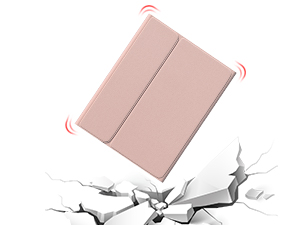
Figure 9: Honeycomb grid pattern for heat dissipation and shock absorption.
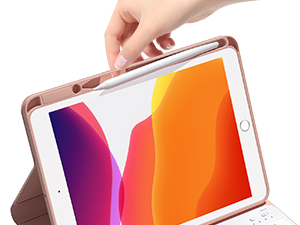
Figure 10: Upgraded pen slot for secure storage.
fepetra arahana
| Marika | BOBOLEE |
| Laharana modely | HK-T102 |
| Ny refin'ny vokatra | 10.83 x 8.15 x 0.79 santimetatra |
| Lanja entana | 1.5 kg |
| Teknolojia fifandraisana | Wireless (Bluetooth) |
| Kitendry Backlighting | RGB, 7 colors, 3 brightness levels |
| Karazana bateria | 1 Lithium Ion bateria (tafiditra) |
| Time Charging | 3-4 ora |
| Fotoana fampiasana tsy tapaka | Mihoatra ny 90 andro |
Fanamboarana
Keyboard Not Connecting via Bluetooth
- Hamarino tsara fa mandeha tsara ny fitendry ary feno ny bateriny.
- Make sure Bluetooth is enabled on your iPad.
- Press the "Connect" button on the keyboard for 3 seconds to enter pairing mode.
- If "Bluetooth Keyboard" does not appear, try turning your iPad's Bluetooth off and on again, then repeat the pairing steps.
- If previously paired, try "forgetting" the device in your iPad's Bluetooth settings and re-pairing.
Auto Sleep/Wake Function Not Working
- Ensure the keyboard is removed from the case when closing the cover. The keyboard's magnets can interfere with the iPad's sleep/wake sensors.
- Check your iPad settings: Go to Settings > Display & Brightness > Lock/Unlock and ensure it is enabled.
Keyboard Backlight Not Working
- Ataovy azo antoka fa voaloa tsara ny klavier.
- Tsindrio ny Takamoa key to turn on the backlight. Repeated presses will cycle through colors.
- Tsindrio ny Masoandro key (possibly with Fn) to adjust brightness.
fikarakarana
- Keep the keyboard and case clean by wiping with a soft, dry cloth.
- Avoid exposing the product to extreme temperatures, direct sunlight, or liquids.
- Do not attempt to disassemble or repair the keyboard or case yourself, as this will void the warranty.
Warranty sy fanohanana
BOBOLEE provides dedicated customer support for its products. If you encounter any issues or have questions regarding your Keyboard Case HK-T102, please contact BOBOLEE customer service. We offer 24-hour direct after-service contact to assist you.
For warranty claims or technical assistance, please refer to the contact information provided with your purchase or visit the official BOBOLEE website.