
Rii K18S IT
Rii Mini i18S Wireless + Bluetooth Keyboard
User Manual
1. Fampidirana
The Rii Mini i18S is a compact, versatile keyboard featuring both 2.4G wireless and Bluetooth connectivity. It integrates a large touchpad and LED backlighting, making it suitable for a wide range of devices including Smart TVs, TV Boxes, Tablets, Smartphones, Consoles, and PCs. This manual provides detailed instructions for setup, operation, maintenance, and troubleshooting to ensure optimal use of your device.

Figure 1: Rii Mini i18S keyboard demonstrating its dual wireless and Bluetooth connectivity.
2. Ny votoatin'ny fonosana
Azafady, jereo ny fonosana ho an'ireto zavatra manaraka ireto:
- Rii Mini i18S Wireless + Bluetooth Keyboard
- USB RF 2.4 GHz Receiver
- USB Charging Cable
- USB Extension Cable
- User Manual (ity antontan-taratasy ity)
3. Vokatra mihoatraview
The Rii Mini i18S features a QWERTY layout keyboard. It has a large multi-touch touchpad, and dedicated multimedia keys. It is designed for comfortable and efficient input across various platforms.
3.1 Lafin-javatra fototra
- Fifandraisana roa: 2.4G Wireless and Bluetooth 4.0.
- Large Touchpad: High sensitivity with multi-touch gestures.
- LED backlighting: Two selectable colors (blue, green) for use in low-light conditions.
- Batterie azo averina: Built-in lithium polymer battery.
- Fanaraha-maso Multimedia: Fanalahidy natokana ho an'ny fandefasana media.
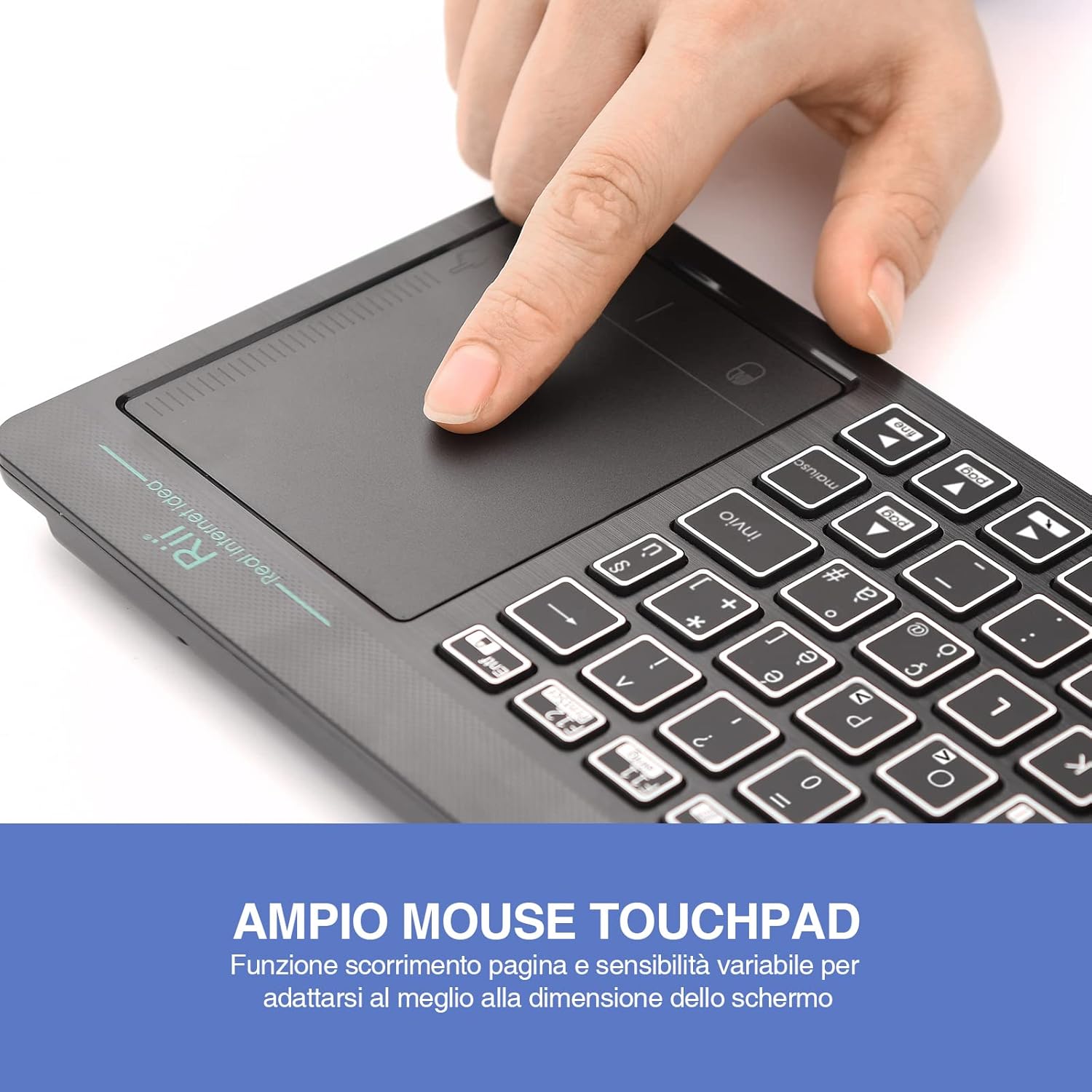
Figure 2: The large, sensitive touchpad of the Rii Mini i18S, supporting multi-touch gestures.

Figure 3: The Rii Mini i18S keyboard showcasing its two-color LED backlighting (blue and green).
4. Fametrahana
4.1 Fametrahana ny kitendry
Before initial use, fully charge the keyboard. Connect the provided USB charging cable to the keyboard's microUSB port and the other end to a USB power source (e.g., computer USB port, USB wall adapter).
- The charging indicator LED will illuminate during charging.
- The LED will turn off or change color when fully charged.
- Fahafahana bateria: 400mAh.
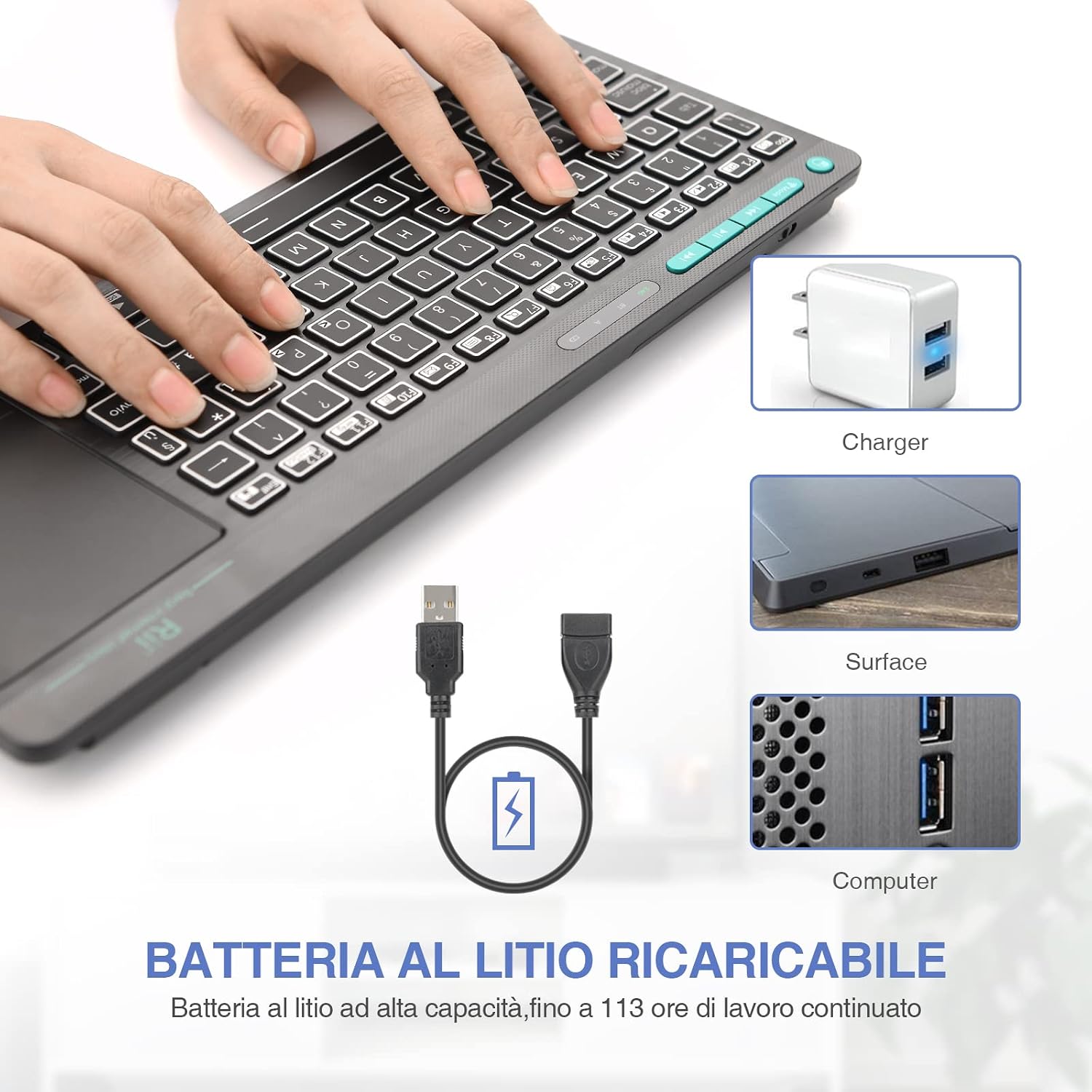
Figure 4: The Rii Mini i18S keyboard being charged using the included USB cable, connected to a power source.
4.2 2.4G Wireless fifandraisana
For 2.4G wireless connection, use the included USB receiver.
- Locate the USB receiver in the back compartment of the keyboard.
- Insert the USB receiver into an available USB port on your device (Smart TV, PC, TV Box, etc.).
- Tsindrio ny MODE button on the keyboard until the 2.4G indicator LED is active.
- The keyboard should automatically connect to your device. If not, try pressing Fn + RF to re-pair.

Figure 5: The USB wireless receiver stored securely in the back compartment of the Rii Mini i18S keyboard.
4.3 Fifandraisana Bluetooth
For Bluetooth connection, ensure your device has Bluetooth enabled.
- Tsindrio ny MODE button on the keyboard until the BT indicator LED is active.
- On your device, go to Bluetooth settings and search for new devices.
- Select "Rii Mini i18S" from the list of available devices to pair.
- Araho izay bitsika eo amin'ny efijery mba hamitana ny dingana fampiarahana.
The dual connection technology allows you to manage up to two devices simultaneously: one via Bluetooth and one via 2.4G wireless.

Figure 6: The Rii Mini i18S keyboard demonstrating its dual mode connectivity, shown here connected to a tablet.
5. Torolàlana miasa
5.1 Ny fiasan'ny fitendry fototra
The keyboard features a standard QWERTY layout. All keys function as labeled. Use the Fn key in combination with other keys for special functions (e.g., multimedia controls).
- SORABAVENTY RANORAY: Press to toggle uppercase/lowercase. An indicator LED will show its status.
5.2 Ny asan'ny "Tacpad"
The integrated touchpad supports various gestures:
- Peho amin'ny rantsantanana tokana: Tsindrio havia.
- Fikapohana amin'ny rantsantanana roa: Tsindrio havanana.
- Fikorohana amin'ny rantsantanana roa: Drag two fingers up or down to scroll pages.
- Fisintonana rantsantanana tokana: Alefaso ny cursor.
- Left Mouse Button: A physical left mouse button is also available on the top-left side of the keyboard for convenience.
5.3 Backlight Control
The keyboard features LED backlighting with two selectable colors.
- Tsindrio ny fanalahidy kisary takamoa to cycle through backlight colors (blue, green) or turn it off.
5.4 Multimedia Keys
Ampiasao ny Fn key in conjunction with the F1-F12 keys (or other labeled keys) to access multimedia functions such as volume control, play/pause, and track skipping.
6. Fikojakojana
6.1 Fanadiovana
To clean the keyboard, use a soft, dry cloth. For stubborn dirt, slightly dampSasao amin'ny rano na ranoka fanadiovana malefaka ny lamba. Fadio ny mampiasa akora simika mahery vaika na fitaovana marokoroko.
6.2 Fikarakarana bateria
- Fadio ny mampibaribary ny fitendry amin'ny hafanana tafahoatra.
- Ampidiro tsy tapaka ny fitendry, na dia tsy ampiasaina matetika aza, mba hihazonana ny fahasalaman'ny bateria.
- The keyboard features a programmable standby mode (3 minutes or 2 hours) to conserve battery life.
7. Famahana olana
7.1 Kitendry tsy mamaly
- Jereo ny bateria: Ensure the keyboard is charged. Connect it to a power source.
- Jereo ny fifandraisana:
- For 2.4G Wireless: Ensure the USB receiver is properly inserted and the keyboard is in 2.4G mode. Try a different USB port.
- For Bluetooth: Ensure Bluetooth is enabled on your device and the keyboard is in Bluetooth mode. Re-pair the device if necessary.
- Haverina velomina: Turn the keyboard off and on again. Restart your connected device.
7.2 Touchpad Not Working Correctly
- Fanadiovana ny takelaka fikasihana: Ensure the touchpad surface is clean and free of debris.
- Fahatsapana: Adjust touchpad sensitivity if available in your device's settings.
7.3 Tsy mandeha ny jiro aoriana
- Jereo ny bateria: Low battery might disable backlighting. Charge the keyboard.
- Toggle: Press the light bulb icon key to ensure it's not turned off.
8. Famaritana
| MODELY | K18S IT |
| fifandraisana | 2.4 GHz RF Wireless, Bluetooth 4.0 |
| Laharana miasa | Up to 10 meters (2.4 GHz RF), Up to 8 meters (Bluetooth) |
| Fametrahana kitendry | QWERTY (Italian layout) |
| Touchpad Resolution | Hatramin'ny 1000 DPI |
| Loko backlight | Blue, Green (selectable) |
| Karazana bateria | Polymer Lithium azo ovaina |
| Fahaizana bateria | 400mAh |
| Charging Port | MicroUSB (5V 350mA) |
| refy (L x W x H) | 31.7 x 12.3 x 1.8 cm |
| lanja | 340g |
| OS mifanentana | Windows (XP/Vista/7/8/10/11), Mac OS, Linux (Ubuntu 11.04+), Android (2.3+), iOS, Raspbian, PlayStation (PS3/PS4/PS5), Xbox (360/One/S/X), Fire TV |
| Certifications | CE, RoHS, FCC |
9. Warranty sy fanohanana
Rii products are designed for reliability and performance. For warranty information and technical support, please refer to the official Rii webtranokala na mifandraisa amin'ny mpaninjara eo an-toerana. Tehirizo ny tapakila fividiananao ho an'ny fitakiana fiantohana.
Official webtranokala: www.riitek.com
Ask a question about this manual
Ask about setup, troubleshooting, compatibility, parts, safety, or missing instructions. Manuals+ will review the question and use this page’s manual context to help answer it.