
Sava lalana
This manual provides detailed instructions for the setup, operation, maintenance, and troubleshooting of your Pokitter Go Pro Mini Portable Projector. Please read this manual thoroughly before using the product to ensure proper functionality and to extend the lifespan of your device.
The Pokitter Go Pro is a compact and powerful portable projector featuring integrated Android TV 10.0, Google Assistant, 200 ANSI lumens brightness, 1080p Full HD resolution with 4K support, dual-band 2.4G/5G WiFi, and a maximum projection size of 120 inches. It is designed for versatile entertainment, offering a cinematic experience on the go.
Fonosana fonosana
Hamarino azafady fa misy ny entana rehetra ao anaty fonosana:
- Pokitter Go Pro Mini Portable Projector
- Fanaraha-maso lavitra
- Power Adapter
- User Manual (ity antontan-taratasy ity)
- Mitondra Strap

Image: The Pokitter Go Pro Mini Portable Projector, highlighting its compact design and integrated handle for easy portability.
Vita ny vokatraview
anoloana View
Ny eo anoloan'ny projecteur dia misy ny family projecteur sy ny harato fampidirana rivotra.
aoriana View
The rear panel typically includes various ports for connectivity.
- Seranana HDMI: For connecting external devices like laptops, gaming consoles, or Blu-ray players.
- Port USB: For connecting USB drives for media playback or external peripherals.
- Fivoahana feo (Jack 3.5mm): Ho an'ny fampifandraisana ireo fanamafisam-peo na écouteur ivelany.
- DC amin'ny: Seranana fampidiran-kery.
Top View
The top surface may include control buttons or indicators.
sisiny View
The sides often feature additional ventilation and a carrying handle.
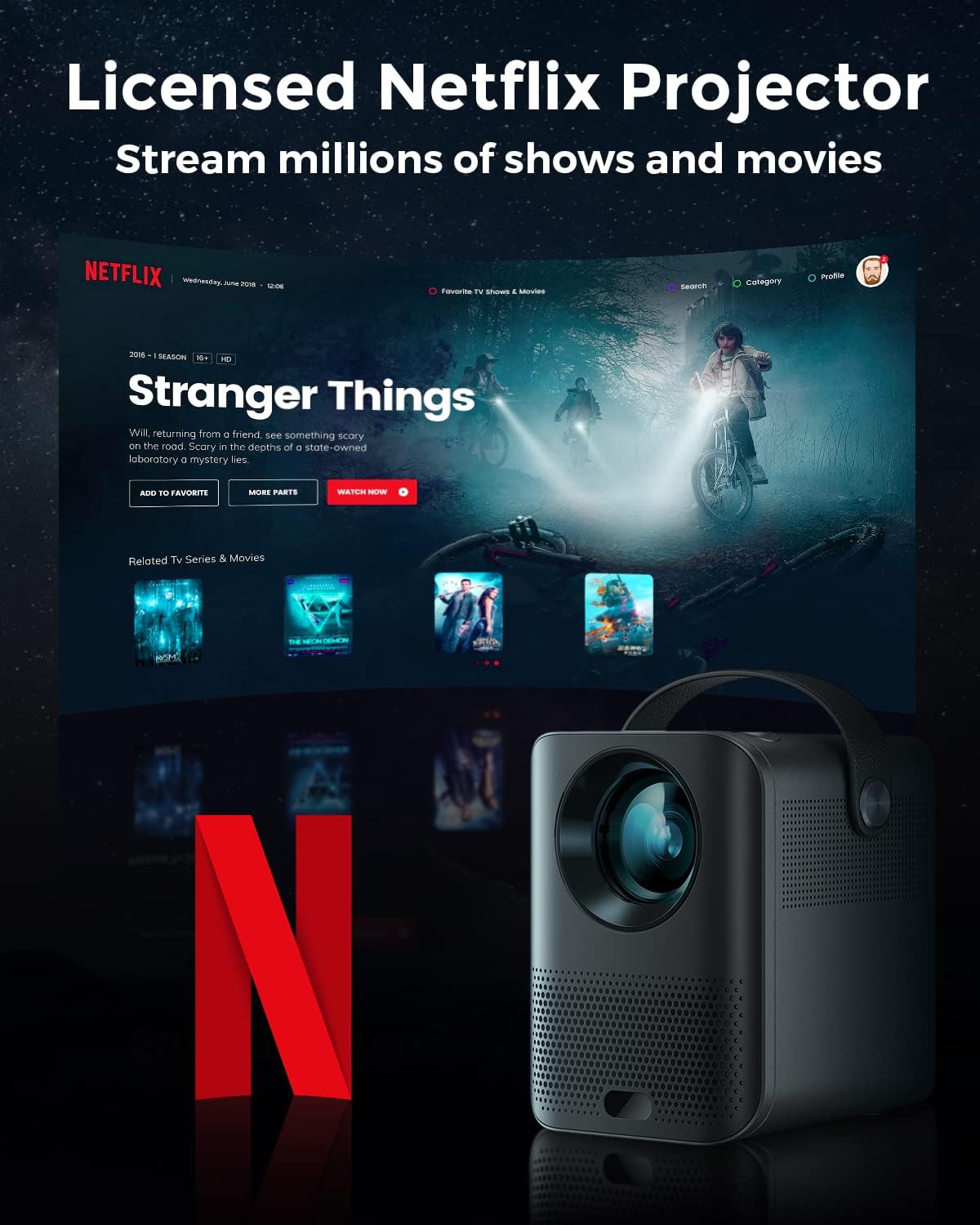
Image: The Pokitter Go Pro projector showcasing its integrated Netflix license and streaming capabilities.

Image: A size comparison of the Pokitter Go Pro projector with a smartphone, illustrating its mini and portable form factor.
Hametraka
1. Fampifandraisana herinaratra
- Connect the power adapter to the DC In port on the projector.
- Ampidiro amin'ny fivoahan'ny rindrina ny adaptatera herinaratra.
- Hazava ny jiro famantarana herinaratra.
2. Herin'ny voalohany
- Tsindrio ny bokotra herinaratra eo amin'ny projector na ny fanaraha-maso lavitra mba hampandeha ny fitaovana.
- Allow a few moments for the Android TV system to boot up.
3. Fanitsiana fifantohana
Use the focus ring (if mechanical) or the remote control's focus buttons to achieve a clear image. The Pokitter Go Pro features automatic vertical keystone correction up to 40 degrees.

Image: Illustration of the automatic keystone correction feature, which adjusts the image for optimal viewing even when the projector is not perfectly aligned.
4. Fanitsiana ny haben'ny efijery
Adjust the distance between the projector and the projection surface to achieve the desired screen size. The projector supports a screen size up to 120 inches.

Image: Guide for optimal projection distances to achieve screen sizes of 40, 80, and 120 inches.
5. Fifandraisana amin'ny tambajotra (Wi-Fi)
- Navigate to the Wi-Fi settings in the Android TV interface.
- Safidio ny tambajotra Wi-Fi tianao avy amin'ny lisitra.
- Ampidiro ny tenimiafina raha asaina.
- The projector supports dual-band 2.4G and 5G Wi-Fi for stable and fast transmission.

Image: The Pokitter Go Pro projector demonstrating its 2.4/5GHz WiFi capabilities for seamless wireless screen casting from various devices.
Torolàlana miasa
Mampiasa ny Remote Control
The included remote control allows full navigation and control of the Android TV interface. Key functions include:
- Bokotra hery: Mandefa ny projector on/off.
- Navigation Pad: For moving through menus.
- Bokotra OK: Manamafy ny safidy.
- bokotra miverina: Miverina amin'ny efijery teo aloha.
- bokotra an-trano: Miverina amin'ny efijerin'ny Android TV.
- Botom-peo: Ahitsio ny feo.
- Bokotra Google Assistant: Manetsika baiko feo.
Android TV Interface
The Pokitter Go Pro runs on Android TV 10.0, providing access to a wide range of streaming applications such as Netflix, YouTube, Amazon Prime Video, and Disney+.
- Fikarohana fampiharana: Use the remote's navigation pad to select and open applications.
- Content Streaming: Log in to your streaming accounts to access content.
- Google Assistant: Press the Google Assistant button on the remote and speak your commands to search for content, control playback, or get information.

Sary: Vitaview of the Pokitter Go Pro's key features, including its Android TV operating system, Google Assistant integration, and display capabilities.
Screen Mirroring (Chromecast Built-in)
The projector features built-in Chromecast for easy screen mirroring from compatible devices (smartphones, tablets, laptops).
- Hamarino tsara fa mifandray amin'ny tambajotra Wi-Fi iray ihany ny fitaovanao sy ny projecteur.
- Sokafy fampiharana mampiasa Chromecast amin'ny fitaovanao (oh: YouTube, Netflix).
- Tsindrio ny kisary Cast (matetika efa-joro misy marika Wi-Fi) ao anatin'ny app.
- Select your Pokitter Go Pro projector from the list of available devices.
- The content from your device will be mirrored or cast to the projector.

Image: Demonstrating the Chromecast built-in feature, allowing users to stream content from their smartphone to the projector's large display.
Connecting External Devices (HDMI/USB)
- HDMI: Connect an HDMI cable from your external device (e.g., laptop, game console) to the HDMI port on the projector. The projector will automatically switch to the HDMI input or you may need to select it from the input source menu.
- USB: Insert a USB flash drive into the USB port. The Android TV system will typically prompt you to open a file browser to access media files amin'ny fiara.
fikarakarana
Manadio ny Lens
Mampiasà lamba malefaka tsy misy volo natao manokana ho an'ny lantihy optika mba hamafa moramora ny lantihy projecteur. Aza mampiasa mpanadio mikikitra na mampiasa hery be loatra, satria mety handratra ny lantihy izany.
Cleaning the Projector Body
Wipe the exterior of the projector with a soft, dry cloth. For stubborn stains, a slightly damp cloth can be used, followed by a dry cloth. Avoid getting liquids inside the projector.
rivotra
Ensure that the ventilation grilles are not blocked during operation to prevent overheating. The Pokitter Go Pro features a dust-proof design to maintain picture quality.

Image: An internal diagram of the Pokitter Go Pro, illustrating its dust-proof design for long-lasting, flawless picture quality.
fitahirizana
When not in use for extended periods, store the projector in a cool, dry place, away from direct sunlight and extreme temperatures. It is recommended to use the original packaging or a protective case.
Fanamboarana
| OLANA | Antony mety hitranga | vahaolana |
|---|---|---|
| Tsisy Hery | tariby herinaratra tsy mifandray; Diso ny fivoahan'ny herinaratra. | Ataovy azo antoka fa mifandray tsara ny tariby herinaratra. Manandrama fivoahana herinaratra hafa. |
| Tsy misy sary / sary manjavozavo | Lens out of focus; Incorrect input source; Obstruction in projection path. | Adjust focus using the remote or focus ring. Select correct input source. Remove any obstructions. |
| Tsy misy feo | Ambany loatra ny feo; Mangina; Tsy mifandray tsara ny fanamafisam-peo ivelany. | Increase volume. Unmute the projector. Check external speaker connections. |
| Olana amin'ny fifandraisana Wi-Fi | Diso tenimiafina; Lavitra loatra ny router; Fanelingelenana ny tambajotra. | Hamarino ny tenimiafina Wi-Fi. Alefaso akaiky kokoa amin'ny router ny projector. Avereno indray ny router sy projector. |
| Remote Control Tsy mandeha | Batterie maty; Misy sakana eo amin'ny fanaraha-maso lavitra sy ny projecteur. | Soloy bateria. Hamarino mazava tsara ny tazan'ny mpandray IR an'ny projecteur. |
fepetra arahana
- Modely: F1A
- marika: Pokitter
- Teknolojia fampisehoana: LED
- Fanapahan-kevitra teratany: 1920 x 1080 (HD feno)
- Max tohanana vahaolana: 3840 x 2160 (4K)
- Famirapiratana: Hatramin'ny 200 ANSI Lumens
- Haben'ny projection: Hatramin'ny 120 santimetatra
- Rafitra fikirakirana: Android TV 10.0
- Mpanampy amin'ny feo: Google Assistant naorina
- Fifandraisana tsy misy tariby: 2.4G/5G Dual-band Wi-Fi, Bluetooth 5.1
- Ports connectivity: HDMI, USB, 3.5mm Audio Out, DC In
- Mpandahateny: Integrated (2x5W as per infographic)
- Average Lifespan (Light Source): 50,000 ora
- Antony endrika: portable
- Karazana fametrahana: Tendrombohitra latabatra

Image: An illustration of the projector's internal speaker system, designed to provide true-to-life sound for a cinematic viewamin'ny traikefa.
Warranty sy fanohanana
The Pokitter Go Pro Mini Portable Projector comes with a Warranty 2 taona. For any questions or professional assistance regarding this product, please contact Pokitter customer support. We are committed to supporting our customers.
For the latest support information, FAQs, and contact details, please visit the official Pokitter webtranonkala na jereo ny fampahalalana momba ny fifandraisana nomena niaraka tamin'ny fividiananao.