
1. Vokatra mihoatraview
The WISE TIGER EP-AC2939 is a 1200Mbps AC Dual Band WiFi Extender designed to expand your existing Wi-Fi coverage. It functions as a wireless repeater and access point, boosting internet Wi-Fi for up to 32 devices and covering areas up to 1500 sq. ft. This device is compatible with any AC router, gateway, or access point, supporting both 2.4GHz (up to 300Mbps) and 5GHz (up to 867Mbps) bands.
Equipped with dual external 6 dBi antennas, it extends Wi-Fi coverage 360 degrees, ensuring reliable data transmission throughout your home or office. The integrated 100Mbps Ethernet port allows it to function as a wireless adapter for wired devices. A smart signal indicator assists in finding the optimal placement for maximum Wi-Fi coverage.

Image: The EP-AC2939 extender highlighting its dual-band capabilities (2.4GHz at 300Mbps and 5GHz at 867Mbps) and its capacity to connect up to 32 devices, including phones, pads, laptops, game consoles, desktops, and TVs.
2. Ny votoatin'ny fonosana
- 1 x WISE TIGER EP-AC2939 WiFi Extender
- 1 x Power Adapter
- 1 x User Manual

Image: The EP-AC2939 WiFi Extender displayed alongside its retail packaging and the included user manual, illustrating the complete product package.
3. Fametrahana fitaovana
The EP-AC2939 features a compact design with adjustable external antennas for optimal signal reception. Key components include:
- Hery LED: Manondro sata fahefana.
- LED an'ny CPU: Indicates system activity.
- 5G LED: Indicates 5GHz band activity.
- 2.4G LED: Indicates 2.4GHz band activity.
- LAN LED: Indicates Ethernet port activity.
- Bokotra WPS: For quick setup with WPS-enabled routers.
- bokotra Reset: To restore factory default settings (use a pin to press and hold).
- Seranan-tsambo Ethernet: For wired device connectivity.
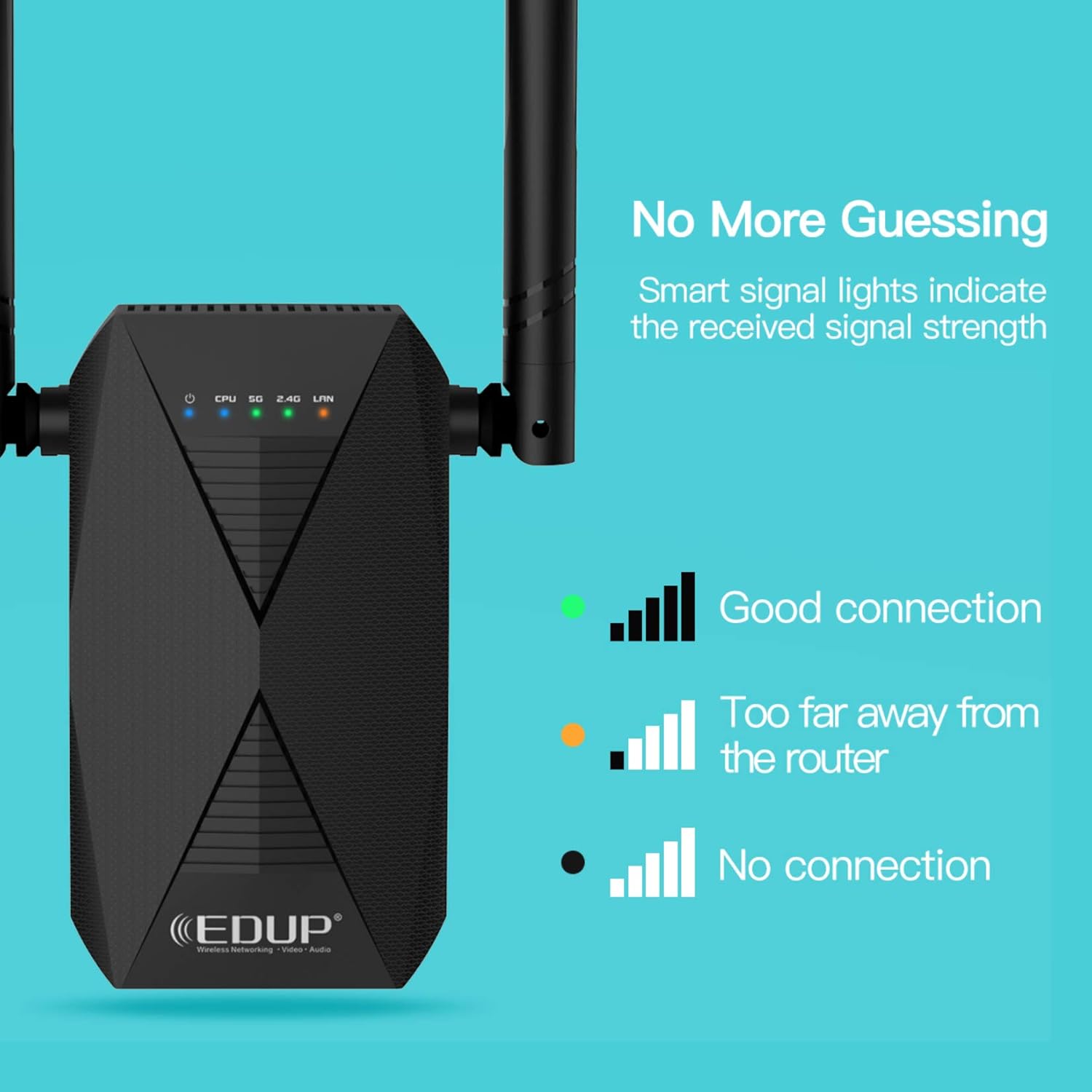
Image: Close-up of the EP-AC2939 WiFi Extender showing its signal indicator lights. A green light indicates a good connection, an orange light indicates being too far from the router, and no light indicates no connection.
4. Torolàlana fananganana
There are two primary methods to set up your WISE TIGER EP-AC2939 WiFi Extender: using the WPS button or through a web navigateur.
4.1. Fomba WPS (Wi-Fi Protected Setup)
- Plug the extender into an electrical outlet near your main router.
- Wait for the CPU LED to turn solid blue.
- Press the 2.4G or 5G button on the extender (depending on which band you want to extend).
- Ao anatin'ny 2 minitra, tsindrio ny bokotra WPS eo amin'ny router-nao.
- The extender's 2.4G/5G LED should turn solid green, indicating a successful connection.
- Relocate the extender to a desired location within the range of your main router's Wi-Fi signal. Use the signal indicator lights to find an optimal spot.

Image: A visual guide demonstrating the WPS one-key connection process. It shows pressing the 2.4G or 5G button on the extender, then the router's WPS button, and finally placing the extender in a desired location.
4.2. Web Browser Method
For detailed visual instructions on setting up via web browser, please refer to the video below:
Video: Official setup guide for the AC1200 WiFi Range Extender, demonstrating the steps to configure the device using a web browser interface. This video is provided by Wise Tiger LLC.
Torolàlana manaraka:
- Mamelona sy mampifandray: Plug the extender into an electrical outlet. On your mobile device or computer, connect to the extender's open Wi-Fi network (e.g., "WiFi_EXT" or "WiFi_EXT_5G").
- Access Setup Page: Sokafy a web navigateur ary midira
192.168.0.254ao amin'ny adiresy bar. - Choose Repeater Mode: On the setup page, select "Repeater Mode".
- Select Primary Network: Choose the 2.4GHz or 5GHz original Wi-Fi network you wish to extend from the list.
- Ampidiro ny tenimiafina: Type the password for your original Wi-Fi network. You can choose to keep the SSID and password the same or modify them for the extended Wi-Fi.
- mampifandray: Click "Connect" to apply the settings. The extender will restart.
- Hamarino ny fifandraisana: After the extender restarts, check your device's Wi-Fi settings to confirm that the extended Wi-Fi network is available and connected successfully.
5. Fomba fiasa
The WISE TIGER EP-AC2939 WiFi Extender supports two operational modes:
5.1. Repeater Mode
In Repeater Mode, the extender wirelessly connects to your existing router's Wi-Fi network and re-transmits the signal, effectively extending its range. This mode is ideal for eliminating Wi-Fi dead zones and improving signal strength in areas with weak coverage.
5.2. Access Point (AP) Mode
In Access Point Mode, the extender connects to your router via an Ethernet cable and transforms your wired network connection into a wireless access point. This is useful for adding Wi-Fi capability to a wired-only network or creating a new Wi-Fi network in a specific area.
6. Optimal Placement and Signal Indicator
The smart signal indicator lights on the extender help you find the best location for optimal Wi-Fi coverage. After initial setup, you can relocate the extender to a suitable spot. Observe the indicator lights to ensure a strong connection:
- Jiro maitso: Indicates a good connection to the main router.
- Jiro voasary: Indicates the extender is too far from the main router, suggesting relocation closer to the router.
- Tsy misy hazavana: Indicates no connection to the main router.
Place the extender roughly halfway between your router and the Wi-Fi dead zone. Avoid placing it near large metal objects, concrete walls, or other devices that may cause interference.
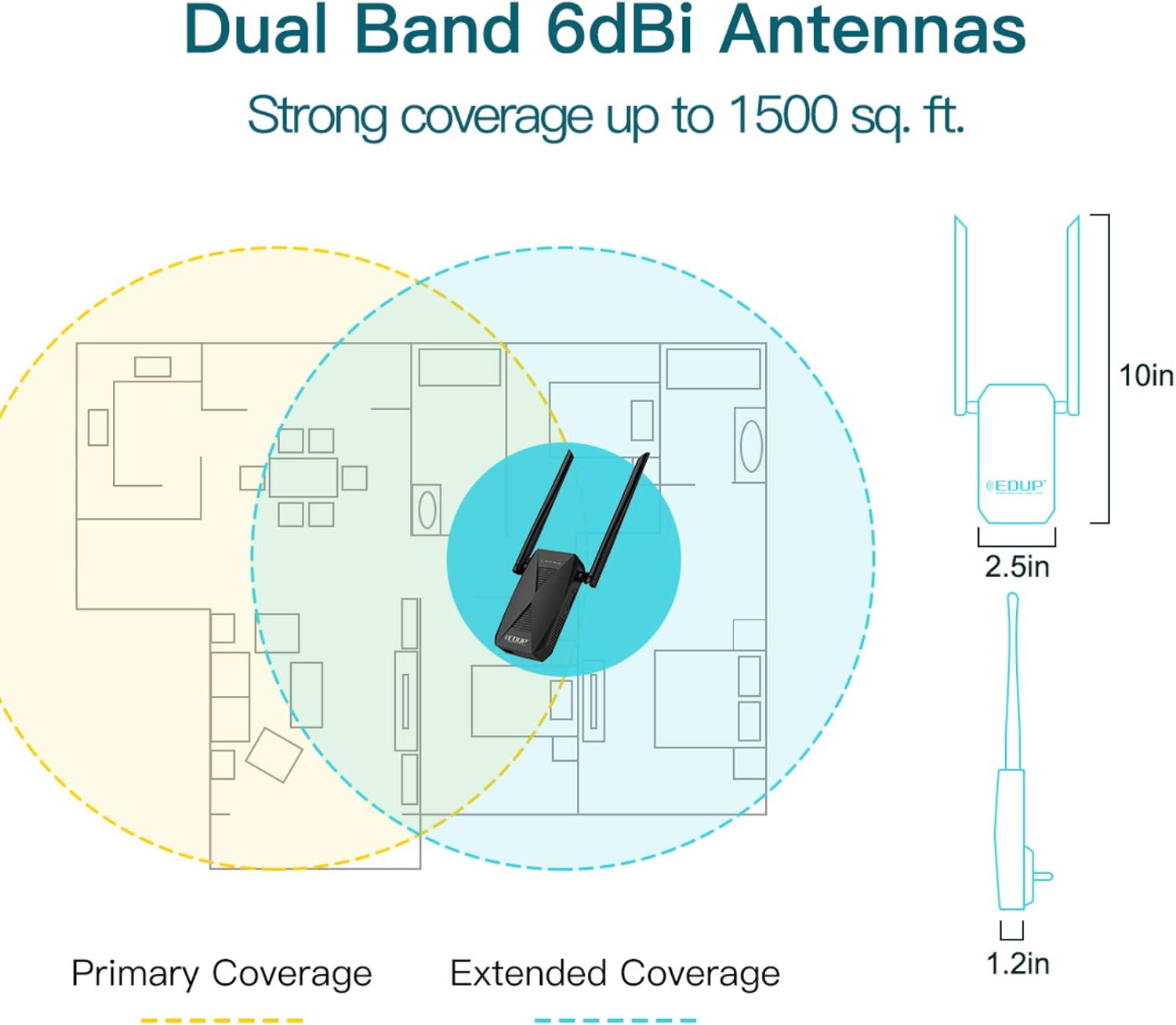
Image: A floor plan diagram showing how the EP-AC2939 WiFi Extender extends network coverage. It illustrates the primary coverage area of the main router and the significantly expanded coverage provided by the extender, reaching up to 1500 sq. ft.
7. Wired Connectivity
The EP-AC2939 features a 100Mbps Ethernet port, allowing you to connect wired devices such as desktop computers, gaming consoles, or smart TVs directly to the extender. This provides a stable and fast wired connection for devices that require it, while still extending your wireless network.

Image: The EP-AC2939 WiFi Extender with a clear indication of its 100/10M Ethernet port, designed for connecting wired devices to the network.
8. Famaritana
| endri-javatra | antsipirihany |
|---|---|
| Karazana Wireless | 802.11ac |
| Marika | TIGER HERY |
| ANDIAN-DAHATSORATRA | EP-AC2939 |
| Lanja entana | 9.5 oz |
| Ny haben'ny fonosana | 8 x 6 x 2 santimetatra |
| loko | Mainty |
| mpanamboatra | WISE TIGER LLC |
| Fenitra fifandraisana tsy misy tariby | 802.11ac |
| Ny tahan'ny famindrana angona | 1200 Megabits isan-tsegondra |
| Kilasy Band Frequency | Dual-Band |
9. Famahana olana
- Tsy misy hery: Ensure the extender is securely plugged into a working electrical outlet. Check if the power LED is illuminated.
- Cannot Connect to Extender's Wi-Fi: Verify that the extender is powered on. Try resetting the extender to factory defaults by pressing the reset button for 5-10 seconds with a pin, then re-attempt setup.
- Weak Signal from Extender: Relocate the extender closer to your main router. Use the smart signal indicator lights to find an optimal position (green light indicates good signal). Ensure there are no major obstructions between the router and the extender.
- Extended Wi-Fi Not Visible: Ensure the extender is powered on and configured correctly. If you modified the SSID during setup, search for the new network name.
- Slow Speed on Extended Network: The extender's performance depends on the signal strength from your main router. Try optimizing the extender's placement. Ensure your main router is providing adequate speed.
- Tsy nahomby ny fametrahana WPS: If WPS setup fails, try the web browser method for configuration. Ensure your router's WPS function is enabled and working correctly.
- Fifandraisana miato: Check for potential interference from other electronic devices (microwaves, cordless phones). Ensure the extender is not placed in an area with excessive network traffic or physical obstructions.
10. Information momba ny fiarovana
- Aza atao rano na hamandoana ny fitaovana.
- Aza manandrana manongotra na manamboatra ilay fitaovana.
- Ampiasao ihany ny adaptatera herinaratra nomena.
- Arovy amin'ny loharano mafana sy ny tara-masoandro mivantana ny fitaovana.
- Hamarino tsara ny rivotra manodidina ny fitaovana.
11. Warranty sy fanohanana
For warranty information and technical support, please refer to the documentation included with your product or visit the official WISE TIGER website. Tehirizo ny tapakila fividiananao ho an'ny fitakiana fiantohana.