
WISE TIGER WT-RT8501
WISE TIGER AC1200 Wireless Router User Manual
Model: WT-RT8501
1. Vokatra mihoatraview
The WISE TIGER AC1200 Wireless Router is a high-speed dual-band router designed for robust wireless internet connectivity in homes, offices, and restaurants. It features 802.11AC/N/G/B/A Wi-Fi technology, beamforming for enhanced signal reliability, and four external 5dBi antennas to ensure long-range coverage, even in basements or attics.
This router supports up to 300Mbps at 2.4GHz and 866Mbps at 5GHz, providing smooth online gaming and video streaming experiences. It also includes a WAN port and four LAN Fast ports (10/100Mbps) for wired connections. Security features include WPA/WPA2-PSK encryption, firewall, parental controls, and guest network capabilities.

Sary 1: Eo anoloana view of the WISE TIGER AC1200 Wireless Router.
2. Ny votoatin'ny fonosana
Hamarino azafady fa ao anatin'ny fonosanao ny entana rehetra:
- AC1200 Wireless Dual Band Router
- Vondrona famatsiana herinaratra
- Torolàlana fametrahana haingana
- Cable Network
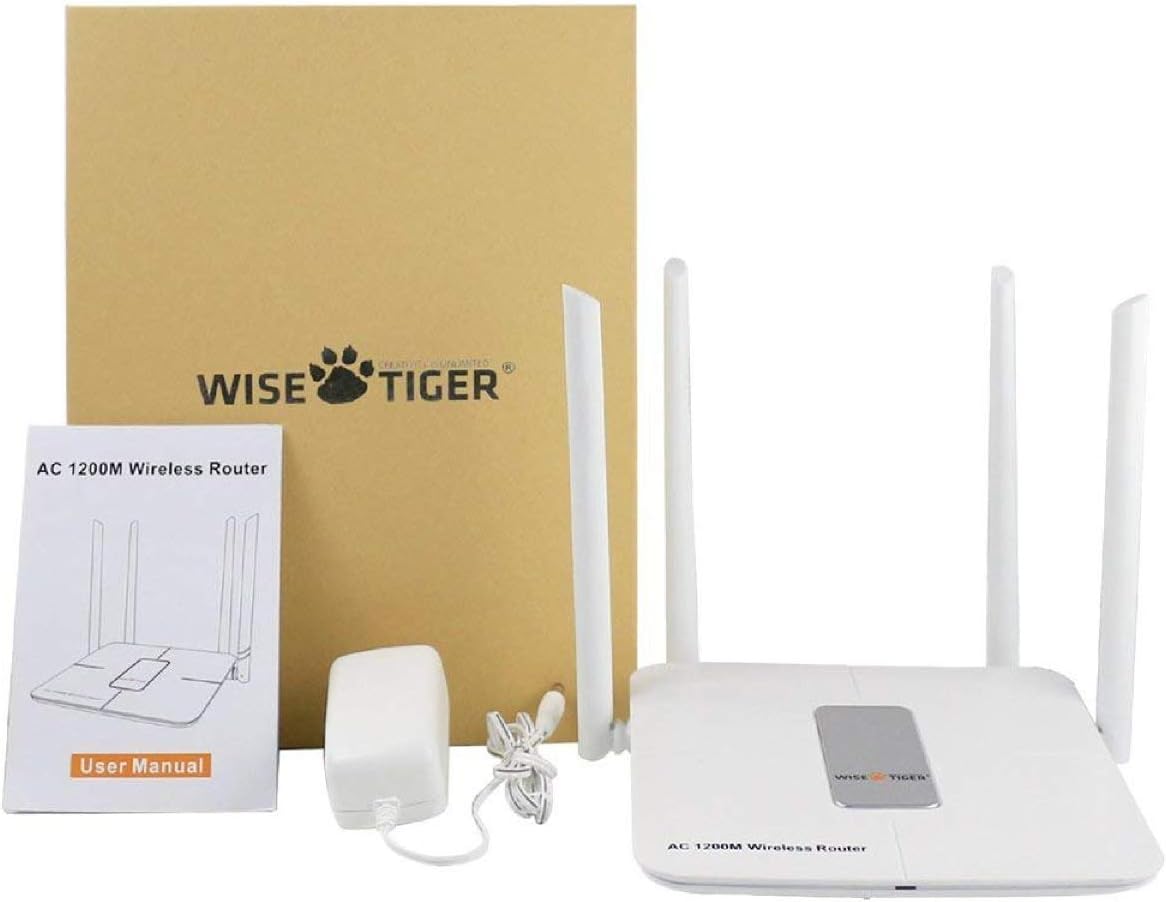
Figure 2: All components included in the WISE TIGER AC1200 Wireless Router package.
3. Product Diagram and Ports
Familiarize yourself with the router's physical layout and ports:

Sary 3: aoriana view of the router with labeled ports.
- Seranana LAN (x4): Connect your wired devices such as computers, gaming consoles, or smart TVs.
- Internet Port (WAN): Connect your modem's Ethernet cable to this port to receive internet access.
- Fampidirana herinaratra: Ampifandraiso eto ny adaptatera herinaratra nomena.
- bokotra Reset: Used to restore the router to factory default settings. Press and hold for several seconds while the router is powered on.
- Bokotra WPS: For quick and secure wireless connection setup with WPS-compatible devices.
4. Famaritana
| endri-javatra | famaritana |
|---|---|
| Marika | TIGER HERY |
| Anarana modely | WT-RT8501 |
| Karazana Wireless | 802.11a/b/g/n/ac |
| Kilasy Band Frequency | Tarika roa (2.4 GHz & 5 GHz) |
| Ny tahan'ny famindrana angona | Up to 300Mbps (2.4GHz), 866Mbps (5GHz) |
| Antenna | 4 x 5dBi External Antennas |
| Ports Ethernet | 1 x WAN, 4 x LAN (10/100Mbps) |
| bokotra | WPS, Reset |
| ARO | WPA/WPA2-PSK, Firewall, Parental Controls, Guest Network |
| Fifanarahana amin'ny rafitra fandidiana | Windows XP/7/8/10/Vista, Mac, Android |
| Lanja entana | 2.75 oz |
| Ny refin'ny vokatra | 1.48 x 6.6 x 5.58 santimetatra |

Figure 4: Router dimensions for placement planning.
5. Torolàlana fananganana
Follow these steps to set up your WISE TIGER AC1200 Wireless Router:
5.1 Fifandraisana amin'ny Hardware voalohany
- Connect WAN Cable: Plug the broadband wire from your modem into the blue WAN port on the router.
- Connect LAN Cable (Optional): For wired devices, connect one end of the network patch cable to a yellow LAN port on the router and the other end to your PC's LAN network port.
- Herim-batana: Connect the power adapter to the router's power input and plug it into an electrical outlet.
5.2 Ny fidirana amin'ny Web interface tsara
- Join Wi-Fi: On your computer or mobile device, connect to the router's default Wi-Fi network. The default Wi-Fi name (SSID) and password can usually be found on a sticker on the bottom of the router.
- Sokafy ny navigateur: Sokafy a web navigateur (oh: Chrome, Firefox, Edge).
- Ampidiro ny adiresy IP: Ao amin'ny adiresy bar, soraty
192.168.0.1ary tsindrio ny Enter. - Hiditra: Enter the default username and password. Typically, both are
admin.
5.3 WAN Setup (Internet Connection Type)
Select the connection type provided by your Internet Service Provider (ISP):
- PPPoE: If your ISP provides a username and password for internet access, select PPPoE and enter the credentials.
- IP static: If your ISP provided a fixed IP address, subnet mask, default gateway, and DNS settings, select Static IP and input these details.
- Dynamic IP: If your ISP uses a DHCP server, select Dynamic IP. The router will automatically obtain network settings. No account or static IP info is needed.
- PPTP/L2TP: If your ISP provided PPTP/L2TP connection details including a server IP or domain, select this option and enter the required information.
- WISP (Wireless ISP): This mode allows the router to connect to another Wi-Fi network as its internet source, acting as a Wi-Fi repeater. Select a Wi-Fi network from the list and log in with its password.
5.4 Fikirana Wireless
Configure your Wi-Fi networks for both 2.4GHz and 5GHz bands:
- Anarana Wi-Fi (SSID): Change the default Wi-Fi name to a custom one for easy identification.
- Fanafenana: Select a strong encryption type, such as WPA2-PSK, for network security.
- Tenimiafina Wi-Fi: Mametraha tenimiafina matanjaka sy miavaka ho an'ny tambajotra Wi-Fi-nao.
- Sakan'ny tarika: Adjust the channel width for optimal performance (e.g., 20/40MHz for 2.4GHz, 40/80MHz for 5GHz).
Video 1: Official product video demonstrating the unboxing, features, and installation process of the WISE TIGER AC1200 Wireless Router.
6. Fampandehanana ny router
6.1 Fametrahana tsara indrindra
For the best wireless performance, place your router in a central location, away from obstructions like thick walls, metal objects, and other electronic devices that may cause interference. The four high-gain external antennas are designed to provide extensive coverage.

Figure 5: Illustration of the router's high-power signal penetration.

Figure 6: Visual representation of 2.4GHz (longer distance) and 5GHz (faster transmission) band characteristics.
6.2 endri-javatra mandroso
- Fanaraha-maso ny ray aman-dreny: Manage and restrict internet access for specific devices or users.
- Tambajotra vahiny: Create separate Wi-Fi networks for guests, providing internet access without sharing your main network password or resources. The router supports up to 3 guest access points.
- Firewall: The built-in firewall helps protect your network from unauthorized access and malicious attacks.
- MAC Filtering (Restricted List): You can block or allow specific devices on your network based on their MAC addresses. This feature is found under the 'Restricted list' in the web interface tsara.
- Fanaraha-maso ny bandwidth: Allocate specific download and upload limits to connected devices to manage network traffic effectively. This can be configured in the 'Bandwidth Control' section of the web interface tsara.
7. Fikojakojana
Regular maintenance ensures optimal performance and longevity of your router:
- Fanavaozana ny mikirao praogramanao: Periodically check the WISE TIGER official website for firmware updates. Updating firmware can improve performance, add new features, and fix bugs.
- Famerenana tsy tapaka: Rebooting your router every few weeks can help clear its memory and resolve minor connectivity issues. Simply unplug the power adapter, wait 10 seconds, and plug it back in.
- Fanadiovana: Tazomy ho madio sy tsy misy vovoka ny "router". Ampiasao lamba malefaka sy maina mba hamafa ny ivelany. Ataovy azo antoka fa tsy voasakana ny fidiran'ny rivotra.
8. Famahana olana
If you encounter issues with your router, try the following solutions:
- Tsy misy fidirana amin'ny Internet:
- Check all cable connections (WAN, LAN, Power) to ensure they are secure.
- Verify your modem is working correctly. Try rebooting both the modem and the router.
- Hamafiso ny fikirana WAN-nao ao amin'ny router web interface match your ISP's requirements.
- Malemy ny famantarana Wi-Fi na Faritra Maty:
- Afindrao any amin'ny toerana afovoany kokoa ao an-tranonao/biraonao ny router.
- Amboary ny antenne-n'ny router mba hahazoana lalana tsara kokoa amin'ny famantarana.
- Minimize interference from other electronic devices (cordless phones, microwaves).
- Consider using the WISP mode to extend coverage if you have another Wi-Fi network.
- Tsy afaka miditra ny router Web Interface:
- Hamarino tsara fa mifandray amin'ny Wi-Fi an'ny router na amin'ny alalan'ny tariby Ethernet mankany amin'ny seranan-tsambo LAN ny fitaovanao.
- Verify you are typing the correct IP address (
192.168.0.1). - Fafao ny cache sy ny cookies ao amin'ny navigateur-nao, na andramo navigateur hafa.
- If you forgot your login credentials, you may need to perform a factory reset.
- Famerenana amin'ny orinasa: If all else fails, use a paperclip or pin to press and hold the Reset button on the back of the router for about 10 seconds while it is powered on. This will restore all settings to their factory defaults, including Wi-Fi name and password. You will then need to reconfigure the router.
9. Warranty sy fanohanana
WISE TIGER provides a Warranty 1 taona for this product. In case the product does not meet your satisfaction or experiences issues within this period, a new replacement will be provided.
For technical support or warranty claims, please refer to the contact information provided in your product packaging or visit the official WISE TIGER webtranonkala ho an'ny loharanom-panohanana farany indrindra.
Azafady, tehirizo ny porofon'ny fividiananao ho an'ny fiantohana.
Ask a question about this manual
Ask about setup, troubleshooting, compatibility, parts, safety, or missing instructions. Manuals+ will review the question and use this page’s manual context to help answer it.