
Phanteks PH-ES813P_BL
Phanteks Enthoo Series Primo Ultimate Full Tower Computer Case User Manual
Model: PH-ES813P_BL
Sava lalana
The Phanteks Enthoo Primo is a full tower computer case designed for enthusiasts seeking exceptional cooling possibilities and functional design. This manual provides detailed instructions for setting up, operating, maintaining, and troubleshooting your Enthoo Primo case, ensuring optimal performance and longevity.

Figure 1: Phanteks Enthoo Primo Ultimate Full Tower Computer Case (Black/Blue)
Fametrahana sy fametrahana
Proper installation is crucial for the performance and stability of your system. Follow these steps carefully.
1. Fametrahana ny singa famatsiana herinaratra (PSU)
The Enthoo Primo features a unique thermally isolated PSU location at the rear of the case, promoting cooler temperatures and improved cable management.
- Locate the PSU compartment at the bottom rear of the case.
- Slide your PSU into the designated area.
- Secure the PSU with the provided screws from the rear of the case.
Video 1: Animated demonstration of internal case features, including PSU placement, HDD trays, and cable management. This video highlights the thermally isolated PSU location and hidden cable routing.

Sary 2: aoriana view of the Enthoo Primo case, showing the PSU mounting area at the bottom.
2. Drive Installation (HDD/SSD)
The case supports up to 6 HDDs with dual repositionable and removable HDD cages, and features Drop-n-Lock double stack SSD brackets.
- Access the hidden HDD trays by removing the side panel.
- Slide your 3.5" HDDs into the trays and secure them.
- For 2.5" SSDs, utilize the removable Drop-n-Lock brackets. These can be installed in three different locations within the case.
- Ensure all drives are securely fastened to prevent vibration.

Sary 3: Atitany view of the Enthoo Primo, highlighting the hidden HDD trays and SSD mounting points.
3. Motherboard and Component Installation
The Enthoo Primo supports ATX motherboards and offers ample space for various components.
- Install your ATX motherboard onto the standoffs.
- Install your CPU, RAM, and graphics cards as per their respective manuals.
- Utilize the pre-installed cable management tools behind the motherboard tray to route cables neatly.
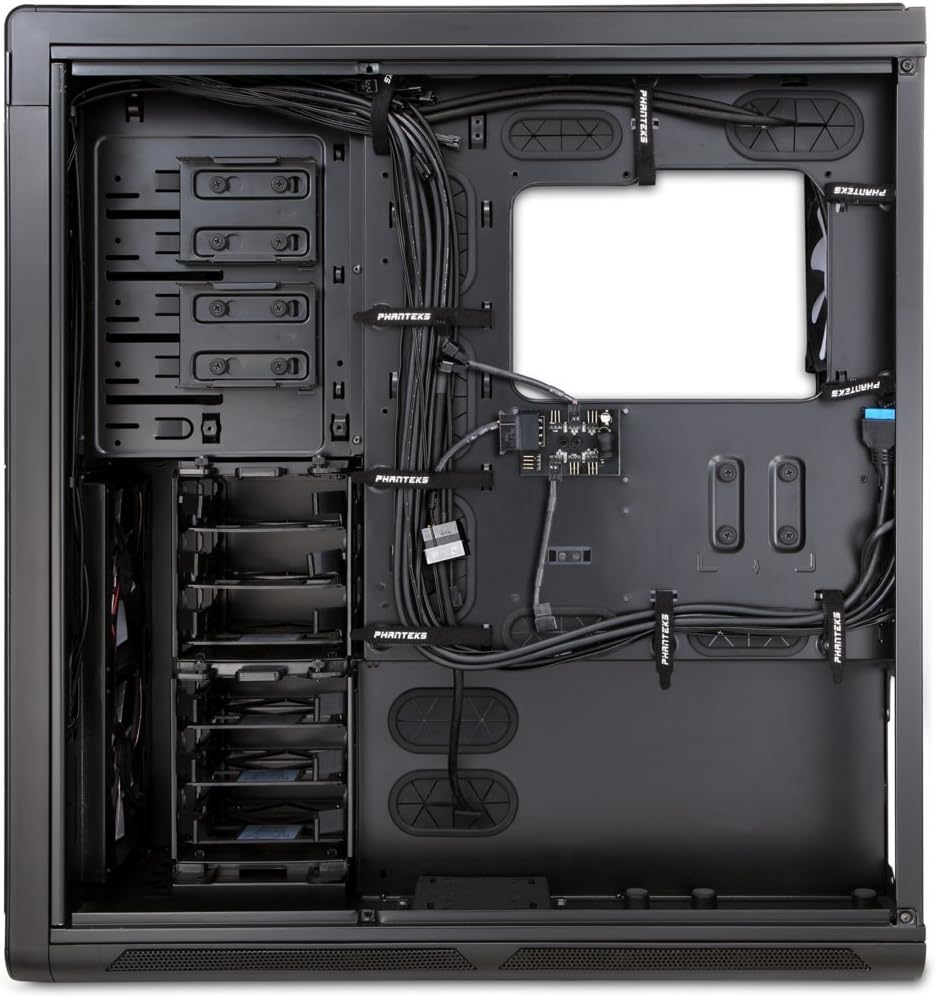
Sary 4: Atitany view of the Enthoo Primo, showcasing the cable management features behind the motherboard tray.
Fomba fiasa
The Enthoo Primo is designed with user convenience and optimal performance in mind.
Panel anoloana I/O
The front I/O panel provides easy access to essential ports and controls:
- Seranan-tsambo USB 3.0 2x: Ho an'ny famindrana angona haingam-pandeha.
- Seranan-tsambo USB 2.0 2x: For standard peripheral connections.
- Jack mikrô: Ho an'ny fampidirana feo.
- 3.5mm Audio Jack: Ho an'ny famoahana feo.
- LED Switch: Controls the integrated LED lighting (LED strip & Fan LED).

Figure 5: Top angled view of the Enthoo Primo, illustrating the accessible front I/O panel.
Rafitra fampangatsiahana
The Enthoo Primo offers extensive cooling support for both air and liquid cooling configurations.
- Mpankafy efa napetraka: Includes 1x 140mm fan on top, 2x 140mm LED fans in front, 1x 140mm fan in the rear, and 1x 140mm fan on the bottom. All are Phanteks' PH-F140SP fans.
- Fampangatsiahana rivotra: Supports up to 14x 120mm fans or 11x 140mm fans for comprehensive airflow.
- Fampangatsiahana rano: Provides up to 5 different installation areas for slim and thick radiators (120mm and 140mm form factors), including clearance for push-pull fan configurations. Innovative liquid cooling mounting systems include radiator brackets and a versatile reservoir/pump bracket.

Sary 6: Eo anoloana view of the Enthoo Primo, showcasing the clean design and intake areas.
fikarakarana
Regular maintenance ensures optimal performance and extends the lifespan of your computer case.
- Sivana vovoka: The Enthoo Primo features removable dust filters located at the front, top, bottom (2x), and side panel (2x). Regularly remove and clean these filters to maintain optimal airflow and prevent dust buildup inside the case.
- Fanadiovana ivelany: Ampiasao malefaka, damp cloth to wipe down the aluminum front and top panels. Avoid abrasive cleaners.
- Fanadiovana anatiny: Periodically use compressed air to clear dust from internal components and fan blades. Ensure the system is powered off and unplugged before cleaning.
Fanamboarana
Ity fizarana ity dia miresaka olana mahazatra mety ho hitanao.
- Tsy misy hery:
- Ensure the PSU is properly seated and connected to the motherboard and wall outlet.
- Verify that the front panel power switch cable is correctly connected to the motherboard's header.
- Fans Not Spinning / LED Not Lighting:
- Check fan connections to the motherboard or fan hub.
- Ensure the fan hub is powered (SATA connection).
- Verify the LED switch on the front panel is in the 'on' position.
- Tsy miasa ny seranana USB:
- Confirm that the USB 3.0 and USB 2.0 headers from the front panel are securely connected to the motherboard.
- Fitabatabana be loatra:
- Check if all fans are securely mounted and free from obstructions.
- Ensure drive trays are properly secured to minimize vibration.
- Clean dust filters and fan blades if necessary.
fepetra arahana
| endri-javatra | antsipirihany |
|---|---|
| Anarana modely | PH-ES813P_BL |
| Karazana tranga | Tilikambo feno |
| Mifanaraka amin'ny motherboard | ATX |
| KEVITRA | Aluminum Faceplates, Steel Chassis |
| loko | Mainty/Manga |
| refy (LxWxH) | 23.62 x 9.84 x 25.59 santimetatra |
| Lanja entana | 50 kg |
| USB 3.0 Ports | 2 |
| USB 2.0 Ports | 2 |
| Ports Audio | 1x Microphone, 1x 3.5mm Audio Jack |
| Fanitarana Slots | 8 |
| Fomba fampangatsiahana | Rivotra / Rano |
| Mpankafy efa napetraka | 5x 140mm (1 top, 2 front LED, 1 rear, 1 bottom) |
| Max Fan Support | 14x 120mm na 11x 140mm |
| Fanohanana Radiator | Up to 5 locations (120mm/140mm form factors) |
Warranty sy fanohanana
For warranty information and technical support, please refer to the official Phanteks webtranokala na ny boky torolalana feno.
You can download the complete user manual in PDF format here: Phanteks Enthoo Primo User Manual (PDF)
Ask a question about this manual
Ask about setup, troubleshooting, compatibility, parts, safety, or missing instructions. Manuals+ will review the question and use this page’s manual context to help answer it.